Tag: fax over ip

  • Do Online Fax Services Work? Yes, and Here’s How

    Do Online Fax Services Work? Yes, and Here’s How

    Yes, online fax services work, and the fax ecosystem remains active at scale, with more than 17 billion individual fax documents sent in 2019 and 82% of surveyed German companies still using fax. They act as a cloud-based bridge that translates digital files into standard fax signals, allowing you to send documents to a traditional fax machine without owning hardware.

    You may be facing that need right now. A client has sent a contract that must be signed today, a hospital still requires a medical record by fax, or a government office won't accept an email attachment. Your laptop has the document, but there's no fax machine in sight.

    That gap is exactly what online faxing fills. You upload a file through a browser, the service handles the conversion and transmission, and the recipient receives the document through a traditional fax number or another digital fax service. You don't need to understand every part of the telephone network to use it, but understanding the basic transport and security layers helps you choose a service that can handle important documents reliably.

    The technology isn't a new communications standard competing with fax. It sits on top of the established fax ecosystem, preserving compatibility while removing the machine, paper, toner, and dedicated workspace. The global market signals that this model remains commercially relevant, with one industry summary estimating the fax services market at $3.31 billion in 2024 and projecting $4.47 billion by 2030, at a compound annual growth rate of roughly 5.15% (FaxSIPit's market overview).

    The Reality of Cloud Faxing

    A real estate agent working from a train station can open a document on a phone, enter a recipient's fax number, and send the paperwork without finding an office with a machine. A lawyer working from home can transmit a signed agreement from a browser. A clinic can send a record from a controlled digital workflow instead of printing it and leaving it in an output tray.

    The visible experience is simple, but the service is doing several jobs behind the screen. It accepts a digital file, renders the pages into a fax-compatible representation, connects to the recipient's fax destination, negotiates the transmission, and returns a delivery result. The recipient may use a traditional machine, a multifunction printer with fax capability, or another online fax platform.

    The practical mental model: online faxing is a cloud delivery layer on top of the long-standing fax network, not a replacement network that requires the recipient to use the same service.

    That distinction explains why browser-based faxing can work with an old-fashioned fax number. The online provider translates between two environments. On your side, the document is a PDF, DOC, DOCX, or image. On the recipient's side, it arrives through the fax infrastructure their organization already accepts.

    Why fax remains relevant

    Fax persists because some organizations have built approval, identity, and record-keeping processes around it. A fax number can be part of a known intake process, and staff may trust a transmission report as evidence that a document was sent. The overview of cloud-based fax solutions describes this role as a bridge between modern digital workflows and established fax destinations.

    The continued use isn't evenly distributed. The Association for Computing Machinery's report on fax usage cites a 2023 Bitkom survey in which 82% of 505 German companies with 20 or more employees still used fax, with about one-third using it frequently or very frequently. The same report says heavy users, defined as organizations sending or receiving more than 100 pages per week, were concentrated in healthcare, legal, and financial industries.

    That makes the answer to “do online fax services work” more specific than a simple yes. They work because they connect a modern upload experience to a communication method that many recipients still support. Reliability then depends on the service's transport path, file preparation, delivery confirmation, and security controls.

    How Delivery Mechanics Actually Function

    The file format usually isn't the main reason a fax fails. The transport path is. Once the service has prepared your document, it must move fax data through gateways and networks that can preserve the timing and signal quality expected by fax equipment.
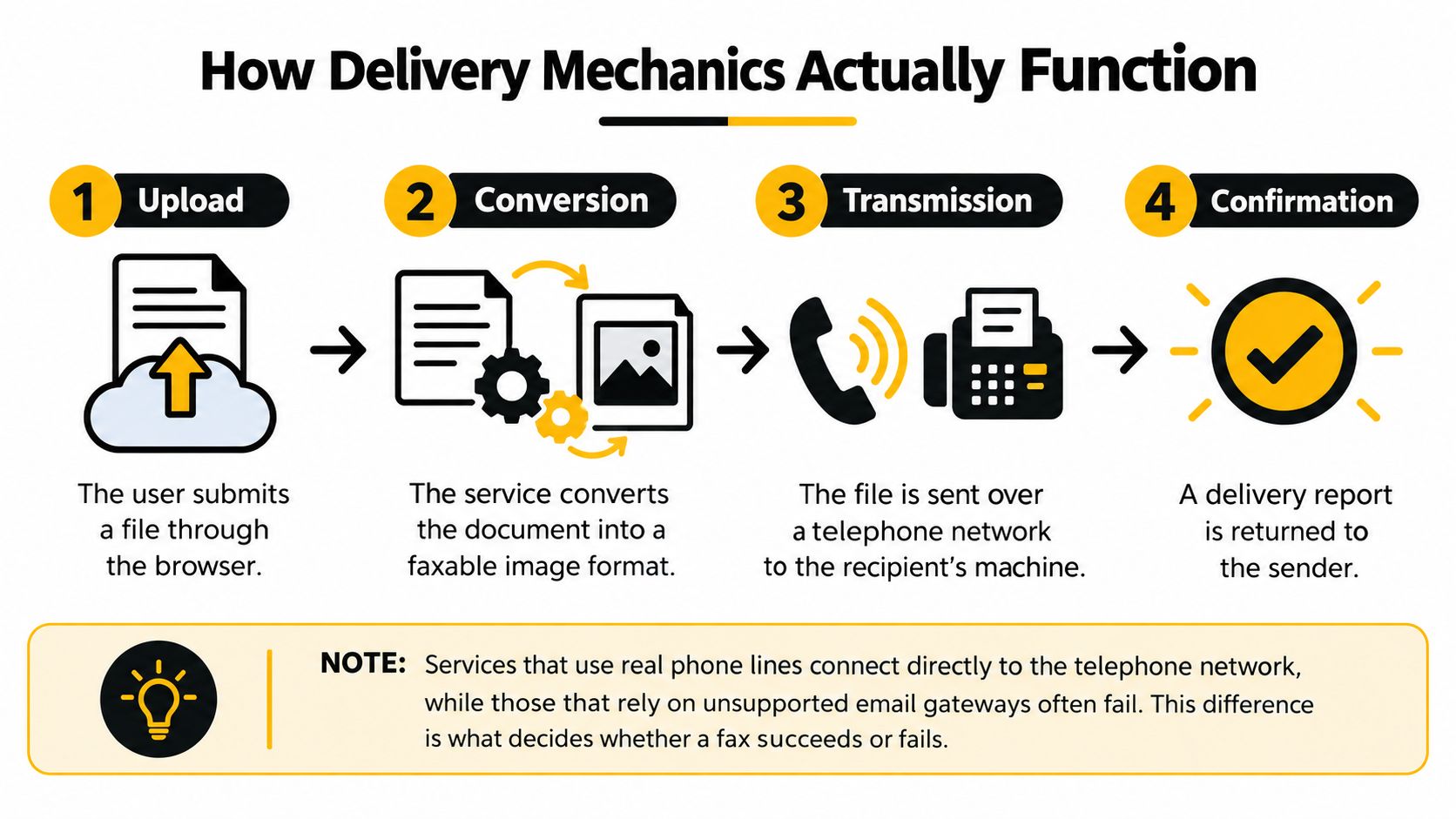
    A four-step infographic illustrating how online fax delivery mechanics work from file upload to final confirmation.

    A provider may use T.38, a protocol designed for fax over IP, or it may send fax tones through an audio channel. Those approaches behave differently under network stress.

    T.38 versus audio passthrough

    T.38 carries fax as real-time fax data instead of treating it like an ordinary voice call. That matters because voice systems often compress audio, smooth timing, or discard packets that seem unimportant to a conversation. A fax modem can't recover easily from those changes. It expects a stable, circuit-like exchange.

    With audio passthrough, the fax signal travels as sound. Lossy codecs, jitter, delay, packet loss, and poorly configured gateways can distort that sound before it reaches the recipient. The i3forum technical guidance on fax over IP identifies controlled bandwidth, low delay, low packet loss, and correct gateway configuration as important conditions for reliable fax-over-IP operation.

    T.38 doesn't make every network problem disappear. It gives the service a better way to represent and protect fax data across an IP path. A provider still needs properly configured gateways, sensible routing, and monitoring for failed attempts.

    The difference shows up in practical delivery results. One 2026 industry review reports that correctly implemented T.38 services can reach 95% to 98% delivery on standard internet connections, while G.711-style routing has substantially more failures on VoIP-heavy paths (mFax's review of online fax services). Treat that as a provider-specific technical benchmark, not a guarantee for every transmission.

    Here is what happens after you click send:

    1. Upload: The service receives your file and sender details.
    2. Conversion: It renders the document into a faxable page representation.
    3. Transmission: Its gateway negotiates with the recipient's fax endpoint and sends the pages.
    4. Confirmation: The service reports whether the attempt completed, failed, or needs another try.

    The service's delivery report is therefore more useful than a generic promise that it “supports fax.” Look for confirmation details, routing behavior, file compatibility, and a clear way to distinguish a completed transmission from an unsuccessful attempt.

    For a plain-language explanation of the user workflow, this guide to what internet faxing is can help connect the browser experience to the underlying transmission process.

    File Formats and Size Limits

    A fax service can often accept several document types, but PDF is usually the safest starting point because it preserves the page layout you approved. Word files can be useful when a provider supports them directly, but conversion may change fonts, spacing, page breaks, or embedded elements.

    The service may also impose a maximum file size, page count, or transmission limit. Those limits vary by provider and plan, so check them before sending a long contract or a scan made with a phone. A large file can take longer to process and may create a timeout or conversion problem even when the fax network itself is operating normally.
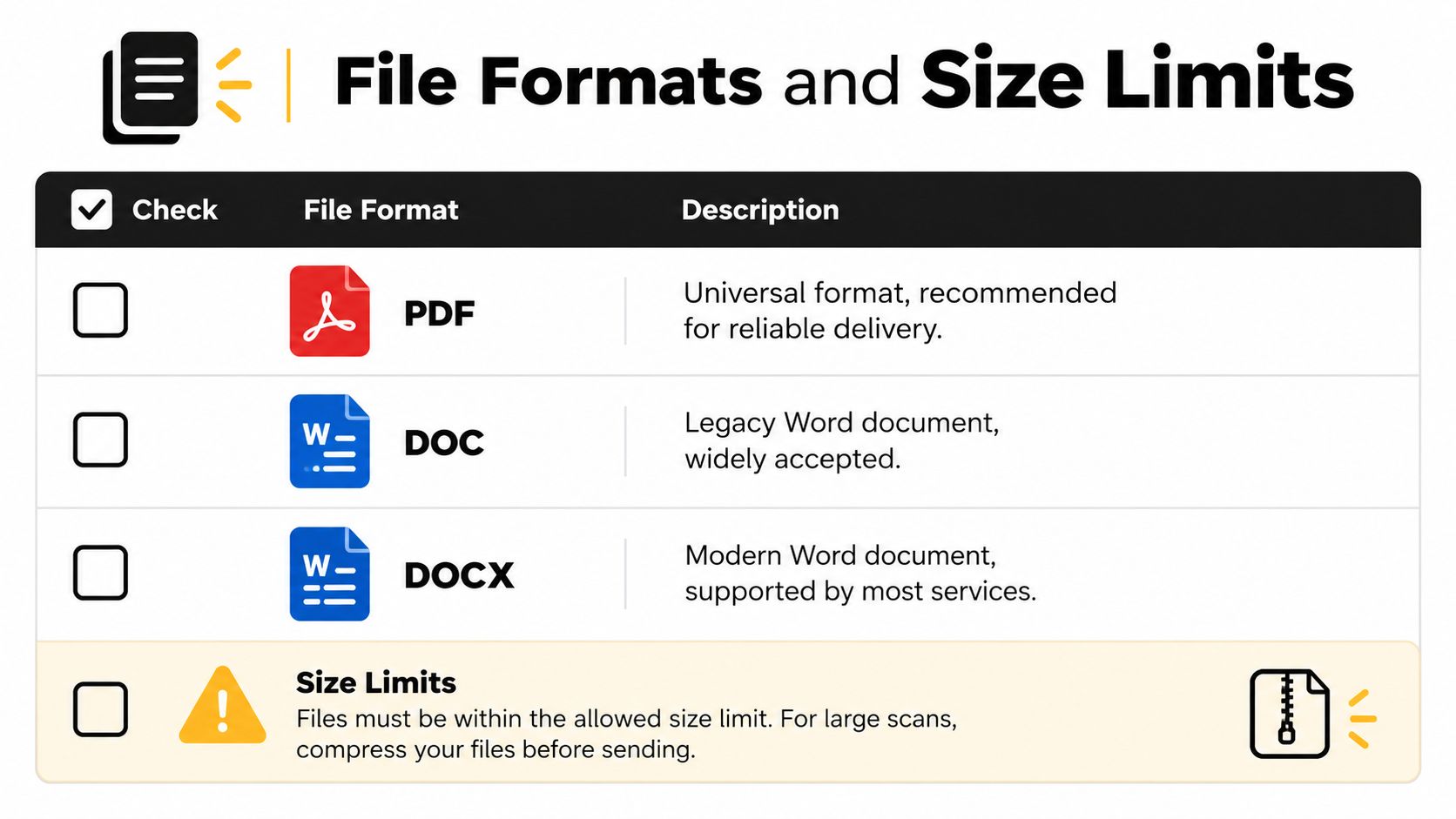
    A table showcasing common document file formats like PDF, DOC, DOCX and explaining file size limit requirements.

    Prepare the document before uploading

    Use this quick preparation routine:

    • Choose PDF when layout matters: Export the final version rather than printing and scanning it again. Open the PDF and check that signatures, tables, page numbers, and margins appear correctly.
    • Review DOC and DOCX files: Confirm that the recipient doesn't need editable content. If the document is only being reviewed or printed, a flattened PDF generally gives you more predictable output.
    • Reduce oversized scans: Crop empty margins, remove unnecessary pages, and compress high-resolution images. This guide to compressing documents provides a practical reference when a scan is too large to upload efficiently.
    • Keep text legible: Fax output may be less detailed than the file on your screen. Use clear contrast, avoid very small type, and inspect scanned pages for shadows or blurred handwriting.
    • Separate confidential material: Remove unrelated pages and metadata where appropriate. Sending only the required document reduces exposure and makes the recipient's intake process clearer.

    Build a useful cover page

    A cover page should identify the sender, recipient, subject, and total page count when the service supports those fields. Don't place essential content only in a cover note if the recipient may separate it from the document. For sensitive files, verify that the destination number is correct before including personal or confidential information.

    The guide to sending a fax as a PDF is useful when your workflow starts with a finished PDF and you need to understand how the service handles it. The core rule is simple: prepare a clean, readable file first, then let the provider convert it rather than relying on an improvised scan at the last moment.

    Security and Encryption Standards

    Online faxing can be appropriate for sensitive documents, but “online” doesn't automatically mean secure. Security depends on how the provider protects data during transmission, how it stores documents afterward, who can access them, and how long it retains them.

    Reputable services commonly use TLS to protect data in transit and AES-256 to protect stored files, according to recent coverage of online fax security (mFax's security review). Audit logs and access controls can help an organization establish who sent or viewed a document. Some providers also offer controls associated with formal compliance programs, including SOC 2 controls.

    Encryption is only one layer

    Think of security as a chain rather than a single feature.

    Layer Question to ask
    Transmission Does the provider protect the connection between your browser, its platform, and its delivery systems?
    Storage Are stored files encrypted, and can you control retention or deletion?
    Access Can administrators restrict documents to authorized users?
    Auditability Does the service record sending, receiving, access, and deletion events?
    Compliance Can the provider support the specific obligations of your industry and contract?

    Healthcare organizations need special care. A service may advertise encryption but still be unsuitable for protected health information if it doesn't offer the required contractual and administrative safeguards. For a HIPAA-regulated workflow, confirm whether the provider will sign a Business Associate Agreement, then review its access controls, retention rules, breach procedures, and administrative permissions.

    Legal and financial teams face a similar distinction. A confidential contract can be encrypted in transit yet remain exposed if copies sit in a shared inbox or cloud archive longer than necessary. Review the privacy policy and retention settings before sending client records, not after a dispute arises.

    Security question to ask before subscribing: “What happens to my document after delivery, who can access it, and when is it deleted?”

    Your own handling practices matter too. Use an approved device, avoid downloading sensitive files to unmanaged computers, confirm the recipient number, and store delivery records in the organization's controlled document system. This practical resource on how to keep PDFs safe covers document-level safeguards that complement a provider's platform security.

    Real-World Use Cases with SendItFax

    A remote worker may need to send a short contract from a laptop while traveling. A small business may have no reason to maintain a fax machine but still need to submit a form to a recipient in the United States or Canada. A legal professional may want a longer priority transmission without adding service branding to the cover page.

    A browser-based service can fit those situations because the workflow starts with the document, not with hardware installation. The user enters sender and recipient details, uploads a PDF, DOC, or DOCX file, optionally adds a cover message, and submits the fax. That approach resembles other remote communication tasks, including the varied use cases for expat calling, where people need communication tools that work across locations.
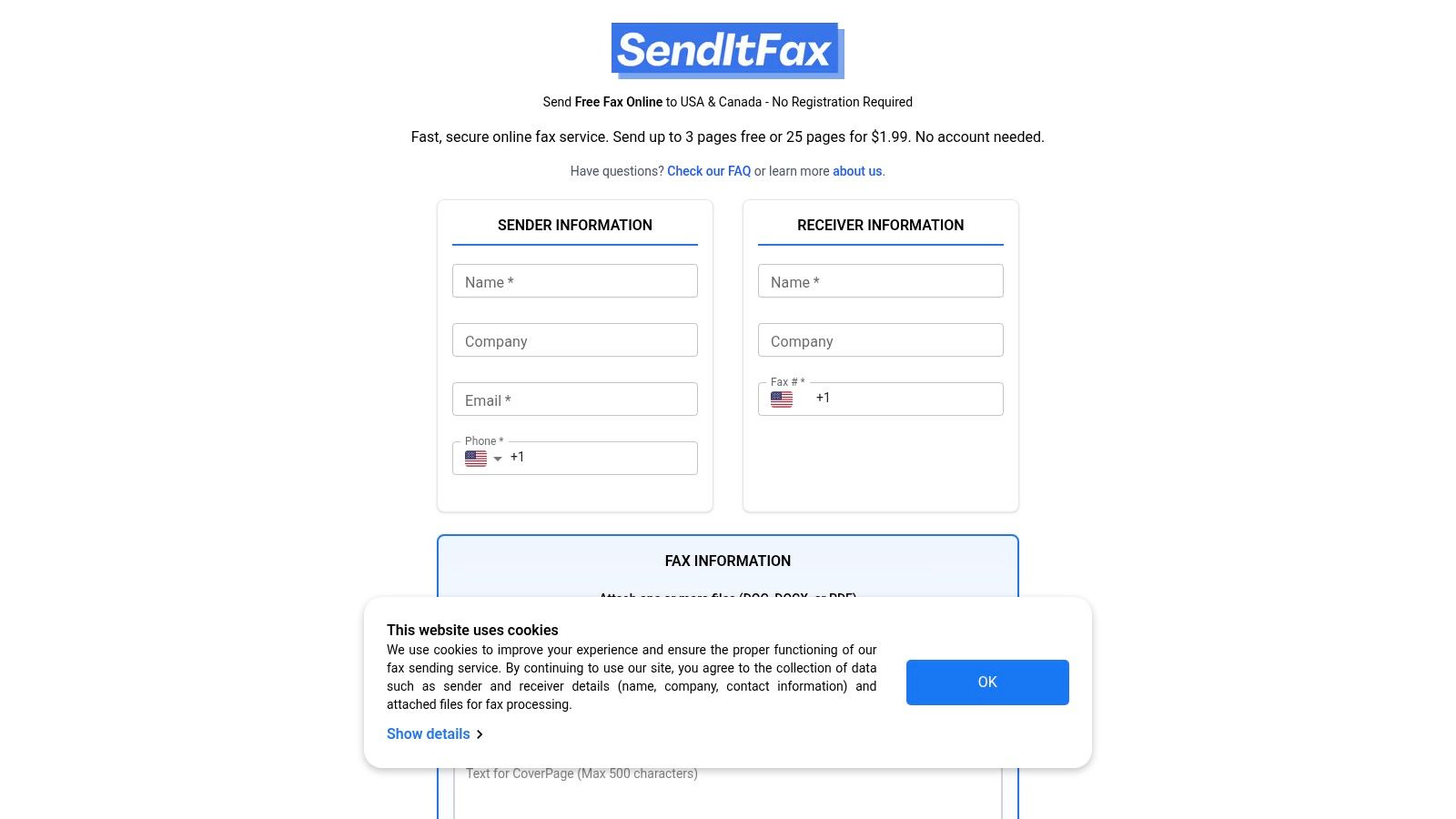
    Screenshot from https://senditfax.com

    Match the option to the job

    SendItFax offers browser-based sending to recipients in the United States and Canada without requiring an account. Its free option supports up to three pages plus a cover, allows up to five free faxes daily, and includes SendItFax branding on the cover page. That can suit an occasional personal or small-business transmission where branding isn't a concern.

    The Almost Free option costs $1.99 per fax through Stripe, supports up to 25 pages, provides priority delivery, and removes the service branding. Users can also omit the cover page. Those details matter when the document is longer, time-sensitive, or being sent on behalf of a professional practice.

    What this workflow doesn't replace

    A no-account service is not automatically the right choice for every regulated organization. Teams handling protected health information or records subject to internal retention policies should verify the provider's security and compliance terms before using it. They may need user accounts, audit logs, administrative controls, recurring fax numbers, or a Business Associate Agreement.

    For occasional transmissions, however, the value is practical. You don't need a physical machine, a dedicated fax line, or installed software to submit a prepared document from a browser. The decision should rest on destination coverage, file requirements, delivery confirmation, and the sensitivity of the material.

    Troubleshooting Common Delivery Failures

    A failed fax doesn't always mean the service is broken. The recipient's number may be wrong, the line may be busy, or the receiving machine may be out of paper or unable to store more pages. Start with the delivery report because it usually tells you whether the failure occurred before connection, during negotiation, or after transmission began.

    Use the error message as a diagnosis

    Check these issues in order:

    • Recipient number: Confirm the country code, area code, extension requirements, and destination digits. A fax sent to a voice number won't complete.
    • Busy destination: Retry after a short interval if the report indicates a busy signal. Repeated busy results may mean the recipient needs to clear or reset the line.
    • Receiving machine condition: Ask the recipient to check paper, toner, memory, power, and connection status. Their machine may answer but fail while receiving pages.
    • File conversion: Open the uploaded file locally. Replace a damaged document, flatten a complex PDF, or export the source again if the preview looks wrong.
    • Network route: If several destinations fail, contact the provider and ask whether it sees a gateway or route issue. Don't assume that changing the file will fix a transport problem.
    • Page readability: Ask the recipient which page failed or printed poorly. A successful connection doesn't guarantee that a faint scan or tiny text will be useful.

    If the report says the fax completed but the recipient can't find it, verify the destination number and ask whether the machine printed it under a different queue or stored it in memory. If the report shows a partial or interrupted transmission, resend the document after checking the file and recipient equipment.

    Keep the original file and each delivery report together. For a contract, medical record, or legal notice, that record helps you show what was sent, where it was sent, and how the provider reported the outcome.

    Ensuring Timely and Reliable Transmission

    Reliable online faxing comes from controlling the parts you can control. Verify the recipient number, prepare a readable file, use a provider with a suitable transport design, and preserve the delivery confirmation. The recipient's machine and network still matter, so allow time for a retry when the document has a firm deadline.

    Schedule international transmissions with the recipient's working hours in mind. A busy office line, a machine turned off overnight, or a destination that requires manual handling can delay completion even when your upload succeeds. For urgent documents, contact the recipient through another channel and confirm that the fax arrived clearly.

    Make the workflow repeatable

    Use a short pre-send routine:

    1. Confirm the fax number from a trusted record or direct contact.
    2. Open the final document and check every page.
    3. Remove unnecessary attachments and sensitive information.
    4. Add a clear cover page when the recipient needs context.
    5. Submit the fax and wait for the delivery result.
    6. Save the sent file and confirmation in the appropriate folder.
    7. Follow up if the report is ambiguous or the recipient doesn't confirm receipt.

    Independent reviews emphasize that practical performance depends on delivery confirmation, routing, and file compatibility, not just whether a service has a browser interface (PCMag's online fax service coverage). That is the useful conclusion for business owners. Online faxing is mature infrastructure when the provider connects to the fax network correctly and gives you enough evidence to manage failures.

    You don't need to become a telecommunications engineer. You do need to ask how the service transports fax data, how it protects stored files, what destinations it supports, and what happens when a transmission fails. Answer those questions before an urgent document is waiting in your outbox.


    SendItFax lets you upload a PDF, DOC, or DOCX file and send it to recipients in the United States or Canada from a browser, without creating an account or maintaining a fax machine. Visit SendItFax for a quick occasional transmission, then choose the free or Almost Free option based on your page count, delivery priority, and cover-page needs.
  • VoIP to Fax Adapter: Your 2026 Guide to Reliable Faxing

    VoIP to Fax Adapter: Your 2026 Guide to Reliable Faxing

    You switched your office phones to VoIP, the handsets work fine, and then the fax machine suddenly acts haunted. It dials, squeals, pauses, and either fails outright or claims it sent something that never arrives. That usually isn't because the fax machine is dead. It's because your old fax machine and your new phone service speak two very different languages.

    This catches small businesses all the time. A printer dealer says the fax function is still there. The phone provider says an adapter should handle it. Someone plugs in a small box, and now everyone hopes for the best. Sometimes that works for a while. Often it doesn't.

    A VoIP to fax adapter can bridge the gap, but it isn't the simple, plug-it-in fix many people expect. The actual question isn't just "what adapter should I buy?" It's "should I use an adapter at all, or should I skip the headache and use cloud fax instead?" That's the choice that saves people the most time.

    Why Your Fax Machine Stopped Working with VoIP

    A familiar story goes like this. A medical office, insurance broker, law office, or local contractor upgrades to internet-based phones because the old landline setup feels outdated and expensive. Calls improve, features improve, and then the fax line starts failing on the first Monday morning when someone needs to send a signed form.

    The fax machine didn't suddenly become unreliable on its own. It was built for an analog phone network, the old kind that carried one continuous signal. VoIP breaks audio into digital packets and sends them over a data network. Human conversation can survive tiny imperfections in that process. Faxing usually can't.

    This is similar to trying to play a cassette tape through a music streaming app. Both deal with "audio," but the format and delivery method are completely different.

    That matters because fax is still far from dead in the places where deadlines, compliance, and paper trails matter. About 17% of businesses still rely on fax for critical operations globally, with usage much higher in regulated fields such as healthcare and government according to fax usage statistics compiled by FaxSipit. So if you're still faxing referrals, signed forms, purchase orders, or legal records, you're not stuck in the past. You're dealing with a real operational need.

    If you're weighing whether VoIP is still the right move for your phones overall, Networking2000's VoIP comparison is a useful read because it explains the broader business trade-offs clearly.

    Your fax machine often isn't "broken." It's stranded between an old signaling method and a newer network that wasn't built with legacy faxing in mind.

    If you've already searched for fixes, you've probably seen advice about using a fax adapter or faxing without a traditional line. This guide on fax machine no phone line options gives a good overview of that broader shift.

    Understanding the VoIP to Fax Adapter

    A VoIP to fax adapter is usually a small box called an ATA, short for Analog Telephone Adapter. Its whole job is to sit between your old fax machine and your internet-based phone service.

    Your fax machine sends analog tones. Your VoIP system uses digital data. The adapter translates between the two.

    An infographic explaining how a VoIP to fax adapter allows traditional analog fax machines to work over VoIP networks.

    What the adapter actually does

    Picture a live interpreter in a meeting. One person speaks English, the other speaks Spanish, and the interpreter has to keep up in real time. That's what the adapter is doing. It listens to the fax machine's beeps and tones, converts them into a form that can travel over your network, and then helps reconstruct them on the other side.

    Physically, the setup is simple enough:

    • Network side: One port connects to your router or network.
    • Fax side: Another port accepts the same phone cord your fax machine used with a landline.
    • Control side: Most models also have a web-based settings page where the important options live.

    The hardware looks modest, but the job is delicate. Fax traffic is picky about timing, signal quality, and compatibility.

    Why adapters are still around

    Businesses keep buying these devices because they want to preserve equipment they already own. A working multi-function printer with fax support still feels useful, and replacing a familiar process can disrupt staff.

    There's also a bigger infrastructure shift behind the demand. The global fax adapter market was valued at USD 157 million in 2024, and growth is tied to carriers retiring copper networks between 2025 and 2027, which pushes businesses with analog fax machines toward adapters for continued operation according to this fax adapter market summary on LinkedIn.

    That trend fits a wider business reality. Companies are modernizing connectivity across offices, warehouses, and remote sites, and resources on deploying robust wireline and wireless networks help explain why older single-purpose devices often become the hardest part of the transition.

    What people usually misunderstand

    The common mistake is assuming the adapter is like a wall plug converter. It isn't. It's closer to a translator doing precision work under time pressure.

    If your network, provider, adapter settings, and fax machine settings all cooperate, an ATA can work. If one piece is off, the fax may fail in ways that look random.

    The Technical Details T38 versus G711

    Most of the confusion around fax over VoIP comes down to two terms: G.711 and T.38. If you understand those, the rest becomes much easier.

    A comparison chart explaining the technical differences between T.38 and G.711 protocols for fax over IP.

    G.711 is pass-through

    With G.711, the VoIP system treats the fax like a voice call. It doesn't really understand that a fax session is happening. It just tries to carry the audio faithfully enough that the fax machines on both ends can complete the handshake.

    That can work, but it's fragile.

    A simple analogy helps. Sending a fax over G.711 is like shipping a glass sculpture through normal parcel mail. The package might arrive intact, but it isn't getting any special handling. If the trip is bumpy, the contents suffer.

    T.38 is fax-aware

    T.38 was designed specifically for fax over IP. Instead of pretending the fax is just ordinary audio, it recognizes the session as fax traffic and handles it in a more suitable way.

    Using the same analogy, T.38 is the specialist courier. The shipment still has to travel, but the delivery method is built around the fact that the contents are delicate.

    Why wrong codec settings wreck faxing

    Often, "plug and play" claims fail to deliver. The most critical reason for VoIP fax failure is incorrect codec use. G.729 compression codecs cause over 95% failure rates because they strip out essential fax frequencies. Reliable operation requires forcing G.711 and enabling T.38, which is often disabled by default on both the adapter and the provider side according to a technical discussion archived on Spiceworks about physical fax machines on VoIP lines.

    That one point explains a lot of weird behavior:

    Method How it treats the fax Typical risk
    G.729 Compresses audio heavily Usually breaks fax tones
    G.711 Passes fax as high-quality audio Better, but still sensitive
    T.38 Handles fax as fax traffic Usually the best adapter-based option

    Where readers get tripped up

    People hear "set it to G.711" and think that's the whole fix. It isn't. G.711 is often the minimum requirement, not the final answer.

    You also need to check whether:

    • The adapter supports T.38: Not every ATA does.
    • The VoIP provider supports T.38: This is a frequent hidden blocker.
    • T.38 is enabled on both ends: It may exist in the product sheet but still be off in practice.
    • Network quality is stable: Fax doesn't tolerate timing issues well.

    Practical rule: If your provider only offers compressed voice handling, a fax adapter may never become reliable no matter how many times you reboot it.

    If packet timing and traffic priority are new topics for you, this practical guide for IT managers is helpful background because it shows how real-time traffic gets disrupted on busy networks.

    Your Adapter Setup and Configuration Checklist

    A fax adapter setup looks easy when you see the cables. The tricky part is everything after the cables.

    A VoIP fax adapter is connected to a black office phone and a beige desktop fax machine.

    Start with the physical path

    Keep the physical setup as clean as possible.

    1. Connect the router to the adapter. Use the network port the ATA expects.
    2. Connect the fax machine directly to the adapter's phone port. Don't run the fax through a splitter, old handset base, or extra inline gadget.
    3. Power on the adapter and wait for it to register. If the ATA hasn't fully connected to your VoIP service, testing the fax is a waste of time.
    4. Use the shortest sensible cable path. Fewer extra devices usually means fewer variables.

    Check the critical settings

    This is the part many quick-start guides skip. Log in to the adapter's admin page and your provider portal if they offer line settings.

    Use this checklist:

    • Enable T.38: If there's a fax mode or T.38 toggle, turn it on.
    • Force G.711: Disable compressed codec options for the fax line.
    • Turn off silence suppression: Fax tones can be mistaken for silence or non-voice noise.
    • Disable echo cancellation on the fax port if your vendor recommends it: Voice cleanup features sometimes interfere with fax handshakes.
    • Give the adapter a stable network location: A consistent local assignment can make management and troubleshooting easier.
    • Confirm the provider has fax support enabled: An ATA setting alone may not be enough.

    Adjust the fax machine too

    Your fax machine has its own settings, and they matter.

    • Lower the baud rate: Setting the fax speed to 9600 bps is often more stable over VoIP.
    • Review ECM settings: Error Correction Mode sounds helpful, but on VoIP it can make things worse in some cases.
    • Test with a short document first: A one-page text document is easier to diagnose than a long packet with graphics.
    • Use standard resolution while testing: The simpler the job, the easier it is to isolate the issue.

    Set expectations before you start. A successful one-page test does not guarantee reliable daily faxing under normal office network conditions.

    Troubleshooting Common VoIP Fax Failures

    Many small businesses find their patience tested. The adapter is connected, the settings look right, and the fax still fails in ways that don't make sense.

    The pattern usually tells you more than the error message.

    Fax sends but the other side never gets it

    This often means the session completed badly, not that nothing happened. The sending machine may think it succeeded because enough of the handshake went through, but the actual page data didn't survive the trip cleanly.

    Common causes include codec mismatch, unstable timing, or provider-side handling problems. If you're chasing this issue repeatedly, compare your symptoms with this fax machine troubleshooting guide so you can separate machine issues from line issues.

    Fax starts, then drops mid-page

    This is classic VoIP timing trouble. A voice call can hide small interruptions. A fax can't. If packets arrive unevenly, the machines lose sync and the transmission falls apart.

    The fix is often counterintuitive. Disabling Error Correction Mode and lowering baud rates to 9600 bps can significantly improve reliability over VoIP because the lower speed tolerates jitter better. The same discussion notes that 70% of enterprise IT teams report abandoning VoIP fax adapters due to unreliability, with success rates often falling below 50% in the user-reported data gathered in this VoIP fax discussion on Reddit.

    Pages arrive garbled or incomplete

    When pages come through with missing sections, black bands, or random cutoff points, think less about "printer problem" and more about transmission integrity.

    Try these checks:

    • Slow the fax down: A lower speed gives the session more room to survive jitter.
    • Turn off ECM temporarily: On a shaky VoIP path, ECM can create repeated retries that make the session hang.
    • Reduce document complexity: Text-only pages are easier to send than image-heavy forms.
    • Test at a quieter network time: Busy office traffic can affect real-time transmission.

    A simple symptom map

    Symptom Likely issue First thing to try
    Connects but fails quickly Codec or T.38 problem Confirm G.711 and T.38 settings
    Drops after part of a page Jitter or unstable path Lower speed to 9600 bps
    Hangs during transmission ECM conflict Disable ECM and retest
    Works one day, fails the next Network variability Test under low traffic conditions

    If your fax setup only works when the office is quiet, nobody is streaming, and the document is one page long, that isn't a dependable business process.

    Is There a Better Way Than an Adapter

    For many businesses, yes. The better path is often to stop trying to force an analog machine through a digital voice system.

    A person using a laptop to send a digital fax document through an online faxing service interface.

    Why cloud fax feels simpler

    Cloud fax removes the weakest link in adapter-based faxing. You don't have an analog fax machine generating tones, an adapter trying to translate them, and a voice network trying to carry them cleanly. The service handles delivery on backend fax infrastructure instead.

    That means no ATA firmware menus, no codec guessing, and no wondering whether your provider changed a setting without notice.

    A cloud service also fits how people work now. Staff can send documents from a browser, laptop, or phone instead of standing next to a machine waiting for a confirmation page. If you're comparing options, this overview of cloud-based faxing is a useful starting point.

    When an adapter still makes sense

    An adapter can still be reasonable if all of these are true:

    • You already own a fax machine that staff depend on daily
    • Your VoIP provider supports the right fax settings
    • You have someone comfortable changing ATA and line settings
    • Occasional retries won't disrupt the business

    If those don't describe your situation, the adapter route usually becomes an ongoing maintenance task.

    Here's a quick way to look at it:

    Your situation Better fit
    You need to keep one existing fax device alive Adapter may be acceptable
    You fax occasionally and want the least friction Cloud fax is usually easier
    You send important documents and can't risk random failures Cloud fax is usually the safer choice

    This short video gives another practical look at online faxing as a modern alternative:

    The decision most small businesses end up making

    If faxing is rare, the idea of buying hardware, configuring protocols, and troubleshooting line quality starts to feel backward fast. That's usually the moment people realize they don't need a fax machine. They just need a reliable way to deliver a fax.

    VoIP to Fax Adapter Frequently Asked Questions

    Will any ATA work for faxing

    No. An ATA has to be suitable for fax use, and support for T.38 matters. Even then, compatibility depends on the provider side too. A box that works well for voice calls may still be a poor fax adapter.

    Do I need my VoIP provider to support T.38

    Yes, in practical terms you do if you want the best chance of stable faxing through an adapter. Local settings on the ATA won't magically create provider support. This is one of the most common reasons a setup looks correct but still fails.

    Why does my fax fail even though the adapter is connected properly

    Because the hard part usually isn't the cable. The likely issues are protocol and timing related. T.38 may be disabled, the line may be using the wrong codec, or the fax machine settings may be too aggressive for a VoIP path.

    Should I leave ECM turned on

    Not automatically. On a traditional line, ECM can help. On VoIP, it can cause hangs and retries that make things worse. If your faxes are unstable, testing with ECM off is a sensible troubleshooting step.

    Is a cloud fax service more reliable than a VoIP to fax adapter

    In many real-world cases, yes. A cloud service avoids most of the translation and timing problems that make adapter-based faxing so frustrating. If your business can't tolerate intermittent failures, that's usually the cleaner route.

    Should I keep trying to fix my adapter

    If you're close and the business only needs light fax use, maybe. If you've already spent hours changing settings, retrying documents, and wondering whether each failure is random, that effort has a cost too. Reliability matters more than squeezing extra life from old hardware.


    If you just need to send a fax without dealing with a machine, line, or adapter, SendItFax is a straightforward option. You can send faxes to recipients in the United States and Canada from a browser, upload DOC, DOCX, or PDF files, and use the free option for up to three pages plus a cover page, with a daily limit of five free faxes. If you need a cleaner presentation or longer documents, the Almost Free option is $1.99 per fax, supports up to 25 pages, removes branding on the cover page, and doesn't require you to maintain any fax hardware at all.