A contract is signed, a medical-records request is ready, or a real-estate disclosure needs to reach a fax number today. You open Microsoft Word, add a cover page, and send the file. But if the recipient's name is buried in a decorative header or the page count is missing, the first page can create confusion instead of preventing it.
A useful cover sheet is a working part of the transmission. It helps the receiving office identify who sent the fax, who should receive it, how many pages to expect, and how to call back if something is unclear. It can't correct a mistyped fax number or make an otherwise improper disclosure acceptable. The design needs to serve the people who'll read, print, or fax it, not just look tidy on your screen.
Why a Word Cover Sheet Still Matters for Faxing
A fax can arrive with every page intact and still be hard to route. If the cover sheet is faint, crowded, or missing the recipient's name, staff may not know who should handle the documents. A clear first page gives them the information to identify the sender and intended recipient, check the page count, note confidentiality, and call back if the transmission is garbled.
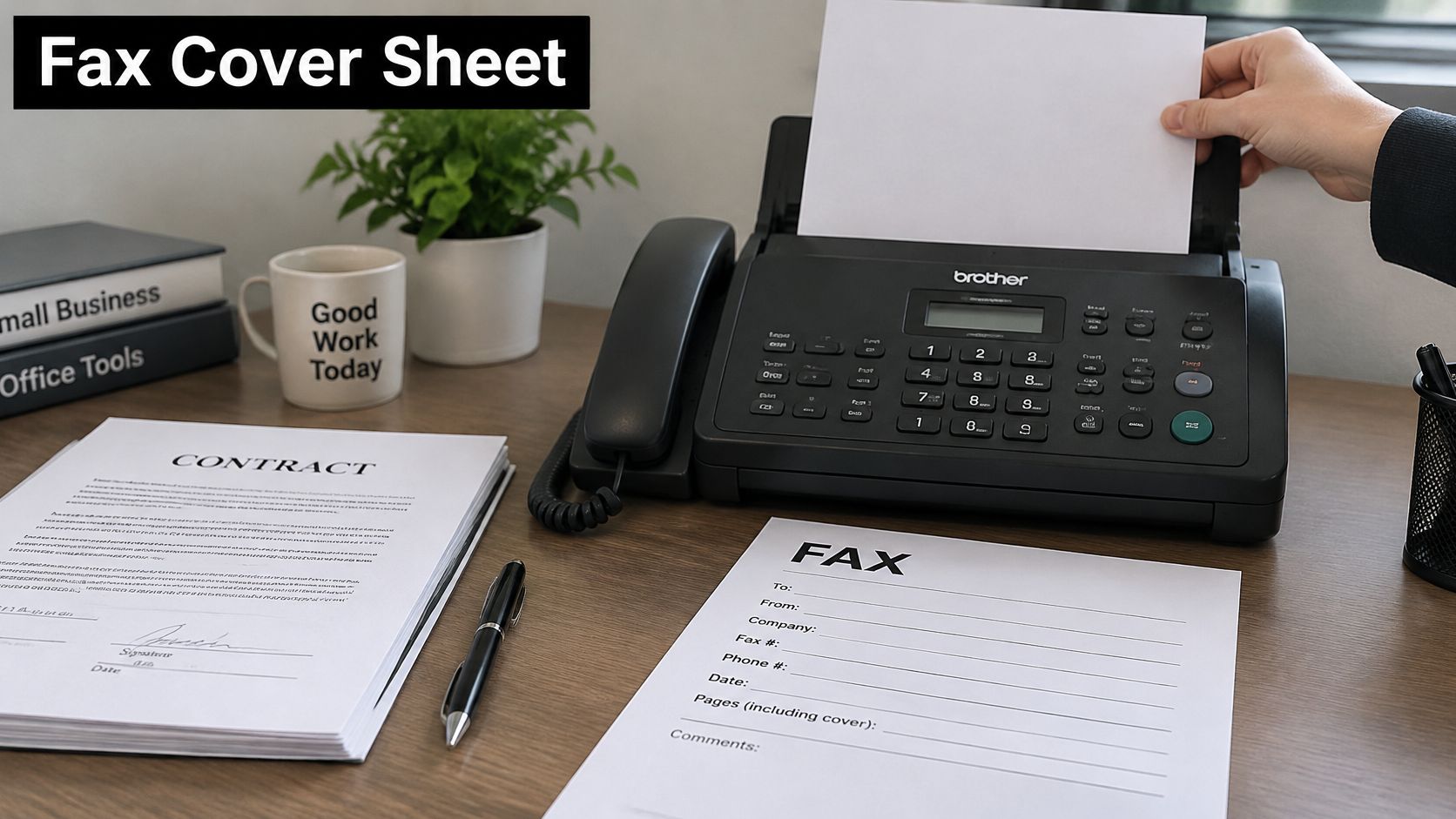
A Word cover sheet doesn't need to be elaborate. The essential fields are the sender's name and contact details, the recipient's name and fax number, the transmission date, the total page count, and a short subject or message. A confidentiality notice may be appropriate for sensitive material, but it isn't a privacy safeguard by itself. Keep the message brief and don't put unnecessary sensitive information on a page that could reach an unintended recipient.
Count the cover in the page total. That lets the receiving office compare the number expected with the number received. A callback number gives staff a practical way to flag an incomplete or unreadable transmission. Neither detail replaces checking the destination fax number before sending.
Word became a familiar tool for formatted business documents over several decades. Its first version, called Multi-Tool Word, was released in 1983, and its Windows version followed in 1989. Historical estimates put Word at more than half of the Windows word-processing market by 1991, helping establish a common format for creating and printing business documents (Word's product history).
Different documents call for different judgment: ordinary business correspondence, healthcare records, legal materials, and instructions for a mistaken recipient. A reusable layout can provide the basic fields, but adjust the message and confidentiality language to suit the transmission.
Building Your First Cover Sheet in Word
Start with a blank Word document and build a page that makes each field easy to find. Don't begin with decorative boxes or a downloaded design full of elements you'll have to untangle. A plain structure is quicker to edit and easier to read.
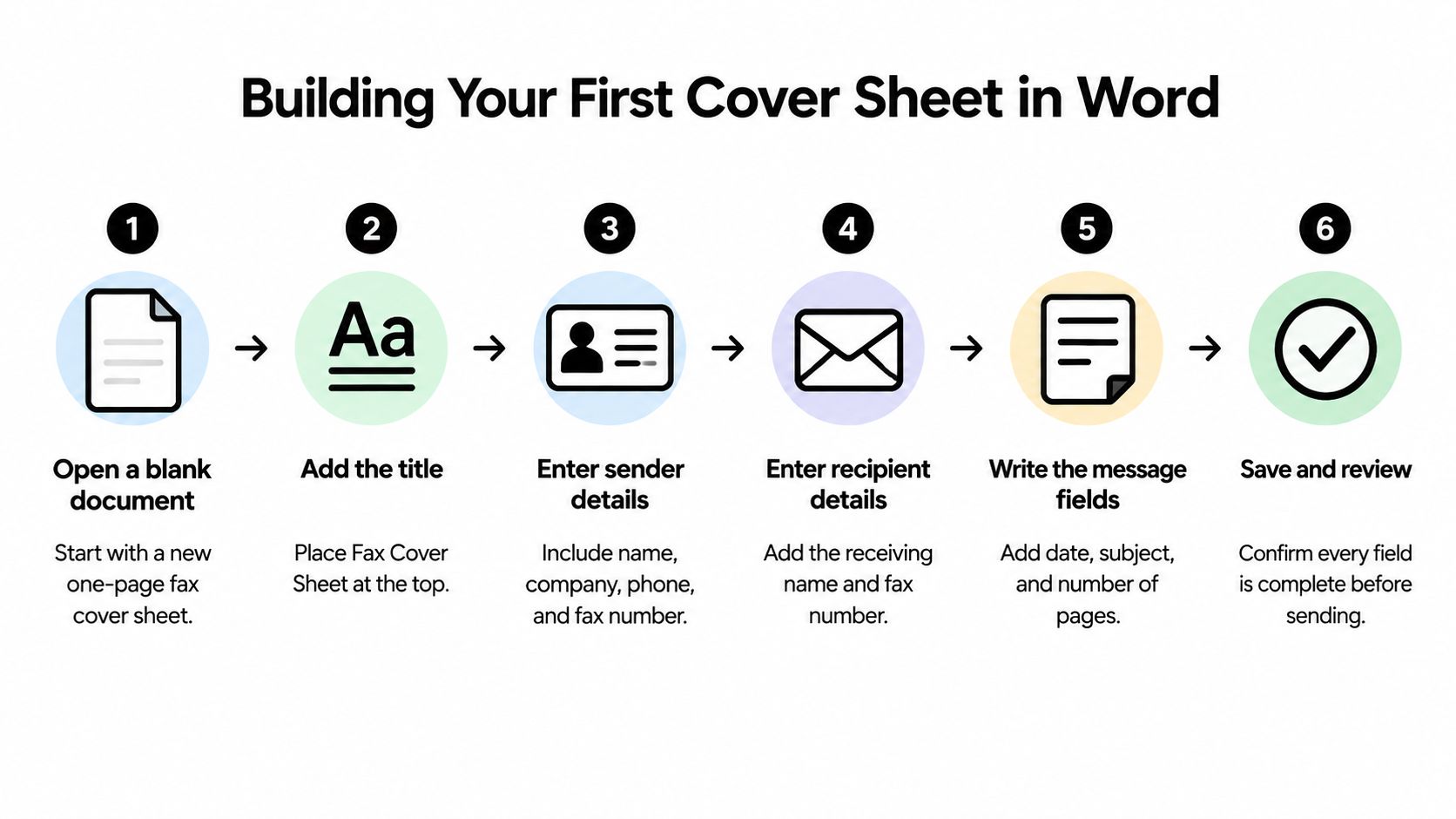
Add a clear title. Type “Fax Cover Sheet” at the top and apply Word's built-in Heading 1 style. A heading style identifies the title structurally, instead of making it look like a heading using only bold text or a larger font. That helps screen-reader users move through the document and gives the page a consistent structure.
Enter sender and recipient details. Include names and the relevant organization or department, plus phone and fax numbers. Make the recipient's name and destination fax number easy to spot. A simple table can help keep sender and recipient fields aligned when the information is tabular. If you use one, mark its first row as a header row; avoid merged cells, nested tables, and blank cells.
Add the transmission details. Include the date, subject, and page count, with the cover included. Label every value rather than relying on position alone. “Pages, including cover” is clearer than a number sitting by itself.
Write a short message. State what the attached document is and what the recipient should do, if anything. Add a confidentiality notice when appropriate, but leave out sensitive details that don't need to appear on the cover.
Before sending, run Word's Accessibility Checker, export the file to PDF, and inspect the reading order and appearance on desktop and mobile. Microsoft's guidance recommends logical headings, properly identified table headers, and layouts that don't force horizontal scrolling (Word accessibility guidance). If you're also standardizing the wording and appearance of business documents, Zemith's downloadable DOCX style guide can help you keep reusable files consistent.
Save a clean master copy as a template, then make a fresh copy for each transmission. Keep the structure stable, but review names, numbers, page count, and message every time. A saved template prevents repeated formatting work; it doesn't verify that the current fax is addressed correctly.
Formatting Choices That Survive the Fax Machine
A document that looks polished on a monitor can become a muddy page after printing and transmission. Fax-oriented design rewards contrast and simplicity over decoration. Use black text on a white background, keep labels next to their values, and leave enough space for the page to breathe.
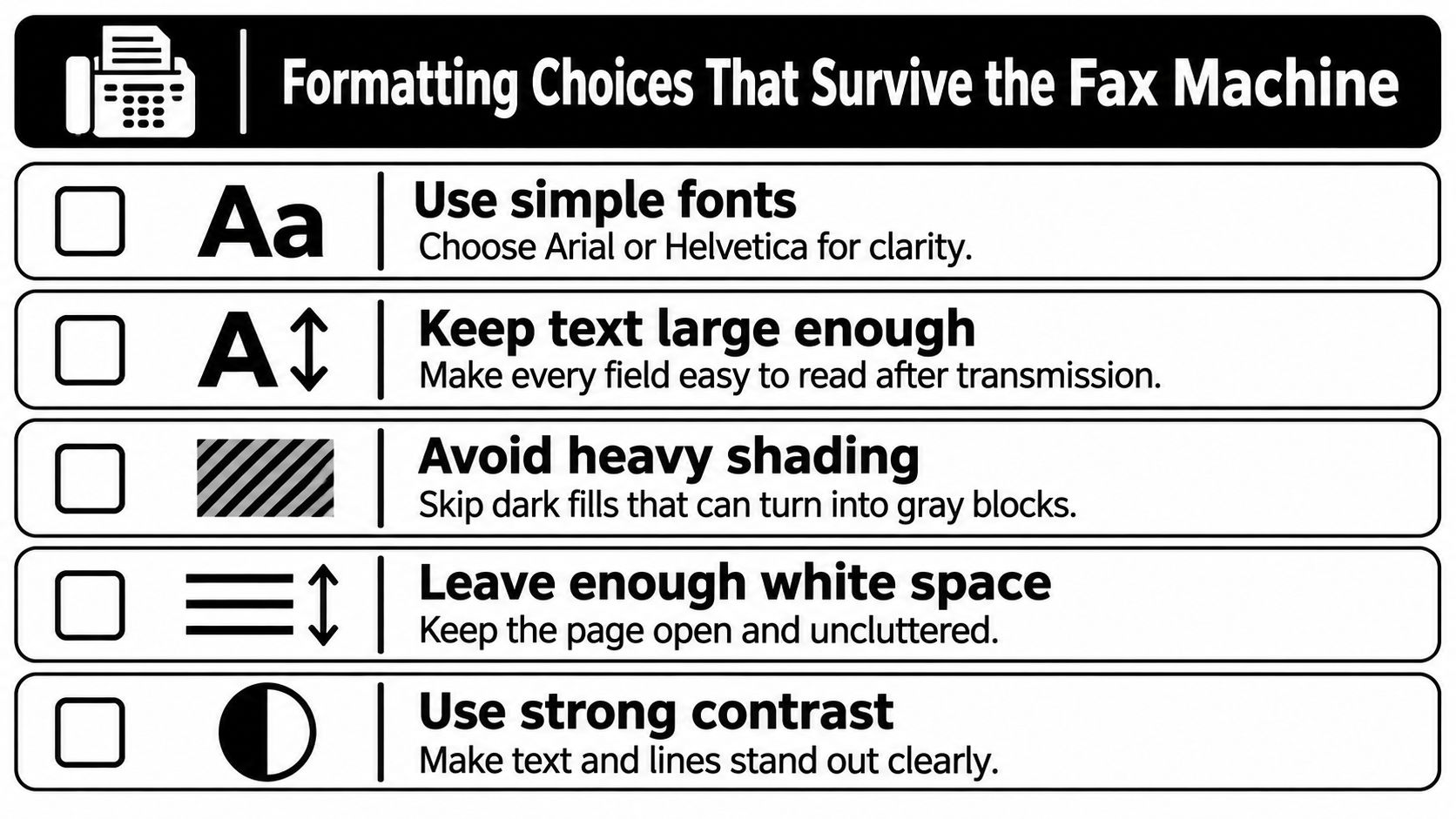
Avoid pale gray text, shaded boxes, busy backgrounds, and thin rules. They can lose definition when copied or faxed, especially if the original already has low contrast. The National Archives' scanning guidance identifies low contrast, fading, staining, handwriting, and halftone images as factors that can reduce legibility, and the same kinds of details can cause trouble on a faxed cover sheet (archival scanning guidance). If a logo, fine line, or gray fill is hard to distinguish in a monochrome print, replace it with plain text or a solid border.
Practical test: Export to PDF, inspect the page at 100% and 200% zoom, then print it in monochrome. Every field should remain distinguishable without relying on color.
Treat small text and decorative graphics as risk items, not finishing touches. Keep contact details and page counts legible at the size the recipient will receive. Confirm that the total includes the cover, so the office can compare the expected and received pages.
If you send from different devices, check that the saved file opens and displays as intended on the platform you'll use. A resource on cross-platform compatibility offers a broader perspective on keeping files usable across systems. For fax-specific considerations, see this guide to fax image quality. The practical acceptance test remains simple: all fields are legible in both the rendered PDF and the monochrome print.
Choosing How to Send Your Word Cover Sheet
Once the document is ready, choose a sending method that fits your access to equipment, need for a physical copy, and page count. A desk fax machine is direct if you have one nearby. A browser-based option avoids printing and requires no fax machine, while an account-based online fax service may suit people who send regularly and want an ongoing workflow.
Word's long history helps explain why DOC and DOCX files are familiar in business settings. Historical accounts describe Word's broad adoption, including its substantial market share in the 1990s (Microsoft Word's adoption history). Familiarity doesn't guarantee that every fax service accepts Word files, so check supported formats before you prepare the final file.
| Option | Equipment needed | Cost | Page limit | Branding |
|---|---|---|---|---|
| Physical fax machine | Fax machine, phone line, printed document | Depends on access and service arrangements | Depends on the machine or service | No service branding on the paper |
| Account-based online fax service | Internet connection and an account | Depends on the provider and plan | Depends on the provider and plan | Depends on the provider |
| Browser-based SendItFax | Browser and internet connection | Free option or $1.99 per fax for Almost Free | Free: up to three pages plus a cover; Almost Free: up to 25 pages | Free cover includes SendItFax branding; Almost Free removes it |
SendItFax accepts DOC, DOCX, and PDF uploads for faxes to U.S. and Canadian numbers, and lets senders add an optional cover-page message without creating an account. The free option allows up to three pages plus a cover, with a daily limit of five free faxes and branding on the cover. Its Almost Free option costs $1.99 per fax through Stripe, supports up to 25 pages, offers priority delivery, removes the branding, and lets the sender omit the cover page.
Choose a physical machine when you need a paper workflow and have one available. Consider an account-based service for regular sending, and a browser-based service for an occasional fax when you don't have a machine. If you're weighing whether a browser service meets your needs, this overview of how online fax services work can help you assess the trade-offs.
Common Cover Sheet Mistakes and How to Fix Them
A cover sheet can be present and still fail at its job. Most problems come from missing or unclear information, not from the absence of a graphic design.
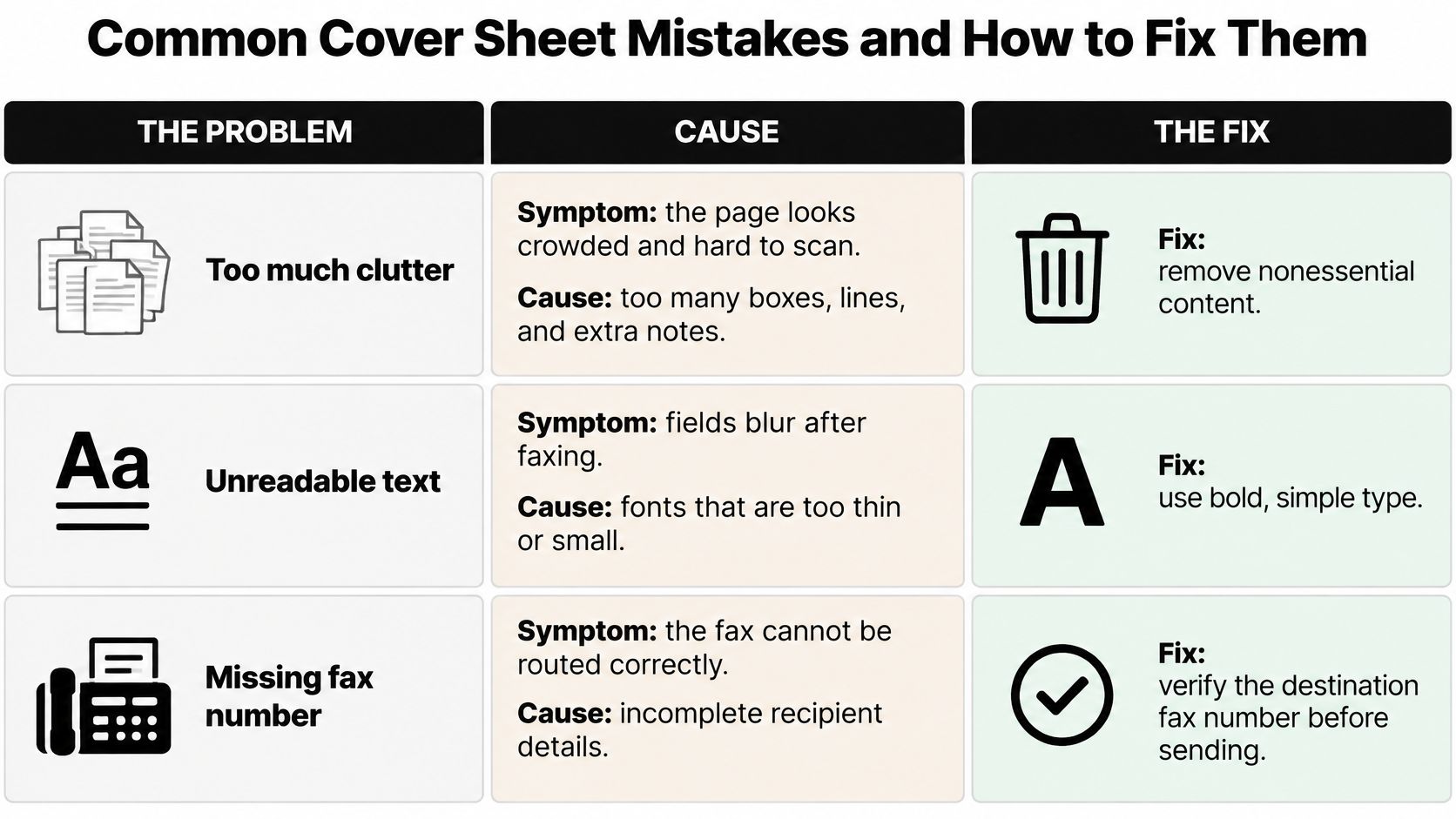
Missing page count: The recipient can't tell whether all pages arrived. State the total, including the cover, and update it whenever you change the packet.
Buried recipient details: A name tucked into a decorative banner can be hard to locate. Put the recipient and destination fax number in a clearly labeled field where staff can find them quickly.
Sensitive message text: A detailed message may expose information to someone who shouldn't see it. Limit the cover note to what the recipient needs to route or identify the transmission. Healthcare guidance recommends identifying the sender and intended recipient, noting confidentiality, and supporting page-count checks; it also cautions that a cover sheet can't correct a wrong fax number or make an impermissible disclosure acceptable (medical-record fax guidance).
Tables that scramble the reading order: Merged cells and layout-only tables can confuse screen readers and make the page awkward on mobile. Use plain labeled fields where possible, and reserve a simple table for information that belongs in rows and columns.
Misdirected fax: A cover page can help a recipient identify whom to contact about a mistaken transmission, but it can't undo the disclosure or substitute for checking the destination number. Verify the fax number before sending, and follow your organization's instructions if a fax goes to the wrong recipient. For further context on handling sensitive transmissions, see this guide to fax confidentiality.
Whether a cover sheet is required depends on the organization's policy, the receiving office's workflow, and the sensitivity of the documents. HIPAA doesn't generally require a fax cover sheet for every fax. Don't treat a confidentiality notice as permission to send information to an unverified destination.
Your Pre-Send Checklist and Next Step
Before sending, run through the page once as the recipient would:
- Check routing details: Confirm the recipient's name and fax number, and verify the destination number separately.
- Check the count: Make sure the stated total includes the cover.
- Check the content: Remove unnecessary sensitive details from the message.
- Check accessibility: Run Word's Accessibility Checker and review any relevant warnings.
- Check legibility: Review the PDF at 100% and 200%, then inspect a monochrome print. Every field should be readable in both.
A cover sheet supports routing and page verification; it doesn't protect against a wrong number. Human review also matters when organizations rely on automated decisions, as discussed in this overview of human review for automated decisions. Use the same habit with faxes: check the actual destination and document rather than assuming a template or workflow has caught every mistake.
Open Word, create the basic layout, and save a clean master copy. Then send a test fax and check how the page appears at the receiving end. The free option suits occasional sending, while a paid option is available when page count or unbranded presentation matters.
SendItFax lets you upload a Word or PDF document and send it to a U.S. or Canadian fax number from a browser, without a fax machine or account. Prepare your cover sheet, verify the recipient's number, and send your first fax today.