You're probably here because someone gave you a fax number in 2026 and you had the exact same reaction everyone has now: “Seriously?”
Maybe it's a medical office, a county clerk, a lender, a school district, or an insurance department. They want a signed form, they only list a fax number, and you don't own a fax machine because of course you don't. You need something that works from a browser, doesn't waste your afternoon, and won't create a compliance mess if the document is sensitive.
That's the question with an online fax website. Not “which one has the most features?” You don't need most features. The useful question is simpler: what kind of sender are you, and does the service tier match the risk of the document?
| Online Fax Website Tier Comparison | Free Tier | Pay-Per-Fax | Subscription | Enterprise/Compliance |
|---|---|---|---|---|
| Best fit | One-off personal sends | Occasional low-volume sends | Repeating office use | Regulated or sensitive workflows |
| Cost shape | No upfront cost, strict limits | No monthly fee, pay when needed | Recurring fee for bundled usage | Higher recurring cost for controls and accountability |
| Branding | Often provider branding | Usually cleaner presentation | Usually customizable | Usually customizable and policy-controlled |
| Volume fit | Short documents only | Good for irregular use | Better for steady use | Built for teams and controlled processes |
| Delivery workflow | Basic | Better confirmation and queue priority | More predictable for repeated sending | Logging, administration, and formal controls |
| Security fit | Fine for non-sensitive documents | Fine for routine non-sensitive business use | Better for business continuity | Required when documents trigger compliance obligations |
| My blunt take | Great when the fax isn't important enough to overbuy | The sweet spot for many people | Worth it only if you send often | Non-negotiable for PHI, legal, HR, or similar data if controls are required |
Why People Still Need an Online Fax Website in 2026
A patient requests records. A freelancer signs a government form. A small business owner sends an insurance document. In each case, the recipient gives them a fax number and nothing else.
That's why online fax websites still exist. Not because people love fax. Because many offices still treat fax as an accepted intake channel for signed documents, records, and formal paperwork when email addresses aren't listed or aren't trusted for the workflow.

Fax also hasn't disappeared at the business level. A Bitkom survey reported that 82% of German companies still used fax in 2023, down from 88% in 2022, 92% in 2020, and 95% in 2018. It also found that 25% still used fax frequently or very frequently in 2023, compared with 49% in 2018. The same survey separately reported that 77% of German companies still used fax overall, which tells you the same thing in practical terms: fax remains a live workflow, not just a museum piece in document-heavy environments, according to Bitkom coverage summarized by Silicon Saxony.
What an online fax website actually is
An online fax website is a browser-based tool that takes your uploaded file, converts it into a fax-compatible transmission, sends it to a fax number through fax infrastructure, and gives you a confirmation result afterward.
That's different from a few adjacent tools:
- Email-to-fax services let you send from your inbox.
- Mobile fax apps wrap the same function in an app interface.
- Desktop clients add local software.
- Browser-only fax sites are the fastest option when you need to send now and don't want setup.
Practical rule: If you only need to send a form once, a browser-based fax site is usually the least painful option.
Why this matters more in document-heavy work
A lot of people looking for an online fax website are really stuck in a records workflow. They aren't asking about telecom. They're trying to move paperwork through a slow system without getting rejected. If that's your situation on the healthcare side, this guide on mastering getting medical records is worth reading because the transmission method is only one part of the process.
The bigger point is simple. Not every sender should buy the same thing. A free tier can be perfectly sensible for one person and completely wrong for another.
The Seven Criteria That Actually Matter When Comparing Services
Feature grids mislead buyers who have different sending needs. A one-time sender, a busy office, and a regulated team should not judge an online fax website by the same standard.
A three-page school form can go through a free browser tool with minimal friction. A clinic sending patient records or a law office sending long packets needs better logging, cleaner document handling, and clear answers about security. Sender profile drives the decision far more than a long checklist of generic features.
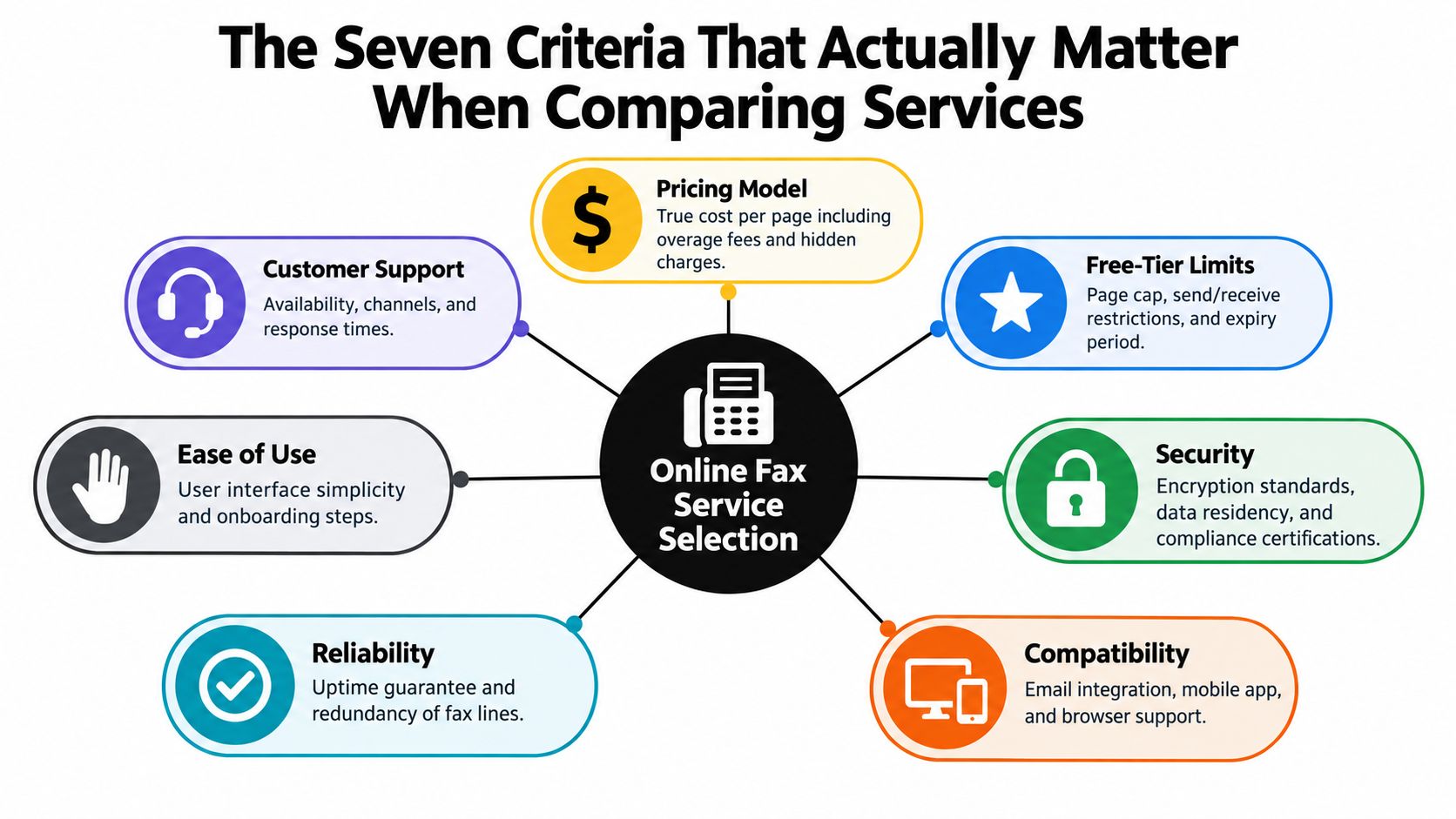
Cost and limits
Start with the pricing model, then read the limits that make that price either fair or wasteful.
Free can be the right call for a rare sender who just needs a confirmation page and does not care about provider branding. Pay-per-fax usually fits occasional personal or small-business use better than a monthly plan. Subscriptions only make sense once sending is routine enough that convenience, volume, and account history save time every week.
Check the restriction that will hurt you first:
- Daily caps on free plans
- Per-fax page limits for long packets
- Monthly usage ceilings on lower subscription tiers
- Destination limits for international or out-of-area sending
- File size caps that break large scans into failed uploads
Presentation and workflow
Recipients often store the cover page with the fax. Treat it like part of the document packet, not decoration.
This matters more than buyers expect. Intake desks, records departments, lenders, insurers, and court clerks all process faxes in queues. If the cover page is cluttered, branded by the provider, or missing your office identity, the packet looks less credible and is easier to mishandle.
Check four things closely:
- Branding control so the service does not stamp its name across your submission
- Header identity so your business, practice, or personal name appears clearly
- Supported file types such as PDF, DOCX, and common image formats
- Multi-document handling if you need to combine pages into one transmission
Feature grids miss the real tradeoff, because a generous free tier usually comes with compromises somewhere else.
Delivery confirmation and retry behavior
A polished interface means very little if the service fails on busy lines and gives you a vague status message afterward.
Good browser-based fax tools retry automatically, show whether the line was busy or unreachable, and keep a usable transmission record. That matters for any sender who may need to prove a document was sent on time.
Account friction
Some services let you upload and send in minutes. Others force account creation, email verification, payment setup, and inbox clutter before you can test anything.
That difference matters by sender profile. A one-off sender should favor low-friction tools. A daily office sender should accept more setup if it buys better logs, saved contacts, and repeatable workflow.
Document retention and deletion policy
Uploaded files do not always disappear when the fax goes through. Check what the service keeps, where it is stored, and how long it stays available in your account or temporary session.
For ordinary personal paperwork, short retention may be fine. For sensitive records, you need a service that states its deletion and storage rules clearly. If the policy is vague, move on.
Support when something fails
Fax problems usually show up at the worst time. A rejected filing, a missed intake window, or a records request with a deadline exposes weak support fast.
Free tools often give you little beyond an automated status page. Paid services should offer usable help, especially if you send for business. If support is hidden or limited to a slow ticket queue, treat that as part of the price.
Security and compliance posture
Casual buyers miss this one, and regulated senders pay for that mistake later.
For sensitive documents, a browser-based fax site needs more than a vague promise that it is "secure." Independent compliance guidance points to a baseline of AES-256 encryption at rest, TLS 1.2 or higher in transit, and audit logs that record sender, recipient, timestamp, page count, and transmission status for HIPAA-aligned workflows, as described in this online fax security guidance from Comfax.
Use a simple rule. If the provider cannot explain its logging, storage, and transmission protections in plain language, treat it as a convenience tool only. That is fine for low-stakes personal forms. It is a poor choice for healthcare, legal, HR, finance, or any document set you may need to defend later.
Free, Pay-Per-Fax, and Subscription Tiers Side by Side
The cleanest way to choose an online fax website is to stop comparing brands first and compare tiers first. Once you know the right tier, the brand shortlist gets much smaller.
Online Fax Website Tier Comparison
| Criterion | Free Tier | Pay-Per-Fax | Subscription | Enterprise/Compliance |
|---|---|---|---|---|
| Pricing model | No monthly cost, but strict page and usage caps | Single-charge sending with no recurring fee | Monthly fee with bundled usage | Contract or premium plan pricing tied to controls |
| Best for | One-time forms, low-stakes personal use | Occasional senders who want cleaner output and no recurring bill | Small offices with steady sending volume | Healthcare, legal, HR, finance, and audit-heavy teams |
| Branding | Usually provider branding on cover page or confirmation flow | Often reduced or removed | Usually more polished sender presentation | Full administrative control expected |
| Page limits | Often low per fax | Usually higher than free | Better for recurring multi-page sends | Designed for larger packets and workflow control |
| Delivery experience | Basic queueing and confirmation | Better for priority or cleaner presentation | More predictable day-to-day operations | Formal logging, role control, and policy enforcement |
| Security posture | Consumer-grade convenience | Acceptable for ordinary business docs | Better support for office workflow | Required controls for regulated data |
| My recommendation | Use it when the document isn't sensitive and you send rarely | Best value for occasional serious use | Buy only if your sending pattern is steady | Use when compliance is part of the job, not a preference |
Where each tier wins
A free tier wins when the fax is short, non-sensitive, and you don't care about provider branding. That includes school forms, utility paperwork, simple signatures, and one-off government forms.
A pay-per-fax tier is my favorite middle ground. It avoids the trap of paying every month for something you barely use. It also gives you a cleaner recipient-facing result than many free tools. If you want a practical walkthrough of that model, SendItFax's piece on sending fax online with pay-per-fax pricing is a good example of how this tier is positioned.
A subscription tier makes sense for a receptionist, office admin, or team that sends routinely enough to want predictable billing and less friction. It's a workflow purchase, not just a transmission purchase.
Where the line gets crossed
The line between consumer and regulated use is not blurry. It's obvious once sensitive data enters the file.
If the document contains protected health information, employee records, legal matter details, or similar material, you're no longer shopping for convenience alone. You're shopping for controls, retention rules, auditability, and contract terms.
In that spectrum, SendItFax fits the occasional-sender side. It offers ad-supported free sending and a paid option for higher volume or cleaner presentation, which is exactly the kind of tier split that works for people who need browser-based faxing without committing to a subscription.
Matching the Right Service to Your Sender Profile
The same service can be a bargain for one person and a bad fit for another. That's why “best online fax website” lists often frustrate people. They answer the wrong question.
Sender Profile vs. Service Tier Fit
| Criterion | Freelancer Low Volume | Clinic Admin Daily | Property Manager Batch |
|---|---|---|---|
| Sending pattern | Rare, irregular | Frequent weekday use | Repeating weekly packets |
| Price sensitivity | Very high | Moderate, prefers predictable billing | Moderate, cares more about throughput |
| Branding concern | Low | High | Medium |
| Page volume | Usually short | Multi-page packets every day | Lease packets and attachments |
| Delivery need | Basic confirmation is enough | Reliable turnaround matters | Needs receipt proof without chasing by phone |
| Security need | Usually routine | High, often regulated | Moderate to high depending on documents |
| Best tier fit | Free or pay-per-fax | Subscription or compliance tier | Subscription, sometimes compliance tier |
Profile one and two
Take the freelancer first. They send two faxes some months, none in others. Usually it's a signed contract or government form. They don't care if a free cover page has some provider branding, and they definitely shouldn't pay for a recurring plan. For this person, free beats paid unless the page count or presentation gets in the way. If branding matters, pay-per-fax is the upgrade.
Now the clinic admin. Different universe. This person needs dependable routing, recognizable sender information, organized confirmation, and a provider that can stand behind its security claims. A cheap convenience tool is the wrong answer here. Daily workflow plus sensitive records pushes this sender toward a business subscription or a dedicated compliance tier.
Buy for your actual month, not your imaginary future office. Most people overestimate how much faxing they'll do.
Profile three
The property manager sits in the middle. Lease packets, signed disclosures, ID copies, and addenda can stack up quickly. This sender often needs higher page limits, decent document handling, and confirmation they can save without calling the receiving office.
That usually points to a subscription tier, especially if the volume comes in batches. If the documents include sensitive tenant data, they should also review the provider's security and retention terms before treating the tool like a normal office utility.
One more practical truth. Your sender profile can change. A freelancer lands a government contract. A small office starts faxing more often. A manager takes on a portfolio with heavier document flow. Re-run the decision when your volume or document sensitivity changes.
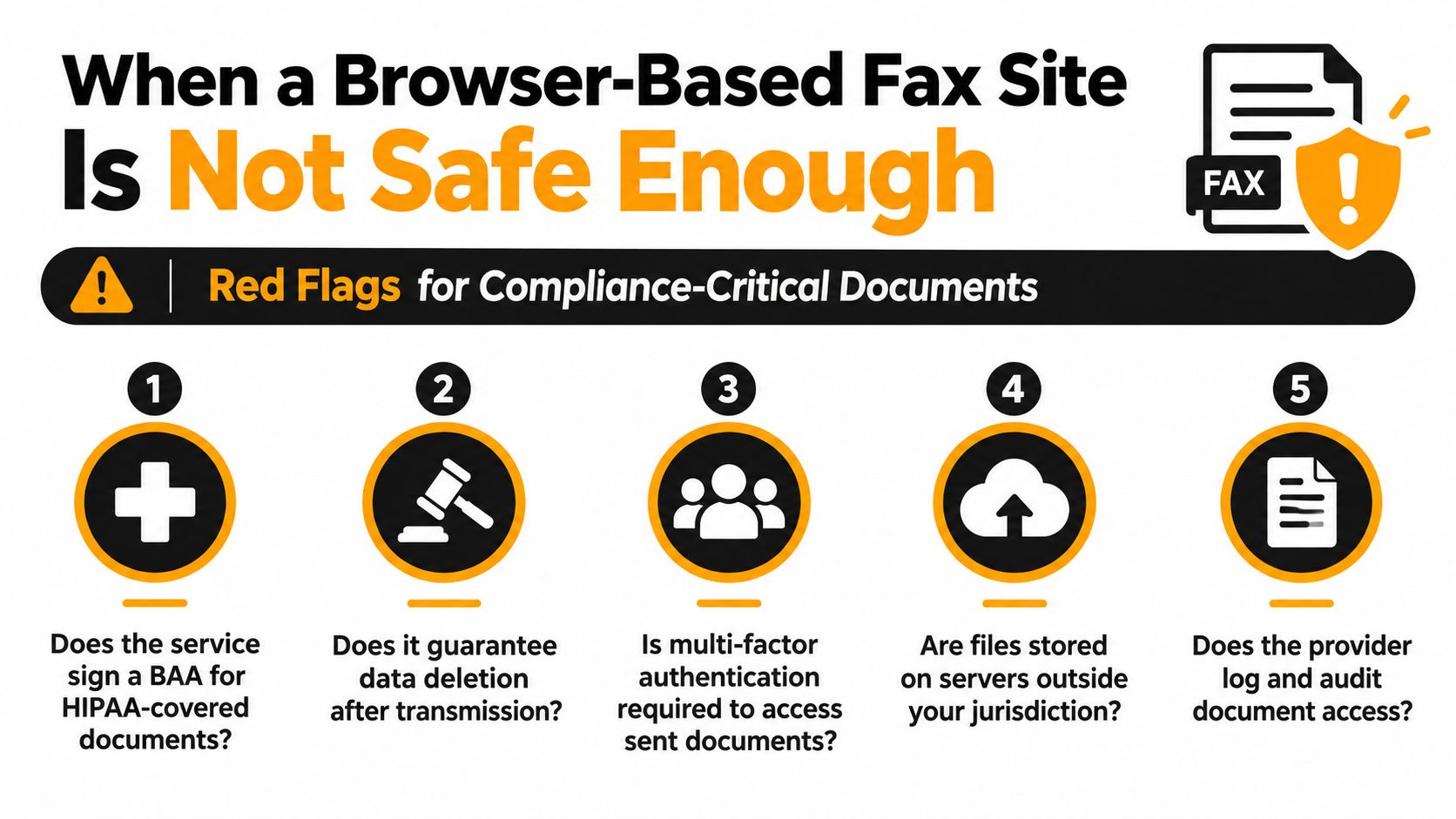
When a Browser-Based Fax Site Is Not Safe Enough
Compliance strategy matters more than convenience when uploading sensitive documents.
An office manager sends a signed intake form through a free web fax page during lunch. A legal assistant drops a privileged file into a no-account uploader to save ten minutes. An HR coordinator forwards employee records through the cheapest browser tool they found in search. Those are not edge cases. They are the exact moments where a simple fax website stops being a practical shortcut and starts becoming a risk decision.
The minimum technical controls
For sensitive or regulated documents, "encrypted" is not enough. You need specific controls you can verify.
A browser-based fax workflow is defensible only if the provider clearly documents transport encryption, storage encryption, access restrictions, retention rules, and transmission records you can keep. If you want a plain-language breakdown of what secure faxing should include, read this guide on the security of fax systems and online faxing. It covers the core question buyers skip. What happens to the file before, during, and after transmission?
Independent guidance on secure faxing also points to controls such as encryption protocols, access controls like MFA or role-based permissions, retention and deletion rules, and verified security programs such as SOC 2 Type II or ISO 27001. It also warns that free or low-friction online fax options are usually a poor fit for PHI and similar sensitive data when those controls are missing, as outlined in this compliance-focused fax encryption guide from mFax.
Use this floor, not the provider's marketing copy:
- Transport security with TLS 1.2 or higher
- Storage protection with AES-256 at rest
- Access controls so uploaded and sent files are not broadly exposed
- Defined retention and deletion instead of vague "we may store documents" language
- Auditable transmission records if your team may need to prove what was sent and when
A cover page disclaimer does nothing for any of this.
The policy and contract layer
Technical controls matter. Contracts and policy terms decide whether those controls help you in a real audit, dispute, or breach review.
Healthcare teams should ask whether the provider will sign a BAA when required. Teams handling EU personal data should check data processing terms and hosting jurisdiction. Employers sending internal records should verify who can access stored files, how long they remain available, and whether admins can restrict access by role.
This is the line many buyers miss. A browser fax tool can be good enough for a routine form with no meaningful sensitivity and still be the wrong choice for medical records, legal filings, or employee documentation. The service tier has to match the sender profile. Casual sender, low stakes. Regulated sender, documented controls and contractual coverage.
For a broader look at safer document handling outside fax, this guide to secure file sharing for SMBs is useful because it asks the same question every office should ask. What protections still apply after the file leaves your screen?
Here's the video version of the security question many buyers skip:
Why this matters even more now
Healthcare workflows are being pushed away from legacy paper-heavy processes. A CMS final rule published in 2026 phases out fax machines and paper mailings for health care claims documentation, effective May 26, 2026, with compliance due by May 26, 2028, according to this summary of the CMS rule from ASGE.
Fax is not automatically banned in every healthcare workflow. Sloppy browser-based faxing is harder to justify now. Free tiers still have a place for low-risk, occasional documents. Sensitive records call for a paid service with documented controls, clear retention terms, and the compliance paperwork your organization may need later.
A Quick Checklist Before You Upload Any Document
You don't need a long procurement process to screen an online fax website. You need five minutes and a willingness to ignore marketing fluff.
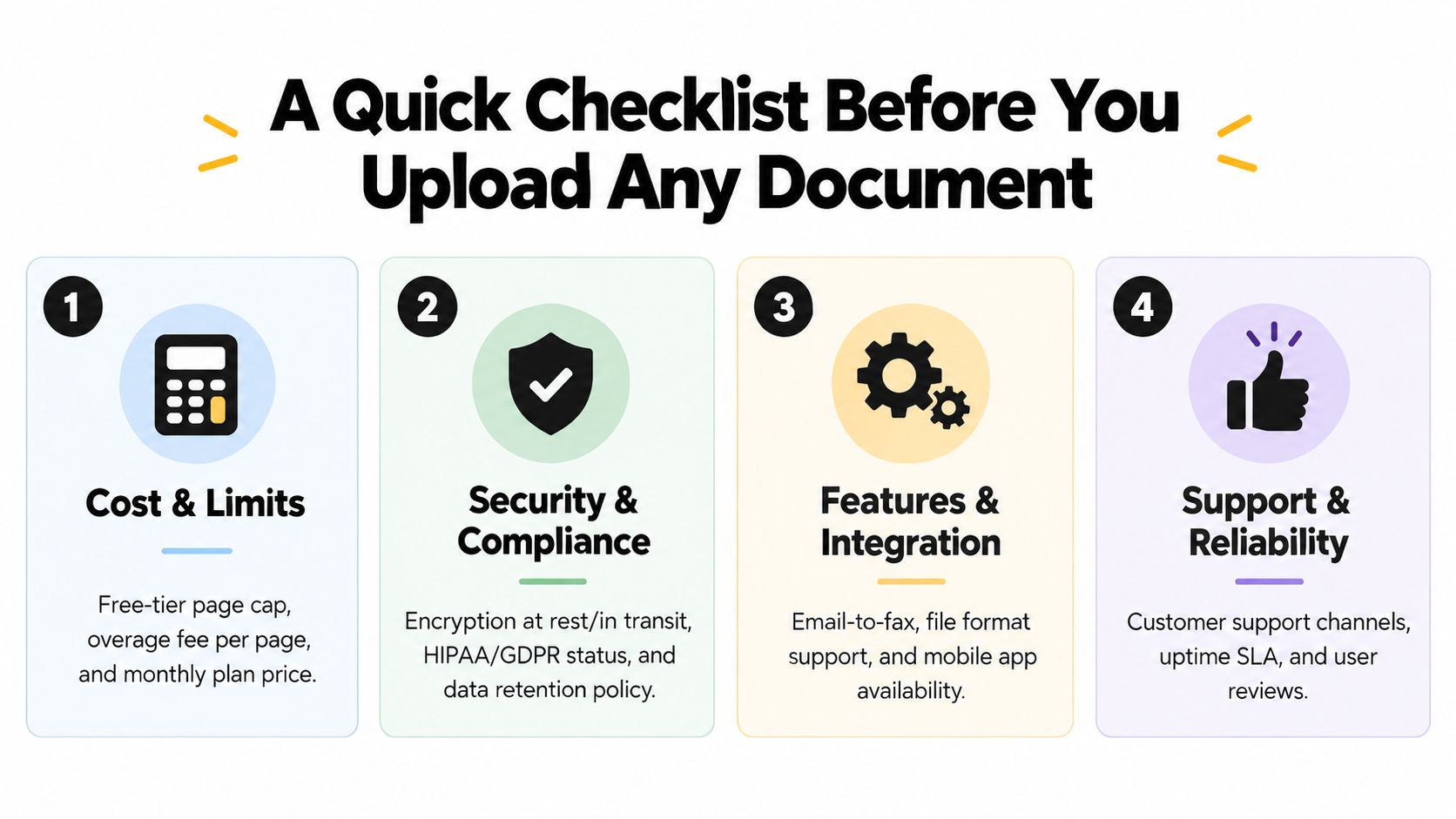
Run this four-part check
Cost and limits
- Check the free-tier cap.
- Look for per-page overages or per-fax charges.
- Confirm whether international destinations cost extra.
- See if there's a hard monthly ceiling that would force an upgrade.
Delivery and reliability
- Ask how the service handles busy numbers.
- Check what confirmation you get after sending.
- Look for a clear retry policy.
- If this is office use, see whether the provider offers any uptime or delivery commitment language.
Branding and workflow
- Check whether you can remove provider branding.
- Confirm supported file types such as PDF, DOCX, and common images.
- If replies matter, see whether the service can provide a fax number.
- If you send packets often, look for batch upload support.
Security and compliance
- Verify the transit encryption standard.
- Verify encryption at rest.
- Read the deletion or retention policy.
- Check whether BAAs, audit reports, or jurisdiction details are available when needed.
The best way to compare
Screenshot the answers from each provider and put them side by side. Don't trust your memory after browsing six tabs.
Save the confirmation email and the final transmission record whenever the fax relates to money, health, employment, housing, or deadlines.
This checklist works because it maps back to the sender profiles above. Casual sender, daily office sender, and regulated sender all care about different parts of the same screen.
Choosing the Right Option Without Overpaying
Overpaying for fax happens in one of two ways: buying a subscription that gets minimal use, or cheaping out on a document that clearly needs compliance controls.
The fix is straightforward. Treat the purchase like a volume-and-risk match, not a feature scavenger hunt.
Where the money usually gets wasted
If you send a handful of faxes occasionally, a recurring plan is often dead weight. Free or pay-per-fax usually wins because it matches your actual behavior. That's especially true when you're sending to U.S. or Canadian numbers, where simple browser-based options can handle routine low-volume tasks cleanly.
If you run a small office and fax regularly, the opposite is true. Re-entering details, watching page caps, and paying one by one becomes its own tax. A flat monthly plan with bundled usage usually makes the process easier to manage.
If you handle regulated records, stop trying to optimize for the cheapest line item. You're not paying for “fax pages.” You're paying for logging, retention controls, encryption, access management, and contract terms that make the workflow defensible.
My recommendation by sender type
- One-off sender: Start with free. Upgrade to pay-per-fax only if branding, page limits, or urgency become a problem.
- Small office: Use a subscription if faxing is a repeating weekly task, not a rare exception.
- Regulated sender: Buy the compliance tier first. Don't experiment with consumer tools and rationalize it later.
If you want a practical cost lens on that decision, SendItFax's article on online fax cost is worth reviewing because cost only makes sense when paired with actual usage.
The shortest buying method I know is this: estimate your real monthly volume, list the three features you'll use, and delete any plan that fails either test. If the plan has extras you won't touch in the next billing cycle, it's probably the wrong plan.
The One Decision Rule That Ties It Together
Here's the rule I'd use on any online fax website.
If the document would cause real harm if leaked, the service must clearly publish its security model, protect data in transit and at rest, and offer the right agreement where applicable. If it can't do that, don't upload the file there.
If the document is routine and non-sensitive, match the service tier to your volume and stop paying for features you won't use this month.
That single rule resolves most of the confusion:
- Casual sender: the cheapest credible option is usually fine.
- Frequent office sender: pay for smoother workflow and predictable usage.
- Regulated sender: pay for controls, not cosmetics.
One line to paste into any provider's pricing or FAQ page is this:
“Does this plan include the page volume I send, remove unwanted branding, and publish the security and retention controls required for the documents I'm uploading?”
If the answer is vague, move on.
SendItFax is built for the kind of browser-based faxing needed: quick sending to U.S. and Canadian fax numbers without creating an account, plus a free option for short documents and a paid option when you want more pages or no branding. If that matches your sender profile, visit SendItFax and use the tier that fits your volume instead of overbuying.