You've got a signed contract, referral form, or medical document open on your laptop, and the recipient wants a fax number instead of an email attachment. There's no fax machine nearby, the office is closed, and printing the PDF just to scan it again feels absurd. You can still get the document out from a browser, but reliable faxing depends on more than uploading a file and clicking Send.
The hidden trouble usually starts with PDF preparation, page count, file-size limits, recipient details, and delivery evidence. A short, clean document sent through a suitable internet fax workflow can be straightforward. A long, image-heavy PDF with form fields, password protection, or marginal contrast can fail before the recipient ever sees it.
Why Browser-Based Faxing Replaces the Machine
The practical appeal is immediate. A remote worker can receive a completed form by email, open it on a laptop, and send it to a clinic without finding a physical fax machine. A legal assistant can transmit a signed agreement from a browser while keeping the original PDF intact. A small office can handle an occasional fax without maintaining a dedicated device, paper supply, toner, or fax line.
Browser-based faxing works by acting as a bridge between a digital document and traditional fax infrastructure. You upload a PDF, the service renders it into a fax-compatible format, and the provider transmits it to the recipient's fax machine or online fax endpoint. You don't need to print the document first, and you don't need a fax modem attached to your computer.
That workflow matters because fax remains embedded in regulated and organizational processes. Independent industry and policy sources estimate that roughly 70% to 75% of healthcare communication still occurs by fax, despite widespread electronic health record adoption, as summarized in this healthcare fax usage analysis. The same source cites an estimate of more than 9 billion fax pages exchanged annually in U.S. healthcare, which helps explain why a recipient may still require a fax even when both parties use modern software.
Practical rule: Treat the fax number as a required destination, not as evidence that the recipient uses old equipment. The other side may receive the transmission in a digital portal or as a converted PDF.
The browser approach also suits documents that must retain their layout. A PDF can preserve signatures, tables, page order, and form positioning better than copying text into an email. For a quick explanation of the broader workflow, the web-based fax service guide provides useful context.
The trade-off is that online faxing doesn't remove technical constraints. It moves them into the provider's upload rules and transmission system. Before sending, check the PDF itself, the service's page and file limits, and the confirmation process you'll use to prove successful delivery.
Preparing Your PDF for Flawless Transmission
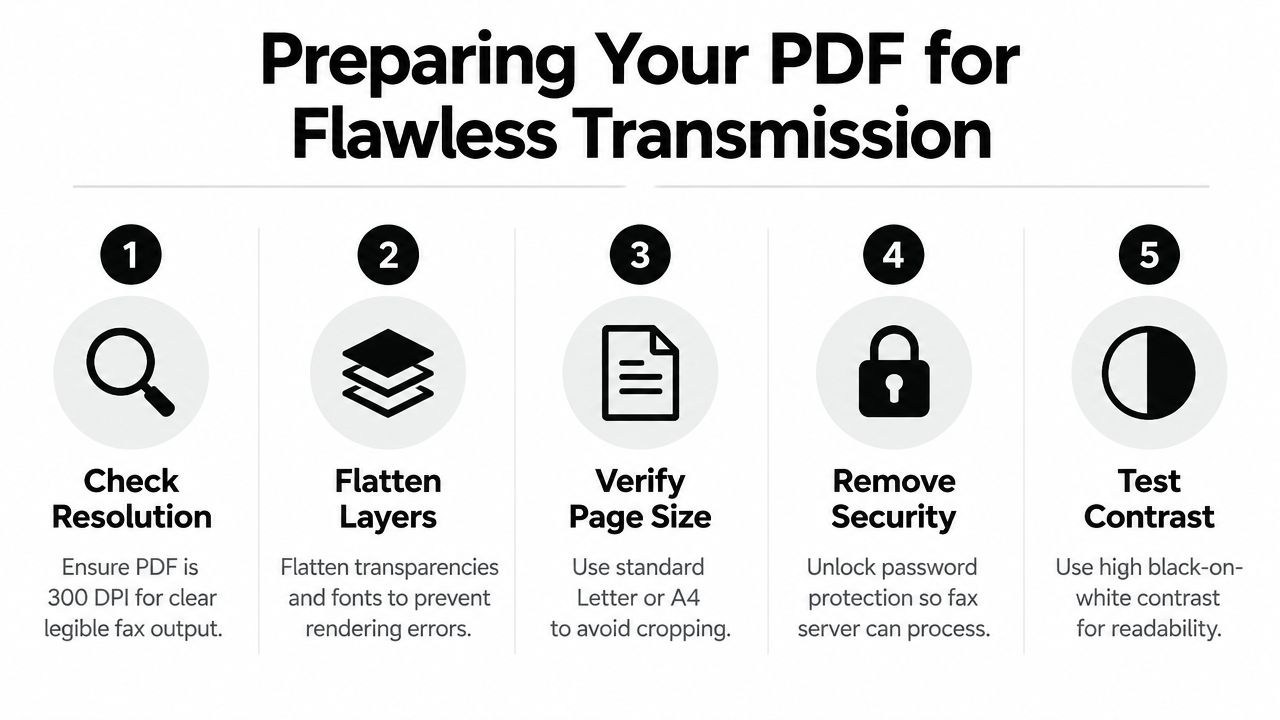
Most avoidable failures happen before the file enters the fax network. Open the final PDF and inspect every page at normal reading size, then zoom into signatures, small print, stamps, and table borders. A file can look fine in a PDF viewer and still produce weak fax output if it relies on pale colors, complex transparency, or very fine lines.
Clean the document before upload
Use this preparation sequence:
Confirm the file format. PDF is usually the safest choice for preserving layout, and SendItFax accepts PDF alongside DOC and DOCX files. Don't assume that a file ending in
.pdfis fully self-contained. Export it again from the source application if fonts, layers, or interactive elements behave strangely.Flatten interactive content. Complete form fields, then flatten them so the entered information becomes part of the rendered page. Flatten transparency and unnecessary layers as well. Fax services process a visual representation, not the editable behavior you see inside a form editor.
Check page size and orientation. Review portrait pages individually. A page with an unusual size or a rotated scan may be cropped or reduced in a way that makes fine print difficult to read.
Remove processing barriers. Password-protected or restricted PDFs can prevent an upload service from reading or rendering the document. Save an authorized, open copy for transmission, while retaining the protected original in your controlled records.
Reduce unnecessary weight. Large embedded scans and photographs can make the upload slower and extend transmission time. Compress images carefully, keeping signatures and small text legible. The tekRESCUE document size guide offers practical file-reduction techniques without treating compression as a one-click fix.
Preserve readability, not maximum resolution
A high-resolution scan isn't automatically a better fax. Fax output has its own rendering limits, so excessive image detail often adds file weight without improving what the recipient can read. Use strong black-on-white contrast, remove blank pages, and crop scanner borders that waste space.
For documents with seals, handwriting, or faint signatures, make a test copy and inspect it after conversion if your workflow allows. The fax image quality guide is useful when the document's visual fidelity matters more than completing the upload.
Keep the original PDF unchanged, then create a transmission copy. That gives you a clean source for your records and a deliberately optimized version for faxing.
Choosing Between Free and Paid Delivery Options
The right SendItFax option depends on what you're sending and how formal the recipient's process is. The free option is suited to a short, occasional transmission where branding on the cover page won't cause a problem. The Almost Free option is more appropriate when the document is longer, the recipient expects a polished presentation, or delivery priority matters.
| Feature | Free Option | Almost Free ($1.99) |
|---|---|---|
| Document allowance | Up to three pages plus a cover page | Up to 25 pages |
| Daily use | Up to five free faxes per day | Paid per fax |
| Delivery handling | Standard delivery | Priority delivery |
| Cover-page branding | SendItFax branding included | Branding removed |
| Cover page choice | Cover page included | Cover page can be omitted |
A short intake form may fit comfortably within the free allowance. A signed agreement with exhibits may not. If you try to force a longer document into the free option, the issue isn't just inconvenience. You may need to split the file, remove useful context, or send multiple transmissions that the recipient must reconstruct.
A simple decision test
Choose the free option when all of these conditions apply:
- The document is short: It stays within the stated page allowance, including the cover-page rules.
- The use is occasional: You don't need a recurring business workflow.
- Branding is acceptable: The recipient won't object to a SendItFax-branded cover page.
- Standard handling is sufficient: The fax isn't tied to a narrow deadline where priority delivery is important.
Choose Almost Free when any of these conditions apply:
- The PDF is longer: It falls within the larger page allowance.
- The presentation is formal: A branded cover page would look out of place for a contract, legal filing, or client-facing packet.
- The transmission is time-sensitive: Priority delivery is worth the fee.
- You want a cleaner packet: You can omit the cover page when the recipient already has the necessary context.
Don't select a plan based only on price. Match it to the recipient's expectations and the document's structure. A free fax can be practical, but it isn't always the professional choice.
Executing the SendItFax Upload Flow
Once the PDF is ready, the SendItFax browser flow is deliberately direct. You don't need to create an account for the stated sending process, which makes it useful when a one-time document has to leave your computer quickly. You'll need accurate sender information, the recipient's fax number, and the final document.
Enter routing details carefully
Start by opening the SendItFax form in your browser and complete the sender fields. Use a name and contact detail the recipient will recognize, particularly if the fax is going to a shared department or an organization that receives high document volume.
Enter the recipient's fax number slowly. Check the country and area details, compare the digits with the request you received, and confirm that the number belongs to the intended department. Fax transmissions generally don't offer the same practical recall option as email, so a wrong number can become a privacy incident or a wasted attempt.
Upload the prepared PDF, or use a DOC or DOCX file when that's what you have. PDF remains preferable when page positioning and signature placement matter because it gives the receiving system a fixed document to render.
Decide whether the cover page earns its place
The optional cover message should add routing context, not repeat the entire document. Include the recipient's department, the subject, your name, and a concise instruction such as “Please route to the claims team.” Don't place sensitive details in a cover note that doesn't need them.
Omit the cover page when the recipient has given you a direct fax number and the document already identifies itself. Use one when the fax will arrive at a shared machine, when the packet needs page-count context, or when staff need a clear reason to route it.
Before sending, review the preview or summary screen. Confirm the recipient number, sender details, attachment, page order, and cover-page choice. The browser fax sending walkthrough can help if you want a second reference for the web-based process.
Click Send only after that final check. Save the resulting confirmation and the exact PDF copy you transmitted. Those two records connect your intended document with the transmission attempt.
Managing Page Counts and Network Reliability
A fax is not equally reliable at every length. Each page must be rendered, transmitted, and processed, so a problem that might be survivable on a short memo becomes more likely to interrupt a long packet. The technical comparison in this Fax over IP reliability overview reports approximately 80% success for G.711 passthrough, 85% to 92% for optimized T.38 relay, and 96% or higher for store-and-forward cloud fax, with results depending on the transport method and network conditions.
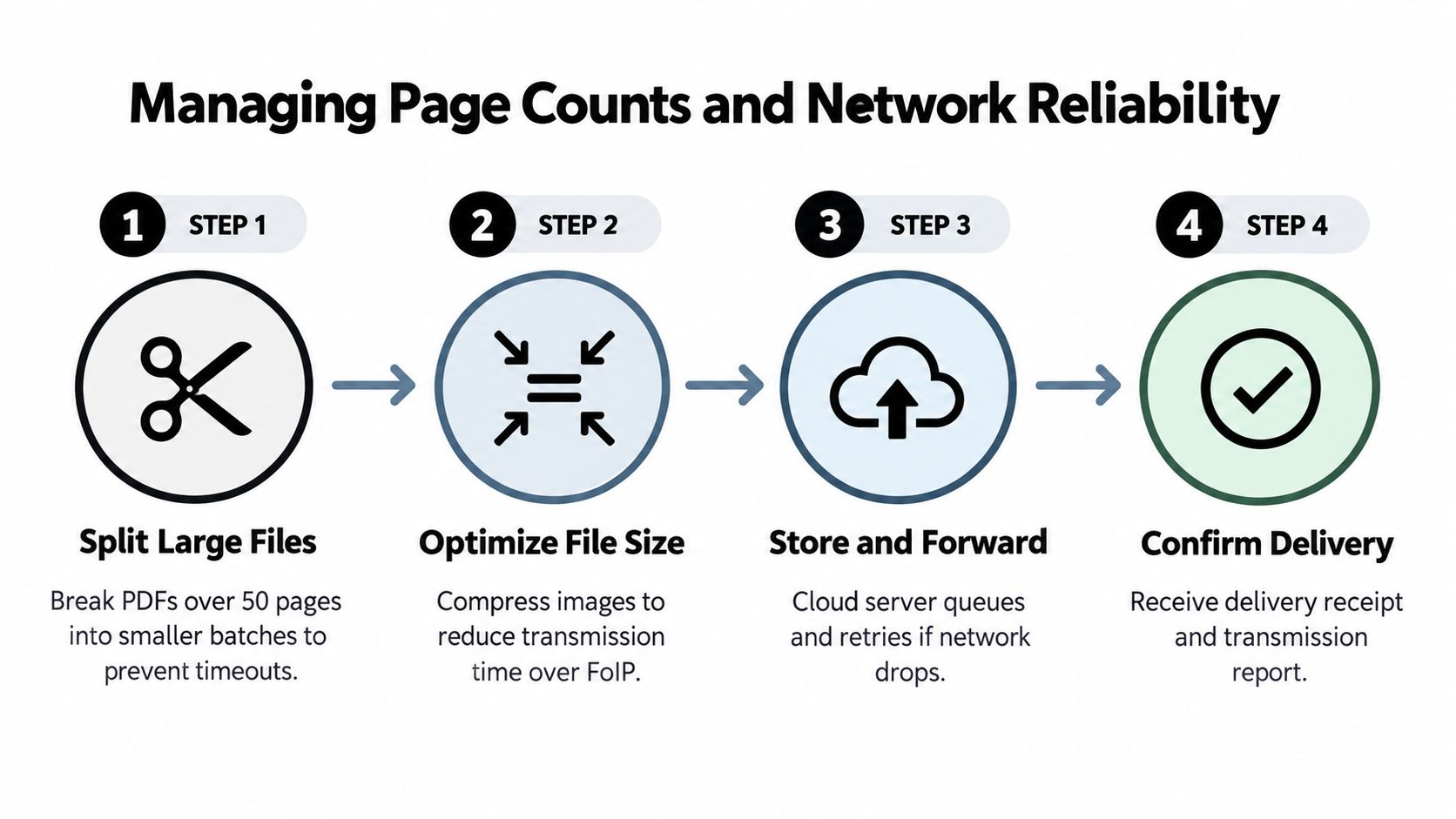
G.711 passes fax audio through an IP call and can be sensitive to packet loss. T.38 treats fax tones as IP packets and adds redundancy, making it more tolerant of network problems. Store-and-forward systems upload the document to a cloud service first, then queue and retry transmission rather than depending entirely on a continuously stable connection between your browser session and the recipient.
Why long PDFs deserve a separate plan
The technical evidence becomes more severe as page count rises. A Dialogic fax reliability whitepaper reports that at about 1% packet loss, single-page success fell below 80% for most non-redundant configurations, while redundant fax relay stayed above 80% until packet loss exceeded 4%. It also states that when single-page success is only 80%, a fax longer than 20 pages has less than a 1% chance of completing successfully.
That doesn't mean every long PDF will fail. It means you shouldn't treat page count as a cosmetic detail. A long packet multiplies the opportunities for a timeout, line renegotiation, or corrupted page.
Use a controlled sequence for large documents:
- Split by logical boundaries: Separate the cover material, main form, and supporting exhibits where possible.
- Keep order visible: Label files or cover notes as Part 1, Part 2, and so on.
- Send smaller batches: Avoid making one transmission carry the entire risk.
- Wait for confirmation: Don't send the next batch until the prior transmission has a usable result.
- Retain the sequence: Store the files and confirmations together so the recipient can reconstruct the packet.
If the service has a page or upload ceiling, splitting is often more dependable than repeatedly retrying the same oversized file. File size and page count are related, but they aren't identical. A text-heavy PDF can be light, while a short scan can be large.
Verifying Receipt and Meeting Compliance Needs
Clicking Send proves that you initiated a transmission. It doesn't, by itself, prove that the recipient processed every page correctly. Review the delivery result, keep the timestamped confirmation or transmission report, and match it to the exact PDF copy you uploaded.
For sensitive documents, create a simple record containing the recipient number, sender identity, document name, page count, transmission date, and delivery status. Store the confirmation with the sent file, and follow your organization's retention and access rules. If the result is ambiguous, contact the recipient through an established channel and ask whether the document arrived legibly, rather than assuming that a successful connection means a usable record.
Fax persists partly because electronic exchange remains fragmented in sectors that need dependable document routing. Independent reporting estimates that U.S. healthcare routes roughly 70% to 90% of clinical communications through fax at some point, while only 43% of U.S. hospitals routinely interoperated across all four electronic-exchange domains in 2023, as discussed in this digital faxing and interoperability report. Those figures don't make fax automatically secure or compliant. They explain why organizations still use it as a fallback when systems can't exchange a form directly.
A faxed PDF may serve as evidence that a transmission was completed, but its evidentiary value depends on the surrounding controls. Confirm the recipient, preserve the original and sent copy, retain the delivery report, and follow any applicable privacy, legal, or healthcare policy. For regulated material, ask whether the service, account configuration, and retention process meet your organization's requirements.
SendItFax lets you upload PDF, DOC, or DOCX files from a browser and send them to recipients in the United States and Canada without creating an account for the stated sending flow. Prepare your PDF carefully, choose the appropriate delivery option, and visit SendItFax when you need a practical way to transmit a document without a physical fax machine.