Tag: web-based fax

  • Send Fax Online From Computer: Simple & Secure

    Send Fax Online From Computer: Simple & Secure

    You need to send one document. It’s probably signed already. It might be a medical release, a closing form, an employment packet, or a legal notice. The recipient says “fax it over,” and that’s the whole problem. You don’t own a fax machine, you don’t want to install anything, and you definitely don’t want to create yet another account just to send one file.

    That’s where browser-based faxing makes sense. For occasional use, the fastest workflow isn’t a monthly subscription. It’s a simple upload form on a computer, a recipient fax number, and a clean file that goes out without extra setup. If you only fax once in a while, that no-signup route feels a lot closer to walking up to an office machine, sending the document, and moving on with your day.

    Why You Still Need to Send a Fax in 2026

    The usual fax moment starts with urgency. A clinic needs a signed authorization before the end of the day. A lender wants a document in fax form, not email. A law office asks for a faxed copy because that’s still how their intake process works. You can argue with the process later. Right now, you just need the document delivered.

    A young person in a green sweater reads a document while sitting at a desk with a laptop.

    Faxing survives because some industries haven’t replaced it with a cleaner universal standard. In 2019, over 17 billion individual fax documents were sent globally, with the U.S. healthcare sector alone accounting for more than 9 billion, according to Communications of the ACM’s reporting on fax usage. That tells you something important. Faxing isn’t a quirky edge case. It’s still embedded in real workflows.

    Where faxing still shows up

    Some of the most common examples are predictable:

    • Healthcare offices: release forms, referrals, records requests, intake packets
    • Legal teams: signed notices, court-related paperwork, client documents
    • Financial firms: identity forms, authorization documents, account paperwork
    • Real estate offices: disclosures, signatures, and deadline-driven paperwork

    A lot of those use cases come down to procedure, compliance, and habit. If the receiving office runs on fax, your opinion about modern communication tools doesn’t change the deadline.

    Faxing today is less about owning a machine and more about matching the recipient’s process.

    That’s why “send fax online from computer” is such a useful workflow. You keep the format the recipient expects, but you skip the hardware, paper tray, toner, and office detour. For a broader look at where faxing still fits into daily work, SendItFax has a helpful explainer on what faxes are used for.

    Why occasional users need a different approach

    Subscription fax services make sense if you send documents every week. They don’t make much sense when you fax a few times a year. In that case, the practical requirement is simple: open a browser, upload the file, enter the number, and send it without committing to an account you won’t use again.

    That no-account option is the closest thing to modern walk-up faxing. It fits remote workers, freelancers, travelers, and anyone handling a one-off document under time pressure.

    How to Send a Fax Online with SendItFax

    The cleanest browser workflow is the one that asks for the least from you. If your goal is to send fax online from computer without setup, the process should feel close to sending an attachment. Open the site, fill in the delivery details, upload the document, and confirm the transmission.

    A person using a laptop to send an online fax from a web browser interface.

    Start with the recipient details

    Enter the recipient’s fax number carefully. For U.S. and Canadian delivery, use the full number so there’s no ambiguity. If you’re copying it from an email signature or intake form, double-check that you’re using the fax line and not a voice line.

    You’ll also typically enter your own sender details. That matters for cover page identification and gives the recipient context if they need to match the fax to an internal request.

    Practical rule: Most failed faxes I’ve seen start with a bad number, not a bad file.

    For occasional users, a no-signup tool feels faster than account-based platforms. You don’t stop to verify email, create a password, or use a dashboard you may never access again. You just fill in the fields that matter for the transmission itself.

    Upload the document from your computer

    Most online fax services support standard office formats. Online fax services support multiple document formats including PDF, DOC, and DOCX, and the technical process involves the server translating the digital file into a fax-compatible format that can be delivered over traditional phone lines, as explained in Fax.Plus’s guide to faxing from a computer.

    That means your computer file isn’t going straight to the recipient as a normal email attachment. The service converts it into something the receiving fax system can read. In practice, PDF is usually the safest choice because formatting stays more predictable, but DOC and DOCX are commonly accepted too.

    If your source document is already digital, upload it directly from your desktop, downloads folder, or cloud-synced local folder. If it’s still on paper, scan it first or capture it cleanly with your phone and save it before uploading.

    Add a cover page only when it helps

    A cover page isn’t always necessary. It’s useful when the recipient handles shared fax lines, busy front desks, or intake teams sorting a stack of incoming documents. A short note like “Medical records request” or “Signed closing form attached” can save the recipient time.

    If the fax is a straightforward one-page form sent to a dedicated number, you may not need a cover page at all. That’s one of those small choices that matters more in practice than in generic how-to guides. Fewer pages can mean less clutter and less chance of confusion.

    After the basics are clear, this quick demo helps show what the browser flow looks like in real use:

    Review before sending

    Before you hit send, check four things:

    • Recipient number: Make sure every digit is correct.
    • File version: Confirm you uploaded the signed or final copy, not the draft.
    • Page order: Verify multi-page documents are in the right sequence.
    • Cover message: Keep it short and specific if you include one.

    This review step takes seconds and prevents the most common avoidable mistakes.

    What the workflow looks like in real life

    For occasional faxes to U.S. or Canadian numbers, SendItFax is one browser-based option that lets users upload DOC, DOCX, or PDF files, enter sender and recipient details, optionally add a cover message, and send without creating an account. That’s the part many people care about most. There’s no account setup standing between the document on your computer and the outgoing fax.

    For one-off tasks, that’s usually what works. The fancy extras matter less than speed, clarity, and getting the transmission out without friction.

    Free vs Paid Faxing What You Need to Know

    Free faxing is useful, but it comes with trade-offs. If the document is short, non-urgent, and you don’t mind service branding on the cover page, a free option can be enough. If the fax is business-facing, time-sensitive, or longer than a few pages, the paid route is usually the cleaner choice.

    A comparison chart showing features of free versus paid online fax plans for users.

    What changes when you pay

    The pattern is consistent across online fax tools. Free online fax services often implement volume limits like 5 daily faxes and 3-page documents with mandatory branding, while paid tiers typically remove these constraints for a per-transmission fee, such as $1.99 for up to 25 pages and priority delivery, based on this overview of online fax pricing and limits.

    For occasional use, the question isn’t “free or paid forever.” It’s “does this specific fax justify the cleaner option?”

    SendItFax Plans at a Glance

    Feature Free Plan Almost Free Plan
    Cost Free $1.99 per fax
    Page limit Up to 3 pages plus cover Up to 25 pages
    Cover page Included Optional
    Branding SendItFax branding on cover page No SendItFax branding
    Delivery handling Standard Priority delivery
    Best fit One-off personal forms Professional or longer documents

    When the free option works

    Use the free tier when the fax is simple and low stakes.

    • Short paperwork: a brief form, confirmation page, or basic request
    • Personal use: a document where cover branding won’t look out of place
    • Non-urgent delivery: something that doesn’t need the fastest queue

    When paying is the smart move

    Paid faxing is worth it when presentation matters or the document has more moving parts.

    • Job and business documents: cleaner cover pages look more professional
    • Longer packets: multi-page forms fit better in the higher page allowance
    • Urgent sends: priority handling matters when the deadline is tight

    If you’re faxing something you’d be embarrassed to send with a promotional cover page, use the paid option.

    This distinction often clarifies choices. Free is fine for casual one-off use. Paid is better when the fax represents you professionally.

    Preparing Your Documents for Online Faxing

    A successful fax starts before you upload anything. Most delivery issues aren’t caused by the website. They come from crooked scans, faint signatures, tiny text, or the wrong file version. If you clean up the document first, the actual send takes very little effort.

    A person writing on a document while sitting at a desk with a computer monitor.

    Choose the safest file format

    If you have a choice, save the final file as a PDF. PDFs hold layout, signatures, and spacing more consistently across systems. Word files can still work, but they’re more likely to shift formatting if the source is messy.

    If you’re unsure how to structure the pages themselves, this guide on fax format basics is useful before you upload.

    Scan paper documents carefully

    When the original is on paper, use a phone scan app or your computer scanner to create a flat, readable file. Avoid angled photos taken under warm kitchen lighting. Shadows and low contrast often look worse after fax conversion.

    Use this quick checklist:

    • Flatten the page: folds and curled corners create dark shadows
    • Increase contrast: signatures and fine print should stand out clearly
    • Check page order: scanned packets often get mixed up
    • Zoom in once: if you can’t read it on screen, the recipient may not read it by fax

    Keep readability ahead of perfection

    Faxing doesn’t reward fancy design. It rewards legibility. Black text on a white background works better than gray text, pastel highlights, or small annotations in the margins.

    There’s also a practical environmental benefit to moving simple transmissions online. In the U.S. alone, traditional fax machines consume 200 billion pages of paper annually. Switching just 5% of this volume to digital methods like online faxing could preserve 10 billion pages, or about 1 million trees, each year, according to Business Research Insights’ online fax market report.

    That won’t fix a bad scan, but it’s one more reason to handle routine faxing digitally when you can.

    Is Sending a Fax Online from a Computer Secure?

    Security is the main hesitation people have with online faxing, especially when the document involves health, legal, financial, or identity information. That concern is reasonable. The right question isn’t whether online faxing feels old or new. It’s whether the service limits exposure and handles the transmission sensibly.

    Why no-account faxing appeals to occasional users

    For one-time sends, fewer stored credentials can be an advantage. You’re not creating another username-password pair, and you’re not building a dormant account that may sit around long after the document is sent. That’s one reason privacy-conscious users keep looking for browser-only tools.

    A verified dataset cited in a Fax.Plus page about free no-signup fax demand notes a 23% rise in “no-signup fax” queries in North America, and 68% of users in polls said they had abandoned services because of mandatory accounts. The takeaway is practical, not ideological. People sending sensitive one-off documents often want the shortest path with the least leftover account footprint.

    For organizations with broader security responsibilities, it helps to think beyond the fax itself and align document handling with a repeatable process such as the NIST Cybersecurity Framework. That matters most when teams are deciding how they classify files, control access, and reduce unnecessary data retention.

    The safest fax workflow is usually the one that collects the least extra information beyond what the send requires.

    If you want a more detailed look at privacy considerations around this delivery method, SendItFax also has a useful article on the security of fax.

    The three failures people hit most often

    Most fax problems are mundane. They’re fixable without technical support.

    • Invalid number: The digits are wrong, incomplete, or copied from the wrong contact field. Fix: verify the fax number with the recipient and resend.
    • Busy recipient line: The receiving line is occupied or temporarily unavailable. Fix: wait a bit and try again, especially during busy office hours.
    • Poor source document: The uploaded file is blurry, too dark, skewed, or hard to read. Fix: rescan the page or export a cleaner PDF.

    What works better than people expect

    Simple documents, clear scans, and browser-based tools tend to be reliable for occasional use. What doesn’t work well is rushing a low-quality phone photo into a send form and hoping the recipient can figure it out. Fax is still unforgiving about readability.

    If you treat the upload like a final deliverable and not an afterthought, online faxing from a computer is usually straightforward and low drama.

    The Future of Faxing Is No Fax Machine

    Faxing isn’t gone. The machine is.

    That’s the shift that matters. People still need to fax forms, records, contracts, and signatures, but they no longer need a dedicated office corner, a phone line, or a toner cartridge to do it. For occasional use, the practical default is now browser-based faxing from a computer.

    The smartest workflow is usually the simplest one. Prepare a readable file, enter the right number, send it, and move on. If you only fax once in a while, a no-account option fits that reality better than a subscription dashboard built for daily use.

    Once you’ve done it once, the old fax machine feels unnecessary.


    If you need to send a fax to a U.S. or Canadian number without setting up an account, SendItFax offers a browser-based option for DOC, DOCX, and PDF files, with a free tier for short documents and a $1.99 plan for longer or cleaner business-facing sends.

  • How to Send a Fax From My Phone The Easy Way

    How to Send a Fax From My Phone The Easy Way

    It's a question I get all the time: "Can I really send a fax from my phone?" The answer is a resounding yes, and you don't even need to download a special app to do it. The simplest, most direct method is using a web-based service like SendItFax right from your phone's browser. You can upload your document, punch in the recipient's number, and hit send in just a couple of minutes.

    This approach is perfect for when you need to get a document out the door without the hassle of creating new accounts or cluttering your phone with another app.

    Why Browser-Based Faxing Is a Game Changer

    A man in a blue shirt sitting in a car, looking at and holding a smartphone, with the text 'FAX FROM PHONE' on the image.

    The image says it all. Modern faxing isn't about being tethered to a machine in a dusty office corner; it’s about sending important documents securely from wherever life takes you. Your office is officially in your pocket.

    Many people still think they need a physical fax machine, but that's a leftover idea from a different era. While the technology has moved on, the fundamental need for secure, legally-binding document transmission hasn't gone anywhere—especially in fields like healthcare, law, and finance. Online fax services neatly bridge that gap, giving you the trusted security of a traditional fax with the convenience you expect today.

    The Power of Simplicity

    The real beauty of using your phone's browser to fax is the immediacy. No digging through an app store, no waiting for downloads, and no creating yet another password you'll have to reset later. It's built for those one-off, "I need this sent now" moments.

    Picture this: you're at a client's site and just got a signature on a critical contract. Instead of hunting for a local print shop to fax it, you can just pull out your phone.

    • Snap a quick, clear photo of the signed document.
    • Use your phone's built-in tools to save it as a PDF.
    • Open your browser, head over to SendItFax, and send it on its way.

    What could have been an hour-long ordeal becomes a simple, two-minute task. That’s the kind of practical efficiency that makes sending a fax from your phone so valuable.

    Faxing Is Far From Obsolete

    Believe it or not, faxing is still a major player. Despite its old-school reputation, the global fax services market was valued at an impressive USD 3.18 billion in 2022. It’s projected to climb to USD 5.96 billion by 2028. This boom is almost entirely fueled by the move to cloud-based faxing that cuts out the need for physical hardware. You can read more about the surprising growth of the fax industry and see for yourself.

    This trend makes one thing clear: people still trust the reliability and legal weight of a faxed document. They just want a better, more modern way to send one. Web-based services deliver exactly that.

    Learning how to send a fax from your phone isn't just a party trick. It's a genuinely useful skill that gives you a secure and immediate way to transmit important documents, whether you're sending a medical form from the car or finalizing a deal from a coffee shop.

    Getting Your Documents Ready to Fax From Your Phone

    Before you can fire off a fax from your phone, you need to make sure your document is in the right shape. Think of it like this: you wouldn't send a letter without putting it in an envelope first. The same logic applies here—your file needs to be properly formatted for a successful trip. Thankfully, getting it ready on your phone is pretty straightforward.

    Most online fax services, including SendItFax, play best with standard file types. For the smoothest experience, you'll want to use PDF, DOC, or DOCX files. Sticking to these common formats is the best way to guarantee your document looks exactly the same on the other end, without any weird formatting glitches.

    From Paper in Hand to a Digital File

    So, what do you do when your document is a physical piece of paper? Maybe it's a signed contract, an invoice, or a medical form. You don’t need a fancy scanner; your phone’s camera is all you need to create a crisp, clear digital version.

    Let's say you're a contractor and you've just gotten a client to sign a work order on-site. You need to get that signed paper back to the office immediately.

    • Find a flat surface with good lighting. A tabletop near a window is perfect. This helps you avoid those annoying shadows that can obscure important details.
    • Open your phone's camera or, even better, a dedicated scanning app like Adobe Scan or the one built into your phone's Notes app.
    • Line up the shot so the entire page is in view, hold steady, and snap the picture.
    • Most scanning apps will automatically convert the image to a PDF. If you're using your camera, just use the "Share" or "Save to Files" option and choose to save it as a PDF.

    In just a minute, that physical contract is now a fax-ready digital file sitting on your phone. For a deeper dive into getting the best possible quality, check out our guide on scanning and faxing best practices.

    My Two Cents: Always, always double-check your scan before you send it. Pinch and zoom to make sure the text isn't blurry and that you didn't accidentally chop off a corner of the page. If the recipient can't read it, the fax is useless. A quick check saves a lot of headaches later.

    A Few Final Formatting Checks

    Once your document is digitized, there are a couple of quick things to keep in mind. Fax technology is old-school—it thinks in black and white. That means some of the things that look great on your screen won't translate well.

    • Go Easy on the Graphics: Complex charts with lots of colors or fancy logos can turn into big, messy black blobs on the receiving end. If a graphic isn't absolutely critical, it's often best to simplify it or leave it out.
    • Keep It High-Contrast: You can't go wrong with classic black text on a white background. Simple, clean fonts like Arial or Times New Roman will always come through clearly.
    • Watch the File Size: Modern fax services are more forgiving than the old machines, but a massive file can still slow things down. Aim to keep your document under 5 MB. This is especially helpful if you're sending from an area with a spotty mobile connection.

    Taking a moment to prep your file properly is the secret to a smooth, error-free fax every time.

    Sending Your First Fax From a Phone Browser

    Alright, you've got your document prepped and ready to go. The next part is surprisingly easy. We're going to use a web-based service like SendItFax right from your phone's browser. The beauty of this is that you don't need to create an account or download anything. The whole thing takes just a couple of minutes.

    Let's break down exactly how it works.

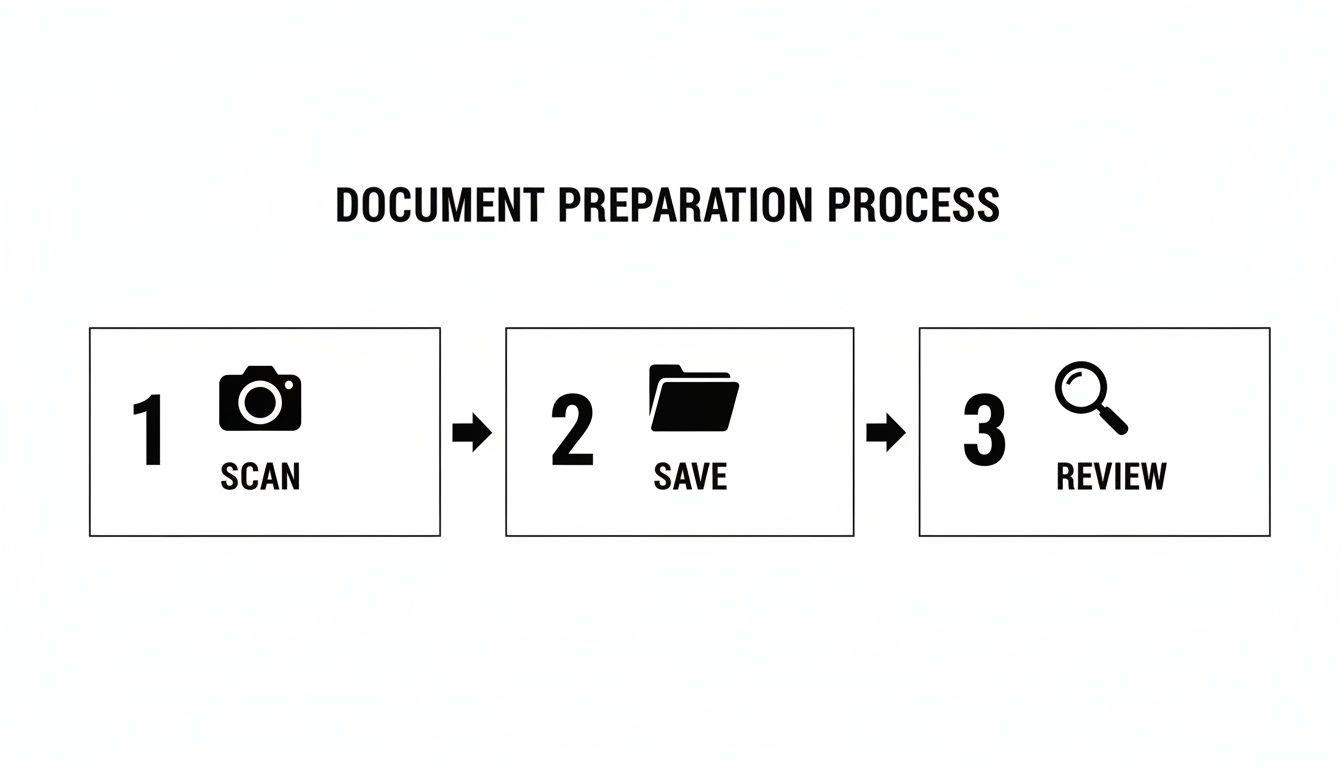
    Document preparation process diagram shows steps: 1 scan, 2 save, and 3 review with icons.

    This little workflow—scan, save, and review—is the foundation. Getting this right beforehand makes the actual sending part a breeze.

    Plugging in the Details

    First things first, you'll see fields for sender and recipient info on the SendItFax homepage. This part is simple but absolutely critical.

    • Your Info: Pop in your name and a good email address. This is non-negotiable, as it’s where your delivery confirmation will land.
    • Recipient Info: Type in their name and the full fax number, area code included. Seriously, double-check the fax number. A single misplaced digit is the number one reason faxes fail to go through. It happens more than you'd think.

    A little habit I've developed over the years is to check the number three times: once as I type it, a second time right after, and one last glance before I hit send. It feels a bit obsessive, but it has saved me from so many headaches and failed delivery notices.

    Attaching Your File and Writing a Cover Note

    Once the contact information is set, it's time to upload your document. Just tap the "Choose File" or "Upload Document" button. This will pull up your phone's file manager, where you can find and select the PDF or DOCX file you prepared earlier. The file name should appear on the screen, letting you know it's locked and loaded.

    Now for the cover page message. Don't skip this! A good cover note isn't just polite; it's professional and gives the person on the other end immediate context.

    Here are a few real-world examples to give you an idea:

    Document Type Sample Cover Page Message
    Invoice "Please find attached invoice #INV-2024-113 for recent services. Payment is due within 30 days. Thank you!"
    Legal Document "CONFIDENTIAL: Attached are the signed contract documents for the Miller account. Please confirm receipt."
    Medical Form "Attached are the completed patient intake forms for John Doe, as requested by Dr. Smith's office."

    A short, clear message makes sure your fax lands in the right hands and gets the attention it needs. If you want to dive deeper into the nuances, we have a complete guide that explains more about how to send an e-fax with proper etiquette.

    The Final Review and Liftoff

    This is the last checkpoint. Take a moment to scan everything on the screen: your email, the recipient's number, the file you attached, and your cover note. If it all looks correct, go ahead and hit that "Send Fax" button.

    From there, the service takes over. It dials up the recipient's fax machine, transmits your document, and then fires off a confirmation receipt directly to your email. That confirmation is your proof of delivery, so hang onto it for your records.

    And that's it. You just sent a fax from your phone without ever needing a clunky old machine.

    Why Online Faxing Is a Secure Choice

    When you're sending sensitive documents—think signed contracts, medical records, or financial statements—security isn't just a nice-to-have; it's everything. This is a huge reason why faxing has stuck around for so long. But how does sending a fax from your phone stack up against a clunky old machine? You might be surprised.

    Reliable online fax services, like SendItFax, don't just send your files over an open line. They use strong encryption to scramble the data from the moment it leaves your device until it reaches its destination. It's a layer of security that traditional fax machines, which operate on standard, often unsecured phone lines, simply can't match.

    Your Data Is Protected in Transit

    Just think about the old way of doing things. A fax arrives and sits on a machine in a shared office space, open for anyone to see. With a modern online service, your document travels directly from your secure device to the recipient's fax machine or a secure digital inbox. This completely sidesteps the physical security risks that have always been a problem with traditional faxing.

    This blend of security and reliability is exactly why so many professionals and businesses still count on fax. A recent IDC report highlighted this, finding that 25% of major organizations stick with fax over email to reduce their risk of data protection violations. On top of that, another 28% prefer fax because it provides a reliable transmission log, which is crucial for compliance in fields like healthcare and law. You can read more about why fax remains a trusted method in business to see just how relevant it is today.

    The bottom line is this: modern online faxing combines the legal weight and point-to-point delivery of a traditional fax with the encryption and security standards you expect from modern technology.

    Practical Security Tips for Mobile Faxing

    While the service provides a secure foundation, there are a few simple habits you can adopt to add an extra layer of protection. Following these best practices ensures your sensitive documents stay completely confidential. Our guide on cloud-based faxing also dives deeper into some of these topics.

    Here are a few actionable tips to keep in mind:

    • Avoid Public Wi-Fi: When sending anything confidential, always use a trusted network. Your home or office Wi-Fi, or even your phone's cellular data, is a much safer bet than the free Wi-Fi at a coffee shop or airport.
    • Manage Your Confirmations: That email confirmation you receive is your proof of delivery. Treat it like a receipt for an important purchase—file it away securely and consider deleting it from your main inbox if it contains any sensitive details from the cover page.
    • Verify the Recipient's Number: This sounds obvious, but it’s the easiest mistake to make. Always, always double-check the fax number before you hit send. Sending private information to the wrong person is a simple error with potentially big consequences.

    Troubleshooting Common Mobile Faxing Issues

    A person looking at their smartphone, sitting at a table with a box, focused on fixing fax issues.

    Even with a simple web service, things can occasionally go sideways when you send a fax from my phone. Staring at a "failed transmission" notification is frustrating, especially when you’re on a deadline. The good news is that most of these hiccups are surprisingly easy to fix.

    Let's walk through the usual suspects so you can get your documents delivered without the headache.

    What to Do When a Fax Fails to Send

    The number one reason a fax fails is maddeningly simple: a busy signal. Unlike email, which patiently waits in a digital queue, a fax needs an open line. If the machine on the other end is already in use, your fax gets rejected.

    Another common culprit is a simple typo in the fax number—an easy mistake to make when you're tapping away on a small phone screen.

    Here’s what to do:

    • Busy Signal: The only real solution here is patience. Give it 5-10 minutes and then try again. If you can, sending it during off-peak business hours can also increase your chances of getting through.
    • Incorrect Number: Before you hit send a second time, carefully double-check every single digit. Is the area code right? It’s the simplest step, but it’s also the one that solves the problem most often.

    If you’ve resent the fax and it still won't go through, the issue might be on their end. Their machine could be turned off, out of paper, or just plain broken.

    Handling Large Files and Missing Confirmations

    Sometimes, the problem isn't the connection—it's the file itself. A hefty document loaded with high-resolution images can struggle to upload and send, especially if you’re on a spotty Wi-Fi or cellular connection. If you notice the upload is crawling or failing, try compressing your PDF to a smaller size first.

    And what about when you’ve sent the fax but the confirmation email is nowhere to be found? First, take a deep breath and check your spam or junk folder. Automated emails from services like these are notorious for getting filtered by mistake. If it’s not there, go back and look at the email address you typed into the form—a tiny typo is all it takes.

    A missing confirmation email can be unsettling, but it rarely means the fax failed. More often than not, it's a simple email delivery snag. Fixing a typo or checking your spam folder usually clears it right up.

    Advanced Tips for Professional Faxing

    Once you get the hang of using a service like SendItFax, you’ll start to notice the little details. For instance, the free plan places some branding on the cover page. That’s perfectly fine for casual use, but maybe not ideal if you're sending a legal contract, a medical record, or a financial statement.

    For a more polished, professional look, upgrading to a one-time paid fax lets you remove all branding. This option often gives you the flexibility to send a fax without a cover page at all, which is perfect when the document speaks for itself.

    It's this kind of flexibility that has fueled the growth of online faxing, especially for small and medium-sized businesses. If you're interested, you can find more insights into the growing online fax service market and its drivers.

    By keeping these common issues and solutions in your back pocket, you can handle just about any problem that comes your way and fax with confidence.

    Got Questions About Faxing From Your Phone?

    Even with a step-by-step guide, you might still have a few questions rattling around. That’s perfectly normal. Let's dig into some of the most common things people ask before they send their first fax from a phone.

    Can I Really Send a Fax to an International Number?

    That’s a great question, and the answer is: it depends entirely on the service you’re using. Many web-based services, like SendItFax, are built specifically for domestic use, covering numbers in the United States and Canada.

    Before you even start composing your fax, the first thing you should do is check the service’s supported countries. If you try to send a fax to a number outside their coverage area, it’s simply going to fail. It's a quick check that can save you a lot of frustration.

    Does Any Printer with a Scanner Double as a Fax Machine?

    This is a really common mix-up. Just because your all-in-one printer can scan documents doesn't mean it can receive faxes. They are two totally different technologies.

    For a printer to work like a traditional fax machine, it needs two key things: a built-in fax modem and an RJ-11 phone jack to plug into a phone line. Lots of modern office printers have this feature, but your standard home printer-scanner combo probably doesn't.

    So, Can I Also Receive Faxes on My Phone?

    Receiving faxes is a different ballgame altogether. To get faxes on your phone, you need your own dedicated fax number that can catch those incoming documents and convert them into a digital file for you.

    The free, no-account services you see online are almost always for sending only. To actually receive faxes, you'll need to subscribe to a paid plan from an online fax provider. They’re the ones who can give you a personal fax number.

    Is It Better to Use a Web Service or a Dedicated App?

    Honestly, this just boils down to how you plan on using it. Neither one is "better" than the other; they're just built for different jobs.

    Here’s a quick way to think about it:

    If You Are… A Web Service (like SendItFax) Is… A Dedicated App Is…
    Faxing a one-off document Perfect. No sign-up, no hassle. Just upload and send. A bit much for a single use.
    Faxing frequently Less ideal. You have to re-enter everything every time. Much better. It saves your contacts and fax history.
    Needing to receive faxes Not an option. The only way. This is a core feature of paid apps.

    So, if you just need to fax something once in a blue moon, sticking with a straightforward browser service is your best bet. But if faxing is becoming a regular task for you, investing in an app subscription will make your life much easier.


    Ready to send that document without the hassle of creating an account or downloading an app? SendItFax is designed to get your fax on its way in just a few clicks. Give it a try at https://senditfax.com.