You're staring at a signed form, a government office still wants a fax, and nobody on your team wants to resurrect a clunky old machine just to get one document out the door. That's the main reason dedicated fax machines still get bought in 2026, not nostalgia. The question isn't whether fax is glamorous, it's whether a hardware unit still beats simpler options for your actual workload.
Why Dedicated Fax Machines Still Come Up in 2026
A lot of people only think about fax when they're already in a bind. A clinic has a release form to send, a law office has a filing that must reach a recipient who still works by fax, or a contractor gets a signature back and the government office on the other end refuses anything else. In those moments, a dedicated fax machine looks less like obsolete furniture and more like the shortest path to getting an acceptance stamp.
The category exists because fax didn't fade out cleanly. It grew from Alexander Bain's 1843 patent, became a commercial service in the 19th century, and then turned into a mainstream office appliance much later, especially after the 1983 Group 3 standard made equipment interoperable and much faster at 9,600 bits per second. By 1989, more than 4 million fax units were in use in the United States, which tells you how firmly fax settled into business culture before email took over. EBSCO's history of fax machines makes the timeline clear.
Why the habit survives
Fax still hangs around for three simple reasons. First, some organizations have built their intake process around it. Second, many people trust a printed transmission record more than a screenshot in a folder. Third, in regulated environments, fax often feels safer to the recipient because it preserves a paper trail without asking them to change systems.
Practical rule: if the recipient still asks for a fax number, don't fight the system, send the fax in the format they'll accept.
The historical peak matters, but so does the long tail. U.S. sales peaked in 1997, and fax was already being treated as obsolescent rather than cutting-edge by 2000, yet it never vanished from regulated work and cross-border business communication. Kaspersky's summary notes that 40% to 50% of Japanese households still use faxes, which is a reminder that the technology's relevance depends on local habits as much as on technical elegance. Kaspersky's fax overview captures that persistence well.
What Makes a Device a Dedicated Fax Machine
A true dedicated fax machine is a standalone device built to send and receive documents over a traditional phone line. It isn't a printer with fax as a side feature, and it isn't a browser service pretending to be hardware. If the machine's main job is fax, and it can work without a computer at all, you're in the right category.
The old signaling family still matters here. Dedicated fax hardware sits in the Group 3 / Super G3 lineage, which is why modem speed, line quality, compression, and document resolution all affect the final result. Brother's FAX-2840, for example, lists a 33,600 bps modem speed, 8.19-inch scan and print width, and up to 392 line/in superfine resolution, while Ricoh documents a Group 3 system that can transmit a standard page in 3 seconds at 28,800 bps with fallback down to 2,400 bps. Brother's FAX-2840 specifications show what “dedicated” looks like in real product terms.

How to tell one from the lookalikes
A product page can be misleading, so read it in this order:
- Primary function first. If the device is sold as a printer or scanner that also faxes, it's not a dedicated fax machine.
- Connection method next. A real unit expects a phone line, not a cloud login.
- Computer dependency last. If the machine can't send a fax from its own panel, it's a multifunction device with fax features, not a standalone fax appliance.
The near-relatives are easy to spot once you know what to check. An all-in-one printer with fax support can be useful, but it's still a printer first. A computer fax modem depends on software and a PC. A web fax service routes the document through cloud infrastructure and delivers it to a fax number, which is a different category entirely.
A genuine dedicated fax machine should look boring on paper. That's the point. It should do one job, stay on the phone line, and require almost no interpretation from the user.
Advantages and Disadvantages at a Glance
Dedicated fax hardware has a very specific appeal. It gives you a familiar, paper-based workflow, it sits on a direct line, and it prints a transmission record that staff can file immediately. For the right office, that simplicity is the whole reason to keep it around.
The downside is just as concrete. You're buying a device that needs a place to live, supplies to run, and someone who's willing to deal with paper jams or failed sends when they happen. If your building doesn't make analog phone service easy, the machine becomes an extra problem instead of a solution.
The quick read
| Dimension | Where dedicated hardware excels | Where it tends to fall short |
|---|---|---|
| Reliability | Works as a fixed office tool on a direct phone line | Depends on line quality and physical upkeep |
| Workflow | Staff can send and receive from the panel | Training is still needed if the team is mixed-skill |
| Audit trail | Produces a printed confirmation sheet | Paper records take space and can be misplaced |
| Maintenance | Predictable once the machine is stable | Toner, jams, and feeder wear add friction |
| Accessibility | Easy for anyone who knows how to use a phone-like device | Harder for remote staff and traveling users |
The cleanest way to judge the trade-off is to ask who benefits from a physical appliance. A front desk that receives forms all day may like the tactile certainty. A solo owner who sends one document every few weeks probably just wants the job done with less hardware in the room.
What It Actually Costs to Own a Dedicated Fax Machine
Most “do I need a fax machine?” articles stop at the purchase price. That misses the point. The total bill includes the device, the line, the supplies, the downtime, and the person who has to babysit the thing when it misbehaves.
The unit itself is only the start. Traditional faxing often needs a separate analog phone line, and that line can run about $25 to $50 per month in many markets, according to SoftLinx's hidden-cost review. Add toner or thermal film, paper, surge protection, and the occasional service headache, and the expense stops looking like a one-time purchase. This cost breakdown is a good place to sanity-check your budget assumptions, and SoftLinx is blunt about the operating burden.
What you actually pay for
- Hardware: Typical small-business models usually sit in the low hundreds, so budget for a real appliance instead of a throwaway gadget.
- Line rental: A separate phone line is the part many owners forget, and it keeps billing you even when the fax sits idle.
- Consumables: Paper and toner never disappear, they just become recurring clutter on the office spend report.
- Downtime: Every jam or failed transmission costs somebody time, and that time is what makes “cheap” hardware expensive.
The old market data explains why the hardware ecosystem got so entrenched. U.S. fax sales peaked in 1997, and the installed base stayed large for years afterward because offices had already built their habits around it. That history matters, but it does not tell you what to buy now. It only explains why used units, old workflows, and legacy expectations still hang around.
Practical rule: if you fax only occasionally, every minute spent clearing jams or resending pages hurts more than the device's sticker price.
For a low-volume sender, a web service often beats hardware on sheer simplicity. A fax machine tied to a phone line can easily become the more expensive choice once you count line rental and supplies. If you send a small number of documents a month, pay-per-use usually wins because you are not paying to keep an appliance alive between transmissions.
Where Dedicated Fax Machines Are Still Required or Preferred
A dedicated fax machine still makes sense when the receiving side expects fax as part of its normal intake process. That usually shows up in healthcare, legal work, real estate, and government offices, where fax fits the way documents are routed, logged, and stored. The reason is practical, not nostalgic. These offices often want a separate channel for forms, signatures, and records, and they do not want those items buried in an email inbox.
Healthcare is the clearest example. A clinic may not post “fax only” on every form, but staff often prefer a line that stays outside ordinary email traffic and matches their records process. Legal offices can be stricter, especially for court filings, probate work, and immigration forms where the instructions leave little room for interpretation. Real estate sits in the middle. Signed offers and disclosure packets still move fast by fax when the other party is working from paper. Government offices are inconsistent, yet many still keep fax in place because older intake systems are still running.
Hard requirement or office habit
- Hard requirement: The form or office instructions explicitly say fax.
- Soft preference: Fax is the fastest acceptable route today.
- Internal habit: Staff keep using fax because the office has always done it that way.
- Cross-border expectation: Some markets still use fax heavily, especially where paper-based workflows remain normal.
International work raises the stakes. Do not assume a foreign office handles documents the same way your team does. In markets where fax is still normal, the number on the page is not a relic. It is the preferred intake channel, and ignoring it just slows the process down.
If your recipient list is full of clinics, courts, agencies, or offices that still publish a fax number prominently, hardware is not a style choice. It is a way to match the channel they already use.
The same logic applies to the actual use case. A plain explanation of what fax is used for today helps you decide whether you need a machine at all, or whether a browser-based option will do the job with less overhead.
Buying and Setting Up a Dedicated Fax Machine
Start with the parts that affect daily use, not the spec sheet. Paper handling, modem speed, memory for out-of-paper reception, automatic document feeder capacity, and a built-in cover-page template matter more than marketing language. If those basics are weak, the machine will annoy you the first week you own it.
The connection matters just as much. A dedicated fax setup needs an active analog line, or an analog terminal adapter if your phone service supports it cleanly. Plug the machine directly into the wall jack when you can, because extra splitters can make signal problems worse, and keep it on surge protection so a power event does not leave you with a dead box on the floor. If your office phone setup already runs through a modern phone service, read fax machines with phone connections before you buy, because the wiring choice can make or break the installation.

A machine also has to fit the way your office works. If the team sends occasional forms and already uses browser tools for other document tasks, compare the hardware to unified communications for SMBs before you commit to a separate device. If the fax traffic is steady, the machine should be easy to reach, easy to feed, and easy to keep supplied.
Same-day setup checklist
- Confirm the line type. If there is no usable analog line, stop before you buy anything else.
- Install fresh consumables. Toner or film should be ready before the first test fax.
- Run a live test. Send a page to a number you know works, then keep the confirmation sheet.
- Stock paper. Keep enough on hand for a short buffer, so a simple out-of-paper event does not stop reception.
- Set a maintenance rhythm. Check the feeder rollers and test the line on a regular schedule.
Practical habits matter more than the feature list. A monthly test fax catches line issues before they become emergencies, and a quick cleaning of the document feeder rollers helps keep feeds stable. The machine should get a small, boring routine, because that is what keeps it reliable. If a device keeps missing sends, replace the habit of guessing with a scheduled check and a clear record of failures.
If the building has no analog line, if the machine keeps missing sends, or if your recipients are happy to take email attachments, do not force the issue. That is the point where a dedicated fax machine stops saving time and starts adding clutter.
Web Fax Services and When They Beat a Dedicated Machine
A dedicated fax machine makes sense only when fax is part of the daily routine. For everyone else, a browser-based fax service is the cleaner choice because it removes the hardware, the phone line, the toner, and the maintenance that come with keeping a machine alive for rare use. That matters for remote workers, travelers, and small teams that only need to send a signed form now and then.
SendItFax is a plain example of that model. It lets users send faxes to recipients in the United States and Canada from a browser without creating an account, and it accepts DOC, DOCX, or PDF uploads with an optional cover page message. The free option covers up to three pages plus a cover page, with a daily limit of five free faxes and SendItFax branding on the cover. The $1.99 Almost Free plan, paid through Stripe, supports up to 25 pages, offers priority delivery, removes SendItFax branding, and lets the sender omit the cover page entirely.
If you want the lowest-hassle setup, the browser usually wins.
There is no recurring line rental to keep alive. There are no rollers to clean, no paper path to clear, and no toner cartridge to replace at the worst possible moment. A one-off fax is also easier to send from a laptop or phone than from a machine that has to be fed, watched, and kept in service. That is the total cost problem with hardware: it looks simple until the office starts paying for the line, the supplies, and the downtime.
Browser fax also fits a modern office stack better than a standalone appliance. If you are sorting out how fax fits into broader communications planning, the unified communications for SMBs piece from Networking2000 is a useful lens because it treats fax as one channel inside a larger workflow, not as a separate purchase decision.
Dedicated hardware still has a place when fax volume stays steady, the machine needs a fixed spot in the office, and the team depends on always-on reception. Browser fax wins when the work is occasional, mobile, or too small to justify keeping a machine, a line, and a supply routine in place.
Choosing the Right Option for Your Situation
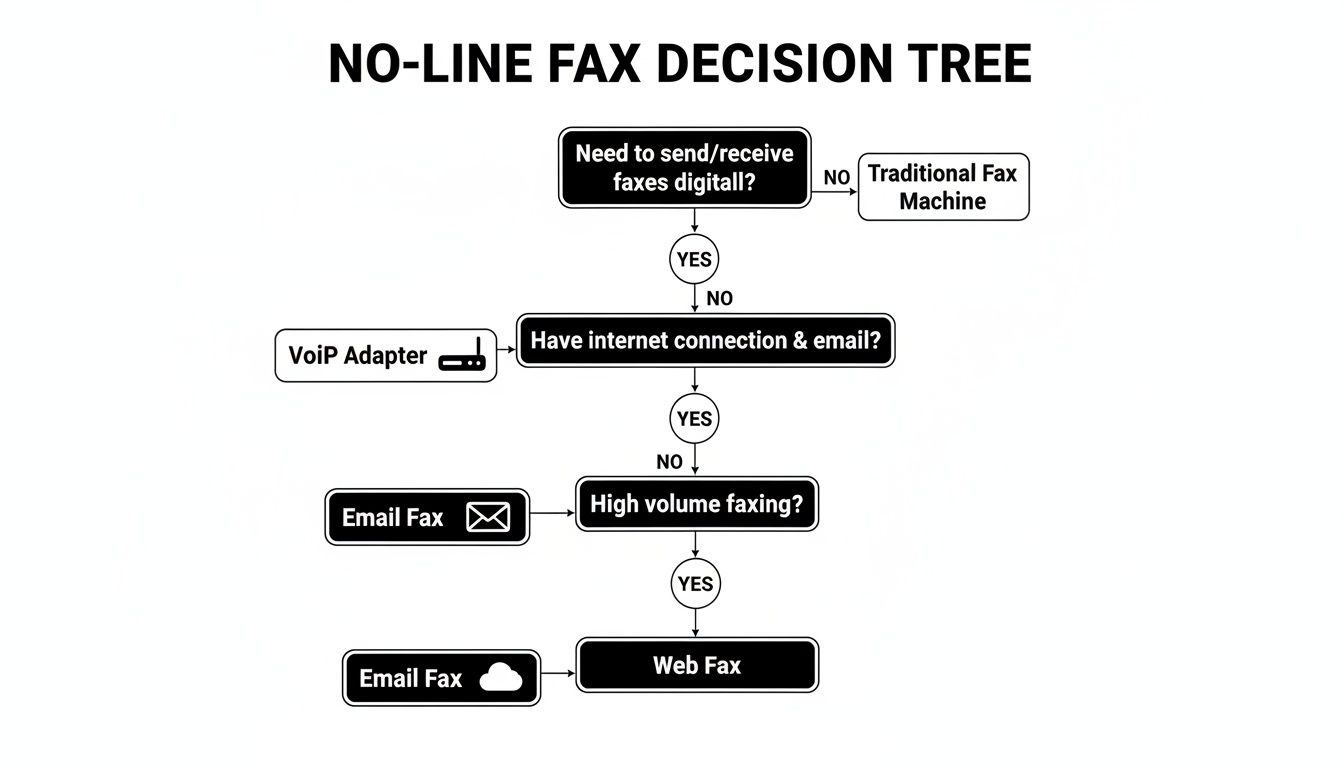
A clinic or law firm that sends and receives a lot of fax traffic should still lean toward dedicated fax machines. The reason is simple, they offer a fixed in-office workflow, a physical confirmation sheet, and a reception point that doesn't depend on someone opening a browser. When multiple staff members touch the same documents all day, hardware still feels faster and more obvious.
A freelancer or remote worker is in the opposite camp. If you only fax a signed form once or twice a month, a browser service is the saner choice because it removes hardware, line rental, and maintenance from the picture. The friction disappears, and so does the excuse to keep a machine around “just in case.”
A small business that mostly receives fax but rarely sends has a hybrid decision to make. Keep dedicated reception only if the inbound fax number is still valuable to customers or agencies, then use browser fax for outbound sends so you don't pay hardware costs for a process you barely use. If you're redesigning the office stack at the same time, the guide to UC for new fit-outs from Constructive-IT is worth scanning because it treats fax as part of the wider infrastructure choice, not as a lone purchase.
My recommendation: buy hardware only when fax is a routine office function, not a rescue plan. If you can't describe a steady fax workflow, don't buy a machine.
Re-evaluate the decision every year. Phone-line availability changes, recipient requirements change, and a workflow that made sense last year can become pure overhead the next time somebody asks why there's a beige box wasting desk space.
If you want the no-hassle route, SendItFax gives you browser-based faxing without buying a machine or maintaining a separate phone line. It's built for the exact one-off and occasional sends that make dedicated hardware feel excessive. Visit SendItFax and use it the next time a signed form has to get out the door fast.