Tag: browser faxing

  • Online Fax PDF: How to Send Documents from Any Browser

    Online Fax PDF: How to Send Documents from Any Browser

    You've got a PDF open on your laptop. It's signed, due today, and the instructions still say “fax it back.” You check your home office, then your kitchen, then the coworking room down the hall. No fax machine. No landline. No obvious plan.

    When searching for an online fax PDF tool, the document might be a medical intake form, a signed lease addendum, HR paperwork, a government filing, or a vendor packet that still treats fax as normal. The confusing part isn't the idea of faxing. It's the gap between a modern PDF workflow and a transmission method built for older document systems.

    Most guides stop at “upload your PDF and click send.” That's usually enough until it isn't. The problems show up one layer deeper. Your file is too large. The PDF is locked. The pages look sharp on screen but muddy after transmission. The service accepts one format but not the way your scanner created it. Or worse, the document contains sensitive information and the free tool you found isn't appropriate for that kind of data.

    When You Need to Fax a PDF and Have No Fax Machine

    A familiar version of this starts with a form that should have taken two minutes.

    You sign a contract digitally, save it as a PDF, and then notice the recipient only accepts fax. Or a clinic asks for completed intake paperwork by fax before an appointment. Or an HR team needs a signed authorization today, and their process hasn't moved to secure upload yet. The document is ready. The machine is missing.

    That mismatch is more common than people assume. Industry coverage says more than 17 billion individual documents were sent by fax in 2019, which helps explain why browser-based faxing stuck around as a practical workflow instead of fading away entirely, according to fax usage statistics collected in industry coverage.

    The options people usually try first

    Most senders consider the same few workarounds:

    • Print and drive somewhere: A retail fax counter works, but it turns a simple send into a trip, a wait, and another scan.
    • Use an office multifunction printer: That can work if you have one nearby and it's configured correctly. Many people don't.
    • Email the PDF anyway: Sometimes the recipient accepts it. Sometimes they reject it because their process still expects fax delivery.
    • Find a browser-based fax service: This is usually the middle path when you need speed without hardware.

    In plain terms, an online fax PDF workflow lets you start with the file you already have instead of printing, rescanning, and hoping nothing shifts sideways.

    Practical rule: If the document already exists as a clean PDF, keep it digital as long as possible. Printing and rescanning usually lowers quality and creates avoidable page-size problems.

    The questions that actually matter

    Before you send, most confusion falls into four buckets:

    1. What does the service do to my PDF after upload?
    2. Why do size limits and page caps show up so often?
    3. Which PDF quirks cause failed sends or unreadable pages?
    4. Is the service safe for sensitive records or protected information?

    Those are the questions that save time. They're also the ones most quick tutorials skip.

    How Online Fax PDF Actually Works Behind the Scenes

    An online fax PDF service is really a translator. You upload a digital document in a browser. The service converts that document into a fax-compatible image format, then sends it through telephony infrastructure to the recipient's fax machine or digital fax inbox.

    Here's the basic flow at a glance:
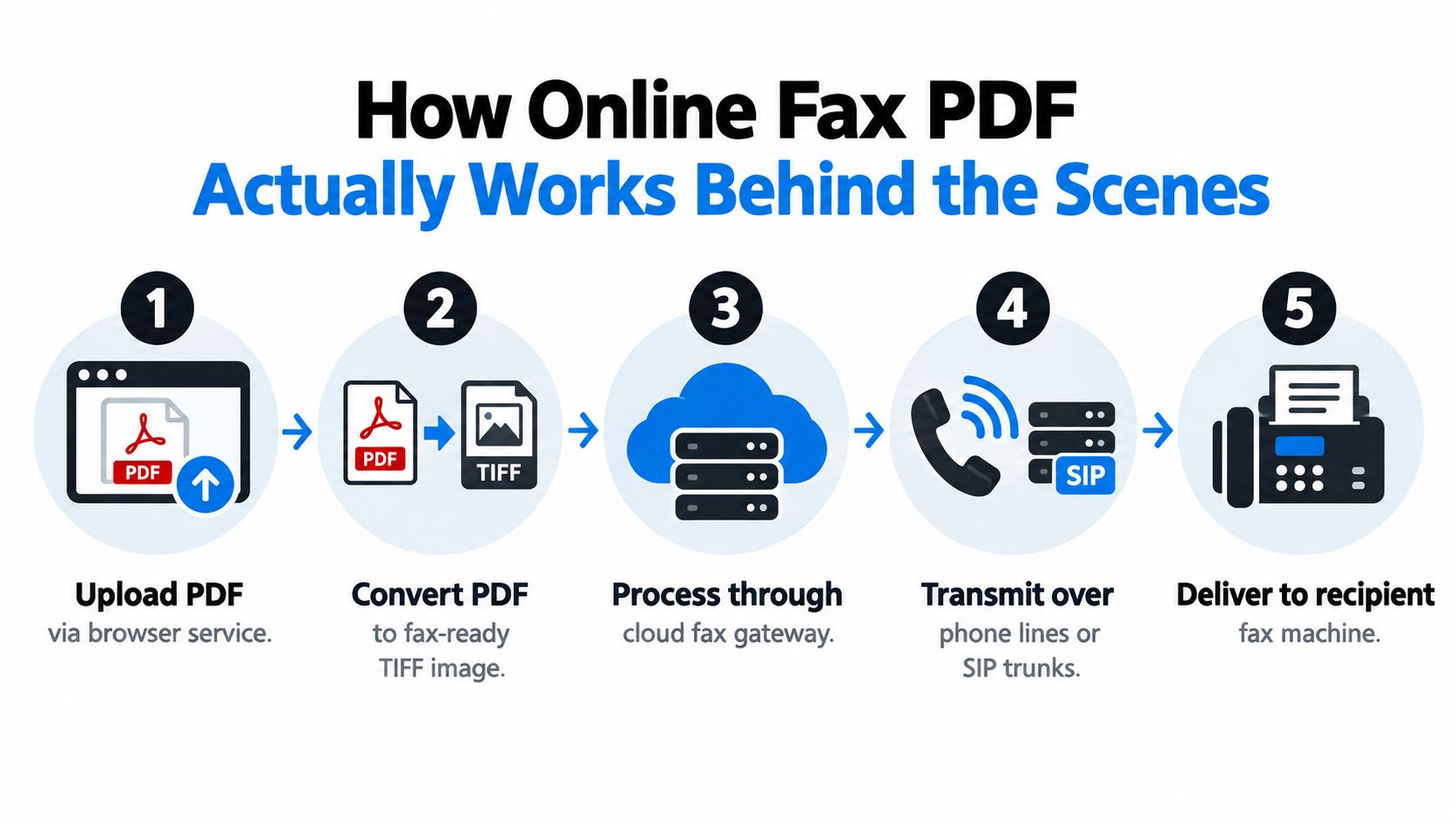
    A five-step infographic showing how an online PDF is converted and sent to a physical fax machine.

    Your PDF is not sent as a PDF

    This is the part many people miss. Traditional fax systems don't exchange a modern document file the way email does. In most cases, the service takes your PDF and renders each page into a fax-friendly image stream.

    That means your crisp vector text, transparent layers, signatures, and embedded fonts get flattened into page images before transmission. If you want a broader primer on browser-based faxing, this guide on what an online fax service is is a useful companion.

    Why resolution matters during conversion

    Fax delivery is constrained by page imaging, not by the PDF container itself. Industry guidance commonly points to fax resolutions around 200 dpi, including roughly 204×196 dpi for standard fax and 200×200 dpi or 200×100 dpi modes for compatibility, as noted in this PDF-to-TIFF conversion reference.

    That's why a service often converts pages into a multi-page TIFF-like workflow internally. The goal is simple: preserve text while keeping the payload small enough to transmit reliably.

    A practical consequence follows:

    • Small text can soften
    • Color usually gets dropped or flattened
    • Dense scanned pages can become harder to read
    • Larger files can take longer to process and send

    The network layer is built for fax behavior

    Fax-over-IP exists because ordinary voice-style packet transport can break fax signals. The standard used for this is ITU-T T.38, which defines how real-time Group 3 fax traffic is carried over IP networks and is designed to protect fax signaling from packet loss, jitter, and latency, according to the ITU-T T.38 specification.

    So when a service says it can fax your PDF, it isn't just uploading a file somewhere. It is:

    1. validating the upload
    2. rendering pages into fax-ready images
    3. negotiating a connection with the destination fax endpoint
    4. streaming the pages in sequence
    5. recording whether the transmission completed

    Later in the process, many services can also return a delivery result to your email or account screen.

    A short walkthrough helps if you want to see the workflow visually:

    A fax service doesn't preserve your document the way a shared drive does. It rebuilds it into something older systems can accept.

    File Types, Page Limits, and Size Caps You Will Hit

    The easiest file to fax is usually the one that needs the least interpretation. In practice, that's often a standard PDF with normal page dimensions and readable contrast.

    Other file types can work, but each adds a little uncertainty.

    Which file types are easiest to send

    Here's the practical hierarchy most users run into:

    • PDF: Best for signed forms, contracts, and finished documents.
    • DOC or DOCX: Useful for editable forms, but formatting can shift if the service converts it differently than your computer does.
    • JPG or PNG: Fine for single scanned pages, receipts, or photo captures. Less ideal for multi-page packets.
    • TIFF: Often fax-friendly because it already resembles the image-based format fax systems like.
    • HTML or web content: Supported by some platforms, but usually less predictable.

    If you have a stack of pages as separate files, it's usually cleaner to merge them first. A single multi-page PDF gives you one known page count, one cover-page decision, and fewer chances for pages to send in the wrong order.

    The limits that surprise people

    Many sends fail at this point. Help content from fax providers shows recurring questions about PDF size limits, automatic compression for large scanned PDFs, locked files, and whether multi-page PDFs send as one fax. One provider's guidance also notes that uploaded files may be deleted after a retention window, which matters if you assumed the document would stay available indefinitely, as summarized in this guide to faxing a PDF and common PDF constraints.

    Because services vary, treat limits as operating rules, not trivia. Before sending, check:

    Typical Online Fax PDF Limits by Plan Tier Accepted File Types Max File Size Max Pages per Fax
    Free tier Usually PDF, sometimes image files and documents Varies by provider Varies by provider
    Paid consumer tier Usually PDF, DOC, DOCX, JPG, PNG, TIFF Varies by provider Varies by provider
    Business or regulated tier Broader support, often better handling of larger files Varies by provider Varies by provider

    The important habit is to expect a cap somewhere. If your contract packet includes many exhibits, scans, and signatures, you may need to compress it, split it, or send it in parts.

    One file or several

    Sending several attachments can work, but it creates more room for confusion:

    • Merged PDF: Better when page order matters.
    • Separate uploads: Better only when the service clearly combines them into one transmission and preserves order.

    If a provider doesn't explain that behavior, don't guess. A guessed workflow is how page 7 arrives before page 2.

    PDF Edge Cases That Break a Fax Send

    A lot of people assume, “It's a PDF, so it will fax fine.” That's not a safe assumption.

    A PDF can look perfect in Adobe Acrobat, Preview, or Chrome and still fail in a fax pipeline. The reason is simple. The service isn't judging whether the document opens on your screen. It's judging whether it can convert every page into something a fax endpoint can receive.

    The common troublemakers

    These are the file issues I'd check first:

    Common PDF Edge Cases and How They Behave in a Fax Pipeline What the Fax Service Does Workaround
    Password-protected PDF Often rejects upload or fails conversion Remove the password, save a clean copy, upload again
    Owner-locked PDF May open but block processing steps Export a new unlocked version if allowed
    Oversized scanned PDF May exceed upload or processing limits Compress images or split into smaller documents
    Unusual page dimensions May shrink aggressively or crop oddly Re-export to Letter or A4
    Multiple separate files May send separately or in unexpected order Merge into one PDF first
    Tiny text in scanned pages May become unreadable after rasterization Rescan or export with clearer contrast
    Transparency or unusual layers May flatten unpredictably Print to PDF or flatten before upload
    Certain archival variants May not process cleanly on all services Save a standard PDF copy

    Legibility changes after conversion

    Fax conversion is unforgiving to small details. Once the service rasterizes the file near standard fax resolution, fine print can blur, thin signature lines can weaken, and colored stamps may lose contrast.

    This is especially common with:

    • Phone-scanned pages with shadows
    • Documents with small footnotes
    • Screenshots pasted into PDFs
    • Forms with pale gray text fields

    If you have to zoom in on your own screen to read a section comfortably, the receiving fax machine may turn that section into guesswork.

    What to do when the upload fails

    When a service rejects a file, don't start by trying the same file three more times. Change the file.

    Good fixes include:

    1. Re-export the PDF from the original app instead of printing to a scanner app.
    2. Flatten form fields so typed entries become part of the page image.
    3. Reduce image weight if the scan is oversized.
    4. Split the document into logical parts if one large packet keeps failing.
    5. Standardize the page size to Letter or A4 before upload.

    A lot of “fax problems” are really document-prep problems wearing a fax label.

    Security and Compliance for Sensitive PDFs

    Convenience and compliance are not the same thing.

    A free browser tool may be fine for a basic public form. That does not make it appropriate for protected health information, legal records, or government documents. The gap sits in what happens to the PDF before delivery, after delivery, and inside the provider's storage and logging practices.

    Healthcare is the clearest example. Independent reporting has cited estimates that 70% to 90% of healthcare communication still occurs via fax, that the U.S. healthcare industry exchanges more than 9 billion fax pages annually, and that 71% of hospitals in 2019 used mail or fax to send summary-of-care records while 68% used it to receive them, according to medical fax transmission statistics compiled in industry reporting. That volume is exactly why secure PDF handling matters so much.
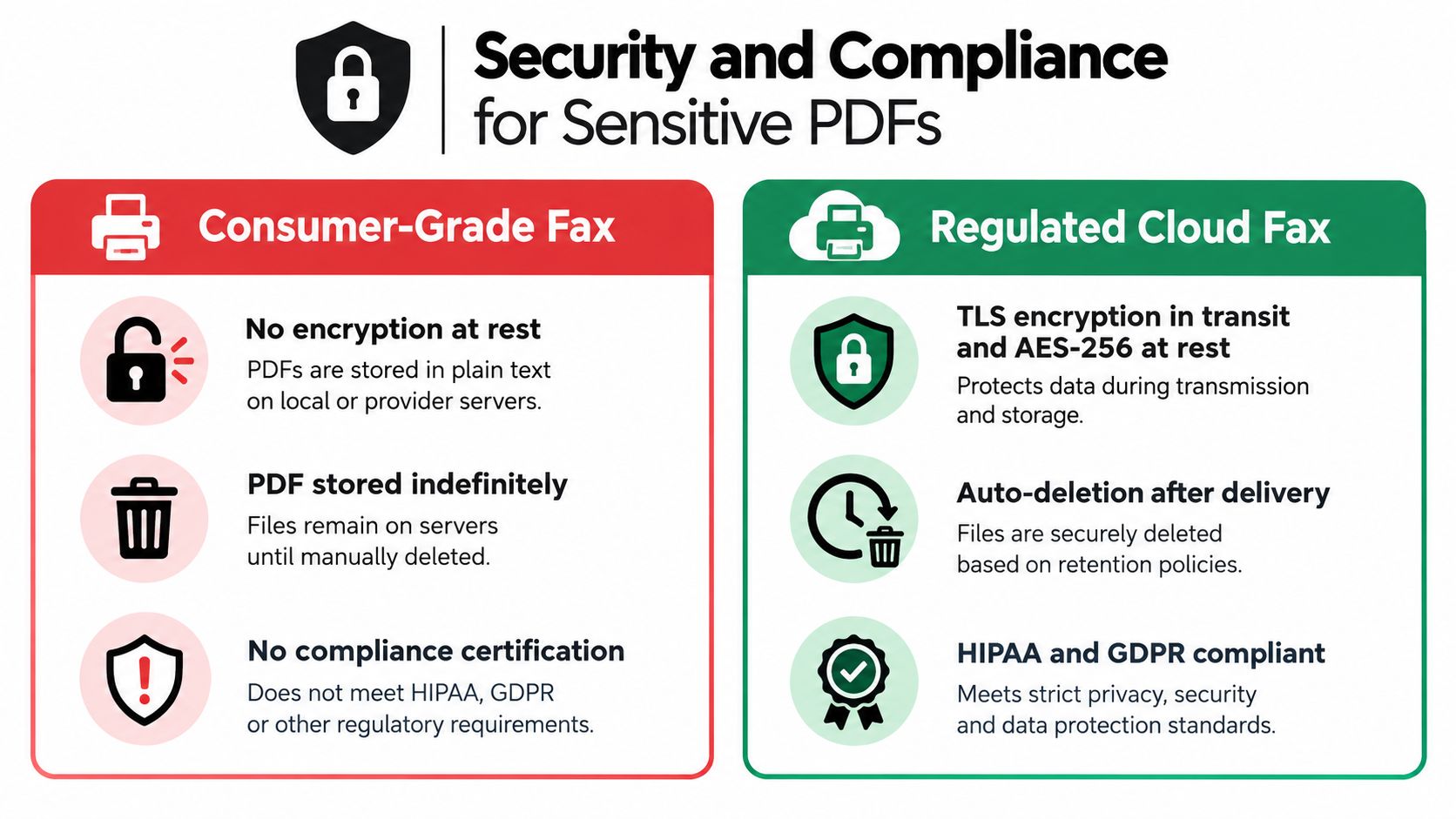
    A comparison chart showing the security and compliance differences between consumer-grade fax and regulated cloud fax services.

    What separates a casual tool from a regulated workflow

    For sensitive documents, look for real controls around:

    • Encryption in transit: The upload and transmission path should be protected.
    • Encryption at rest: Stored files, if retained at all, should be protected in storage.
    • Access controls: A fax number alone doesn't prove the right person picked up the document.
    • Audit trails: You may need a record of who sent what, when, and to which number.
    • Retention behavior: Some teams need deletion controls. Others need records retention.

    This matters especially in healthcare. Security guidance notes that faxing can be HIPAA-compliant only when a secure cloud fax service uses a BAA and encryption, and it explicitly warns that free online fax services are not HIPAA compliant for PHI, as explained in this HIPAA fax compliance guide.

    If you also need to control what happens before upload, such as restricting changes to a finalized packet, it helps to learn how to stop edits on your PDFs before the file enters the fax workflow.

    Matching the document to the service

    A simple way to decide:

    • Low sensitivity: Public forms or basic requests. Consumer tools may be acceptable if the recipient allows them.
    • Moderate sensitivity: Business contracts, payroll forms, internal records. Choose a provider with clear security policies and delivery records.
    • High sensitivity: PHI, legal case material, government records. Use a service designed for regulated workflows.

    This overview of the security of fax is useful if you want to compare the risk of physical fax trays, cloud fax retention, and auditability.

    A fax number tells you where the transmission went. It doesn't guarantee who saw the document after it arrived.

    Preparing Your PDF for a Clean Transmission

    Most fax failures can be prevented before you upload anything. Good prep beats troubleshooting every time.

    If you only remember one idea from this section, remember this: prepare the PDF for the receiving fax machine, not for your own laptop screen.
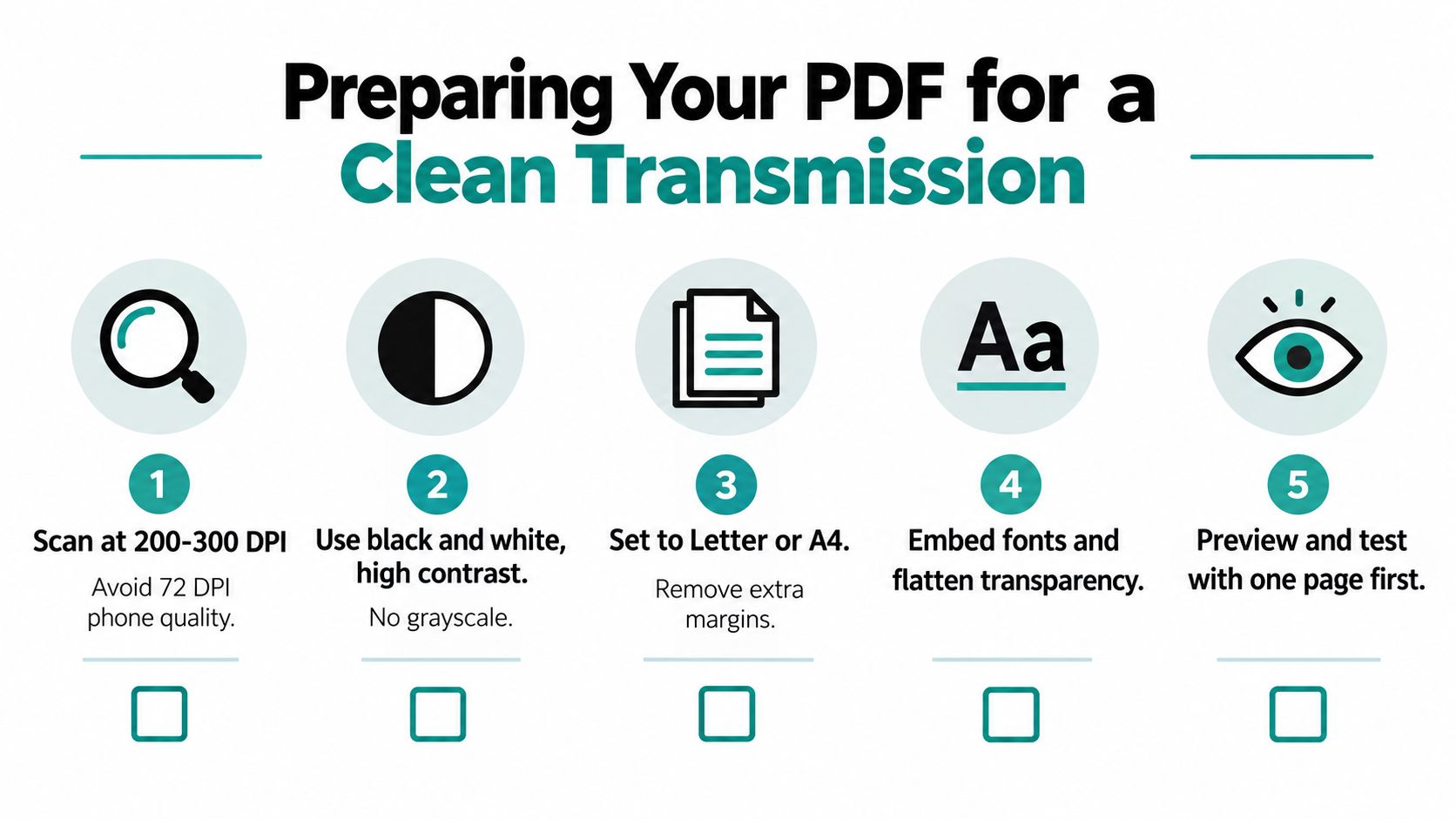
    An infographic titled Preparing Your PDF for a Clean Transmission, illustrating five essential steps for document scanning.

    A practical pre-send checklist

    Use this short routine before every upload:

    1. Check scan quality first. A clean scan in the 200 to 300 dpi range is usually a sensible target for text documents. Very low-quality phone captures are more likely to fall apart after fax conversion.
    2. Prefer strong contrast. Black text on a white background survives faxing better than gray text, colored highlights, or shadowy photos of paper.
    3. Make page size normal. Letter and A4 are safer than odd mobile scan dimensions.
    4. Flatten the document if needed. Flatten form fields, annotations, or layered content if you suspect the service may struggle with them.
    5. Remove passwords before upload. A locked PDF is one of the fastest ways to get a rejection.
    6. Count pages before sending. Don't let a surprise appendix push you past the provider's cap.
    7. Check orientation. Sideways scans and upside-down pages happen more than people admit.
    8. Verify the fax number carefully. Faxing is less forgiving than email when the number is wrong.

    Compression without ruining readability

    Compression is a trade-off, not a virtue. You want the smallest file that still keeps the page readable after conversion.

    Use lighter compression for:

    • clean text forms
    • typed letters
    • high-contrast contracts

    Use gentler compression for:

    • handwritten notes
    • signatures with thin pen strokes
    • pages with small print or stamps

    This guide to fax image quality is useful if you're trying to judge whether poor output came from the original scan, the compression step, or the destination machine.

    Do one visual check before you send

    Open the final PDF and inspect it as if you were the recipient.

    Look for clipped margins, faint initials, blank pages, duplicate scans, and pages that loaded in the wrong order. If the document is important, send a short test fax first when your provider and recipient setup allow it.

    Choosing the Right Online Fax PDF Workflow

    By this point, the useful question isn't “What's the best fax service?” It's “What happens if this PDF fails, leaks, or arrives unreadable?”

    That question gives you a better framework than feature lists.
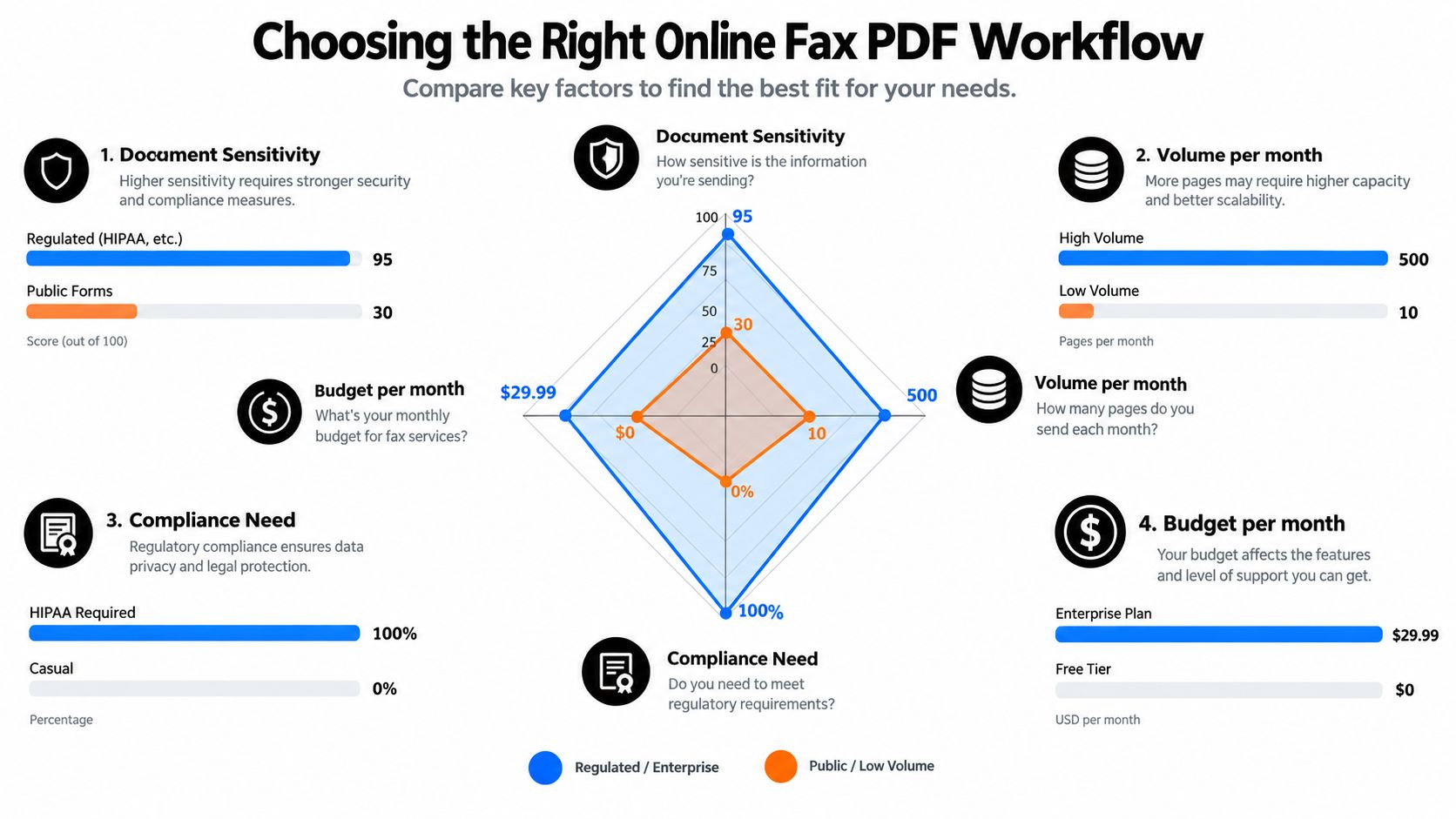
    A comparison chart showing factors to consider when choosing an online fax PDF workflow solution.

    Four decisions that shape the right workflow

    Sensitivity of the document

    A public form and a medical record should not travel through the same level of tooling by default.

    If the PDF contains regulated information, use a provider built for that environment. If it's a routine non-sensitive form, a simpler browser-based service may be enough.

    Frequency of use

    One-off faxing and daily faxing are different jobs.

    • Occasional sender: A pay-per-send or lightweight browser workflow makes sense.
    • Regular business sender: A subscription service with history, reusable contacts, and email alerts may save friction.
    • Operational team: API access, routing rules, and shared inbox behavior start to matter.

    How the document enters the system

    Think about where the file lives before faxing:

    • In a browser download folder
    • In email as an attachment
    • In a cloud drive
    • Inside a business application

    Choose the workflow that removes the fewest steps. If you always start with a signed PDF on your laptop, a browser uploader is usually enough. If staff sends documents all day from line-of-business software, that same browser flow becomes repetitive.

    Proof requirements

    Some recipients only care that the pages arrive. Others need a timestamped record, sender identity, or an auditable trail.

    That requirement changes the acceptable tool category fast.

    Matching common situations to common tool types

    Here's the plain-English version:

    • Single personal form with no unusual sensitivity: A basic browser fax workflow is often enough.
    • Freelancer or small business sending paperwork every so often: A lightweight paid workflow with better limits and cleaner cover-page control is usually the practical middle ground.
    • Healthcare, legal, or government handling sensitive records: Use a regulated cloud fax setup with formal security controls, retention rules, and documentation support.

    For occasional U.S. or Canada sends, SendItFax is one browser-based option that accepts PDF, DOC, and DOCX files without requiring an account, which fits simple document transmission when you don't need a full subscription platform.

    The right online fax PDF workflow depends less on convenience than on consequence. Start with the question, “What would hurt more, a failed send or an exposed file?”


    If you need to fax a PDF without hunting down a machine, SendItFax gives you a browser-based way to send documents to U.S. and Canadian fax numbers from your laptop or phone. It's built for quick, occasional sending, including PDF uploads and optional cover-page handling, so you can move a document out the door without setting up a full fax system. Visit SendItFax to see whether its workflow fits the kind of PDF faxing you handle most often.
  • Send Fax from Computer Without Phone Line: A 2026 Guide

    Send Fax from Computer Without Phone Line: A 2026 Guide

    Your laptop is open, the signed PDF is ready, and the fax deadline is tonight. There's no landline jack in sight, and the fax machines gathering dust in closets everywhere won't help. You can still send the document from your computer without buying a machine, installing a modem, or adding a phone line.

    The practical question isn't only whether online faxing works. It's which route carries the document reliably, what the delivery receipt proves, and whether the service fits a regulated workflow. T.38 routing, file preparation, recipient verification, and retention policies matter more than the fact that your computer connects through Wi-Fi.

    Why You No Longer Need a Phone Line to Fax

    Traditional faxing depended on an analog telephone connection because the machine converted a document into tones, called another fax machine, and completed a handshake over the public switched telephone network. That copper connection was the constraint. The fax image itself can now be created and transmitted by software.

    The technology moved through several useful stages. Giovanni Caselli launched the Pantelegraph between Paris and Lyon in 1865, described as the first commercial telefax service, and Xerox introduced Long Distance Xerography in 1964, connecting fax transmission more closely to telephone networks. In 1985, Hank Magnuski created GammaFax, widely described as the first computer fax board that allowed personal computers to send and receive faxes without a dedicated machine. Internet faxing emerged in 1996, routing fax traffic over the internet rather than relying only on traditional phone lines. These milestones are summarized in this history of fax usage and technology.

    What happens after you click send

    A browser-based service accepts your file, converts it into a fax-compatible image, and hands the transmission to a media gateway. A traditional fax machine still communicates with the destination through fax protocols, but your laptop handles the document preparation and service connection.

    The best implementations use T.38, the ITU standard designed for real-time Group 3 facsimile communication over IP networks. T.38 is built to handle fax data as data, while G.711 pass-through treats the transmission more like an audio call and becomes more vulnerable to packet loss, jitter, and delay. Technical background on the distinction appears in this T.38 and G.711 fax-over-IP guide.

    Practical rule: The absence of a phone line removes hardware and wiring. It doesn't remove the need for a capable fax route.

    You can use a browser session, an app, or an email gateway. If your wider communications setup still depends on old phone infrastructure, it may also be useful to choose a unified communications system that brings voice, messaging, and fax-related workflows under a more coherent plan. For occasional sending, though, a web service is usually the shortest path. Understanding what a fax number is helps before you try to send to a number that may belong to a voice line or shared office system.

    Fax hasn't disappeared because email exists. Bitkom reported that 77% of German companies still used fax in 2024, while 25% used it frequently or very frequently, according to this summary of fax usage statistics. Fax remains embedded in healthcare, legal, government, finance, and property workflows, so sending from a computer without a phone line is often a practical response to an existing obligation, not a nostalgic preference.

    The Three Ways to Fax From a Computer

    Choose the workflow before you choose the button. Browser services, mobile apps, and email-to-fax gateways can all connect to carrier-grade fax infrastructure, so the meaningful difference is usually how you prepare documents, control access, receive confirmations, and pay for usage.

    Feature Browser Fax Service Mobile Fax App Email-to-Fax Gateway
    Device requirement Laptop or desktop with a browser iOS or Android device Any device with an approved email account
    Cover-page support Usually available during composition Usually available in the app Often drawn from the subject and message body
    Free-tier ceiling Depends on the provider Depends on the provider Depends on the provider
    Confirmation format Email and dashboard status Push notification, email, or app status Confirmation email
    Best-fit scenario One-off forms from a laptop Paper documents scanned in the field Teams routing attachments through a shared inbox

    Browser service

    A browser-based service is the cleanest choice when the signed document already sits on your computer. You upload a PDF, enter the destination, add a cover page if needed, inspect the rendering, and submit. SendItFax is one example of this model, supporting DOC, DOCX, and PDF uploads for recipients in the United States and Canada without requiring an account.

    Mobile app

    An app earns its place when the source document is physical. A field worker can scan a form, crop the edges, review the image, and send it without returning to a desk. The trade-off is that camera capture introduces its own quality risks, especially shadows, skewed pages, and small text.

    Email-to-fax

    Email-to-fax works well for people who already manage documents through Outlook, Gmail, or a shared operations inbox. The provider maps the recipient's fax number to a service-specific email address, converts the attachment, and returns a status message. It's fast for repeat senders, but forwarding sensitive documents through email requires careful control of authorized senders and attachments.

    Organizations replacing legacy telephone systems may also want to migrate from PABX to cloud phone, especially when fax is only one part of a broader communications environment. Don't choose a method because it sounds modern. Choose the path that leaves the clearest record and creates the fewest opportunities for a wrong recipient or missing page.

    Sending Your First Fax From a Browser

    Start with the file, not the website. Export Word or Excel documents to a flattened PDF so fonts, page breaks, and tables don't shift during conversion. Give the file a traceable name such as lease-renewal-march-2026.pdf, rather than IMG_4821.pdf, and remove pages the recipient doesn't need.

    Open the SendItFax browser form and prepare the cover page as part of the transmission, not as an afterthought. Use the recipient's name as it should appear to the receiving office, include the company or department, add a callback number, and state the expected page count in the message. That count gives the recipient a quick way to notice a missing page.

    Screenshot from https://senditfax.com/send-a-fax

    Prepare the transmission

    Drag the PDF into the upload control, or use the file picker. Check the preview carefully. Look for clipped margins, blank pages, rotated scans, missing signatures, and tables that no longer fit the page. If the preview is wrong, stop there. Sending a damaged rendering only creates a second problem for the recipient.

    Enter the fax number with the correct country and area information. SendItFax is designed for United States and Canadian numbers, so an international destination needs a provider and route that explicitly support it. Confirm every digit against the recipient's current instructions, especially if the number came from an old form.

    The free option supports up to three pages plus a cover, allows a daily limit of five free faxes, and places SendItFax branding on the cover page, according to the publisher's product information. The Almost Free option costs $1.99 per fax, supports up to 25 pages, offers priority delivery, and removes SendItFax branding. Those plan details are specific to the publisher and shouldn't be assumed to apply to other services.

    The free route suits a short, non-branded form when a queue delay is acceptable. The Almost Free toggle makes more sense when the document is longer, the cover needs to look neutral, or delivery priority matters. You can also omit the cover page when the receiving office has given you explicit instructions to do so.

    Review before committing

    After you select send, watch for the on-screen status and the email receipt. Save the receipt with the source PDF. If the status stalls, don't immediately submit repeated copies. First check the destination, preview, and transaction details, then follow the troubleshooting process below.

    For a fuller walkthrough of the upload and submission flow, use this guide to sending a fax online. The most reliable browser sends are uneventful because the sender spends a minute checking the file and number before clicking the final button.

    Free vs Paid Online Fax Options

    Treat the tier decision as a volume and consequence problem, not a feature checklist. A free option can be perfectly adequate for a one-off signed form. It becomes less attractive when you send longer packets, need a neutral cover sheet, require priority handling, or must maintain a more formal administrative record.

    SendItFax's free option is aimed at short occasional transmissions. It includes up to three pages plus a cover, carries provider branding on the cover page, and is intended for delivery within minutes. Its Almost Free option is a $1.99 per-fax path with support for up to 25 pages, priority delivery, and removal of SendItFax branding. The publisher also states that users can omit the cover page entirely on the paid option.

    Tier Monthly Pages Cost Branding Delivery Priority Dedicated Number Best For
    SendItFax free No monthly allowance stated Free SendItFax branding on cover Standard processing Not stated Short, occasional forms
    SendItFax Almost Free No monthly allowance stated $1.99 per fax Branding removed Priority delivery Not stated Longer or cleaner one-off sends
    Other paid services Varies by provider Varies by provider Varies Varies Often plan-dependent Recurring, inbound, or managed workflows

    The broader market includes paid paths from providers such as FaxZero, eFax, HelloFax Pro, and RingCentral Fax. Their suitability depends on plan terms, inbound fax support, administrative controls, and compliance commitments. Don't assume a subscription is automatically better than paying per transmission. A recurring sender needs to compare the need for a dedicated fax number, inbound replies, user permissions, retention controls, and branded cover pages.

    Free is a sensible choice for a short lease renewal, signed authorization, or occasional government form when branding doesn't matter. The free tier starts to feel restrictive when your packets regularly exceed its page allowance or when you send often enough that queue timing becomes a concern. For healthcare, legal, or financial documents, the deciding factor should be the provider's written security and compliance terms, not the word “free.”

    Decision rule: Occasional sender, use the free route when its page and branding limits fit. Recurring sender, choose Almost Free or a managed paid plan when presentation, priority, inbound replies, or compliance controls matter.

    Privacy, Compliance, and What a Receipt Really Means

    Skipping the phone line doesn't skip compliance. Online fax traffic still travels through service infrastructure and carrier networks, and the transmission still contains whatever sensitive information appears in the document. T.38 improves transport behavior over IP, but it isn't a privacy policy, a retention agreement, or a healthcare compliance certification.

    A clinic sending patient forms needs to evaluate whether the provider supports its HIPAA obligations, including appropriate safeguards, access controls, and agreements where required. A law firm should consider attorney-client confidentiality, recipient verification, employee access, and whether the service retains copies after delivery. Documents involving residents of the European Union or California may also require review under applicable privacy obligations, including GDPR or CCPA requirements.

    The practical controls deserve written answers:

    • Encryption: Confirm protection in transit and at rest, and treat TLS in transit as a baseline expectation.
    • Access: Check whether the account restricts sending history, received documents, and downloaded files to authorized users.
    • Auditability: Ask whether paid plans expose logs showing sender, recipient, timestamp, status, and transaction identifiers.
    • Retention: Establish a documented retention window for sensitive material, such as 30 to 90 days, and verify that the provider can apply it.
    • Verification: Use a known fax number and confirm the recipient before transmission.

    An infographic titled Online Fax Compliance Checklist illustrating four key steps for secure and reliable digital faxing.

    What the receipt proves

    A successful receipt generally indicates that the transmission reached the receiving fax endpoint and that the endpoint accepted the fax image. It doesn't prove the named person read it, confirm that a signature on the rendered copy is valid, or create a promise that the carrier will retain your document.

    Save the receipt beside the original file, not instead of it. If the form matters, keep the submitted PDF, the final preview when available, the recipient verification record, and the transmission status together. A practical security overview for online faxing can help with general questions, while teams handling electronic signatures should separately review an electronic signature technology guide. Those tools address related workflow concerns, but neither replaces your organization's compliance review.

    Troubleshooting Failed or Stuck Faxes

    Don't resend immediately after a failure. Repeated attempts can create duplicate submissions, and the first diagnostic clues usually appear in the error receipt or transaction history.

    Start with the number. Confirm the country code, include the leading 1 for a United States number when required, remove accidental spaces or hyphens if the form rejects them, and compare every digit with the recipient's published fax line. A transposed digit can send a perfectly prepared document to the wrong office.

    A four-step infographic showing a troubleshooting flowchart to help users resolve fax transmission errors effectively.

    Check the file next

    Re-export the document as a flattened PDF. Remove password protection, reduce unnecessary pages, and inspect mixed portrait and landscape pages in the preview. If the source is a raster scan, improve legibility before sending. Very low-resolution scans can become difficult to read on the recipient's fax output, especially when the original contains small text or fine lines.

    A fax that remains in progress may be waiting on the receiving machine. The destination could be busy, offline, out of paper, or configured to answer only during certain hours. That doesn't automatically indicate a fault with your browser or internet connection.

    Use a controlled retry

    International routes deserve extra suspicion because a transmission may pass through several carriers or encounter a destination that doesn't support T.38 in the expected way. If the service offers a T.30-only fallback, one retry using that option can help when the receiving equipment requires it. Don't keep switching settings randomly. Record what changed.

    Use this triage ladder:

    • Verify the number: Reconfirm the destination and dialing format.
    • Re-export the PDF: Flatten fonts, remove passwords, and check orientation.
    • Reduce the packet: Halve the page count if the transmission is long.
    • Improve readability: Use grayscale and a clear scan around 200 dpi where appropriate.
    • Retry once: Wait for the queue or recipient issue to clear.
    • Escalate with evidence: Give carrier support the transaction ID from the failed receipt.

    Independent testing has found fax-over-IP success rates ranging from virtually 100% on some non-carrier internet routes to about 50% on many SS7-based international routes, as described in this fax error-rate analysis. That spread is why route quality matters more than raw internet speed.

    Building a Repeatable Fax Workflow

    The first successful send should become a small operating procedure, especially if the same counterparties will receive documents again. Keep verified fax numbers in a controlled contact record, and confirm them when a recipient changes offices or sends new instructions.

    Use predictable filenames such as vendor-invoice-2026-03.pdf or client-intake-consent-2026-03.pdf. Store the original file and its confirmation receipt in the same folder so an auditor, colleague, or future version of you can connect the submitted document to the delivery event without searching through an inbox.

    A compact routine works well:

    • Prepare consistently: Export to PDF, check orientation, remove irrelevant pages, and preview the final rendering.
    • Choose the tier deliberately: Use free sending for short, occasional documents, and use Almost Free or a managed paid service when page limits, presentation, or priority become material.
    • Preserve evidence: Keep the source document, receipt, transaction ID, and any recipient instructions together.
    • Review access: Restrict shared folders and fax dashboards to people who need the documents.
    • Clean up: Remove stale drafts and unnecessary copies during a scheduled monthly review.

    For regulated workflows, your organization may need a longer archive than ordinary operational records. The appropriate period depends on the governing rule, contract, or internal policy, so document that decision rather than choosing a retention period casually. Keep the fax number on file when the counterparty still accepts fax and the workflow has a clear business or regulatory reason to use it. That turns a last-minute emergency into a repeatable process.


    SendItFax lets you upload a DOC, DOCX, or PDF in a browser and send it to eligible United States and Canadian fax numbers without a fax machine or phone line. Visit SendItFax when you need a short occasional transmission, a longer Almost Free send, or a browser-based route that fits the document workflow you already use.

  • Online Fax Service USA: A Practical Guide for 2026

    Online Fax Service USA: A Practical Guide for 2026

    Your contract is signed. Your doctor's office wants the referral form by morning. The courthouse still says fax, not email. And somehow the thing standing between you and moving on with your day is a machine most of us hoped we'd never have to think about again.

    That's exactly where an online fax service USA fits. It lets you upload a document in your browser, turns it into fax-ready images, and sends it to a real fax number without making you hunt down a printer, a landline, or a store with a working machine. For a lot of people, that's the whole point, get the form out the door, keep the paper trail, and avoid spending half the afternoon on a task that should've taken five minutes.

    A diagram explaining why faxing still exists, focusing on legal compliance, medical records, and government forms.

    You Need to Fax Something Today

    You're staring at a signed form while the clock keeps moving. Maybe it's a medical release, maybe it's a legal document, maybe it's a government form that somebody insists has to go by fax before the office closes. You do not need to go find an old machine to finish the job.

    An online fax service is a browser-based fax bridge. You open a website, upload a file, type the recipient's fax number, and the service handles the conversion and transmission behind the scenes. The other side still receives a normal fax, but you never touch a fax machine.

    What You Need

    For a U.S. or Canadian fax, most browser-based services let you send from a phone, laptop, or tablet. You usually do not need a phone line, and in some cases you do not even need an account to send a one-off fax. That matters if you are traveling, working remotely, or just do not want another login for a task you may only do once this year.

    There is a reason this category still exists. Healthcare, government, and legal workflows still rely on fax for record exchange, familiar intake processes, and confirmation trails. A market report points to continued fax use in those settings, especially where staff still need a straightforward way to move signed documents from one office to another.

    Practical rule: if the recipient asked for a fax number, do not waste time trying to “modernize” the process. Send the fax, get the confirmation, and move on.

    If you only need to send one form tomorrow morning, that is the central question. You are not shopping for a giant communications platform, you are deciding whether a one-time fax or a small subscription fits the page count you have in front of you. A quick guide to online faxing services can help you compare those choices without overthinking it.

    How Online Faxing Works

    Online faxing starts with a document you already have, then converts it into the kind of file a fax network can send. The service turns your file into page images, routes them through a fax session, and hands them off in a way that still looks like fax traffic on the receiving end. That is why it can feel old-fashioned on one side and fully web-based on the other. For a closer look at how that setup behaves like fax traffic, see this overview of online faxing services.

    Most services accept common formats such as DOC, DOCX, PDF, JPG, JPEG, PNG, TIF, and TIFF, then do the conversion on their servers. That saves you from printing a document, scanning it back in, and turning a clean file into a messy image stack just to send it by fax. The receiving side still gets a normal fax transmission, whether it lands in paper form, in a fax inbox, or inside a document archive.

    Why one page can cost more than one page

    This part trips people up because fax billing is usually page-based, not message-based. Some providers also count a page as more than one billable unit if it takes too long to transmit. Fax.Plus documents a 60-second billing rule, where a page that exceeds that threshold can count as more than one page against your allowance.

    A plain text page usually transmits faster than a dense scan with graphics, signatures, stamps, or a blurry photo. A contract packed with screenshots can use up your plan faster than you would expect, even if it does not look long on screen.

    A simple way to estimate cost

    If your document is text-heavy and well-compressed, the page count is usually close to what you see on screen. If it is a scanned packet, especially one with images or thick signatures, it may move more slowly and use more of your allowance. In plain terms, file quality affects fax cost, not just file length.

    Keep the scan readable, but do not make it heavier than it needs to be. A clean PDF is easier to fax than a giant image file that behaves like a paperweight.

    Who Still Uses Online Fax and Why

    A fax number still matters because different jobs ask for different kinds of proof. A medical front desk needs a record that a file was sent and received. A lawyer wants a transmission log that can be filed beside signed paperwork. A traveler just needs a way to send a form without hunting down a store or a hotel lobby machine.

    Healthcare staff are the clearest example. They deal with sensitive paperwork, so they care about confirmation logs, retention rules, and whether the service fits into their compliance process. They also need something practical, since sending records from a browser is usually easier than printing, scanning, and standing next to a machine that may or may not work.

    Different users, different needs

    Legal and real estate professionals usually care less about novelty and more about proof. If a lease addendum, closing packet, or signed disclosure has to move fast, they want the fax to go through, the confirmation to be saved, and the record to be easy to pull up later. A court clerk or county office may still expect faxed paperwork, so the question is whether the service gives them a clean transmission history they can trust.

    For legal work, a fax often functions like a delivery receipt with a paper trail attached. That matters when someone needs to show that a form left their office on time, or when a real estate agent has to send a signed document to a lender while the deal is still moving. In those cases, online fax is less about convenience for its own sake and more about reducing the chance of a missing file, a lost email thread, or a rejected upload.

    Occasional senders are a different case. They do not need team dashboards, integrations, or a long setup process. They need a low-friction send, a readable cover page when it helps, and a service that does not feel wasteful if they only use it once in a while.

    Small businesses and freelancers often sit between those groups. One month they may need to fax a vendor form, the next month a tax document, and then nothing for weeks. For them, the better fit is usually the option that lets them pay for the fax they send, which is why a fax service cost breakdown is useful before choosing a plan.

    Here's the practical filter:

    • Healthcare offices: look for delivery logs, retention controls, and compliance paperwork.
    • Lawyers and real estate agents: look for confirmations, cover pages, and clean page budgeting.
    • Travelers and remote workers: look for browser access and no hardware requirement.
    • Occasional senders: look for pay-per-fax or a usable free tier.

    Pricing Models and Their Real Costs

    Fax pricing can look straightforward until you see that the bill depends on page count, how often you send, and whether the service treats inbound and outbound pages the same way. The three common models are free tiers, pay-per-fax, and monthly subscriptions. Which one fits depends on whether you send a single form once in a while, a stack of signed pages every week, or a mix of both.

    A monthly plan makes sense if faxing is part of your regular routine and the included pages will get used. If you only need to send one fax this month, paying for a full subscription can feel like buying a gym membership for a single visit. A one-time send is often easier to justify, especially if the form is short and you do not expect to fax again soon. Pricing examples from fax service cost show how a small, one-off fee can compete with a recurring plan when usage stays light.

    Which model fits which kind of sender

    A free tier works best for very occasional sends, especially if branding on the cover page does not bother you and the page limits stay within reach. A pay-per-fax model fits unpredictable use, because you pay only for the transmission you make instead of carrying another monthly charge. A subscription makes more sense when faxing is part of the job and the page allowance lines up with your usual volume.

    Online Fax Pricing Models at a Glance Typical Cost Best For Watch Out For
    Free tier No cash cost, but limited Very occasional senders Branding, page caps, daily limits
    Pay-per-fax One-time payment per send One-off forms, travelers, rare use Can get expensive if you fax often
    Monthly subscription Recurring fee Regular fax users Overage charges and unused allowance

    The page quota is where people usually get surprised. A cover page, a scanned contract, or a fax with dense graphics can use more of your allowance than the plain text makes it seem. A plan that looks cheap on paper can become less attractive once you start sending image-heavy files or longer packets with attachments.

    The same idea applies to subscriptions from established providers. PCMag's eFax review notes eFax Plus at $16.95/month for 150 inbound and 150 outbound pages and eFax Pro at $19.95/month for 200 inbound and 200 outbound pages, with 10-cent per-page overages beyond the cap (PCMag's eFax review). That kind of pricing works like a prepaid bucket. If you stay inside it, the plan feels predictable. If you go over, the extra pages start to matter quickly.

    The question is not which option sounds cheapest in isolation. It is which one matches how many pages you send, how often you send them, and how often your files turn into more than a simple one-page form. A light user may save money with a pay-per-fax option, while someone who sends faxed paperwork every week may prefer the predictability of a monthly plan.

    Sending Your First Fax from a Browser

    If you've got a document ready, the process is usually straightforward. On SendItFax, you upload a DOC, DOCX, or PDF, enter the sender and receiver details, and add a cover message if you want one. The whole point is to make the first send feel like filling out a web form, not operating office equipment.

    A desktop computer screen showing the SendItFax website interface for uploading a document to be faxed.

    The free option allows up to three pages plus a cover, with a daily limit of five free faxes and SendItFax branding on the cover page. If you need more room or want a cleaner presentation, the Almost Free plan costs $1.99 per fax via Stripe, supports up to 25 pages, offers priority delivery, removes branding, and lets you skip the cover page entirely.

    A simple first-send workflow

    1. Open the site and choose the send flow.
    2. Upload your file from your device.
    3. Type the recipient's fax number carefully, because a wrong number is still a wrong number.
    4. Add sender details so the recipient knows where it came from.
    5. Write a cover note if the situation calls for context.
    6. Choose free or paid based on page count and how polished you want the result to look.
    7. Submit and wait for confirmation after the file is converted and transmitted.

    Use a cover page when the fax is going to someone who might not recognize your name immediately, or when you want to explain the purpose of the document in plain language. Skip it for formal legal correspondence if the recipient expects the document to start immediately with the actual filing or signature page.

    After you submit, the service converts the file and sends it onward, then returns a delivery confirmation so you know whether it went through. That's the part people really want, proof that the document left your hands and landed where it was supposed to.

    For a visual walk-through of the browser-side flow, the guide at how to fax documents online gives the same basic send path in a more step-by-step format.

    Security and Compliance Without the Hype

    Online fax security gets oversold fast. The useful version is simpler, it should protect the file while it moves from your browser to the provider, protect it while stored, and give you enough records to prove the fax was sent. That's what TLS in transit and encryption at rest are trying to do.

    TLS protects the document while it travels over the internet. Encryption at rest protects it once it's stored on the provider's systems. Those protections matter, but they're not the whole compliance story, especially in healthcare.

    What regulated users should ask first

    If you work in healthcare, the first question isn't “Does the site say HIPAA on the homepage?” It's whether the provider will sign a Business Associate Agreement. Without that, HIPAA-friendly marketing doesn't mean much. For legal and real estate users, the more useful questions are whether the service keeps a delivery trail and how long it retains documents.

    For casual one-off faxes, the bar is different. You're mainly looking for reasonable corporate hygiene, a secure website, sane retention, and a provider that isn't sloppy with your file. You don't need a compliance theater performance for a tax form you're sending to a benefits office.

    The security checklist image below captures the basics in a compact form.

    An infographic detailing essential security protocols for online fax services including TLS encryption, AES-256 encryption, and industry compliance certifications.

    The features that actually matter

    • TLS encryption in transit: protects the file while it moves between your browser and the provider.
    • Encryption at rest: protects stored faxes and logs.
    • Retention rules: tell you how long your document sticks around.
    • Delivery confirmation: gives you proof the fax left the system.
    • BAA availability: matters if you're handling healthcare data.

    If you're trying to build a stronger security culture around faxed records, Heights Consulting Group has a helpful resource on build a healthcare security culture that fits the broader compliance conversation without pretending faxing is a standalone fix.

    The takeaway is pretty plain. For regulated work, don't buy a logo, buy a process. For casual work, don't overthink it, just avoid services that are careless with storage and transmission.

    How to Choose the Right Service for You

    Ask the boring questions first, because they're the ones that save you from a bad signup.

    Does it cover U.S. and Canada? Does it accept the file you already have, not the format you wish you had? Can you send without creating a full account? Is the free tier actually free, or is it bait with a card prompt? If you're paying, does the service publish a clear per-page or per-fax rate?

    You also want to know whether it supports cover pages and whether you can skip them, since that affects both presentation and cost. If you're in healthcare, ask about a BAA before you upload anything sensitive. If you care about delivery proof, make sure the service gives you a confirmation you can keep.

    My rule of thumb: choose the service that answers the pricing and compliance questions upfront. The rest is mostly interface polish.

    If your faxing is rare, don't lock yourself into a subscription just to solve one task. If you send paperwork often, compare the page allowance to your real document habits instead of the headline monthly price. That's the quickest way to avoid paying for pages you never use.

    Common Questions About Online Fax in the USA

    Do I need an account to send a fax? Not always. Some services let you send a one-off fax directly from the browser, which is ideal if you just need this done once and don't want another login.

    Can I fax to a toll-free number? Usually, yes, if the recipient's fax line accepts it. The key thing is to enter the number exactly as provided, because fax delivery is still number-sensitive.

    What happens if the line is busy? The provider may retry or return a failure notice, depending on the service. Always watch for the confirmation, because that's your proof the fax made it.

    Can I send a fax from my phone? Yes, if the service has a mobile-friendly website. That's one of the biggest advantages of browser-based faxing over physical machines.


    If you only need to send a fax once in a while, SendItFax gives you a browser-based way to send documents in the U.S. and Canada without a fax machine or account. If you want to see how a free send compares with the $1.99 paid option before your next deadline, visit SendItFax and send the form from whatever device you're holding right now.