
It's surprisingly easy to turn a Word document into a PDF. In fact, the best tool for the job is usually the ‘Save As’ or ‘Export’ function you already have in Microsoft Word. This simple step locks in your formatting and creates a file that anyone can open, ensuring your document looks exactly the way you designed it.
Why Converting Word to PDF Is a Non-Negotiable Skill
Have you ever spent hours perfecting a resume, only for the recipient to see a jumbled mess? That’s the classic Word problem. A DOCX file can look completely different depending on the viewer's device, their operating system, or even which version of Word they have installed. Converting to PDF eliminates that headache entirely.
Think of a PDF as a perfect digital snapshot. It freezes everything in place—your fonts, margins, images, and layout—so it looks professional and consistent for everyone, every time.
The Real-World Advantages of Using PDF
Beyond just preserving your formatting, PDFs offer some serious practical benefits for both work and personal life:
- Universal Compatibility: PDFs just work. They open correctly on almost any computer or smartphone, so you never have to worry about compatibility issues again.
- Better Security: Need to protect sensitive information? You can add a password to a PDF, restrict printing, or even block others from editing the content.
- Professional Polish: Sending a PDF signals that the document is final and polished. It’s the standard for important files like invoices, legal contracts, or when you need to send a fax online.
With so many people working remotely, this skill has become a daily necessity. PDF creation has been growing by about 12% annually between 2020 and 2025, and some major vendors report that users open over 400 billion PDFs each year. That’s a lot of documents relying on a stable, universal format.
Using Built-In Tools in Microsoft Word
Sometimes the best tool for the job is the one you already have. Before you start searching for online converters, remember that Microsoft Word has a fantastic, built-in feature for creating PDFs. Honestly, this is almost always your best bet for keeping your formatting perfectly intact, since you're making the conversion right from the source file.
On a Windows PC, you’ve got two main ways to do this: ‘Save As’ and ‘Export’. They both get you to the same place, but the path is slightly different. The ‘Save As’ command is probably the one you're most familiar with—just change the file type dropdown to PDF. The ‘Export’ option, which you’ll find under the File menu, is a bit more direct and lays out your choices clearly from the get-go.
Choosing Your PDF Quality on Windows
When you go to create the PDF, Word gives you a couple of optimization settings. This choice directly impacts your final file size and how sharp the document looks.
- Standard (publishing online and printing): Think of this as the high-quality option. It keeps your images crisp and is perfect for professional documents like reports, resumes, or anything that might end up getting printed.
- Minimum size (publishing online): This is your best friend when file size is a priority. It compresses images to make the PDF much smaller and easier to email, which is great for sending quick drafts or text-heavy documents.
Not sure which method is right for you? This quick visual guide can help point you in the right direction based on your device and what software you have on hand.

As you can see, if you're working on a desktop computer, sticking with Word itself is the most straightforward route, saving you the hassle of uploading your file to a third-party service.
How to Convert Word to PDF on a Mac
If you're a Mac user, the process is even simpler. macOS has a powerful PDF engine built right into the operating system, and applications like Word tap into it seamlessly.
Expert Tip: Saving a file as a PDF on a Mac uses the OS's native rendering technology. This is a huge advantage because it guarantees high-fidelity conversions and consistency across the board—it's the same core tech that many other Mac apps rely on.
All you have to do is go to File > Save As. From there, click the ‘File Format’ dropdown menu and choose PDF. That's it. There are no confusing menus or extra steps, making it incredibly easy to turn your Word doc into a polished, professional PDF in just a couple of clicks.
How to Convert Word Files Using Google Docs
Don't have Microsoft Office installed? No problem. Google Docs is a fantastic—and completely free—way to get the job done. This is my go-to method when I'm on a Chromebook or just prefer to stay within the Google ecosystem. It's incredibly straightforward, though I've learned from experience that it pays to double-check for any minor formatting hiccups.

To get started, just upload your Word document (whether it's a .docx or an older .doc file) to your Google Drive. Once it's there, double-click it. Google automatically opens the file as an editable Google Doc, handling the initial conversion seamlessly in the background.
Keep an Eye on Formatting Shifts
Here’s a piece of advice born from experience: while Google's import is impressive, it isn't always perfect. If your original Word file had complex layouts, custom fonts, or detailed tables, you might notice some slight shifts after it opens in Docs.
Pro Tip: Before you jump to download the PDF, give the document a quick scan. I always check the page breaks, how my images are aligned, and the font styles. It's common for a special font from Word to be substituted with a similar Google Font, which can throw off your spacing. A few seconds of adjustment here can save you a headache later.
Once you’re happy with how everything looks, creating the PDF is a breeze. Just navigate through the menu:
- Go to File
- Hover over Download
- Select PDF Document (.pdf)
Your browser will instantly start downloading a clean PDF version of your document. It's a surprisingly powerful workflow for converting files without needing any dedicated software.
Making PDFs from Word Docs on Your Phone or Tablet
Let's face it, we get work done on our phones and tablets all the time now. Whether you just received a Word doc as an email attachment or need to finalize a report from the cloud, knowing how to quickly turn it into a PDF is a must-have skill. The best part? Your mobile device probably already has the tools you need built right in.
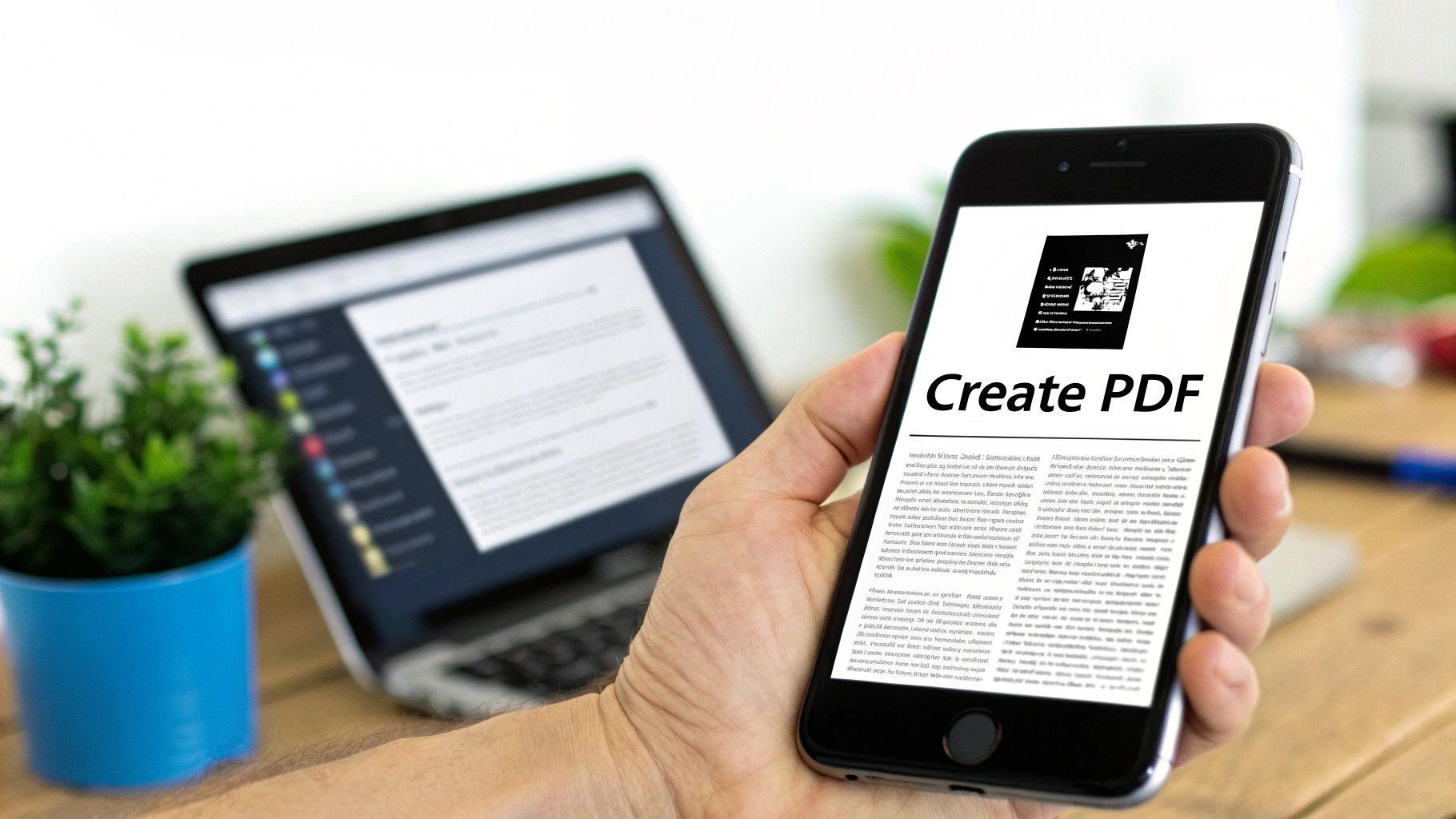
If you're using an iPhone or iPad, Apple has a clever, almost hidden, feature for this. Just open the document, tap the Share button, and then select Print. Don't worry, you're not actually printing anything. When the print preview pops up, just use two fingers to "pinch out" or zoom in on the document preview. It's like magic—iOS instantly turns it into a PDF you can save to your Files app or share anywhere.
Using Mobile Apps to Convert Word to PDF
For Android users, or anyone who just prefers a dedicated app, your best bets are the official Microsoft Word and Google Drive apps. Both make the process a breeze.
- With the Microsoft Word App: Open your file, hit the three-dot menu icon, and tap "Print." You'll see an option to "Save as PDF" right there. Tap it, and you've got a PDF saved directly to your device.
- With the Google Drive App: This takes an extra step, but it's just as easy. First, upload your Word document to Drive. Open it, tap the three-dot menu, and choose "Save as Google Docs." Now that it's a Docs file, open it again and navigate to "Share & export," then "Save as," and finally select "PDF Document."
These mobile workflows are incredibly handy for creating a PDF on the spot. You can get your file ready and immediately use it for other tasks, which is perfect if you need to figure out how to fax from your phone and want a universally compatible format.
A Quick Tip for Mobile Conversions: Before you send that PDF off, always give it a quick once-over on your screen. Mobile conversion is remarkably good, but every now and then, complex formatting or unusual fonts can get a little wonky. A quick scan ensures everything looks exactly the way you want it to.
How to Use Online Converters Safely
Online converters can be a real lifesaver when you're in a pinch. You’re on a different computer, you don't have Word installed, and you need to turn a DOCX file into a PDF right now. They're quick, usually free, and you don't have to install a thing. For something harmless like a class paper or a party flyer, the convenience is tough to argue with.
But that convenience comes with a major catch: privacy. When you upload a document to a random website, you’re sending your data to a third-party server. If that file contains anything sensitive—personal details, financial records, confidential business info—you're taking a pretty big gamble. You lose all control over that information the second it leaves your computer.
Vetting a Safe Online Converter
So, how can you tell which sites are trustworthy? The PDF software market is huge—valued at around USD 2.15 billion in 2024—and there are countless converters out there, all competing for your clicks. You can get a better sense of this explosion from recent PDF market analysis. With so many options, it's critical to know what to look for.
Before you even think about uploading a file, run through this quick mental checklist:
- Look for HTTPS: The little padlock icon in your browser's address bar is non-negotiable. It means your connection is encrypted, so your file is protected while it's being sent to the server.
- Skim the Privacy Policy: I know, nobody wants to read the fine print. But a legitimate service will have a clear policy explaining what they do (and don't do) with your data. Search for phrases about not selling or sharing your information.
- Confirm Automatic Deletion: The best online tools explicitly state that they delete your files from their servers after a set period, usually just a few hours. This drastically reduces the risk of your data being exposed later on.
A trustworthy online tool will be upfront about its security. If you have to hunt for details on how they protect your files, that’s a red flag. It’s better to find another service or just use an offline method.
In the end, it’s all about risk assessment. Think of it like deciding whether to use public Wi-Fi to check your bank account. For truly sensitive documents, your safest bet is always to stick with trusted software on your own device, like Microsoft Word or even Google Docs. For everything else, a few minutes of due diligence can let you use these handy online tools without worry. We apply this same critical eye to other online services, which is why we also explore the question, "Is FaxZero safe?" in another guide.
Got Questions About Converting Word to PDF?
You've got the steps down for converting a Word doc to a PDF, but that's often when the real questions pop up. It’s the little details—the "what ifs"—that can trip you up. Let's tackle some of the most common ones I hear.
Think of this as the troubleshooting guide you'd look for right after your first conversion. We'll smooth out any wrinkles around formatting, links, and security so you can create a perfect, professional PDF every single time.
Will My Formatting Get Messed Up When I Convert to PDF?
This is the number one reason people convert to PDF in the first place: to lock in their formatting. A PDF is essentially a snapshot of your document, designed to look the exact same for everyone, no matter what device or software they're using. Your fonts, image placements, and layouts should stay put.
That said, if you're working with a Word document that has incredibly complex layouts or uses very obscure custom fonts that aren't embedded, you could see some minor shifts. It's rare, but it can happen.
My Advice: Always, always give the final PDF a quick once-over before you send it. It literally takes seconds and can save you the headache of noticing a rogue page break or a misaligned image after it’s already gone.
What About Converting a Password-Protected Word Document?
You absolutely can, but there’s a catch: you have to know the password. Simple as that. Whether you’re using Microsoft Word, Google Docs, or an online tool, the very first thing it will do is ask for that password to unlock and read the file.
Once you’ve entered the password and the document is open, the conversion process is business as usual. It's important to remember that the new PDF will not be password-protected by default. You’ll have to add that security layer yourself during the export or save process if you need it.
Will My Hyperlinks Still Work in the PDF?
Yes, they should. Modern conversion tools are built to keep your links alive and clickable. The native "Save As PDF" function in Microsoft Word and the download feature in Google Docs are both very good at preserving interactive elements like hyperlinks.
If you ever find your links have gone flat and turned into plain text, the culprit is usually your export settings. In Word, for instance, make sure you're choosing the Standard (publishing online and printing) option. This setting is specifically designed to carry over all the good stuff—hyperlinks, bookmarks, and other interactive bits—into the final PDF.
Ready to send that freshly minted PDF? With SendItFax, you can fax documents right from your browser, no account needed. Just upload your file and send it to any fax number in the US or Canada. Give SendItFax a try for a quick and reliable way to get your documents where they need to go.