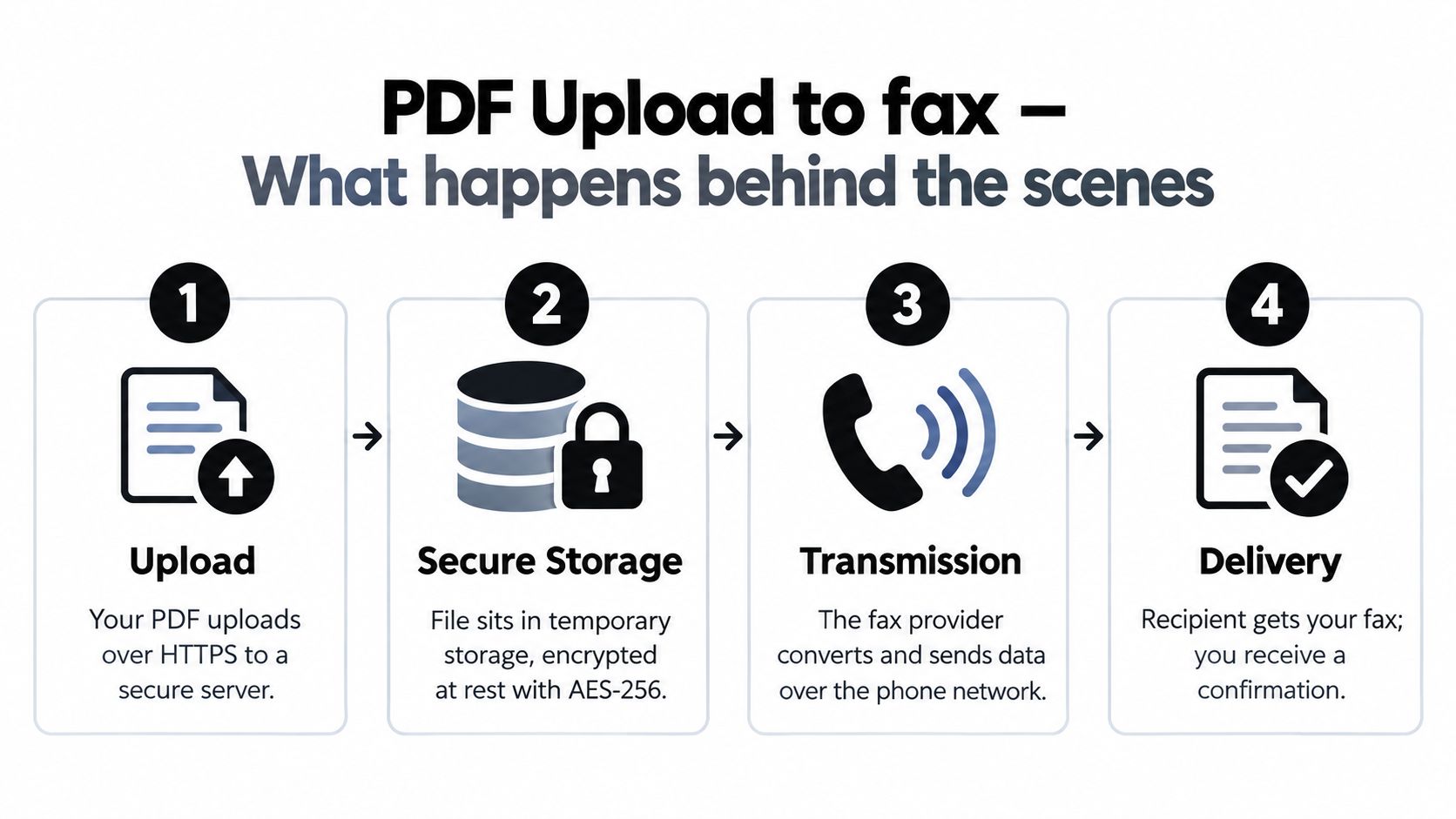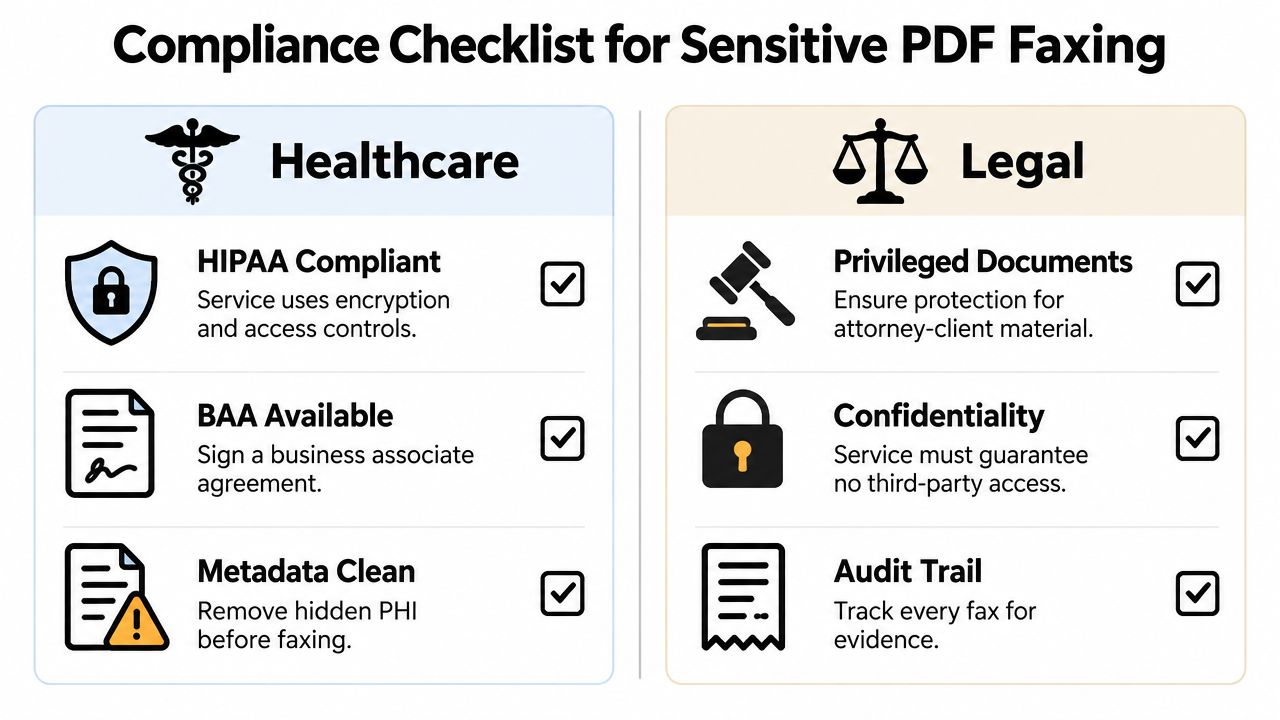
A medical office needs to send records before the receiving clinic closes, but the right cover sheet depends on the transmission. A routine referral needs clear routing and a restrained confidentiality notice. A prescription request needs pharmacy and prescriber details. An urgent alert needs an unmistakable priority signal and a phone follow-up. A legal release needs authorization and a defensible transmission record.
Medical fax cover sheets help staff identify the sender, recipient, page count, and handling instructions, but they don't make a fax secure by themselves. They can't replace recipient verification, a valid authorization where required, secure transmission controls, access management, or your organization's compliance review. The seven options below compare each template by purpose, minimum-necessary disclosure, page constraints, recipient control, and follow-up requirements, including practical ways to use SendItFax.
1. HIPAA-Compliant Standard Medical Fax Cover Sheet
A standard medical fax cover sheet is the dependable choice for ordinary clinical documentation. It works well when a hospital sends a discharge summary to a specialty clinic, a pathology lab sends test results to a referring physician, or an urgent care center forwards records to an emergency department. The design should look professional without turning the cover page into another clinical record.
Use sender and recipient names, departments, fax numbers, direct phone numbers, the date, page count, and a generic subject such as “medical records” or “clinical documentation.” Avoid putting a patient name, diagnosis, medication list, or test result on the cover page unless your approved workflow specifically requires it. The cover sheet should route the package, not expose more PHI than necessary if the fax is misdirected.
A clear confidentiality notice helps staff understand how to handle an unintended transmission. It remains an administrative safeguard, not proof that the transmission met every HIPAA obligation. For broader guidance on the surrounding requirements, review HIPAA fax requirements for healthcare organizations and align the template with your own compliance procedures. Organizations also need appropriate technical and administrative controls around any hosting or document system, such as HIPAA compliant hosting for SMBs.
Configure the baseline carefully
Customize the template with the facility's name, logo, department, callback number, and approved confidentiality wording. Keep a signed, version-controlled copy on file if your internal audit process requires evidence of the approved form. Staff should also understand that an “urgent” label is reserved for transmissions that need prompt human action.
SendItFax's Almost Free plan costs $1.99 per fax and supports documents of up to 25 pages, which suits a full clinical packet when the cover page and supporting records need to travel together. The free option supports up to three pages plus a cover, so page length should influence the sending decision before staff upload the files.

2. Minimalist Single-Page Medical Cover Sheet for SendItFax
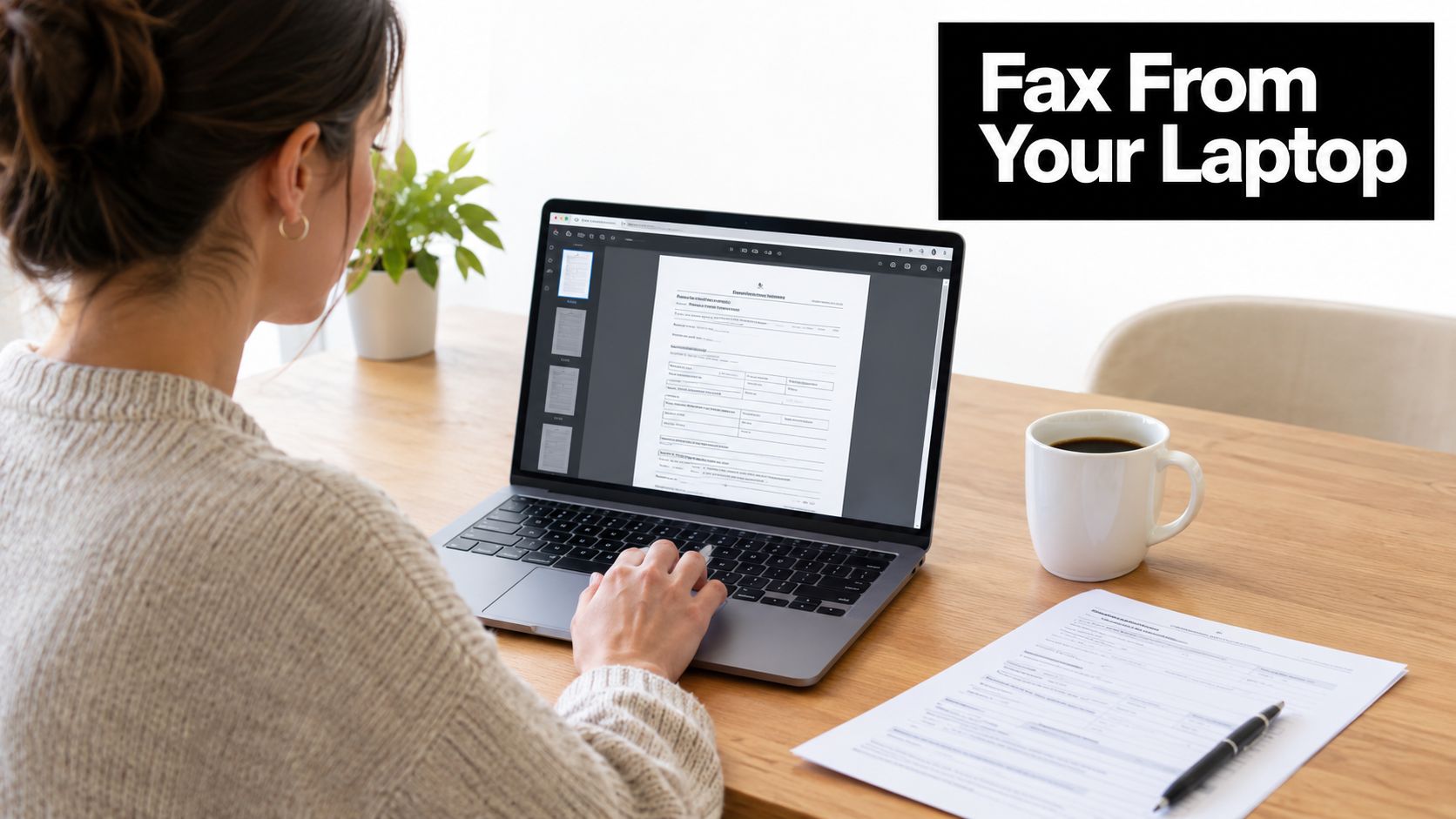
A minimalist cover sheet earns its place when the document package is short and every page matters. A solo medical billing specialist may send records to an insurer, a telemedicine provider may transmit a prescription authorization, or a remote consultant may deliver a clinical summary from a laptop rather than a fax machine.
The essential fields are enough: sender, recipient, fax number, callback number, date, page count, and a short subject. Keep the confidentiality notice concise and avoid patient identifiers or clinical details on the front page. A sparse layout makes the recipient's routing task easier, but it also leaves less room for context, so the sender's phone number and the message field become more important.
Save the template as a PDF before uploading it to SendItFax. That preserves spacing and reduces the risk that a word-processing file will reflow when opened or transmitted. Use a descriptive subject in the SendItFax message field, such as “prescription authorization” or “billing records,” without adding unnecessary patient information.
Make the page limit part of the decision
SendItFax's free option permits up to three pages plus a cover, with a daily limit of five free faxes and SendItFax branding on the cover. That makes the minimalist format useful for short, occasional sends, but it isn't a reason to compress a clinically necessary record package into too few pages. If the cover itself would push the transmission beyond the available space, the Almost Free plan costs $1.99 per fax and lets the sender use up to 25 pages.
A sender can also choose to omit the cover page on the Almost Free plan when the receiving workflow allows it. That saves a page, but it removes the routing layer, so the document itself must still identify the intended recipient clearly and the sender should confirm that the receiving organization accepts coverless faxes.
3. Prescription and Pharmacy Medical Fax Cover Sheet
Prescription traffic needs a cover sheet that helps a pharmacist reach the right prescriber quickly without turning the first page into a medication record. Use this format for a refill request, a prescription authorization, a dosage clarification, or a prior-authorization package. The recipient may be a community pharmacy, a specialty pharmacy, an insurer, or a prescriber's office, and each may require a different callback route.
Include the pharmacy name and fax number, prescriber name and practice, direct callback number, callback hours, date, page count, and a generic subject. Medication names, doses, and prescribing details belong in the authorized prescription or clinical document, not automatically on the cover sheet. Where a workflow requires a medication reference on the front page, use the minimum information approved by the organization's privacy and prescribing procedures.
A pharmacy may need to distinguish a clarification request from an authorization or refill request. That distinction can appear in the subject line or a controlled checkbox without revealing a diagnosis. Keep prescriber identifiers, such as NPI or DEA information, current in the approved prescription documentation, and don't rely on an outdated cover template to supply information that could cause processing problems.
Match the template to the response path
Create separate versions for controlled-substance workflows and ordinary prescription communications if your organization uses different review, signature, or verification steps. Add the hours when a pharmacist can reach the prescriber, plus a backup contact for time-sensitive questions. The cover page should support a call, not replace one when clarification is needed.
Use SendItFax's $1.99 Almost Free option when a prescription package contains multiple medications or detailed supporting instructions. Its 25-page allowance is more suitable for a prior-authorization packet than the free option's three-page-plus-cover limit. For background on sending clinical records through fax workflows, see this practical guide to faxing medical records.

4. Medical Record Release and Authorization Cover Sheet
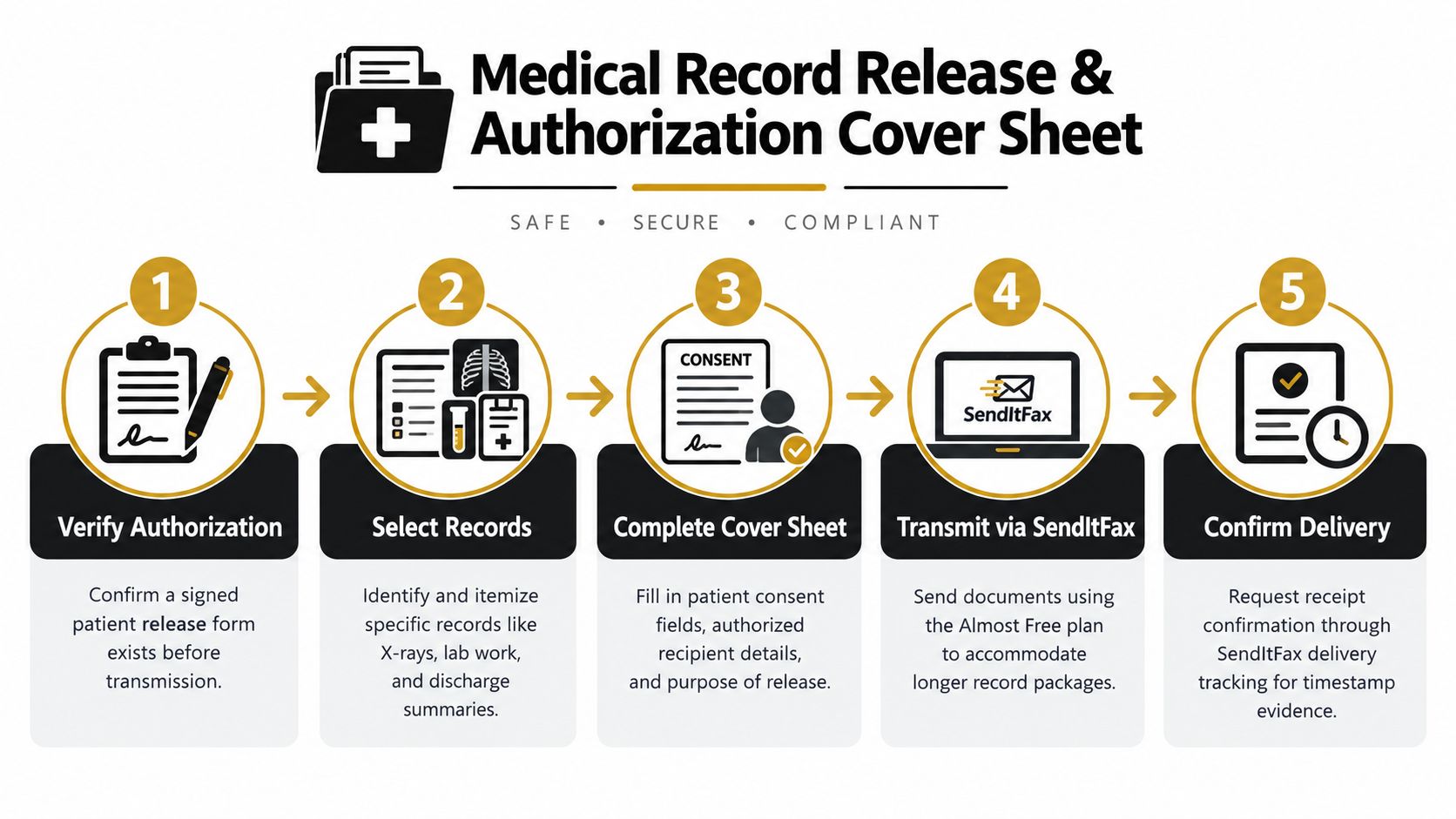
A records-release cover sheet is appropriate when the transmission depends on a patient's authorization, a designated recipient, an insurance request, or another documented legal basis. A health system might send a complete record to a specialist, a practice might respond to an insurer's request, or a patient might request records for a second opinion. The cover sheet helps connect the transmission to the release process, but it isn't itself the authorization unless the approved form expressly makes it so.
Record the recipient, sender, department, date, page count, callback information, and a restrained description of the package. Note the authority for the release in the approved workflow, such as a signed authorization or other documented basis. Don't place a patient's diagnosis or detailed treatment history on the cover page to make the package easier to recognize.
Control the package and the evidence
Before sending, confirm that the authorization is signed, current, applies to the requested records, and names the correct recipient. Review whether the package contains records outside the approved scope. A complete chart may be convenient, but minimum-necessary disclosure can call for a narrower set of documents.
SendItFax's Almost Free option costs $1.99 per fax and supports up to 25 pages, which can accommodate a substantial release package. Request delivery confirmation when your procedure calls for a transmission record, then retain the confirmation with the authorization and the exact copy sent. Version-control the template and have qualified compliance or legal staff review changes to the authorization language.
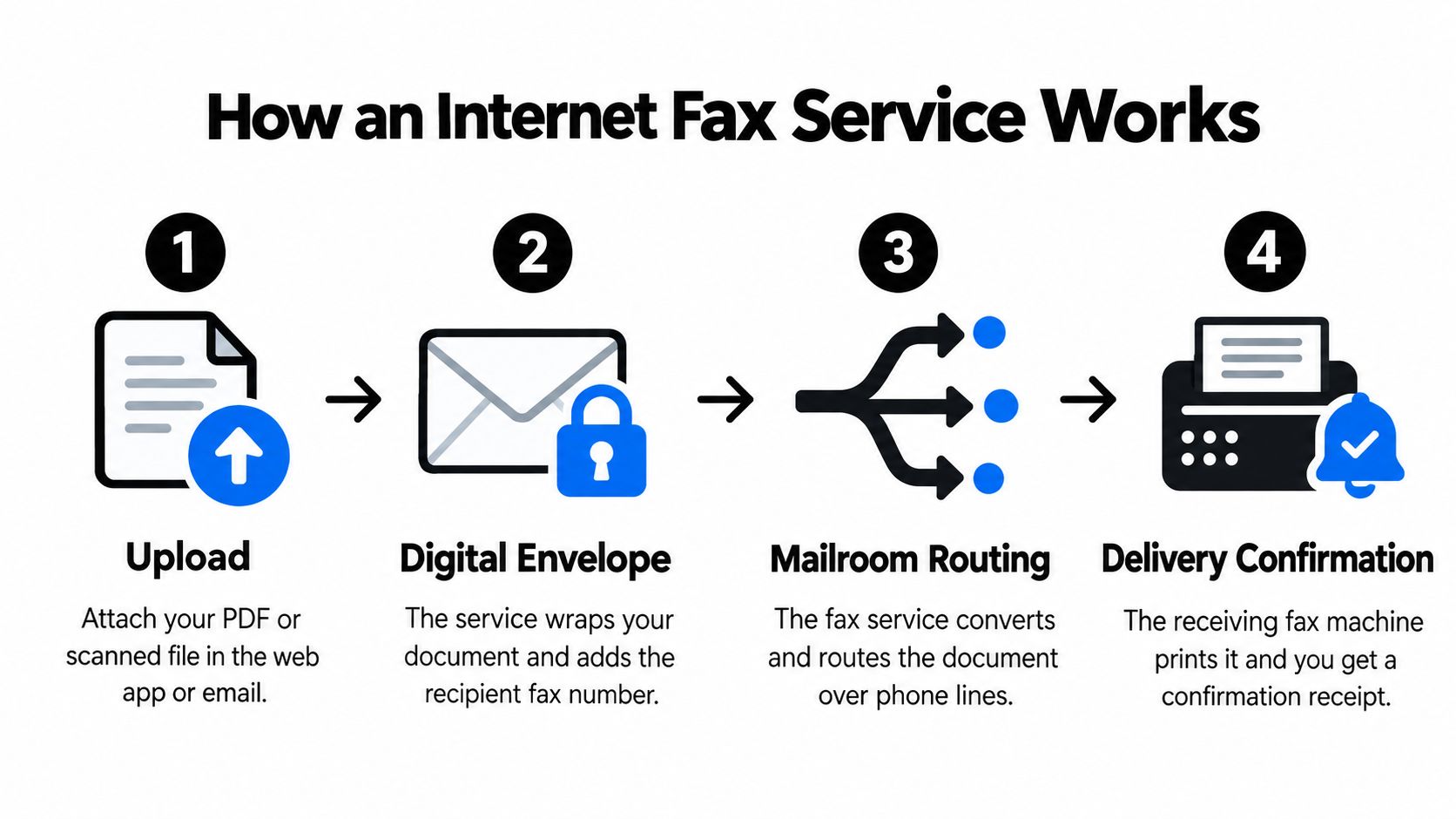
For field-by-field guidance on cover-page information, use what information goes on a fax cover sheet. A process graphic can help train release staff, but it shouldn't replace the organization's records-release policy.
This short video can supplement staff orientation after the written procedure has been approved.
5. Urgent Medical Alert and Priority Fax Cover Sheet
An urgent cover sheet has one job, to make a time-sensitive transmission visible without creating false urgency. Use it for a critical laboratory result, an emergency authorization, an urgent clinical consultation, or a transfer request that needs immediate human attention. It isn't suitable for routine referrals just because the sender wants faster processing.
Put the priority status near the top, use plain language, and identify the action required. Include the sending department, responsible clinician, direct phone number, backup contact, recipient department, fax number, date, page count, and the expected response. Keep clinical details off the cover page unless the approved emergency workflow requires a minimum necessary reference.
Practical rule: An urgent fax should be paired with a phone call to the intended recipient. A transmission receipt can show that the system processed the fax, but it can't show that the right clinician saw it.
Prevent alert fatigue
Define what qualifies as urgent with the receiving facility before staff need to use the template. A critical result may require a laboratory escalation process, while an urgent authorization may require direct contact with a prescriber or insurer. Document why the item received a priority label, particularly when your organization audits urgent communications.
SendItFax can support browser-based sending when staff don't have access to a physical fax machine. The service's Almost Free option costs $1.99, supports up to 25 pages, and includes priority delivery. Those features can help with transmission logistics, but they don't remove the need to call the recipient, verify the number, or follow the clinical escalation policy.

6. Multi-Recipient Medical Distribution Cover Sheet
Sending the same document to several members of a care team creates a different control problem. A care coordinator may distribute a discharge summary, a specialist may send a consultation report to primary care and another specialist, or a home health agency may share an updated care plan with participating providers.
A multi-recipient cover sheet should show the intended recipient for that specific copy, not just a broad distribution label. Include sender details, recipient name and department, individual fax number, date, page count, subject, and a distribution identifier such as “Copy 1 of 5.” Keep the recipient list out of each fax's PHI-bearing cover page unless the approved workflow permits it. One recipient shouldn't learn unnecessary details about another recipient or distribution path.
Verify every destination separately
Create a distribution checklist before uploading the document. Confirm each fax number against a trusted directory or a recent call, check that each recipient is authorized to receive the material, and remove anyone who doesn't need the full package. A single wrong number can affect the entire distribution, so recipient control matters more here than visual design.
- Use individual copies: Address each transmission to a named recipient and department.
- Record the sequence: Send the primary copy first, then distribute the remaining copies after the content and routing are confirmed.
- Retain confirmations: Store delivery results with the distribution record and note any failed or retried transmission.
- Limit the package: Share only the information each recipient needs for the assigned care or administrative task.
SendItFax's Almost Free option costs $1.99 per fax, so repeated sends should be planned with the number of destinations and required page count in mind. The platform can simplify browser-based transmission, but it doesn't decide which members of a care team are authorized recipients. That decision belongs to the responsible organization and its privacy procedures.
7. Medical-Legal and Litigation Hold Cover Sheet
A medical-legal cover sheet is for transmissions governed by a subpoena, court order, discovery request, workers' compensation process, or litigation hold. The stakes differ from a routine referral because the organization may need to show not only where the records went, but also the authority for disclosure, the exact package transmitted, and the handling history.
Identify the sender's legal or records department, the recipient attorney, court, insurer, or authorized representative, the matter reference, fax number, date, page count, and callback details. Include only legal language approved by counsel. A cover sheet can document the transmission context, but it doesn't certify that the records are complete, admissible, or properly released.
Preserve chain of custody
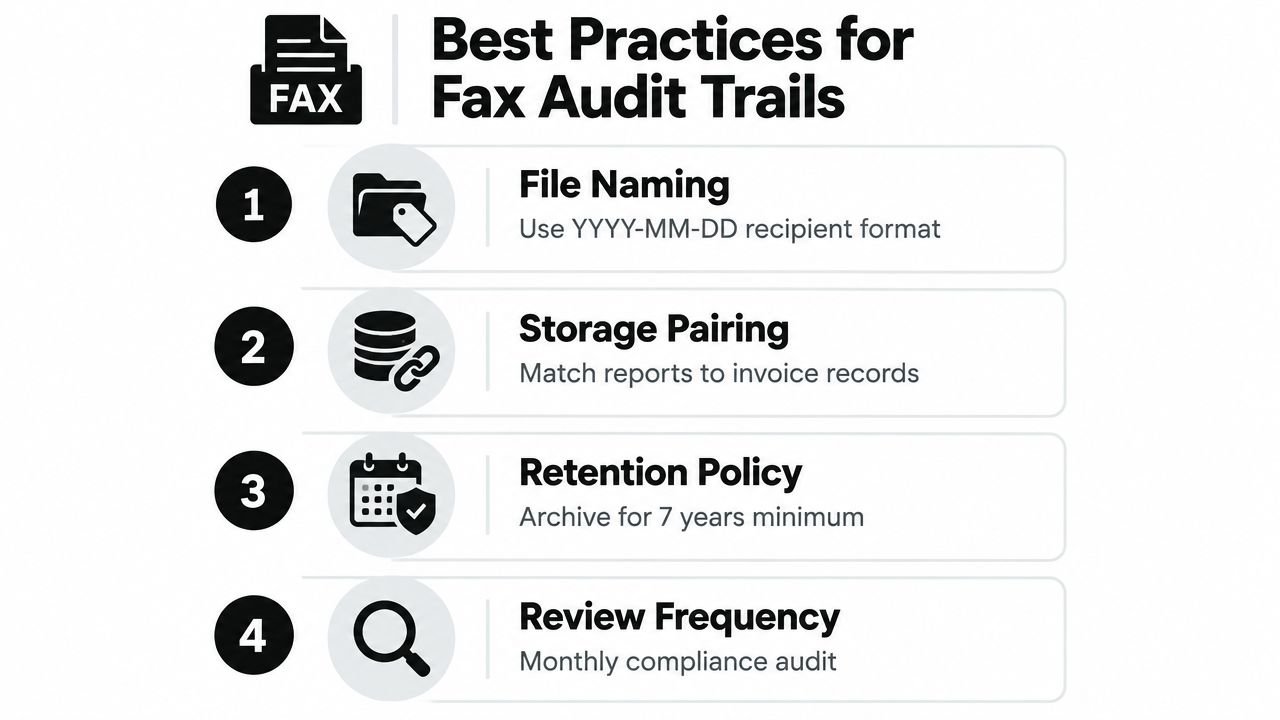
Before sending, verify the authority under which the records are being disclosed. Retain the subpoena, order, authorization, or written request with the final document set. Keep a version-controlled copy of the cover template, the exact records transmitted, delivery confirmation, and any follow-up correspondence in the designated legal file.
Legal transmissions need a defined owner. The person sending the fax should know who approved the release, which documents belong in the package, and where the transmission evidence must be retained.
Use SendItFax's Almost Free option when the package requires more space than the free option's three pages plus cover. The paid option costs $1.99 per fax, supports up to 25 pages, and can provide delivery confirmation. Those functions support documentation, but they don't replace counsel's review, digital signatures, notarization, or retention rules where those are required by the matter or organization.
7 Medical Fax Cover Sheet Types Compared
| Template | Implementation Complexity 🔄 | Resource Requirements & Speed ⚡ | Expected Outcomes & Impact 📊 | Ideal Use Cases 💡 | Key Advantages ⭐ |
|---|---|---|---|---|---|
| HIPAA‑Compliant Standard Medical Fax Cover Sheet | Medium 🔄🔄, standard fields; periodic regulatory updates | Moderate ⚡⚡, 1 full cover page; may use free‑tier pages | High compliance & clarity 📊; reduces HIPAA risk ⭐⭐⭐ | Routine provider-to-provider records; lab results; clinic transmissions | Regulatory compliance; liability protection; professional presentation |
| Minimalist Single‑Page Medical Cover Sheet for SendItFax | Low 🔄, condensed fields; simple layout | High efficiency ⚡⚡⚡, preserves content space; faster uploads | Adequate privacy & speed 📊; trades detail for space ⭐⭐ | Free-tier SendItFax sends; freelancers; quick mobile transmissions | Saves pages; fast to complete; mobile‑friendly |
| Prescription & Pharmacy Medical Fax Cover Sheet | Medium‑High 🔄🔄🔄, pharmacy/legal fields (DEA/NPI) | Moderate ⚡⚡, more fields may use extra pages; familiarization needed | Standardizes prescriptions; reduces medication errors 📊 ⭐⭐⭐ | Prescriber-to-pharmacy scripts; controlled substance refills; pharmacy queries | Ensures critical Rx data; DEA/NPI compliance; streamlines pharmacy workflow |
| Medical Record Release & Authorization Cover Sheet | High 🔄🔄🔄🔄, combined authorization + cover sheet; signature requirements | Low speed / High resource ⚡, lengthy; needs Almost Free plan for multi‑page sends | Full audit trail & documented consent 📊; strong regulatory defensibility ⭐⭐⭐ | Full record transfers to specialists/insurance; patient requests; legal disclosures | Combines authorization and transmission; clear audit trail; reduces separate paperwork |
| Urgent Medical Alert & Priority Fax Cover Sheet | Medium 🔄🔄, emphasis on visual hierarchy and thresholds | Very fast ⚡⚡⚡, designed to elicit rapid response; pair with priority delivery | Immediate attention; faster clinical action 📊 ⭐⭐⭐ | Critical lab values; emergency consults; time‑sensitive authorizations | Signals urgency clearly; reduces response time; improves triage |
| Multi‑Recipient Medical Distribution Cover Sheet | High 🔄🔄🔄🔄, recipient tracking, versioning, distribution lists | Moderate‑Low efficiency ⚡⚡, increases send volume and cost; careful management | Improved coordination & traceability across teams 📊 ⭐⭐⭐ | Care team distributions; referrals to multiple specialists; population notifications | Ensures consistent info to multiple parties; documented distribution tracking |
| Medical‑Legal & Litigation Hold Cover Sheet | Very High 🔄🔄🔄🔄🔄, legal language, chain‑of‑custody, notarization fields | Low speed ⚡, time‑consuming; legal review often required; uses multiple pages | Legally defensible transfers; certified chain‑of‑custody 📊 ⭐⭐⭐ | Subpoenas; litigation responses; court filings; certified record requests | Certified attestation; chain‑of‑custody documentation; legal credibility |
Turn the Best Template Into a Controlled Workflow
The safest cover sheet is the one that matches the transmission purpose. Start by classifying the send as routine clinical documentation, a prescription communication, a records release, an urgent alert, a multi-recipient distribution, or a legal transmission. Each category needs different fields, review steps, and follow-up, so a single generic template can create avoidable ambiguity.
Verify the recipient's name, department, and fax number against a trusted source before sending. Confirm that the recipient is authorized to receive the package, then disclose only the information necessary for the stated purpose. For a release, check the authorization or other authority. For a legal request, confirm the subpoena, court order, or counsel-approved process. For an urgent transmission, identify the person who must act and call that person after sending.
Page count deserves a deliberate check. The free SendItFax option allows up to three pages plus a cover, with a daily limit of five free faxes and SendItFax branding on the cover. The Almost Free option costs $1.99 per fax, supports up to 25 pages, offers priority delivery, removes SendItFax branding, and allows the sender to omit the cover page when that fits the receiving workflow. Don't reduce a necessary record package merely to fit a page limit, and don't remove a cover page without confirming that the recipient can route the document safely.
Retain the right evidence for the workflow. That may include the final cover sheet, the uploaded records, authorization, delivery confirmation, retry history, and notes from a follow-up call. For urgent and legal transmissions, document who made the decision and what happened after delivery. For multi-recipient sends, keep the recipient list and each individual result.
Medical fax cover sheets are useful because fax remains embedded in healthcare operations. One healthcare-fax reference reports that an MGMA poll found 89% of healthcare organizations still used fax machines, while the same reference cites estimates of about 75% of medical communications on fax and more than 9 billion healthcare fax pages exchanged annually in the U.S. Healthcare fax background from MGMA-referenced industry material explains why a first-page routing layer remains practical. A separate report says more than one-third of documents sent to healthcare facilities were still faxes, with over half requiring manual processing and 44% marked time-sensitive. Healthcare's continuing fax problem shows why urgency, department, and callback fields still matter.
The cover sheet remains only one control. Recent guidance describes it as a confidentiality notice and risk-reduction measure, not a complete HIPAA safeguard. Review the privacy language, transmission settings, access controls, retention schedule, and disposal procedure with qualified compliance or legal advisors before adopting a template across a clinic or health system. For broader document management for medical clinics, connect fax records to the same controlled process used for other sensitive documents.
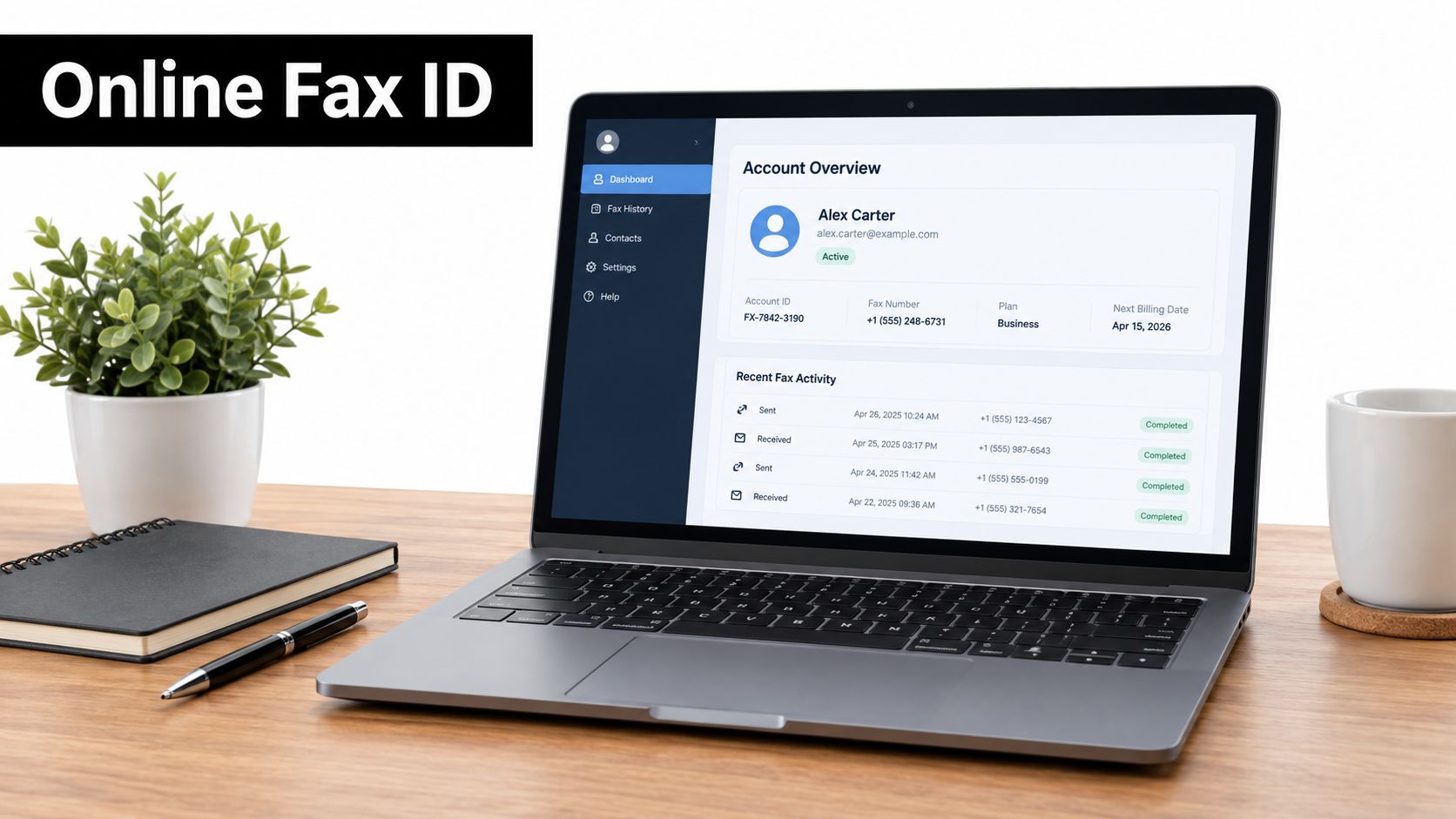
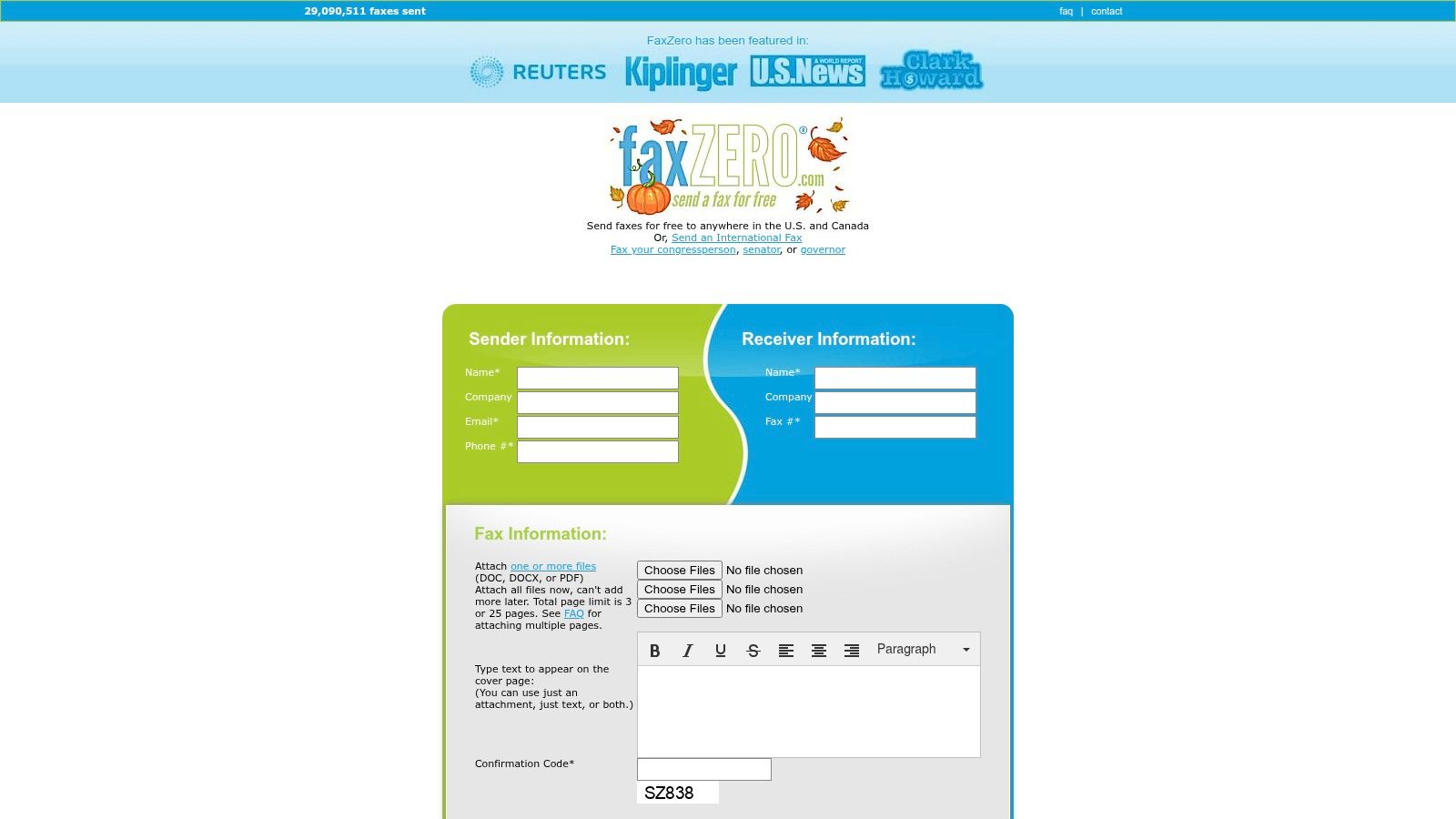
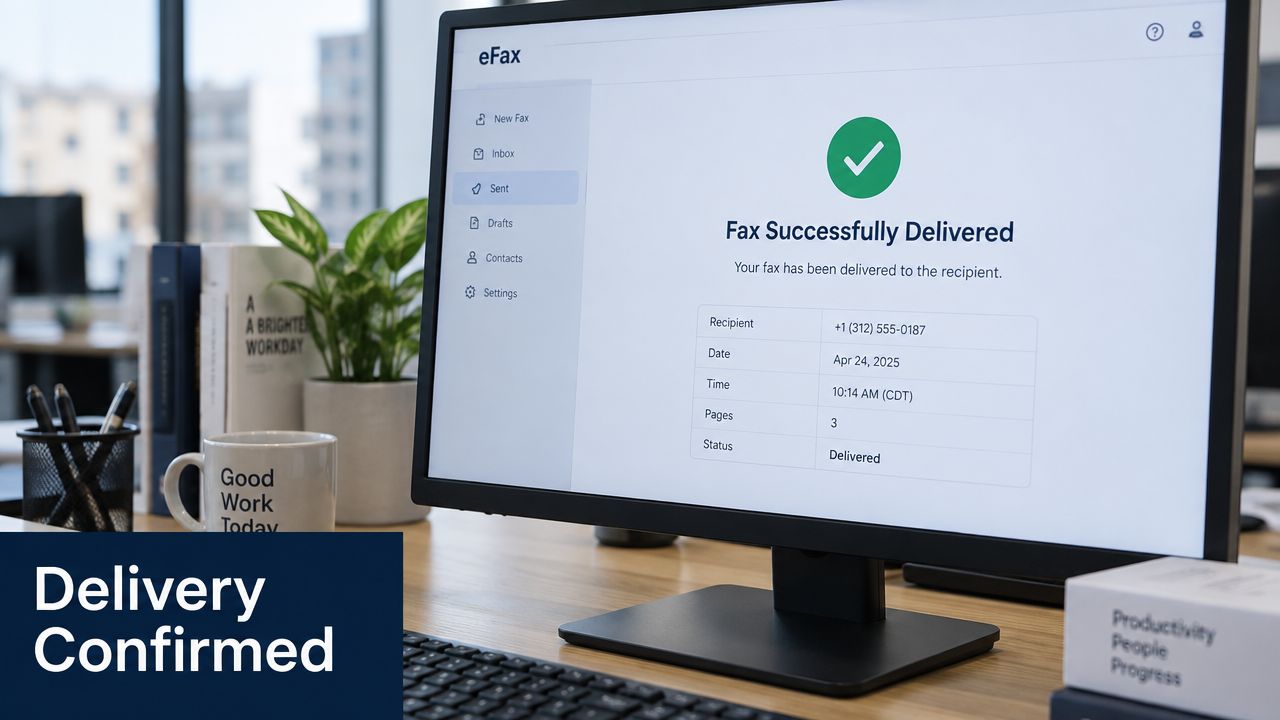
SendItFax lets you send DOC, DOCX, or PDF files from a browser to recipients in the United States and Canada without creating an account. Choose the medical fax cover sheet that fits the purpose, use the free option for short transmissions or the Almost Free plan for longer and priority packages, and visit SendItFax to send your next document through a browser.