Your fax number is usually the line assigned to your fax machine or the number shown in your online fax account dashboard. If you're dealing with a shared office line, VoIP-connected MFP, cloud account, or department-specific fax, the reliable answer comes from checking the exact line and confirming it with the responsible team.
You're probably asking because a fax needs to go out now, but the number is nowhere obvious. The printer label is missing, the welcome email is buried, the website lists only a general contact number, or your test page keeps returning a busy signal. That's normal in clinics, law firms, banks, government offices, and remote teams where one organization may operate several fax endpoints.
The right lookup depends on your setup: a standalone office fax machine, a multifunction printer shared by departments, or a cloud fax account with no physical handset. Shared VoIP trunks and department-level lines break the simple assumption that one organization has one fax number. The practical paths below cover each setup, plus the failure cases that cause people to send documents to the wrong destination.
When the Number Is Not Where You Expect
A receptionist at a medical office once had a completed referral form sitting beside a silent fax machine. The organization's website showed a fax number, but the receiving hospital said the referral never arrived. The number belonged to a general records queue, while admissions used a separate line. The machine in the clinic was also connected through a shared office phone system, so its printed station ID didn't clearly identify the actual inbound line.
That situation is more common than the neat instructions suggest. A fax number can be hidden in an administrator's menu, assigned inside a provider dashboard, or documented only in an internal directory. A general business phone number may look plausible but fail because it handles voice calls rather than fax transmission.
Start by identifying the setup
Use the equipment and workflow in front of you:
- Standalone fax machine: Check the connected line, station ID, outgoing header, and recent transmission report.
- Shared MFP: Treat the device as hardware connected to one or more configured fax routes. The number may be stored behind an admin login rather than printed on the casing.
- Cloud fax account: Look for the provisioned number inside the account, subscription, or profile area. There may be no handset or physical label at all.
The practical guide to finding a fax number recommends checking an organization's website first and calling the main line when the number isn't published. That advice works, but it's only the starting point for a hybrid setup.
Operational rule: Don't send a sensitive document until you know which department owns the receiving line.
The next steps follow those three paths separately. They also account for shared lines, VoIP adapters, cloud dashboards, and departments that publish a convenient general number instead of the endpoint you need.
Finding the Number on Office Fax Machines and MFPs
Start with the device, but don't assume the number is printed on its front panel. On a physical fax machine or multifunction printer, the assigned number is usually stored as a station ID, line ID, or fax identity setting.
Check the display and administrator menu
Pick up the fax handset, or press the device's hook button if it has one. Some machines display the active line or caller identity on screen. If there's no handset, open the administration menu and look under Settings, Communications, or Initial Setup, followed by Fax Settings, Line, or Station ID.
Menu names vary by manufacturer. For example, a Canon imageRUNNER may use Home > Settings > Fax > Line, while a Brother device may place the information under Menu > Initial Setup > Station ID. HP and Sharp MFPs also commonly store fax identity details inside communications or basic fax settings.
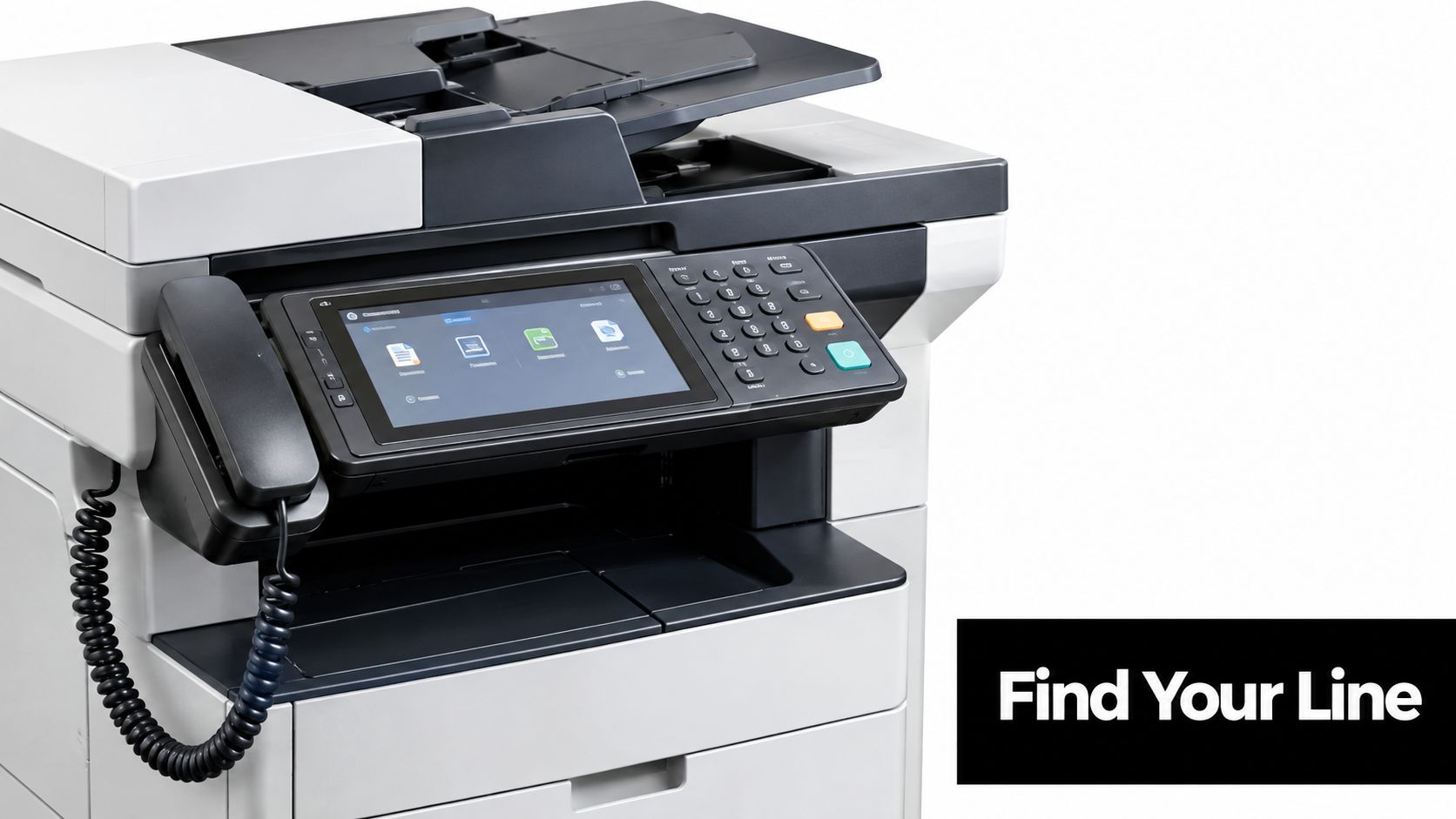
If the menu shows both a name and a number, verify the number rather than copying the name field. The machine's configuration can contain an outdated station ID, especially after an office changes carriers or moves the MFP to another department.
Use a header or caller ID as a cross-check
Send a one-page test fax to a number you control. Many machines print the sender's fax identity in the header of outgoing or received pages. Review the transmission report as well, because it may list the outbound line used for the call.
Caller ID can confirm a number on a conventional landline, but it's unreliable with VoIP ATA adapters and some hosted phone systems. If the admin panel is PIN-locked, stop guessing. An IT help desk or phone-system administrator can confirm the assigned line faster than repeated test calls.
Before replacing or retiring old equipment, document the line assignment and review guidance on secure fax equipment disposal so stored documents and device data aren't left behind. For a printer-specific walkthrough, use this guide to finding a fax number on a printer.
Locating Your Number Inside an Online Fax Account
Cloud fax services provision the number for you, so searching the physical office is wasted effort. Log in to the provider's web portal and open Account, Profile, Subscription, or Plan Details. The assigned line is commonly listed under Numbers, Calling, or a similar account-management area.
Services such as eFax, HelloFax, RingCentral Fax, MetroFax, and FaxZero can use different labels and layouts, but the logic is the same. Look for a dialable telephone number associated with inbound faxing. A login email, username, customer ID, or billing reference is not the fax number.
Search the dashboard and your inbox
If the number isn't visible on the home screen, check the profile icon or account settings. Mobile apps often bury number information under the user profile rather than displaying it beside the send-fax button.
Your original signup message is another useful record. Search the inbox for the provider's name, “your fax number”, “assigned number”, or “welcome”. Save the confirmed number in your team's password manager or operations directory, not just in one employee's email.
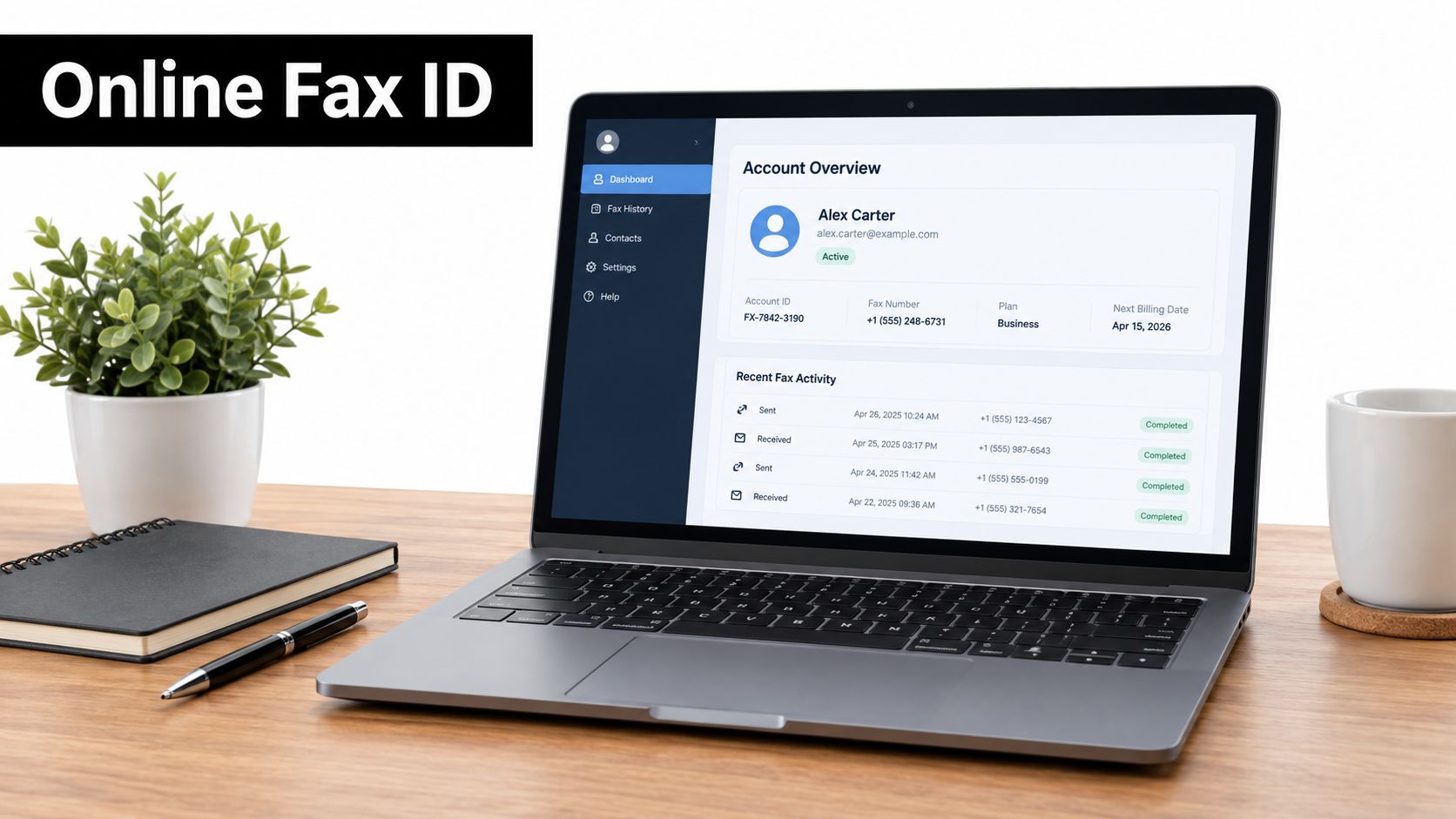
Some accounts use regional numbers, while others let an administrator manage several inbound lines. If the dashboard shows multiple numbers, identify which one is mapped to the mailbox, department, or user who must receive the document.
Confirm shared or unclear routing
A shared pool can create confusion when the provider routes an inbound fax to your account only after checking the destination mapping. In that case, support confirmation or a test inbound fax is more dependable than interpreting a generic account label.
For a focused walkthrough, see this online fax number guide. Once confirmed, record the number with its country code and any required access prefix.
Cloud Fax Versus a Physical Machine
A physical fax line and a cloud fax number may look identical when written down, but they're managed in different places. With a machine or MFP, the number is tied to the connected line, device configuration, or outgoing header. With a cloud service, the provider assigns the number and exposes it through the account.
| Setup | Where to look first | What can mislead you |
|---|---|---|
| Physical fax machine | Station ID, line settings, test header | An outdated device profile |
| Shared MFP | Admin menu and IT records | A general device identity |
| Cloud fax | Account, Numbers, or Subscription | A username or login field |
A physical number normally remains associated with the line regardless of which employee uses the machine. A cloud number follows the provider account, mailbox, or routing configuration instead. That distinction matters when a remote worker sends from a browser but the clinic receives through a shared department inbox.
Watch for MFP and line mismatches
An MFP may print a default header that contains a business name or old number. It may also send through a line that differs from the number published on the organization's website. Three departments can share one printer while receiving faxes through separate numbers managed by the phone system or cloud provider.
Cloud dashboards create the opposite problem. The number exists, but the service hides it under Account > Numbers, Subscription, or Calling. Don't use the phone number shown on a login screen unless the provider explicitly identifies it as the fax line.
Choose the lookup method that matches the system you use. Hardware users should verify the line and device settings. Cloud users should verify the account mapping. Hybrid teams need both records before treating a number as operational.
Why the Published Fax Number May Be the Wrong One
The website's Contact Us page is a sensible first stop, but it isn't proof that the listed number reaches the department you need. Organizations often publish a general fax line while billing, HR, admissions, legal, patient records, or location-specific teams operate separate endpoints.
That separation protects routing and keeps departmental workflows distinct. It also creates a real risk: a document can successfully reach the wrong internal queue without reaching the intended recipient.
Signals that the line isn't the right endpoint
Pay attention when:
- An operator answers first: The fax is being routed manually instead of reaching a dedicated machine.
- An extension is required: The number may be a voice line or a general switchboard.
- The recipient can't find the document: A successful transmission report doesn't prove the right department received it.
- The line reaches a shared mailbox: Ask whether the mailbox belongs to the specific team handling your case.
- The number stays busy: It may serve a high-volume queue or be inactive behind a phone-system change.
For a clinic, ask specifically for the fax number for admissions, medical records, or referrals, not just “the fax number.” For a law firm, identify the matter team or office location. For a vendor, ask which line receives onboarding documents.
Confirm before sending confidential material
Use a prior fax confirmation, an internal directory, a patient portal, or the recipient's direct email instruction. If those records conflict, call the main line and ask for the exact department's fax line.
A published number is useful for discovery, not final approval. Confirm the department, destination, country code, and any cover-sheet requirement before sending sensitive documents.
Looking Up a Fax Number You Don't Already Have
When you need someone else's fax number, start with the recipient's own records. Check the organization's website, its Contact Us page, an insurance card, a patient portal, a vendor onboarding packet, or a form the recipient supplied. Those sources are closer to the current workflow than a general directory.
The fax number lookup guide can help organize the search, but direct confirmation remains the dependable finish.
Use a practical lookup order
- Check the recipient's official website. Search the contact page, department page, location page, and footer.
- Review supplied paperwork. Insurance cards, referral forms, invoices, and onboarding documents often identify the intended line.
- Call the main number. Name the department and ask for its fax line, cover-sheet format, and any dial-out prefix.
- Compare records. Check prior confirmations or internal directories for a matching department and location.
- Send a test page. Confirm that the recipient can identify the document before sending the actual file.
Don't trust reverse directories blindly
There isn't a reliable free reverse directory for fax numbers. In the United States and Canada, a people-finder or reverse-phone result may be outdated, incomplete, or associated with a voice line instead of a fax line. Treat every directory hit as unverified until the recipient confirms it.
For U.S. calls, include the area code and follow your carrier's requirements for dialing toll lines. In Canada, use the applicable 10-digit format and follow the local carrier's dialing rules. If the number routes to voicemail or stays busy every time, ask whether the fax line was discontinued, moved, or replaced by an online service.
Troubleshooting and Quick Wins When the Number Is Missing
Separate the problem before changing settings. If you have no number, verify the machine configuration, dashboard, provider record, or department contact. If you have a number but the fax fails, investigate dialing, line compatibility, and the receiving device.
A VoIP-connected MFP is a frequent trouble spot. Fax tones can fail across a voice-over-IP path even when ordinary calls work. Where the phone system supports it, ask the administrator about enabling T.38, temporarily disabling ECM, or lowering the fax speed to 9600. These changes should be made by the phone or network administrator, especially in a clinic or law office.
Run this short failure checklist
- Check the stored prefix: Remove an old outside-line prefix or add the required one.
- Confirm the destination: Make sure the number belongs to the intended department, not the main switchboard.
- Check the receiving device: Ask whether it's powered on, out of paper, jammed, or showing a toner error.
- Review the route: Confirm that the MFP line, VoIP adapter, or cloud account maps to the expected inbound number.
- Send one test page: Use a controlled destination and keep the transmission report.
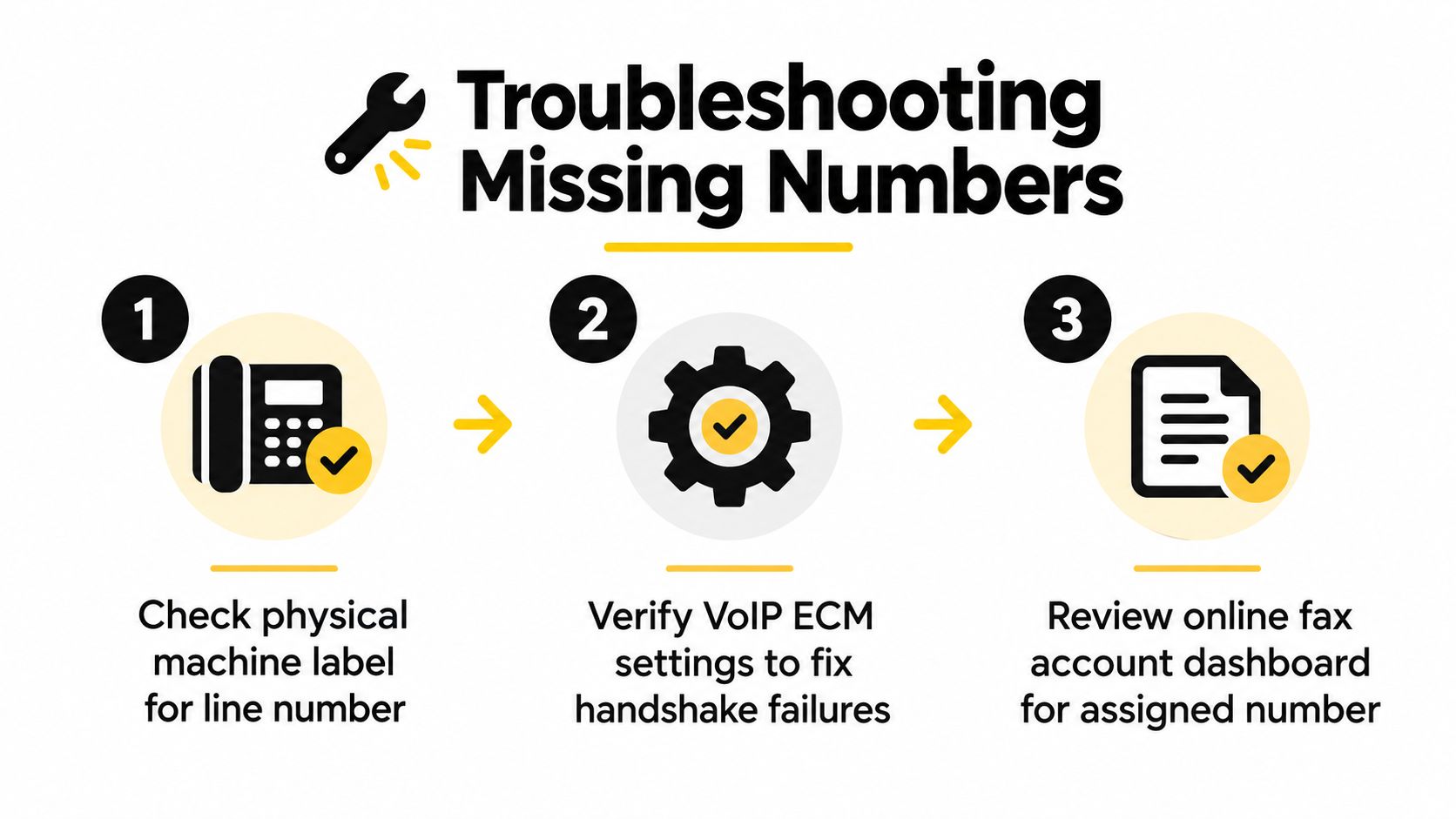
The fastest proof is a self-test. Send a one-page document to a fax destination you control, then inspect the confirmation page for the outbound number, route, and result. If the number is absent or wrong, recheck the dashboard or device menu and ask IT or the provider to confirm the assigned line.
Keep the successful confirmation page with your operating records. It gives the team a known-good reference instead of forcing someone to repeat the lookup during the next urgent send.
SendItFax lets you send documents to recipients in the United States and Canada from a browser without a fax machine or account. If you need to transmit an occasional form, contract, or record while you're still confirming a physical or cloud fax setup, visit SendItFax and upload the document for delivery.