You've finished the form, signed the last page, and opened the upload screen. Then the file won't attach, the size warning appears, or you realize the recipient needs a fax rather than an email attachment. The document is ready, but delivery isn't.
To upload a PDF document online, you need more than a successful progress bar. The file must fit the upload rules, avoid exposing information you didn't intend to share, and arrive in a form the recipient can use. Those checks matter whether you're sending an application, a contract, or a medical record.
Accepted File Types and Size Limits
A PDF that opens cleanly on your screen can still fail at the upload step. Size rules, file format, and combined attachments all matter before the transmission begins, especially when the document is going to a fax recipient.
File rules for uploading to SendItFax
| Item | Rule | What it means for you |
|---|---|---|
| File formats | DOC, DOCX, PDF | Convert images or other formats to one of these formats before uploading |
| Maximum size per document | 25 MB | Compress anything larger before you start the upload |
| Files per fax | Up to 3 | Attach all files at once, because you cannot add more later |
| Combined total for multi-file faxes | Under 4 MB total | Check the combined total before you add a second or third file |
| Page count | Counted automatically | Confirm the total shown on screen matches your document before sending |
Treat under 4 MB as the working combined limit for multiple attachments. The per-document maximum and the combined total are separate checks. A 25 MB file may be acceptable on its own, but a group of files must stay under 4 MB in total. If the attachments exceed that allowance, reduce their size before selecting them together.
Send as a real PDF when PDF is the format you need. Changing a filename from .jpg to .pdf does not convert the document. Open the image in a scanning app or document editor, export it as a PDF, then open the exported copy to verify the pages.
PDF is a useful default because it is designed to preserve page appearance across different creation, viewing, and printing environments. The history of PDF explains its development into an internationally standardized format for document exchange, which helps explain its use for contracts, applications, and official forms.
PDF still needs inspection. Missing fonts, clipped margins, or an incomplete export can remain inside an otherwise valid file. Open the final copy in an ordinary reader, check the first and last page, and look for missing signatures, tables, or stamps.
For a document that is difficult to fit into an upload, this guide to sending large faxes online provides additional preparation guidance. Before attaching anything, confirm that the file opens in an ordinary reader, fits the applicable limits, and contains every expected page.
Shrink Your PDF Without Losing Quality
Compress the document before starting the upload, and save the result as a separate file. That leaves you an untouched original if an optimization setting damages a signature or makes small text unreadable.
A smaller file isn't automatically a better file. For a fax-bound contract, clear initials and readable terms matter more than squeezing out the last bit of storage.
Optimize content before reducing image quality
- Keep text selectable. Export directly from Word or your document editor instead of printing and rescanning. Rescanning turns clean text into page images and creates unnecessary work for anyone who needs to search the document.
- Remove unused material carefully. A PDF optimizer can discard unnecessary thumbnails, unused embedded fonts, and unneeded metadata. Don't remove fonts required to display the document correctly.
- Reduce oversized photos. Downsample photographs and scanned backgrounds rather than degrading every page equally. Leave diagrams and small lettering clear enough to interpret.
- Re-export and compare. Inspect signatures, tables, stamps, and fine print against the original. Check page edges as well as the center.
- Check the finished file's properties. Use its actual saved size, not the compression tool's estimated saving, when deciding whether it fits the upload form.
The North Carolina guidance on making PDFs accessible recommends working from an accessible source document, exporting a tagged PDF, and checking the result manually as well as with automated tools. Don't let optimization discard useful document structure.
Practical rule: If compression blurs a signature or changes the meaning of fine print, reject that compressed copy.
Splitting a document can help individual attachments fit, but it doesn't reduce their combined size. Keep the clearer version only when the complete submission still meets the applicable file and page restrictions.
If you also prepare a summary, compare it with the final document rather than trusting extracted text alone. BromeAI's guidance to check summary claims against source pages is useful when reviewing whether a shortened account still matches the underlying pages.
Privacy Checks Before You Upload Sensitive Files
An allowed PDF isn't automatically a safe PDF. Canada's Cyber Centre warns that PDF and image files can contain hidden malicious scripts that antivirus software may not always detect, and recommends layered controls in its data transfer and upload protection guidance.
Review the actual document before deciding where it belongs.
Check the destination and hidden content
1. Confirm the recipient's fax number using a trusted record or direct conversation. 2. Scan the file locally before uploading, particularly if somebody else supplied it. 3. Remove unnecessary metadata, comments, attachments, and hidden layers with your PDF editor's inspection or sanitization tools.
4. Redact sensitive text properly. Use an actual redaction tool, apply the redactions, and test whether the removed text can still be selected or searched. Drawing a black rectangle over an account number may leave the underlying content recoverable.
5. Use password protection only when the delivery workflow supports it. The recipient's ability to open an encrypted PDF isn't enough if the upload service must first process its pages. Don't remove protection merely to get past an error without confirming that the alternative channel is appropriate.
Removing metadata can reduce information leakage, but it can also remove authorship and audit details you need to retain.
For clinical workflows, PatientNotes' encryption and data protection details offer a useful example of the security documentation to examine. They aren't evidence about another service's controls or compliance.
For protected health information, we recommend verifying that our service meets your organization's specific compliance requirements before sending. Our secure document transmission guide can help frame the delivery checks, but organizational approval still matters.
Read the service terms for file storage and deletion practices before uploading. After delivery, retain the confirmation according to your records policy, and don't keep extra document copies longer than necessary.
Accessibility Checks for Forms and Records
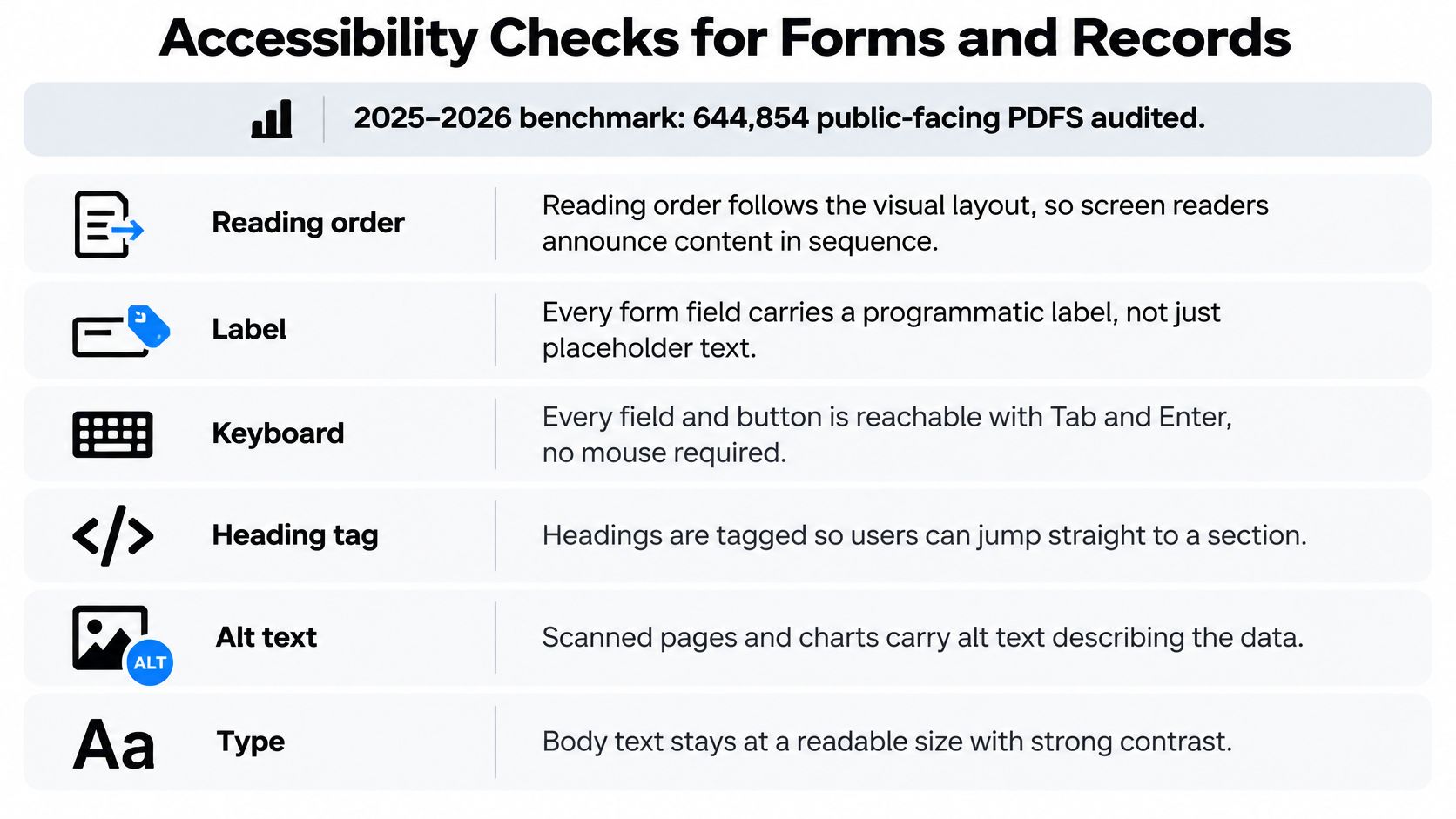
A file can upload cleanly and still fail the person on the other end. That gap matters because accessibility is part of document delivery, not a separate design exercise. An industry report covered by The Globe and Mail found that 94.75% of 644,854 public-facing PDFs across more than 770 websites failed at least one accessibility checkpoint, while only 5.25% met its baseline usability threshold. Those figures cover public-facing PDFs, not fax transmissions, but they show how often a PDF looks finished while remaining hard to use.
Use a checklist to separate visual appearance from actual usability.
Ask questions the document can pass or fail
- Searchable text: Can someone find a phrase with the reader's search function? If not, a scanned page may need optical character recognition, or OCR.
- Document structure: Are headings tagged, and does the reading order work when columns or tables are read sequentially?
- Images and forms: Do informative images have meaningful alternative text, and does every form field have a programmatic label?
- Language and navigation: Is the document language set, and can someone reach and operate fields using a keyboard?
- Visual readability: Does the text remain legible, with sufficient contrast and no information conveyed through color alone?
Treat these checks as delivery checks. A contract that cannot be searched, a form field without a label, or a table read in the wrong order can slow down the recipient even after the upload succeeds. I would fix those issues before sending when the document is meant to be reviewed, signed, archived, or reused.
Verify the file and the delivery channel
Use this QA sequence: 1. Generate the PDF. 2. Run an automated accessibility checker. 3. Inspect the tag tree and page order manually. 4. Open it in desktop and mobile viewers. 5. Upload and download the server copy, if available. 6. Compare hashes when the service preserves the original file. 7. Inspect representative pages.
Automated checks catch common failures, but they do not settle every judgment call. Tags can exist in the wrong order. Alternative text can be present but useless. A field can look labeled on screen while its programmatic name is blank. Manual review is what connects the checklist to real reading and form completion.
A matching hash verifies identical file bytes, not accessibility. A changed hash may reflect processing, so investigate rather than treating it as proof of damage.
This video provides an additional accessibility reference.
Fax delivery uses page images, so tags, alternative text, and selectable text may not reach the recipient. That trade-off is acceptable when the receiving office needs a signed page or a filed copy. It is a problem when the recipient needs to search, edit, or complete the document. If they need an accessible digital document, confirm whether a fax is sufficient or arrange an approved channel that preserves the PDF intact.
How to Upload and Send Your PDF Step by Step
Our browser-based form requires no download, installation, or account. Have your completed document, sender details, and verified destination ready before opening the file picker.
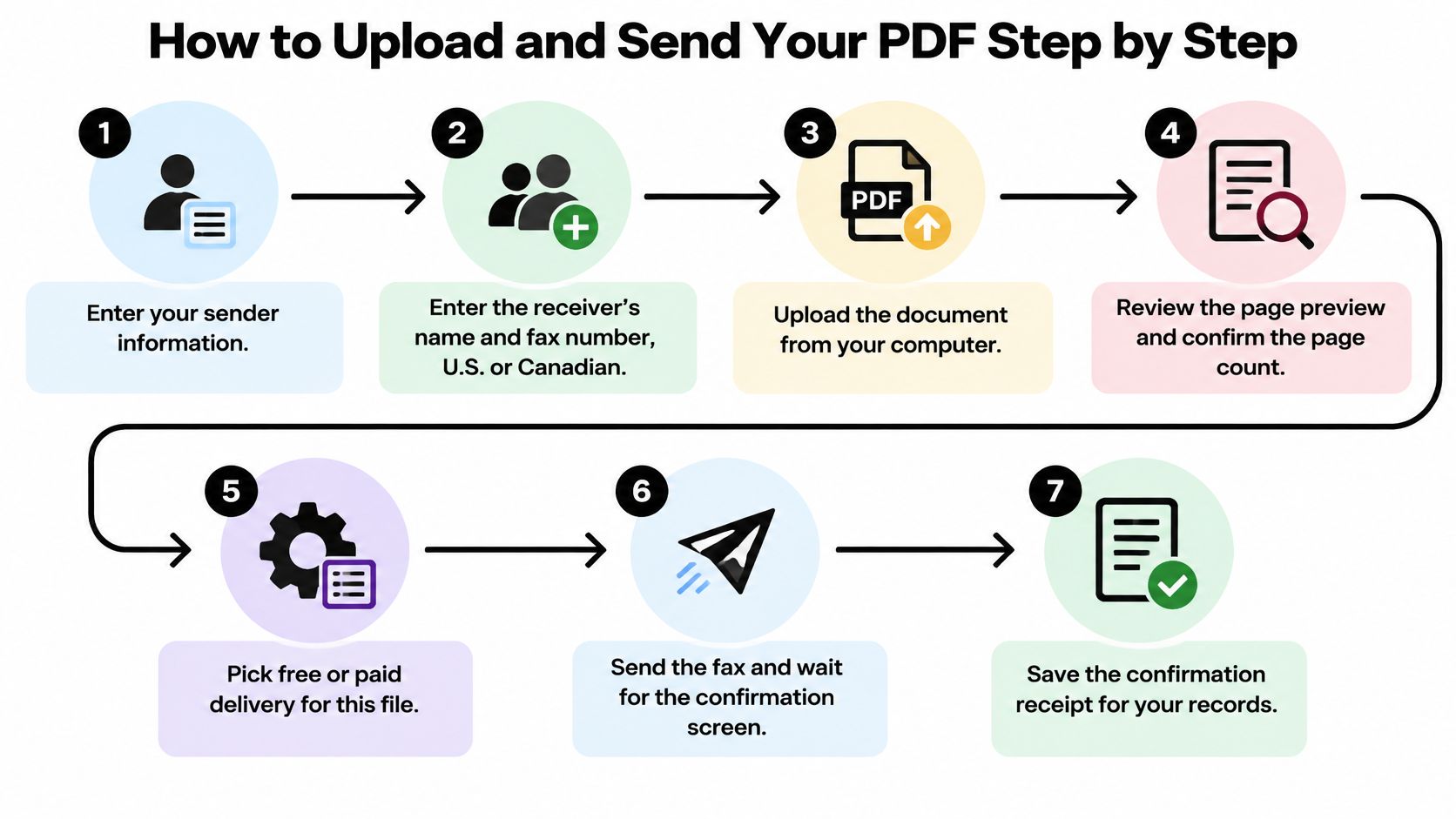
Use the form's actual fields as your guide. The visual below summarizes the workflow, while the numbered instructions include the CAPTCHA and page-count checks you shouldn't skip.
Complete the form and inspect the attachment
Enter your sender information. Fill in the requested details and check your email address carefully. A typing error there can prevent you from receiving the delivery result even when you complete the rest of the form correctly.
Enter the receiver's name and fax number. Use the intended U.S. or Canadian destination, and compare the digits with your trusted record. A wrong area code or missing digit is a destination problem, not something uploading the file again will fix.
Upload the document from your computer or phone. Select the final version rather than a draft, and attach every intended file in the same selection. If you forgot an attachment, restart the selection with the complete set instead of assuming you can append it after the first upload finishes.
Check the displayed page count. Our system counts the uploaded pages and shows the total before sending. Compare that number with your originals, and investigate a mismatch before proceeding, particularly if a blank page, appendix, or signature page could have been omitted.
Submit once and verify the result
Complete the CAPTCHA. Follow the on-screen challenge and wait for it to register successfully. If it won't load, resolve that problem before attempting to submit, rather than repeatedly pressing the send button.
Click Send Free Fax Now for the free workflow. Before clicking, recheck the destination, attachment selection, and any cover message. If you're choosing paid delivery, follow the corresponding form controls rather than expecting the free action to select it for you.
Check your email for the delivery confirmation. Read the result rather than treating the presence of an email as proof of success. Save the delivery confirmation with the appropriate record, and check your spam folder if the message isn't visible.
Before you submit: An accepted upload means the service received your attachment. It doesn't, by itself, mean the destination received the fax.
If the form rejects an attachment, correct the stated problem instead of renaming the extension or repeatedly selecting the same unsuitable file. If the displayed total is unexpected, open the exact local file you selected and inspect its page sequence.
A completed run has distinct checkpoints: the page count matches, the form accepts the upload, and the email confirms delivery. For documents with a deadline or filing requirement, also follow the recipient's instructions about acceptable submission and proof of receipt.
Phone, Tablet and Slow Connection Upload Tips
On an iPhone, Android phone, or iPad, locate the finished document in Files, device storage, or the scanning app you used. A camera-roll image needs to be saved or exported as a PDF before attachment. Don't assume the file picker converts a photo just because it lets you browse your pictures.
On a slow connection, distinguish uploading from fax transmission. Your device must finish transferring the file to our servers, but once it's uploaded, the servers handle transmission independently of your connection speed.
Keep the upload stable
- Keep the browser tab open: Wait for the attachment to finish uploading before navigating away.
- Stay on one connection: Avoid switching between Wi-Fi and cellular while a transfer is running.
- Reduce competing activity: Pause large downloads and close resource-heavy tabs.
- Choose a simple filename: Use plain letters and numbers with the correct extension, without putting sensitive identifiers in the name.
Prefer stable Wi-Fi for a large attachment. A strong, consistent connection is more useful than repeatedly restarting because the progress indicator moves slowly.
Match the fix to the failure
If the upload stalls, restore your connection and restart the attachment process only after confirming that the previous attempt hasn't already progressed to submission. If the form rejects the file immediately, check its real format and saved size rather than blaming the network.
If the CAPTCHA fails to load, reload the page and complete the form again as needed. Recheck the attachments after refreshing, since a browser refresh may clear your selection.
Before a deadline, open the final file on the device you'll use. Confirm its type, size, page sequence, and destination number while you still have time to correct a bad scan or retrieve a missing page.
Choose Free or Paid Before You Send Your Fax
Choose based on document length, presentation, and delivery priority, not on the assumption that paying automatically makes sensitive content appropriate to send. A short personal form fits a different workflow from a longer client-facing contract.
Free and Almost Free plans compared
| Option | Price | Page limit | Daily limit | Branding | Cover page | Delivery |
|---|---|---|---|---|---|---|
| Free | No charge | Up to 3 pages plus cover | 5 free faxes per day | SendItFax branding on cover | Included | Not priority |
| Almost Free | $1.99 per fax | Up to 25 pages plus optional cover | Charged per fax; confirm any sending restrictions on the form | Removed | Can be omitted | Priority |
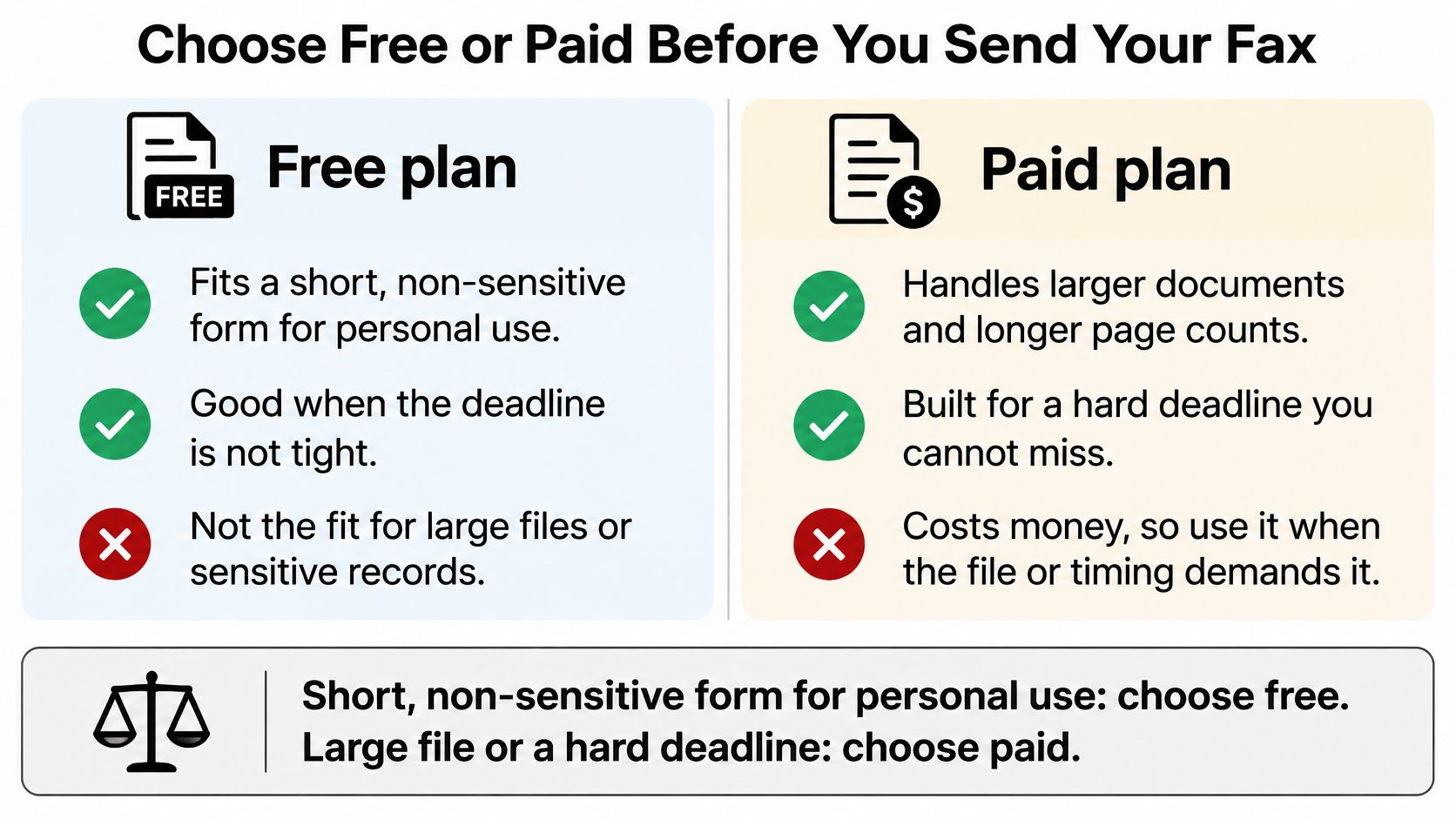
The comparison below summarizes the practical choice, but priority delivery isn't a guaranteed deadline, and a paid selection doesn't replace privacy or compliance checks.
Choose for the actual document
Use free delivery for a short, non-sensitive personal form when the branded cover is acceptable. Consider Almost Free for a longer document, a cleaner client-facing presentation, or a submission where priority matters, while leaving enough time to verify receipt.
Our online fax cost guide provides more context for that decision. Neither option overrides the upload restrictions or the recipient's submission requirements.
If a fax fails to deliver, you can resend it for free using the same information and uploading the document again. Confirm the failure before retrying so you don't create an unnecessary duplicate.
If your source document won't download in the first place, Acres' guide to reading HTTP status codes on downloads can help distinguish a download problem from a fax-upload problem. Open the completed local download before attaching it.
SendItFax lets you upload a PDF in your browser and send it to a U.S. or Canadian fax number without creating an account or installing software. Visit SendItFax, attach your checked document, confirm the displayed page count and destination, and keep the delivery email as your record.