Category: Uncategorized

  • How to Print and Fax from Any Device in 2026

    How to Print and Fax from Any Device in 2026

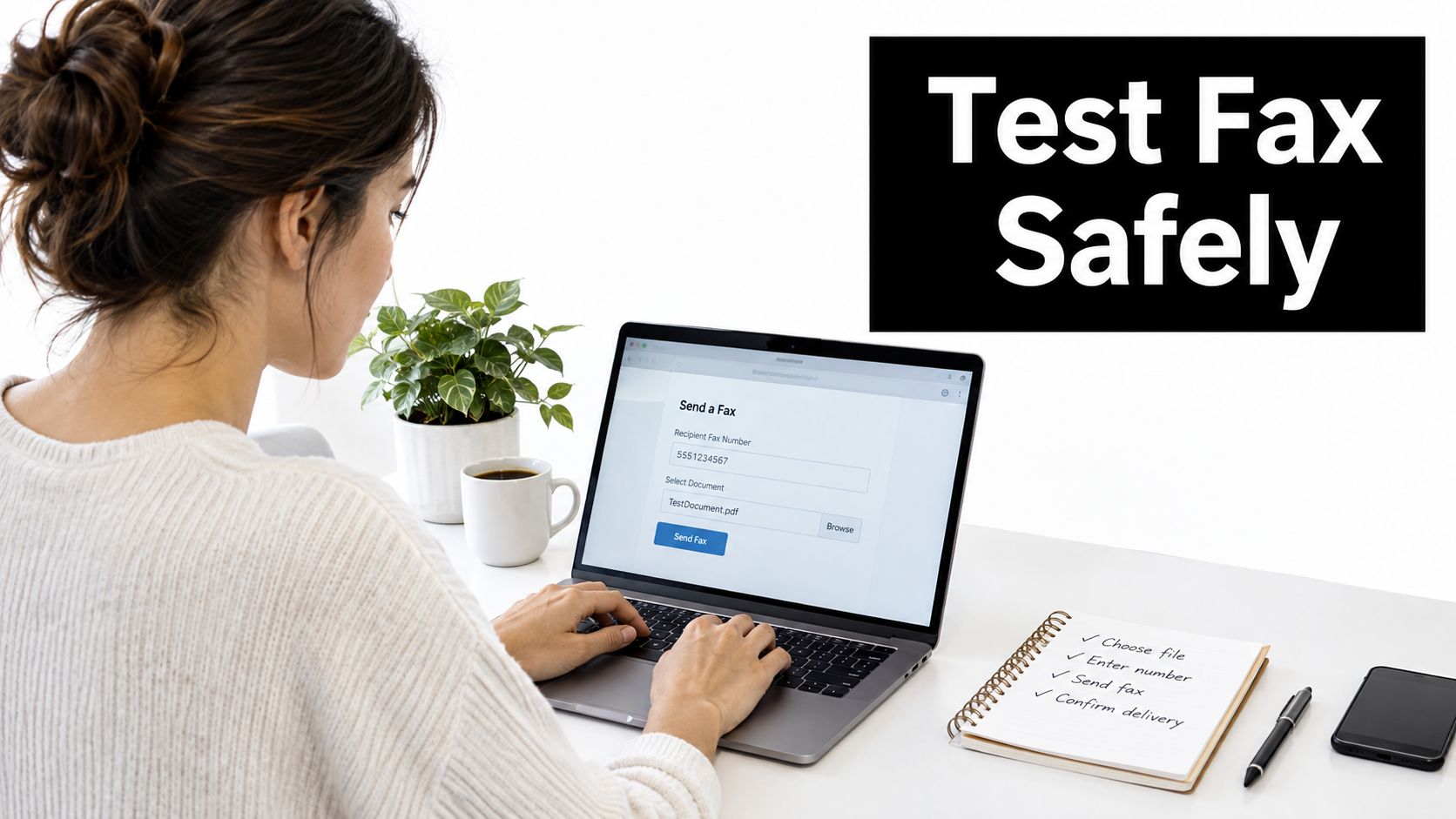
    You've got a PDF open, a signature field to chase, and somebody on the other end still wants a fax. No machine is sitting by the copier, the deadline is real, and the worst part is that the document is already finished on your laptop. That's exactly where browser-first print and fax makes sense, because the job isn't really about paper anymore. It's about getting a clean file from your screen to a fax number without dragging in drivers, a landline, or a hardware scavenger hunt.

    When You Need to Print and Fax Without a Machine

    The old ritual used to be simple in theory and annoying in practice. Print the page, walk it to a machine, feed it in the right direction, dial, wait, then hope the confirmation sheet looks normal. That workflow still shows up in offices, but the fundamental need has shifted. People usually need to fax documents from a browser because the file is already digital, the recipient still expects fax, and the only thing missing is a transmission path.

    That gap exists because fax never disappeared from regulated work. Healthcare, legal, real estate, and government forms still lean on fax when a signed paper trail matters. Fax also remains a bridge between paper and electronic communication, which is why it stuck around long after email became standard in everyday work. The historical record is clear that fax became “obsolescent, though not obsolete” by 2000, and that description still fits a lot of office reality today. See the engineering history in the Fax Machines reference, which also places fax's commercial rise in the mid-1960s and its broad business adoption in the 1980s.

    Practical rule: if the document is already on your computer, treat fax as a browser delivery problem first, and a printing problem second.

    That mental shift saves time. You're not preparing a pile of paper for a machine on the floor. You're deciding whether the file is clean enough to upload, whether the free tier covers the job, and whether the recipient needs a cover page or just the document itself.

    A person holding a physical invoice while using a laptop to send a digital fax via eFax.

    The fastest wins usually come from matching the file to the fax path instead of forcing the fax path to behave like a printer. If you can upload the document, confirm the destination, and send from a browser, the hardware part disappears. That's the primary reason online fax exists, and it's the cleanest way to think about print and fax when the clock is already ticking.

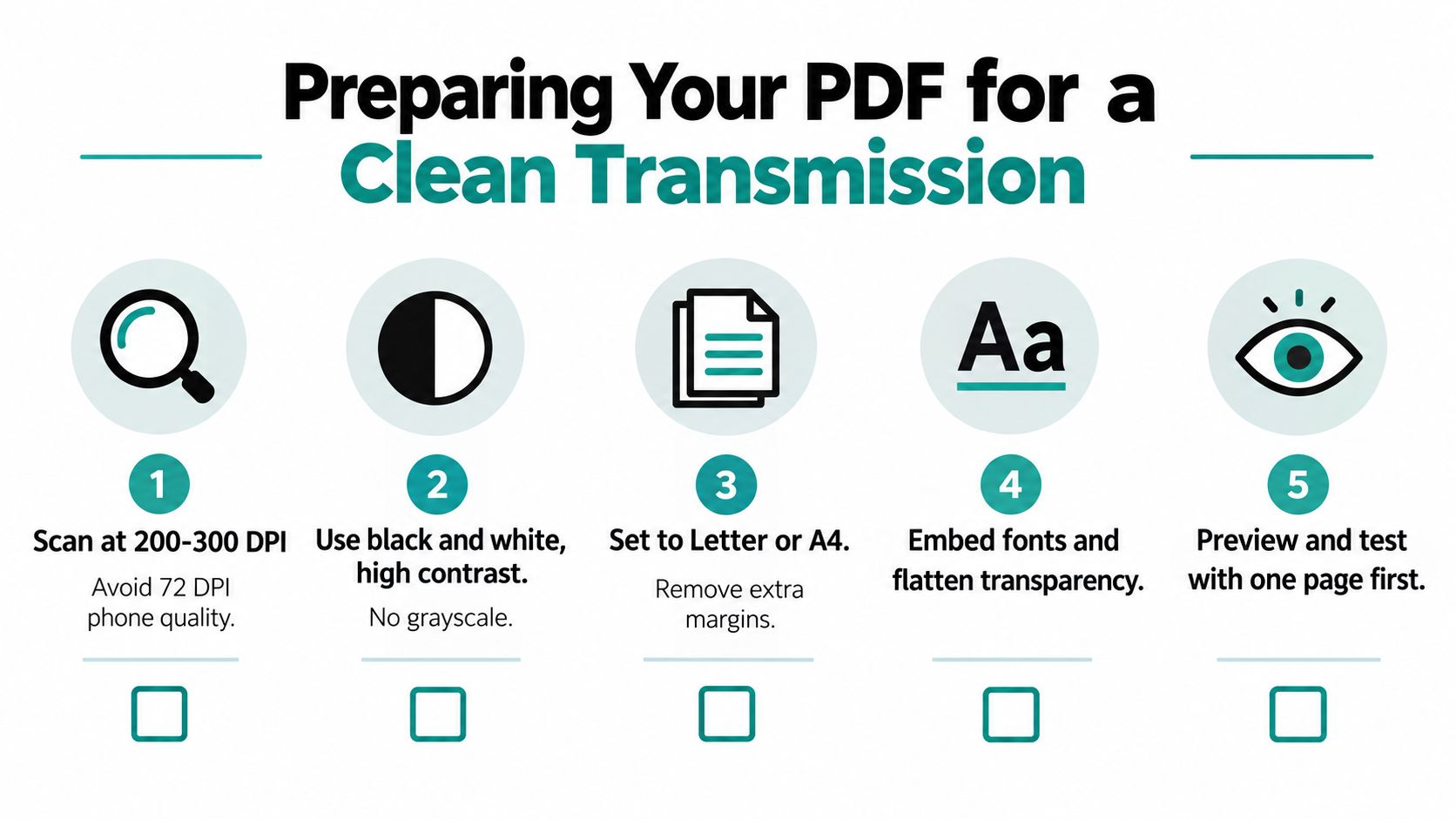
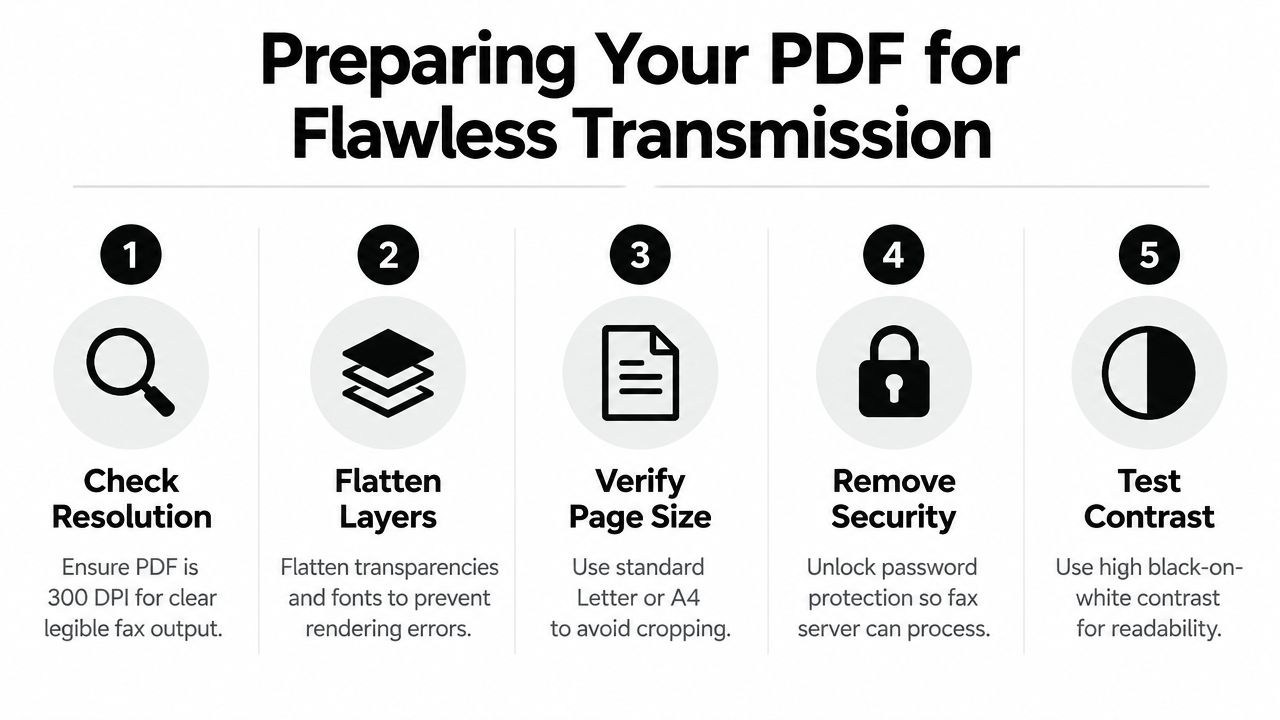
    Preparing Your Document for a Clean Transmission

    Start with the file you have, not the file you wish you had. A Word document can work, but a PDF is usually safer because the layout stays fixed from upload to transmission. That matters when signatures, stamps, or spacing have to survive the trip unchanged. If the document looks right in Word but shifts when it's opened elsewhere, faxing a native PDF avoids a lot of surprise reflows.

    For browser-based faxing, file prep is mostly about reducing ambiguity. Use the document format the service accepts, keep the page order obvious, and save a clean copy before you upload. If you're turning a draft into a fax, convert it first, then check that headers, footers, and signature lines still sit where they should. A good place to tighten that process is the guide to tools that improve doc quality, especially if your source file comes from a messy scan or a rushed export.

    File prep that prevents rework

    • Use PDF when layout matters: PDF keeps the page visually stable, which is why it usually behaves better than a live Word document.
    • Keep the file name obvious: include the recipient or purpose in the name so you don't upload the wrong version under pressure.
    • Flatten scans when needed: if a signature or stamp can move around in an editable image layer, flattening reduces the risk of a broken-looking fax.
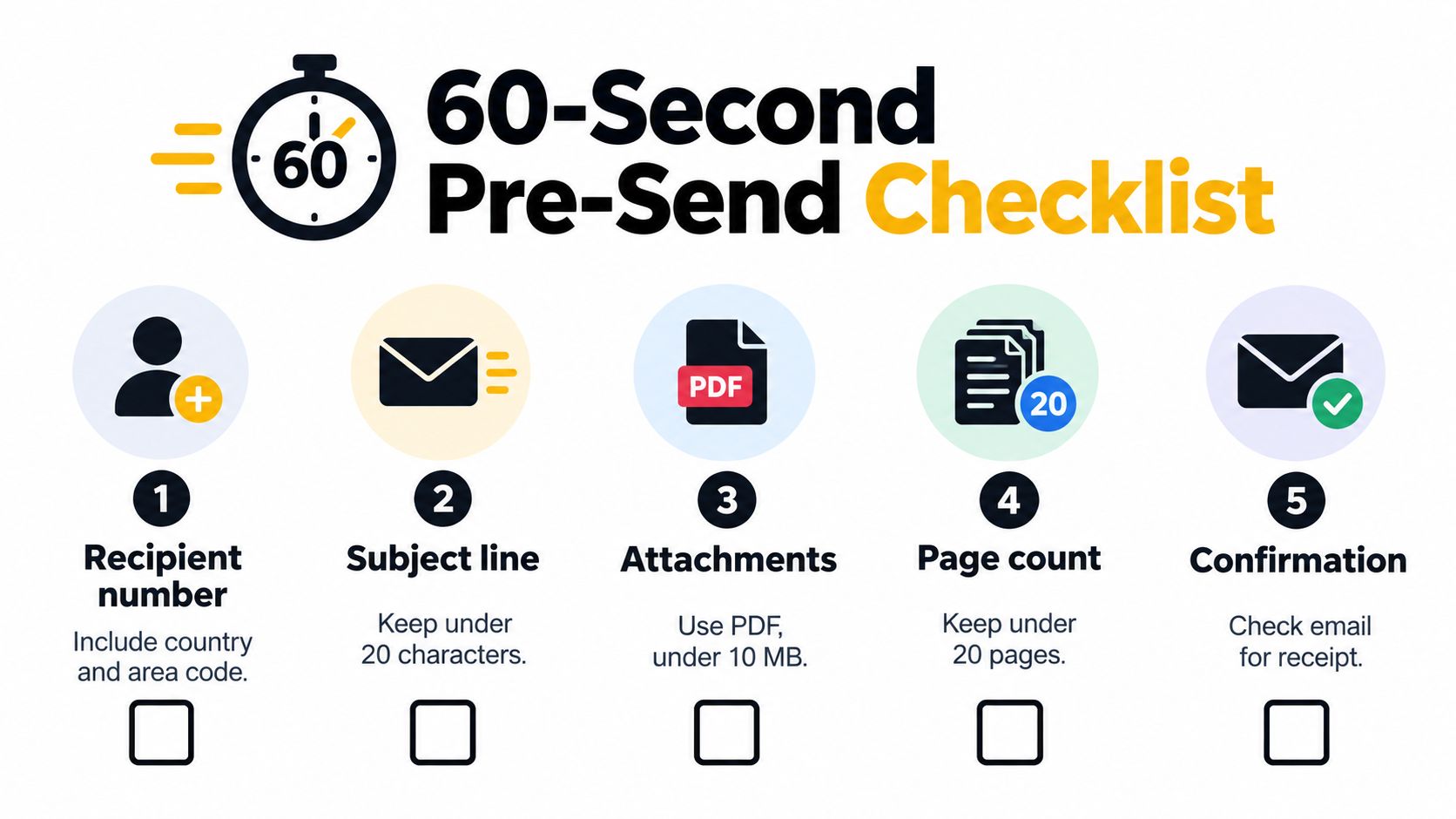
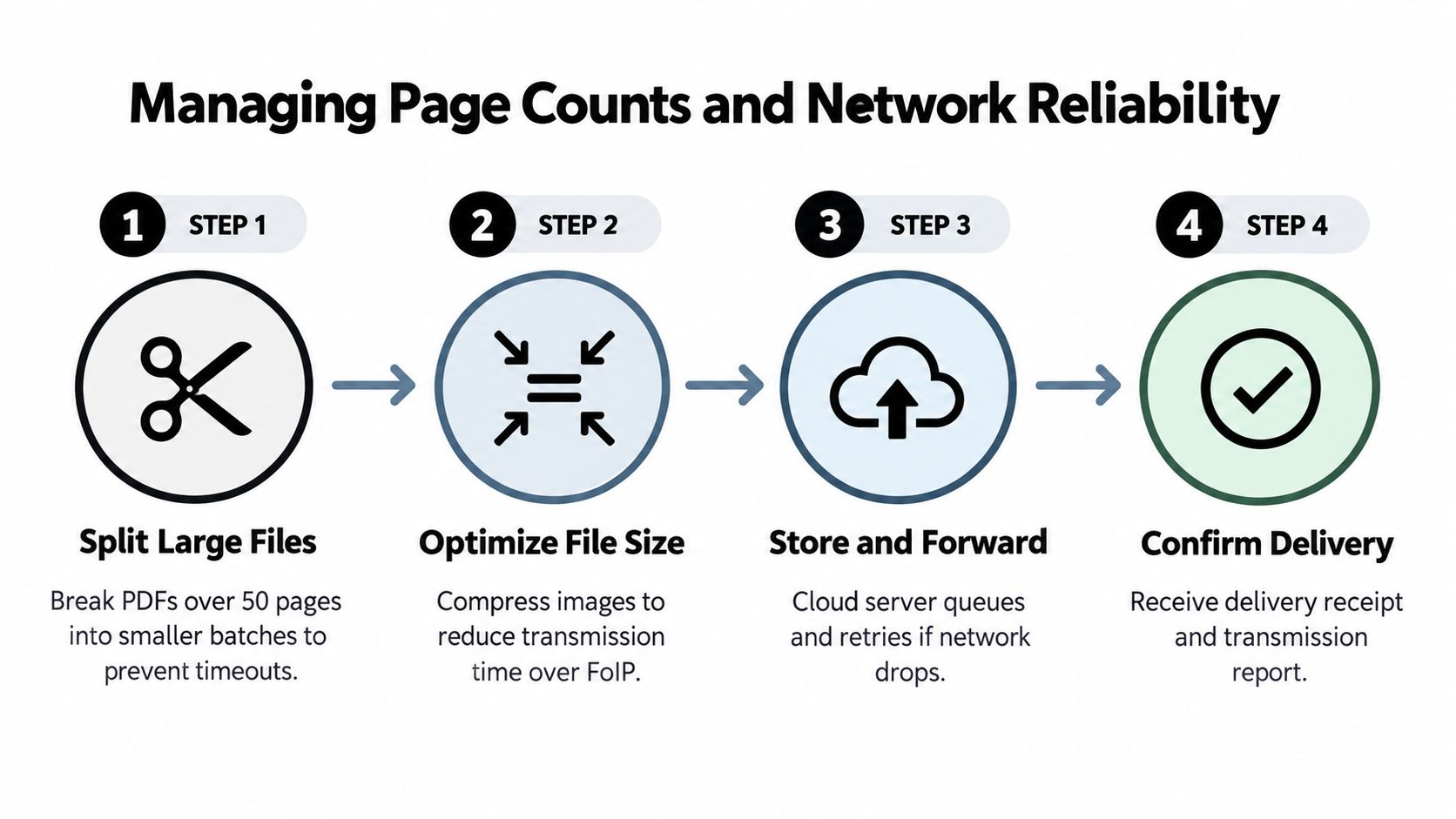
    • Check page count before upload: if you're using a free tier with a page cap, count the pages before you send so you don't hit a limit mid-task.

    A small detail helps here. If you're converting a Word file, do it once and save the PDF beside the original. That keeps the source editable and the fax copy locked down. The internal conversion walkthrough at how to convert Word to PDF is useful when you need the shortest path from draft to sendable file.

    One more thing. Oversized scans often cause more trouble than bad destination numbers. If the document is a high-resolution scan of a few pages, it can be heavier than it needs to be, and that slows upload or adds friction on mobile connections. Keep the file readable, not bloated. A fax doesn't reward fancy source files, it rewards clean ones.

    Sending Your Fax Through SendItFax Step by Step

    The browser flow is straightforward once you stop thinking like a copier user. Open the service, enter the destination number, and make sure the number is routed to the right country. SendItFax supports recipients in the United States and Canada, so the number you type has to match the destination you intend to reach.

    Screenshot from https://senditfax.com

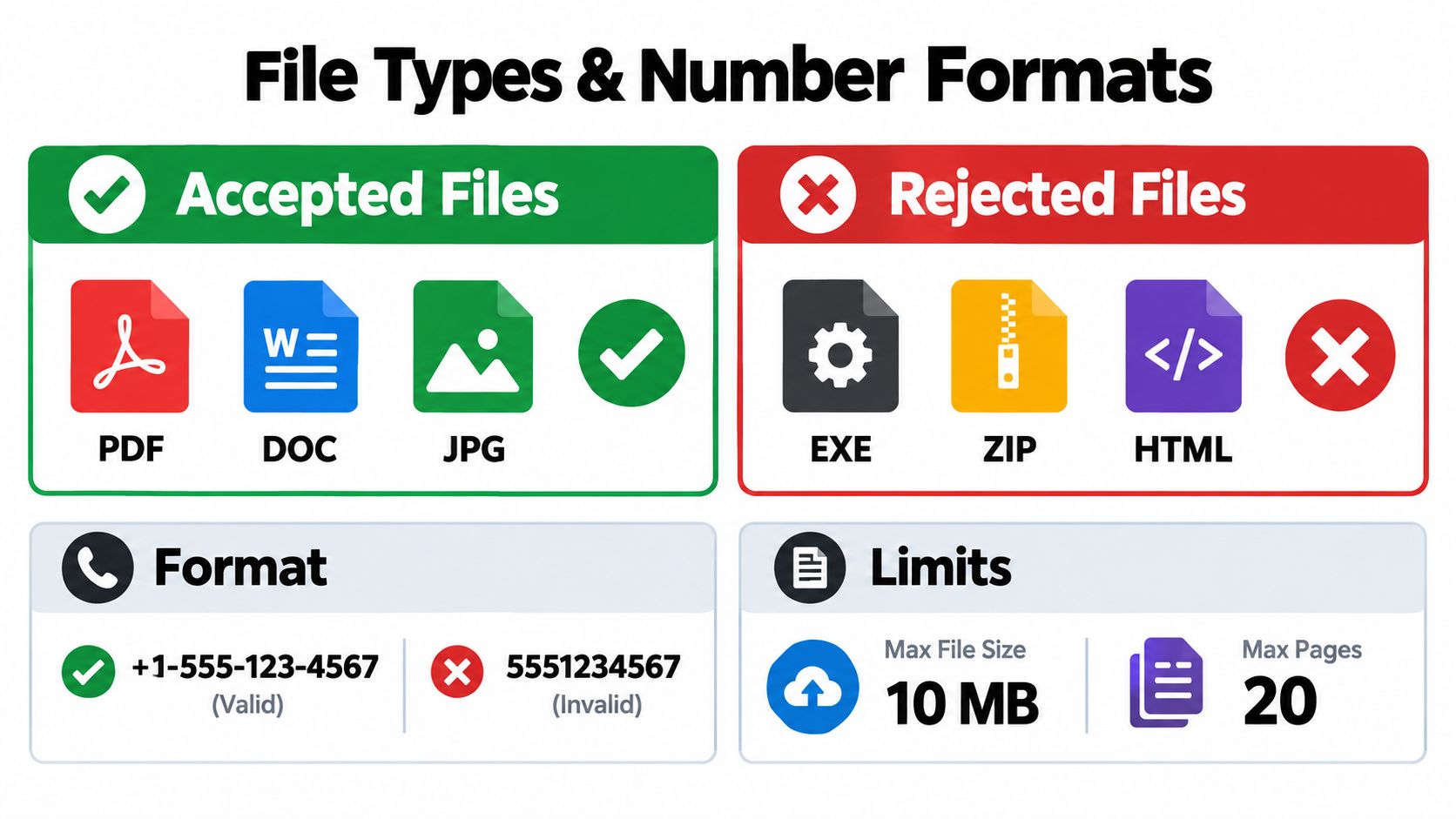
    Next, fill in the sender and receiver fields. Those details matter because they shape the cover page and the delivery record, and they help the recipient identify the fax when it lands. Then upload the document, choose whether you want a cover page message, and decide if the fax should go out with or without that extra sheet. The service supports DOC, DOCX, and PDF, so you don't need to do a last-minute format shuffle if your file is already in one of those.

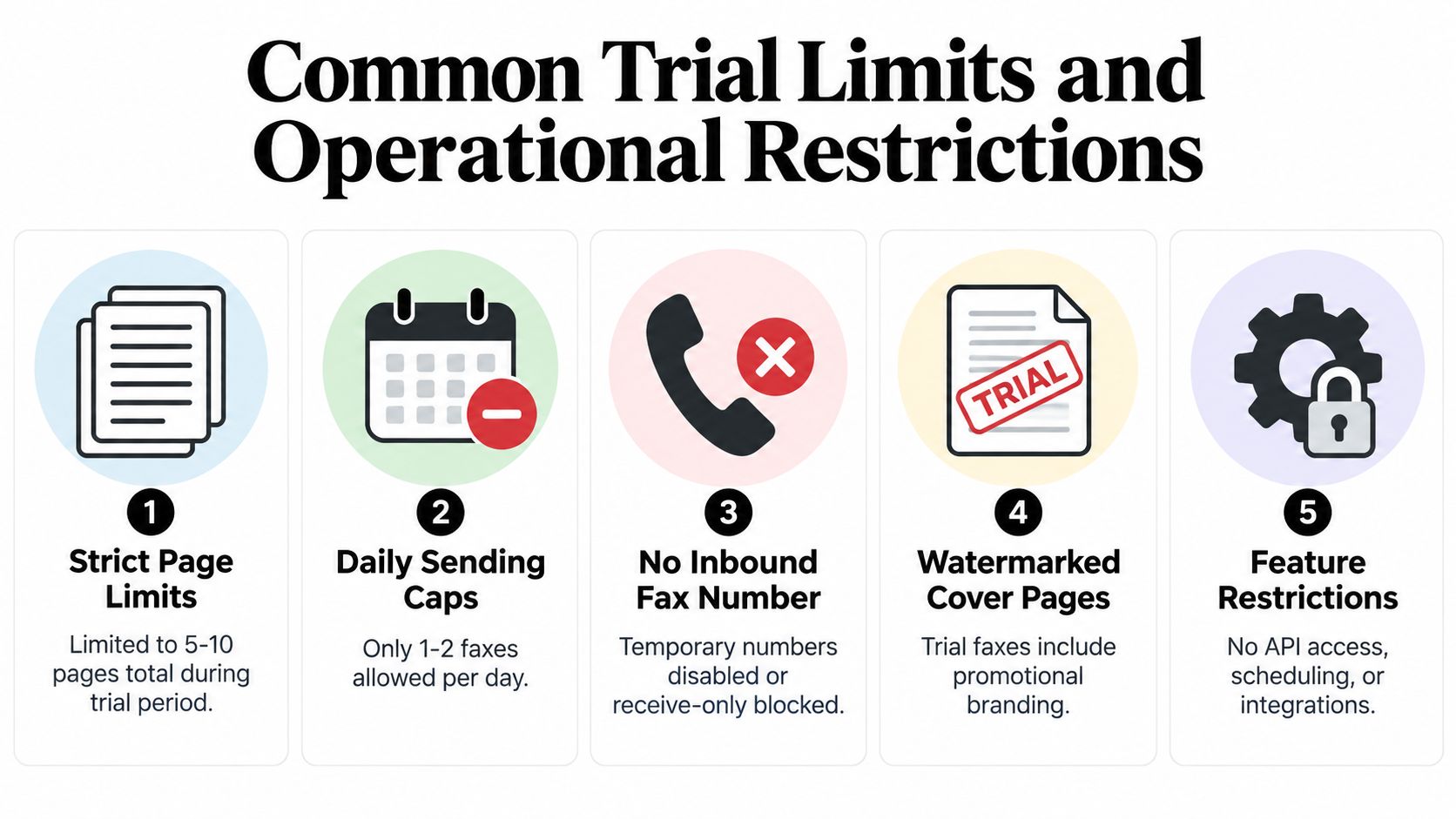
    The free path is enough for a lot of one-off jobs. SendItFax's free option allows up to three pages plus a cover and includes a daily limit of five free faxes. If that covers your situation, you can send without paying and move on. If you need a longer document or a cleaner presentation, the paid path is there before you waste time splitting files or rewriting a cover note.

    Practical rule: if the fax is short, routine, and not client-facing, the free tier is usually the right first click.

    The paid path is still simple. The interface routes through Stripe, you confirm the purchase, and the fax is sent with the higher-capacity option. The internal walkthrough at send fax from web is the right companion if you want to see how the browser flow maps to a finished transmission. For a quick visual reference, the embedded process video below helps connect the interface to the action you're taking.

    The best part of this workflow is how little ceremony it needs. No fax machine. No driver install. No landline. If the file is ready and the number is correct, a single browser session is enough to finish the job.

    Choosing Between Free and Paid Fax Delivery

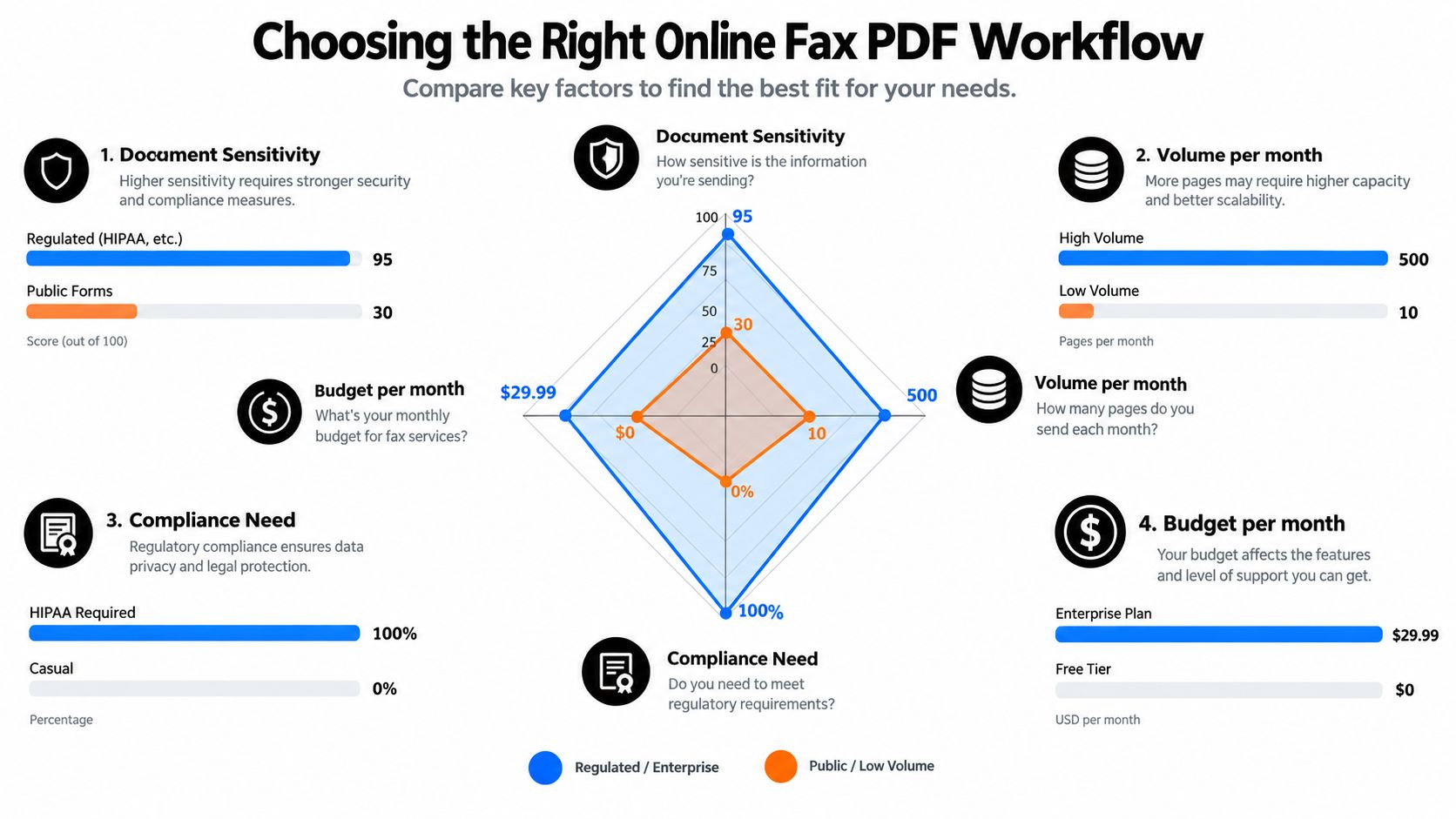
    The free tier handles a lot, but not every fax is built the same. If you're sending a short internal form, a signed page, or a quick compliance document, the free option is usually fine. If the document gets longer, needs a cleaner cover page, or is headed to a client who notices branding, the paid option starts making more sense.

    Here's the blunt decision rule I use. If the fax is within the free page cap and there's no downside to waiting or resending later, stay free. If you're sending a larger packet, trying to protect a professional presentation, or can't afford a failed first attempt, the paid route is worth the cost because it removes the page pressure and adds priority handling. That's especially true when you don't want branding on the cover sheet.

    Feature Free Tier Almost Free ($1.99)
    Page allowance Up to three pages plus a cover Up to 25 pages
    Daily use Five free faxes per day Paid per fax
    Cover page branding SendItFax branding included Branding removed
    Cover page option Available Can be omitted entirely
    Delivery priority Standard Priority delivery
    Payment flow No payment needed Stripe checkout

    The table is the short version. The practical version is this, if you're faxing something short and routine, use free and move on. If you're sending a packet that looks awkward chopped into multiple transmissions, or if the recipient is external and presentation matters, the $1.99 path is the smarter call.

    A lot of people overthink the paid click because they assume it changes the workflow. It doesn't. You still upload the file, confirm the destination, and send from the browser. The difference is mostly in capacity and presentation, which is exactly what matters when a fax is tied to a deadline or a client relationship.

    Browser and Device Tips That Improve Delivery

    Small setup choices matter more than many expect. Keep cookies enabled, because the service uses them for core functionality. If cookies are blocked, a browser-based fax flow can become flaky in ways that don't look like normal “send failed” errors. Also, prefer a desktop browser when the file is large or the layout is sensitive. Phones are fine for quick jobs, but a bigger upload is easier to manage on a laptop.

    A laptop screen displaying the Google Chrome browser settings page for managing cookies and site data.

    Scan quality matters too. Use 200 to 300 DPI for ordinary document capture instead of maxing out the resolution by default. That keeps the file readable without turning a two-page form into a sluggish upload. If you're working from a travel laptop, a tablet, or a device that can't print locally, browser faxing solves the problem, which is getting the file out of your hand and into a transmission queue without needing a printer at all.

    Practical rule: if the fax looks good on-screen and the file isn't oversized, it usually behaves better in transmission.

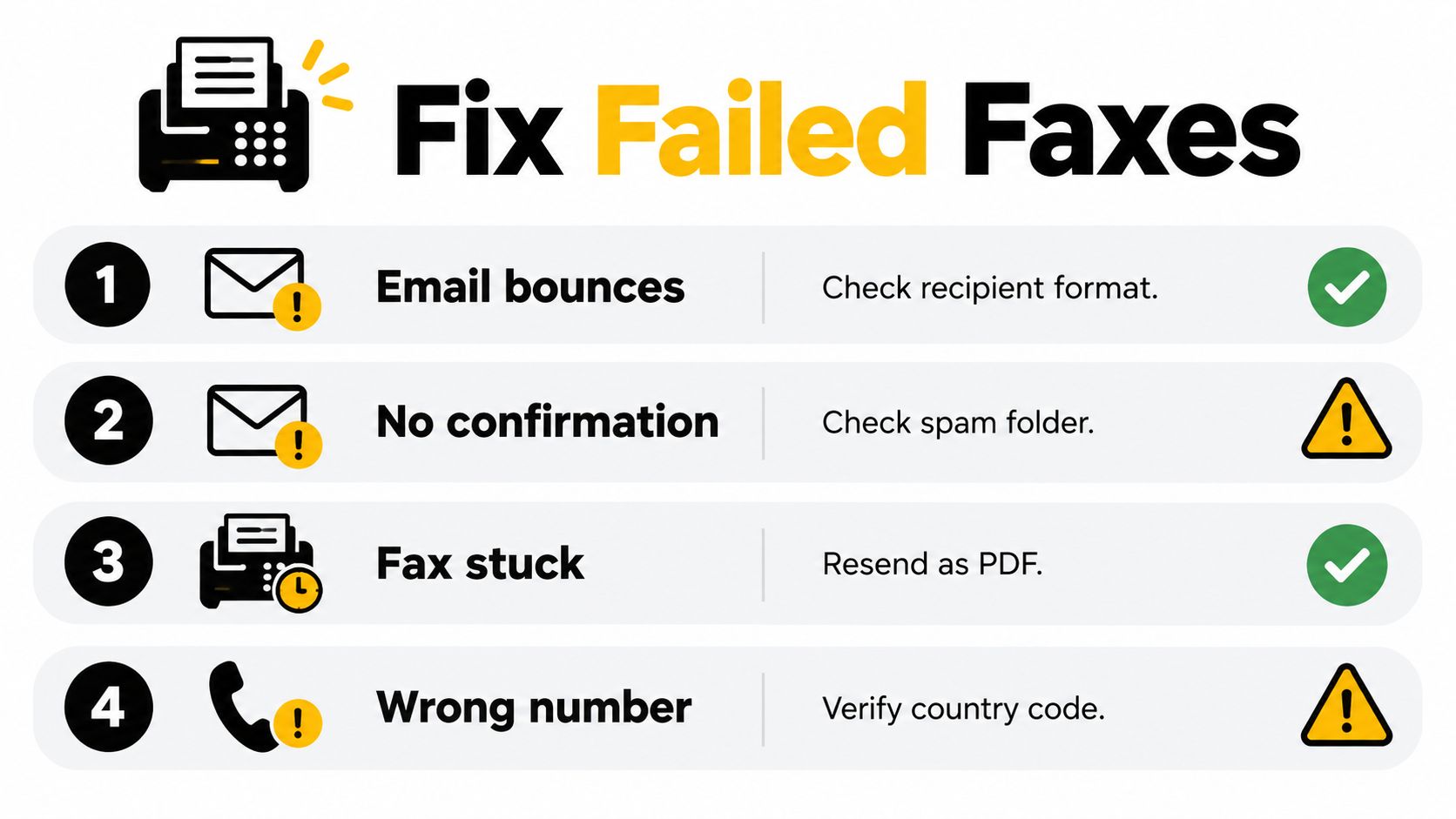
    Destination formatting is another quiet failure point. Double-check the country code and the full number before you send, especially when you're handling cross-border forms or forwarding a document from a different office region. Most errors here are simple, not mysterious. The wrong digit, the wrong country, or a blocked browser session causes more trouble than the document content itself.

    Fixing Common Delivery and Privacy Problems

    If a fax doesn't land, start with the basics before you resend anything. Check the destination number, confirm the file opened correctly, and look for the confirmation page or delivery status. If you sent a paid fax and it failed because of a bad number or a formatting issue, don't assume the problem was the service. The more common cause is a mismatch between the file you uploaded and the recipient you entered.

    Confirmation matters because fax still carries a paperwork habit from the old office world. Many workflows expect proof that a transmission happened, and the confirmation page is the first thing to save. Public and institutional fax pages still emphasize logs and confirmation sheets for recordkeeping, and that's a useful habit even when the fax is sent from a browser. Keep the status record with the document so you can show what went out, when it went out, and to whom it was addressed.

    Privacy deserves the same discipline. Read the service's FAQ, Terms of Use, and Privacy Policy before sending sensitive medical or legal paperwork, especially if the fax includes identifiers or signed pages. Cookies are part of the workflow, so don't treat them as optional friction. They're part of how the browser session functions, and you should know what data handling rules apply before you trust the channel with confidential material. The internal note on security of fax is worth a read when the document you're sending has real compliance weight.

    If the fax still looks wrong after a send, the safest move is to inspect the source file instead of blaming the channel. Reopen the PDF, confirm the page order, and check whether a scan was clipped or rotated before you upload again.

    Save the confirmation first, then decide whether the fax needs another attempt.

    That order keeps you from double-sending out of panic, and it makes it easier to answer questions later if someone asks whether the document went out.


    SendItFax gives you a browser-based way to send faxes from any device, with no account required and no machine to babysit. If you need to move a document quickly, compare the free path with the paid option, then use the one that matches the page count and presentation you need. Visit SendItFax and send the next fax from your browser instead of hunting down hardware.

  • Fax Confidentiality: How to Send Faxes Without Leaks

    Fax Confidentiality: How to Send Faxes Without Leaks

    The most popular advice about fax privacy is also the least useful. Slapping CONFIDENTIAL on a cover sheet doesn't make a fax private, because confidentiality is a workflow outcome, not a label. If the wrong number is dialed, the machine sits in a public hallway, or the file is stored where anyone can open it, the stamp is just decoration.

    Fax confidentiality has been a policy issue for a long time, and the same lesson keeps showing up in modern compliance guidance. Federal statistical confidentiality concerns go back to the late nineteenth century, and researchers documented repeated interagency access disputes across 1910 to 1965 in the United States, which shows how long organizations have wrestled with protecting transmitted records source data. In healthcare, HHS says covered entities can fax protected health information for treatment, but they need “reasonable and appropriate” safeguards, such as confirming the fax number and placing machines in secure locations HHS guidance.

    A diagram illustrating the five key stages of maintaining fax confidentiality, from cover sheets to secure disposal.

    A practical way to think about fax confidentiality is simple, it's the sum of verification, secure handling, encryption, access control, and audit. A good overview of those habits appears in practical HIPAA compliance tips from Simbie AI, and the same logic applies outside healthcare too. If you want a template for the warning language people often put on covers, there's also a useful reference in this fax confidentiality statement, but the statement itself is only one layer.

    Practical rule: treat every fax as private only after the workflow proves it can stay private, not before.

    What Fax Confidentiality Means

    A confidential fax stamp is a warning, not a guarantee. It tells people to handle the page carefully, but it does not stop a fax from being misrouted, left in a tray, stored on a machine, or seen by someone who should not have access.

    A better definition starts with the workflow. Fax confidentiality means the document stays protected from the moment someone prepares it until the intended recipient reads it, and that protection comes from a chain of controls around the fax process, not from the fax medium by itself. HHS's “reasonable and appropriate” language matches that reality, because it pushes organizations to build safeguards into the process instead of relying on a label HHS guidance.

    Think in layers, not slogans

    A fax workflow only stays private when each handoff is deliberate. That means asking four questions every time a fax moves.

    • Who is receiving it? Confirm the number and the person before sending.
    • Where is it going? Use a secure machine or service, not an open lobby device.
    • How is it transmitted and stored? Look for protections on the line, in the app, and at rest.
    • Who can view it after delivery? Limit access, review logs, and delete leftovers.

    A cover page can help set expectations, but it can also create risk if it repeats too much sensitive detail. Guidance that shows how to write a fax confidentiality statement is useful for that reason, since the statement is a notice layer, not a lock. See practical HIPAA compliance tips for the broader handling habits that support the same workflow.

    A fax is confidential only when the people and systems around it make mistakes hard to turn into leaks.

    Why Traditional Faxing Is Weak at the Transport Layer

    Classic faxing was built for delivery, not for encryption. A page sent over the public switched telephone network, or over a modern fax-over-IP path, can move without native end-to-end cryptographic protection, which means the content is not sealed the way encrypted messaging is. The line itself becomes the weak point.

    That's why the easiest analogy is a postcard, not an envelope. The message is still meant for one recipient, but anyone who intercepts it in transit or along the IP path can read it. A tapped line, an exposed gateway, or a misconfigured relay can expose the full contents of a health record, a contract, or a financial document.

    The operational takeaway is blunt. Fax can be permitted in regulated environments, but permitted does not mean secure. The document is still only as private as the route, the service, and the people managing it. For a plain-language breakdown of that difference, the overview at is faxing secure makes the same point in a practical frame.

    Why the medium isn't the whole story

    A fax channel may move the page, but it doesn't solve every privacy problem around the page. If the sender enters the wrong destination, or if someone can inspect the file before or after transmission, the transmission layer can't rescue the process. Privacy depends on what happens around the fax, not just on how the fax gets there.

    So the right question isn't, “Is fax secure?” The better question is, “What protections are in place before, during, and after sending?” That shift matters because a lot of breach risk starts outside the phone line, in the office workflow that surrounds it.

    The Human Side of Fax Breaches

    A healthcare clerk opens a chart, prints lab results, and sends them to the number the last caller gave over the phone. One digit is wrong. The machine answers somewhere else, and the page lands in front of someone who was never meant to see it. Nothing about that failure required a complex attack.

    That kind of leak is a workflow problem. A wrong number, an unattended output tray, or a crowded shared workspace can turn a normal fax into a privacy incident before the transport layer even enters the picture. Research on confidentiality failures has long pointed to process errors around handling and destination control, and that matches what operations teams see in day-to-day fax use.

    Where people usually slip

    • Misdialed numbers are the fastest way to leak a page. If staff do not confirm the destination before sending, the document can go to the wrong recipient right away.
    • Unattended machines invite accidental pickup. If the fax sits in a public tray or a busy hallway, coworkers, visitors, or patients may see or take it.
    • Overly detailed cover pages can create the very exposure they are supposed to prevent. If the cover repeats protected details, it adds another place where private information can be seen.
    • No error procedure turns a simple mistake into a lingering problem. If staff do not know how to respond after a misdirected fax, the response gets improvised and the privacy gap stays open longer than it should.

    A helpful insider-threat lens from Eagle Point Technology Solutions insider threats makes this easier to see. People inside the process do not need bad intent to create risk. They may be rushed, distracted, or following a weak routine that leaves private pages exposed.

    That is why the fix is operational, not mysterious. Verify the destination, keep the machine in a controlled area, and train people on what to do when a fax goes astray. Confidentiality improves when the workflow assumes someone will make a mistake and builds a response around that reality.

    Common Fax Risks and How They Compromise Privacy

    The most common fax risks are the easiest to prevent, while the rare technical failures are less likely but more serious when they happen. That is why the question is not whether fax can ever fail, but which part of the workflow is most likely to expose private pages.

    A pyramid chart illustrating four common fax risks that compromise privacy and data security in business.

    The four risks that matter most

    • Weak access controls. If anyone can walk up and retrieve faxes, the machine behaves like an open mailbox. That is a workflow problem, not a transmission problem.
    • Unsecured storage. If the device or service keeps images without clear access rules, the exposure continues after the fax is sent. Private pages can sit in inboxes, local memory, or shared folders longer than staff expect.
    • Faxploit and similar device flaws. Check Point-reported Faxploit attacks used parsing flaws in all-in-one printer and fax devices, and they could be triggered with only the target's fax number, which means the fax subsystem itself can become a doorway into the network source data. That matters most when a multi-function device shares a network with endpoints and keeps received images on internal storage.
    • Poor device hygiene. If a fax device is also a printer, scanner, and network node, it needs the same care you would give any other connected system. Outdated firmware, weak admin credentials, and forgotten default settings make the device easier to misuse or compromise.

    Patching matters because these devices often sit at the boundary between paper and network systems. The more functions they combine, the more places there are for private pages to linger or for an attacker to reach into adjacent systems. Teams that treat fax as a simple document handoff usually miss that second risk.

    A useful way to frame this is the same way top 10 data protection tips frames other office controls. Privacy failures often come from weak routines around access, retention, and cleanup, not from one dramatic event. Fax is no different. The safest setup is the one where staff know who can touch the device, where files are stored, and when they are removed.

    If you are comparing service models, security of fax ties those controls back to policy and implementation. That connection matters because a secure fax process is built from permissions, storage limits, and maintenance habits, not from the act of sending itself.

    Core Safeguards for a Confidential Fax Workflow

    A confidential fax workflow starts before the page is sent. The first safeguard is verification, which means checking the recipient name, the number, and the purpose of the transmission before anyone presses send. If the number came from a voicemail, a sticky note, or a hurried conversation, confirm it again.

    The next safeguard is secure placement. A fax machine in a public hallway works against privacy, even if the content is sensitive and the sender meant well. The same goes for a browser-based service used on a shared laptop, if the session is left open and the downloads stay behind.

    A four-layer infographic illustrating core security safeguards for ensuring the confidentiality of fax workflows.

    Build the workflow in four layers

    • Verify. Double-check the destination number and the recipient before sending.
    • Secure. Use encryption and secure fax protocols where the service supports them.
    • Protect. Limit physical and digital access to the device, inbox, or account.
    • Audit. Keep logs, review sent and received items, and define what happens to misdirected pages.

    If you're setting this up in a managed environment, the article on security of fax is a useful companion because it connects policy to implementation. For a broader control checklist, HyperWhisper's data protection tips are a handy reminder that fax privacy fits into a wider security posture.

    Don't overexpose the cover page

    Cover pages should warn, not leak. Put the minimum necessary information there, and keep sensitive content off the front page when possible. If a fax is misdirected, the goal is to reduce what the unintended recipient can read at a glance.

    Retention matters too. If your system stores copies, set a deletion rule and make sure someone owns it. A fax is private only if the workflow knows when the document's job is done.

    Comparing Traditional, Enterprise, and Browser-Based Fax Services

    Fax Option Transport Protection Access Control Audit Trail Typical Use
    Traditional office fax machine Usually limited, depends on the phone path and office setup Physical access only, unless the device adds controls Often minimal Occasional in-office sending where the machine is tightly managed
    Enterprise Fax-over-IP platform Can support encrypted transport and stronger service controls Can include authentication, role limits, and admin policies Usually stronger, with logs and retention tools Regulated teams that need governance and repeatability
    Browser-based service Depends on the provider's security controls and user behavior Account and session controls matter most May include delivery visibility, but the workflow still matters Quick, occasional faxing from a browser

    The comparison isn't about declaring one option universally safer. It's about matching the tool to the job. A traditional machine can be workable for low-volume, tightly controlled use, while an enterprise FoIP platform makes more sense when a team needs governance, logging, and retention rules baked in.

    Browser-based faxing sits in the middle for a lot of people. A service like SendItFax can be enough for a one-off contract or form when the sender cares about speed and the recipient is in the U.S. or Canada, but the workflow still needs discipline. The service's own controls and the user's habits both matter, which is why privacy is practical, not automatic.

    What to ask before choosing

    • Do we need logs? If yes, a managed platform is usually easier to defend.
    • Do we send often? If yes, the process needs stronger governance.
    • Is this a one-time send? If yes, a browser-based option may be sufficient.
    • Who can touch the document after delivery? If that's unclear, the setup needs work.

    The cleanest decision is the one that keeps confidential pages from wandering. Pick the least complex tool that still gives you the controls you need, then manage the human steps carefully.

    When a Browser-Based Service Like SendItFax Is the Right Call

    A browser-based fax tool fits best when the job is small, specific, and time-sensitive. If you need to send an occasional form, a signed contract, or a record to a U.S. or Canadian recipient, a web workflow can be practical because it avoids the office machine, the paper tray, and the shared hallway.

    The confidentiality rules don't disappear just because the interface is simpler. Verify the number before uploading, keep the document lean, and don't pack the cover page with extra personal data. If presentation matters, the paid Almost Free plan removes branding and supports a cleaner send, while the free option is still a convenience tool, not a privacy shortcut.

    Use the lightest tool that still fits

    A browser service is a good fit when:

    • The fax is occasional. You don't need a full enterprise stack for a rare transmission.
    • The document is discrete. A single form or contract is easier to control than a high-volume stream.
    • The recipient is known. A confirmed destination lowers the chance of a misroute.
    • The sender can clean up after delivery. Download or delete copies once the job is done.

    A browser tool becomes the wrong choice when the workflow needs identity management, retention controls, or a business associate agreement. That's the point where a regulated process needs more than convenience. If your team handles high-volume PHI, the privacy question is less about speed and more about governance.

    The decision rule is straightforward. If you can confirm the recipient, keep the document tight, and clean up your copy afterward, a browser fax service can fit the job. If you can't control those pieces, you need a heavier process.

    Putting It All Together

    Fax confidentiality comes down to four habits, verify, secure, protect, and audit. The fax itself is only one part of the story. The privacy work happens in the steps around it, from the first number check to the final deletion or log review.

    If you need quick, occasional faxing, choose a tool that supports that workflow and then use it carefully. If you need stronger governance, move to an enterprise setup with better access control and records management. Either way, the rule stays the same, confidentiality is something your process earns.

    A diagram illustrating the four pillars of confidential faxing: verify, secure, protect, and audit, for data security.


    If you need a browser-based way to send occasional faxes without handling a machine, SendItFax gives you a web workflow for U.S. and Canadian recipients. Visit SendItFax to review how its sending process fits your confidentiality checklist, then use it only where the workflow, access, and cleanup are under control.

  • Do You Need a Landline for Fax in 2026

    Do You Need a Landline for Fax in 2026

    A landline is not required for most faxing today, because online fax services and some VoIP setups transmit over the internet instead of an analog phone line. The catch is that some printers, office phone substitutes, and older fax habits still depend on a real jack, so the right answer depends on how you're trying to send.

    You might be standing in a home office with a canceled phone line, or staring at an all-in-one printer that still has a fax button you've never used. The confusion usually starts there, because faxing now sits between old phone hardware and newer internet tools. A physical fax machine still needs a live phone line to complete the fax handshake, while internet fax services move that transmission step to the provider's network and work over broadband instead of a landline (mfax.to). That's why people asking do you need a landline for fax are usually really asking which setup works in a home office, on a laptop, or from a phone without creating a maintenance headache.

    The Short Answer and Why It Matters

    If you just canceled your home phone and need to send a form, the short answer is straightforward. You do not need a landline for fax if you use an internet-based fax service, and you may not need one if your VoIP setup is built to handle fax traffic.

    That distinction matters because many readers are not trying to build a phone system, they just need to send a document that another fax machine can read. A traditional fax machine still expects to reach another machine over the public switched telephone network, which is why it needs a real telephone line. An online fax service takes your file, converts it on the provider's side, and sends it onward through the internet, so your laptop or phone becomes the sender instead of a hardware modem. If you want a closer look at the signaling side of that handoff, the guide to DTMF for business communication helps explain why some line types behave differently from others.

    What usually confuses people

    The first point of confusion is that “fax” still sounds like a phone-line activity. That was true for the old model, but it is not true for every setup now. The second point is that a service can produce a dial tone and still be a weak fax line. Voice calls and fax tones do not stress a line in the same way, so a setup that works fine for everyday calling can still fail when it has to carry fax signals.

    Practical rule: If your setup has to pretend to be a phone line, test it before you trust it with anything important.

    The messy middle is where most confusion lives. A VoIP line may support fax in some cases, a printer's fax port may still need a real jack, and browser-based fax tools can send from a laptop without touching a handset. The rest of the guide walks through those options so you can match the setup to the way you work.

    Why a Traditional Fax Machine Needs a Phone Line

    A traditional fax machine was built for a phone call, not for a file upload. The machine dials a number, waits for the other side to answer, and then sends a signal that both devices can interpret as fax data. That exchange only works when there is a live telephone circuit behind it, which is why a real line matters.

    An infographic diagram illustrating the five-step process of how traditional faxing works through phone lines and modems.

    The old fax path

    A physical fax machine depends on an active PSTN telephone line because it was designed to place and answer analog calls. Without that connection, it cannot complete the handshake or carry the audio-frequency fax signal that turns pages into something the receiving machine can decode. In plain terms, the machine is placing a specialized call, not sending a digital attachment.

    That is why a cordless handset, a disconnected wall jack, or a number that only lives inside an app does not automatically qualify as fax-ready. The machine needs a live circuit at the moment it dials. If that circuit is missing, the send fails before the pages even start moving.

    How internet fax changes the path

    Internet fax services move the conversion step to the provider. Your device sends the document over broadband, and the service handles the translation before forwarding it to the recipient's fax number. Your side only needs an internet-connected computer, tablet, or phone, which is why this model fits people who want to fax from a laptop or mobile device without using a handset.

    That also explains the middle ground that causes so much confusion. A VoIP line may handle faxing in some cases, but it still depends on how the provider carries voice signals. Printer all-in-ones can still need a jack because their fax port expects a real phone-style connection, while cell-phone apps can send a document only through the app's own workflow, not by acting like a true fax modem. If you want to compare the available setup paths more closely, an online fax services comparison can help you sort the options by how they handle the handoff.

    If you want a closer look at the signaling side of that handoff, the guide to DTMF for business communication is useful background, especially if you have ever wondered why some phone-based systems behave differently from others. It helps explain why analog signals and internet workflows are not interchangeable just because they both use a number.

    The practical takeaway is simple. A fax machine expects a phone conversation. Online fax expects an internet connection. Those are different paths, and the gap between them is where most setup mistakes start.

    Comparing the Three Ways to Fax Today

    There are really three realistic choices now. You can keep a landline fax machine, try a VoIP-based fax line, or use an online fax service. Each one solves the same basic problem in a different way, and the best pick depends on how often you fax, where you work, and how much friction you're willing to tolerate.

    Fax Options Compared Requires Landline Typical Cost Portability Best For
    Landline fax machine Yes Higher ongoing hardware and line cost Low Fixed offices with heavy fax use
    VoIP-based fax line Usually not a classic landline, but it still acts like one Varies by phone provider Medium Users who already rely on VoIP and can test compatibility
    Online or cloud fax service No Subscription or per-fax pricing High Home offices, remote workers, and occasional senders

    A useful way to think about the decision is reliability versus convenience. A landline fax machine is the most literal version of faxing, but it anchors you to a phone jack and physical hardware. A VoIP setup sits in the middle, which is why it can confuse people. It may look like a phone line from the outside, yet fax tones can be affected by the way the service handles audio.

    If you're comparing office phone choices more broadly, compare office phone options before you assume your current line can double as a fax line. That distinction matters because a line that works for talking may not work consistently for faxing.

    Useful shortcut: If you need to send a fax from a laptop or phone, skip the hardware debate and start with an online fax service. If you already have office telecom gear, test fax behavior before retiring the landline.

    There's also a planning angle. If your team already uses internet-first tools, keeping a separate fax line just for a few pages a month often feels like maintaining a second system for one narrow task. That's why the practical question is less about fax “can” and more about fax “should” in your setup.

    For a more detailed buying framework, the online fax services comparison offers a broader look at service types and helps narrow the field once you know you don't want a landline.

    Practical Ways to Fax Without a Landline

    A home office that no longer has a phone jack can still fax without much trouble. The main question is which path matches the way you work. Some people only need to send a signed form now and then. Others need a setup that can handle replies, keep a record, and work from a laptop or phone without extra hardware.

    Browser-based fax services

    A web-based fax service is usually the cleanest starting point. You open a browser, upload a PDF, DOC, or DOCX file, enter the recipient's fax number, and the service sends the document through its own system. Your computer never needs to talk to a fax modem, and there is no machine sitting on the desk waiting for a wall jack.

    The next question is whether you only need to send fax pages or whether you also need a number for receiving them. That distinction matters because a service built for outbound sending may be enough for a one-off form, while a small business that expects replies often needs inbound faxing too. If you want a more detailed walkthrough, see a guide to faxing without a landline.

    A browser service also helps when the fax has to be sent from a shared computer or a remote workspace. You can save the sent file as a PDF and keep the record in the same place as the rest of your documents. For people who fax only occasionally, that is usually simpler than keeping a separate machine alive for one narrow task.

    Mobile apps and email-to-fax tools

    A phone can send a fax, but the phone number itself is not doing the faxing. The app or email service hands the file to the provider, and the provider completes the fax on the backend. That is why a mobile fax setup can feel like dialing a number even though it is really a document transfer through another system.

    The common misunderstanding is assuming any app that places calls can also send a fax. Voice calling and faxing are different jobs. A calling app may connect to a person, while faxing depends on a service that can send the tones and timing a fax machine expects. If you are building a mobile-only setup, you also need stable internet at the device level, so find internet without a landline if you are cutting the old phone line completely.

    All-in-one printers and Wi-Fi connected hardware

    Some all-in-one printers still include fax features, but the fax function often assumes a phone jack is available. Others can send through a connected computer or work with a VoIP adapter if the hardware and service cooperate. The fax button on the printer does not automatically mean the printer can handle a landline-free setup.

    Before relying on one of these machines, check whether it can fax through the connection you already have. Then check whether you need to receive faxes as well, because receiving usually places more pressure on the setup than sending a single page. A printer that can push out a document may still struggle when it has to wait for an incoming transmission.

    For occasional use, a browser-based service is usually the easiest path. For a small office that receives forms back from clients or vendors, a dedicated fax number through a provider may fit better. For someone sending from a phone, app-based and email-based tools are often the least disruptive choice because they avoid extra hardware and keep the workflow tied to the device already in hand.

    Pros and Cons of Dropping the Landline for Fax

    Dropping the landline usually makes faxing simpler, but it doesn't remove every tradeoff. The biggest advantage is obvious, you stop paying for a dedicated line just to move a few pages. You also avoid maintaining a machine, replacing toner, and keeping paper loaded just to satisfy an occasional fax request.

    An infographic comparing the pros and cons of dropping a traditional home landline for digital phone services.

    What gets easier

    Digital faxing is easier to carry around. You can send documents from a laptop, a tablet, or a phone, then store the sent file as a PDF instead of filing a paper copy. That's a real advantage for remote workers and small businesses that want a searchable record without scanning anything afterward.

    It also cuts down on physical clutter. There's no machine to jam, no handset to maintain, and no cable run to a wall jack just to keep one workflow alive. For people who fax only occasionally, the convenience gain is often bigger than the communication channel itself.

    What you give up

    The tradeoff is dependence on a provider. If you use an online fax service, you're trusting someone else's infrastructure to deliver a document that may be time-sensitive. You may also need a paid plan if you want your own fax number for receiving, not just sending.

    There's also a compatibility question. Some legacy fax systems are picky, and some transmission issues still happen when digital tools have to communicate with older machines. In compliance-heavy settings, you should confirm that the digital record, delivery receipt, or confirmation page meets the rules of the recipient's office or court.

    A fax confirmation page can matter as much as the fax itself when the receiving office wants proof that the document landed.

    Most jurisdictions still accept fax as a valid delivery method for legal documents, but your specific process still needs checking. A court clerk, insurer, or medical records office may have its own preferences about proof of transmission and how the file must be formatted. That's why dropping the landline should be a setup decision, not just a cost-cutting move.

    Why Online Fax Has Become the Default

    A small office often reaches the same conclusion the first time it tries to fax from home, the old landline setup fits poorly with the way work happens now. Many households no longer keep a dedicated phone jack alive just for faxing, and that makes a physical fax line feel like extra plumbing for one narrow task. An online fax service uses the internet connection you already have, so the sender can work from a laptop, tablet, or phone without tying the job to a wall outlet.

    A chart showing declining landline ownership alongside the growing global online fax services market.

    The market still exists, just in a different form

    Fax is still part of daily business in healthcare, legal work, insurance, and cross-border paperwork. One industry summary places the global fax services market at $3.3 billion in 2024 and projects it to reach $4.47 billion by 2030 at a 5.15% CAGR (business.com). The useful point here is simple. Fax has not vanished, but the path a document takes is changing, and more of that path now runs through internet-based services instead of a dedicated phone line.

    That shift matters because it changes the setup question. A lot of users no longer need to decide whether to keep a line open just for fax. They need to decide which internet-based fax setup matches their volume, device mix, and budget. A traditional fax machine on a landline can still make sense in a large office that already has copper service and wants everything handled on-site. For a home office, a small team, or a person who faxes only now and then, online fax has become the default way to keep the workflow without the extra hardware.

    Why the default changed

    Work habits moved first, and fax followed. People send files from browsers, cloud storage, and mobile apps, then expect the rest of the workflow to move with them. Online fax fits that pattern because it lets the sender prepare and send documents from the same devices used for email and file sharing, while the receiving office can still get a fax in the format it expects.

    That is also why the question keeps coming up. The issue is not whether fax still has a use. The issue is whether the old phone line needs to stay attached to it. For many remote workers and small businesses, the answer is no, because the internet connection now does the part the phone jack used to do.

    Picking the Right Setup for Your Situation

    Your best setup depends on how often you fax and how much control you need. Occasional senders usually do better with a browser-based tool, while small businesses often want a plan that gives them a stable sending workflow and, if needed, a fax number for replies.

    For personal one-off use, a free or low-cost web service is usually enough. If you just need to send a few pages a year, there's no reason to rebuild a full office line for it. If you're sending more regularly as a freelancer or small business, a monthly online fax subscription or pay-per-fax setup gives you more predictability. find the best online fax service for small business if you want a wider comparison before choosing.

    For remote workers and travelers, browser access matters more than anything else. A setup that only works at one desk is fragile if your work happens in airports, shared offices, or at home on a laptop. If the service works from a browser and mobile device, it fits the way you already work.

    For healthcare, legal, and real estate users, compliance and receipts matter more than convenience alone. Look for encrypted transmission, delivery confirmation, and a record-keeping process that matches the demands of the office sending or receiving the fax. If your workflow depends on formal proof, don't choose a tool just because it's easy to click.

    A flowchart infographic titled Choose Your Setup showing four options for different faxing needs and solutions.

    A quick filter helps. Ask whether you need sending only, whether you need a fax number for replies, whether you must keep a paper trail, and whether your current internet setup is stable enough for cloud-based faxing. If the answer is yes to the first two and no to the last one, a landline-free fax service is usually the cleanest path.

    Questions People Still Ask About Landline-Free Fax

    Yes, you can fax from a cell phone, but only through an app or web service that routes the document through the provider's infrastructure. Your phone number itself is not the fax line. It's just the device you use to start the send.

    An all-in-one printer can sometimes fax without a landline, but usually only if it has an alternate route built in, such as a VoIP adapter or a computer-assisted workflow. Many models still expect a phone jack for the fax modem, so the fax button on the machine doesn't guarantee landline-free use. That's a common mistake people make when they treat “all-in-one” as “internet fax ready.”

    Free fax services are often free for sending, but they usually come with limits. Some cap the number of pages, some add branding to the cover sheet, and many reserve receiving for paid plans. That doesn't make them unusable, it just means “free” usually means “free for a narrow task,” not “free forever for anything.”

    International faxing is also possible without a landline. The main thing to confirm is whether the provider supports the destination country and whether any extra charges apply. If you only fax domestically today but may need to send abroad later, check that before you commit to a service.

    The easiest way to avoid surprises is to match the tool to the job. A phone app is fine for a quick send. A browser service is better for occasional office work. A hardware fax machine still has a place when a business wants a fixed, always-on setup with no dependency on a third-party cloud layer.


    If you want to fax from your laptop or phone without keeping a landline alive, SendItFax is set up for that workflow, with browser-based sending to U.S. and Canadian numbers, no account required, and a pay-as-you-go option for heavier use. Visit SendItFax to send your first fax from the web and see whether a landline-free setup fits your routine.

  • Privacy Act Cover Sheet Guide for Secure Faxing

    Privacy Act Cover Sheet Guide for Secure Faxing

    You're at the desk with a stack of records, the fax number is already saved, and the only thing left is the top page. That's where hesitation sets in. They know the packet is sensitive, but they're not sure whether a Privacy Act cover sheet is required, recommended, or just noise.

    The short answer is this. A Privacy Act cover sheet is a handling notice for paper or PDF fax packets that contain personal information, not a law by itself. It tells the recipient to route the pages to the named person, limit disclosure, and treat the packet as sensitive under the broader federal privacy framework described by the U.S. Department of the Navy and the U.S. Privacy Act of 1974, which governs collection, maintenance, use, and disclosure of records by federal agencies and relies on formal notice and disclosure controls (U.S. Department of the Navy guidance on DD Form 2923 and the Privacy Act).

    What a Privacy Act Cover Sheet Actually Is

    A Privacy Act cover sheet is a one-page routing and handling notice that sits on top of a document packet containing personally identifiable information. In practice, it tells the receiving office, “This isn't ordinary correspondence, handle it carefully.” The form is most closely associated with federal hard-copy workflows, especially the DD Form 2923 used to identify and safeguard PII in printed records (Navy guidance).

    What the page does

    The cover sheet is not the privacy rule itself. The underlying legal framework is the U.S. Privacy Act of 1974, enacted as Public Law 93-579, which was built to regulate how federal agencies manage personal data and to give people core privacy rights, including access to records and limits on sharing (EPIC overview of the Privacy Act of 1974). The cover sheet carries that intent into day-to-day operations.

    Practical rule: if the document contains personal data and you're sending it by fax or handoff, the cover sheet belongs on top, not buried in the packet.

    That placement matters. The U.S. Department of the Army language for Privacy Act handling says enclosed documents should go directly to the intended recipient and should not be disclosed except to people with a direct need-to-know, which is exactly why the top page has to signal sensitivity immediately (Army cover sheet guidance).

    What it is not

    It's not a substitute for access controls, redaction, consent, or agency policy. It's a notice mechanism, not a complete security program. If your workflow already has a stronger protected delivery path, the sheet still helps, but it doesn't magically make an unsafe process safe. That distinction matters in real offices, because the cover sheet should support the workflow, not pretend to replace it.

    An infographic explaining the four key components of a Privacy Act cover sheet for document security.

    When You Need a Privacy Act Cover Sheet

    Senders often fill out the form before they decide whether the fax needs one. That wastes time and muddies routine packets with a federal notice that belongs only where the recipient needs Privacy Act handling.

    The three times it earns its place

    Use a Privacy Act cover sheet when the packet sits inside a federal agency workflow, especially a hard-copy mailing or fax tied to records handled under the Privacy Act. That is the cleanest fit for the federal forms and the handling rules attached to systems of records.

    Use it when your own organization wants a federal-style handling notice for HR, medical, or legal packets that carry sensitive identity data. That choice is internal policy, not a universal legal requirement, but it works when you want the recipient to see the handling instruction before opening the pages.

    Use it for cross-border or mixed-public workflows only when the recipient expects that style of labeling and the jurisdiction lines up. Canadian federal privacy law uses a different structure and applies to federal institutions, so a generic U.S. fax template is not automatically the right answer there. For the underlying handling logic, Navy guidance still shows the federal approach clearly.

    The times it's mostly theater

    Skip the sheet when the file is sensitive but the workflow does not call for a Privacy Act notice. Routine business-to-business faxes, internal memos, and documents already covered by stronger handling controls usually do not gain much from another label. Use the right access control, the right subject line, and the right recipient verification instead.

    If the document is outside a covered federal records context, a cover sheet adds busywork without adding legal protection.

    That is the decision point. If the recipient needs a federal-style notice to process the packet, include it. If the packet is already governed by another sector rule or does not sit inside a Privacy Act workflow, leave the sheet out and use the actual handling rule that applies.

    For teams that still need a short field-by-field reminder, this fax confidentiality statement guide is the cleaner operational reference.

    An infographic titled When You Need a Cover Sheet, explaining requirements for federal, medical, and legal documents.

    Required and Optional Fields Explained

    The form should be boring. If the page tries to do too much, people stop reading it. The best version is plain, direct, and easy for a mail room, records clerk, or nurse's station to process without guessing.

    Fill these fields first

    Recipient name and address. Put the full name, office, and mailing address or fax destination for the intended recipient. That's the anchor for routing.

    Sender name, organization, and return address. Include enough detail that the recipient can confirm who sent the packet and where to send questions. This is the field that keeps a misrouted packet from becoming a dead end.

    Description of enclosed records. Keep it short and specific, such as “employment file,” “medical records for claim review,” or “legal correspondence.” Don't list more personal detail than the recipient needs.

    Privacy Act handling statement. Say plainly that the pages are subject to Privacy Act handling, should be delivered directly to the named recipient, and should not be disclosed except on a need-to-know basis. That language tracks the function described in the federal guidance (Army handling language).

    Signature and date. Use them when your process needs accountability. They're not decorative. They show who prepared the packet and when.

    Add these only if they help your workflow

    Direct fax or callback number. Useful when the recipient needs to confirm a page count or ask a routing question.

    Page count note. Helpful for legal and medical teams that reconcile fax packets manually.

    Confidentiality footer. A short line repeated on each page can reinforce handling instructions, especially when pages get separated.

    If you want a cleaner confidentiality line for the footer, use a simple format and keep it consistent with your process. A practical reference is the confidentiality-statement guidance in this internal fax confidentiality statement resource.

    Operational rule: put the minimum on the cover sheet, not the maximum. The more sensitive detail you print on page one, the more you expose if the fax goes sideways.

    Sample Templates for Individuals, Agencies, and Healthcare

    Use the template that matches the job. Don't force one style onto every sender type, because the right fields change depending on whether you're an individual, a federal office, or a regulated practice handling patient or case records.

    Template A for individuals

    Sender
    Name: [Your Name]
    Address: [Your Mailing Address]
    Phone: [Your Phone Number]
    Fax: [Your Fax Number, if applicable]

    Recipient
    Name: [Recipient Name]
    Organization: [Company, School, HR Office, or Other]
    Fax: [Recipient Fax Number]

    Subject
    [Short description of the records]

    Notice
    This packet contains personal information intended only for the named recipient. Please deliver directly to that person and do not disclose it to anyone without a direct need-to-know.

    Use this version for HR paperwork, school records, or personal documents. It stays readable, keeps the warning short, and avoids dressing up a private fax as a government form.

    Template B for federal-style handling

    Privacy Act Cover Sheet
    Recipient
    Name: [Full Name]
    Office: [Agency or Office Name]
    Address: [Mailing Address]

    Sender
    Name: [Office or Branch Name]
    Address: [Return Address]

    Record Description
    [Brief description of enclosed records]

    Handling Notice
    These documents contain personal information subject to Privacy Act handling. Deliver directly to the named recipient. Do not disclose to anyone without a direct need-to-know.

    Prepared By
    Name: [Name]
    Date: [Date]

    That version follows the same federal handling logic used on government cover sheets and keeps the message tight. If you need a cleaner confidentiality line for patient records or other regulated files, the HIPAA-compliant fax cover sheet resource gives you wording that works without overloading the page.

    Template C for healthcare and legal senders

    Confidential Fax Cover Sheet
    To: [Name and Fax Number]
    From: [Your Name, Organization, Direct Fax]
    Re: [Patient, claim, matter, or file reference]

    Contents
    The attached pages may contain sensitive personal information. Review only if you are the intended recipient or are authorized to receive the document.

    Processing note
    If this fax was received in error, notify the sender immediately and do not distribute the pages further.

    That style fits healthcare and legal teams better because it keeps the focus on routing and misdirected-fax response, not on pretending every packet is a federal-records transmission.

    Field Individual Template Federal / DD-2923 Style Healthcare & Legal
    Sender name Required Required Required
    Recipient name Required Required Required
    Address or fax Required Required Required
    Document description Short subject line Records description Matter, claim, or file reference
    Handling notice Simple privacy notice Formal Privacy Act notice Confidential fax notice
    Signature and date Optional Common Optional
    Direct contact number Optional Useful Strongly recommended

    Use the table as a quick check before you send. If the packet is for an individual, keep the language plain. If it is for a federal office, keep the handling notice explicit. If it is for healthcare or legal review, keep the routing details clear and the response instructions short.

    How to Generate and Send the Cover Sheet Securely

    Build the sheet in a word processor or PDF editor, save it, and send it as the first page. That's the whole job. Most failed fax packets happen because somebody treated the cover page as an afterthought instead of part of the transmission.

    Screenshot from https://senditfax.com

    Traditional fax machine workflow

    Print the cover sheet first. Place it on top of the packet before you feed the stack into the machine, because the recipient needs to see the handling notice immediately. If your office still uses a manual machine, don't bury the notice behind the records.

    Browser-based fax workflow

    For browser-based faxing, combine the cover page and main document into one PDF upload, then enter the U.S. or Canadian fax number and send it through your web service. SendItFax is one option that accepts DOC, DOCX, and PDF files, lets users add a cover page message, and sends to recipients in the United States and Canada without an account. The free option includes a daily limit of five free faxes, and the Almost Free plan costs $1.99 per fax via Stripe, supports up to 25 pages, offers priority delivery, and removes SendItFax branding.

    If you're cleaning up the transmission flow for a small office, the simple move is to keep the cover page in the same PDF as the packet so nothing gets dropped between upload and send. That also makes the preview easier to verify before you hit send.

    The mechanics matter more than the tool name. If the service lets you add a cover page message, use it for a short subject line and contact detail, then verify that the preview shows the notice on page one.

    Before you transmit, check three things. The fax number, the file preview, and the confirmation receipt. If one of those is off, stop and fix it before the packet leaves your browser.

    For a broader look at transmission risk, the internal guidance on security of fax is worth reading before you standardize your workflow.

    Tips for Safe Transmission and Common Mistakes

    Faxing sensitive data fails for stupid reasons. Wrong number. Wrong recipient. Too much information on page one. The fix is discipline, not a more elaborate template.

    An infographic detailing security do's and don'ts for transmitting sensitive documents and personal information via fax.

    Do this every time

    • Verify the fax number by phone. Don't trust an old contact sheet when the packet contains personal information.
    • Redact what the recipient doesn't need. Social Security numbers, dates of birth, and other stray identifiers don't belong on every page.
    • Use a void-if-misdirected line. It gives the recipient a clear instruction if the packet lands in the wrong place.
    • Keep the proof of delivery. Store confirmations when your policy or sector rules require retention.
    • Check the cover sheet itself. The page meant to protect data shouldn't reveal more than the packet needs.

    Don't do this

    • Don't assume a cover sheet makes a fax compliant. It doesn't replace HIPAA, privacy policy, or agency controls.
    • Don't send to a shared fax without a pickup process. Someone has to own the inbox.
    • Don't use a U.S. template in Canada by default. Canadian federal privacy rules serve a different purpose and don't map neatly to private-sector fax habits (Canadian Privacy Act text).
    • Don't skip the confirmation receipt. If the packet matters, the receipt matters.

    If your team uses intake forms for sensitive requests, a tool like interactive forms for lead generation can help standardize what comes in before anyone starts faxing back and forth. That's useful when the problem is sloppy intake, not the fax itself.

    Hard rule: if you wouldn't want the top page read aloud in the hallway, don't put it on the cover sheet.

    Legal Caveats and When to Get Professional Advice

    A Privacy Act cover sheet is a routing control. It is not a compliance shield. It can support your process, but it does not replace HIPAA, GLBA, FERPA, PIPEDA, sector rules, internal breach procedures, or state and provincial privacy laws. If your organization handles regulated information, the cover sheet has to fit inside that larger program.

    Canadian senders need extra discipline. The Canadian Privacy Act applies to federal institutions, treats personal information broadly, and requires retention of personal information for at least two years after administrative use unless the individual consents to disposal. A copied U.S. fax cover sheet is not automatically the right label for a Canadian workflow.

    Fax is also not the right channel for every sensitive packet. If the contents are highly sensitive, use your organization's preferred secure method and follow the rules that govern your sector. When the disclosure is routine, the cover sheet may be enough. When the matter involves a legal dispute, medical disclosure, employment investigation, or cross-border transfer, get advice before you send.

    For a deeper operational view of data handling and legal review, the HireParalegals data privacy page is a useful place to compare how privacy work gets structured in practice.

    Pick the template that fits your role, fill it carefully, confirm the destination, and keep the confirmation receipt. If the packet involves more than ordinary personal information, stop treating the cover sheet as a formality and bring in a privacy attorney.


    SendItFax gives you a browser-based way to attach a cover sheet, upload DOC, DOCX, or PDF files, and send to U.S. or Canadian fax numbers without a machine or account. If you are standardizing privacy handling for occasional faxes, visit SendItFax and build the packet the right way before you hit send.

  • Dedicated Fax Machines: A Practical 2026 Buyer’s Guide

    Dedicated Fax Machines: A Practical 2026 Buyer’s Guide

    You're staring at a signed form, a government office still wants a fax, and nobody on your team wants to resurrect a clunky old machine just to get one document out the door. That's the main reason dedicated fax machines still get bought in 2026, not nostalgia. The question isn't whether fax is glamorous, it's whether a hardware unit still beats simpler options for your actual workload.

    Why Dedicated Fax Machines Still Come Up in 2026

    A lot of people only think about fax when they're already in a bind. A clinic has a release form to send, a law office has a filing that must reach a recipient who still works by fax, or a contractor gets a signature back and the government office on the other end refuses anything else. In those moments, a dedicated fax machine looks less like obsolete furniture and more like the shortest path to getting an acceptance stamp.

    The category exists because fax didn't fade out cleanly. It grew from Alexander Bain's 1843 patent, became a commercial service in the 19th century, and then turned into a mainstream office appliance much later, especially after the 1983 Group 3 standard made equipment interoperable and much faster at 9,600 bits per second. By 1989, more than 4 million fax units were in use in the United States, which tells you how firmly fax settled into business culture before email took over. EBSCO's history of fax machines makes the timeline clear.

    Why the habit survives

    Fax still hangs around for three simple reasons. First, some organizations have built their intake process around it. Second, many people trust a printed transmission record more than a screenshot in a folder. Third, in regulated environments, fax often feels safer to the recipient because it preserves a paper trail without asking them to change systems.

    Practical rule: if the recipient still asks for a fax number, don't fight the system, send the fax in the format they'll accept.

    The historical peak matters, but so does the long tail. U.S. sales peaked in 1997, and fax was already being treated as obsolescent rather than cutting-edge by 2000, yet it never vanished from regulated work and cross-border business communication. Kaspersky's summary notes that 40% to 50% of Japanese households still use faxes, which is a reminder that the technology's relevance depends on local habits as much as on technical elegance. Kaspersky's fax overview captures that persistence well.

    What Makes a Device a Dedicated Fax Machine

    A true dedicated fax machine is a standalone device built to send and receive documents over a traditional phone line. It isn't a printer with fax as a side feature, and it isn't a browser service pretending to be hardware. If the machine's main job is fax, and it can work without a computer at all, you're in the right category.

    The old signaling family still matters here. Dedicated fax hardware sits in the Group 3 / Super G3 lineage, which is why modem speed, line quality, compression, and document resolution all affect the final result. Brother's FAX-2840, for example, lists a 33,600 bps modem speed, 8.19-inch scan and print width, and up to 392 line/in superfine resolution, while Ricoh documents a Group 3 system that can transmit a standard page in 3 seconds at 28,800 bps with fallback down to 2,400 bps. Brother's FAX-2840 specifications show what “dedicated” looks like in real product terms.

    An infographic titled What Makes a Device a Dedicated Fax Machine outlining its core characteristics.

    How to tell one from the lookalikes

    A product page can be misleading, so read it in this order:

    1. Primary function first. If the device is sold as a printer or scanner that also faxes, it's not a dedicated fax machine.
    2. Connection method next. A real unit expects a phone line, not a cloud login.
    3. Computer dependency last. If the machine can't send a fax from its own panel, it's a multifunction device with fax features, not a standalone fax appliance.

    The near-relatives are easy to spot once you know what to check. An all-in-one printer with fax support can be useful, but it's still a printer first. A computer fax modem depends on software and a PC. A web fax service routes the document through cloud infrastructure and delivers it to a fax number, which is a different category entirely.

    A genuine dedicated fax machine should look boring on paper. That's the point. It should do one job, stay on the phone line, and require almost no interpretation from the user.

    Advantages and Disadvantages at a Glance

    Dedicated fax hardware has a very specific appeal. It gives you a familiar, paper-based workflow, it sits on a direct line, and it prints a transmission record that staff can file immediately. For the right office, that simplicity is the whole reason to keep it around.

    The downside is just as concrete. You're buying a device that needs a place to live, supplies to run, and someone who's willing to deal with paper jams or failed sends when they happen. If your building doesn't make analog phone service easy, the machine becomes an extra problem instead of a solution.

    The quick read

    Dimension Where dedicated hardware excels Where it tends to fall short
    Reliability Works as a fixed office tool on a direct phone line Depends on line quality and physical upkeep
    Workflow Staff can send and receive from the panel Training is still needed if the team is mixed-skill
    Audit trail Produces a printed confirmation sheet Paper records take space and can be misplaced
    Maintenance Predictable once the machine is stable Toner, jams, and feeder wear add friction
    Accessibility Easy for anyone who knows how to use a phone-like device Harder for remote staff and traveling users

    The cleanest way to judge the trade-off is to ask who benefits from a physical appliance. A front desk that receives forms all day may like the tactile certainty. A solo owner who sends one document every few weeks probably just wants the job done with less hardware in the room.

    What It Actually Costs to Own a Dedicated Fax Machine

    Most “do I need a fax machine?” articles stop at the purchase price. That misses the point. The total bill includes the device, the line, the supplies, the downtime, and the person who has to babysit the thing when it misbehaves.

    The unit itself is only the start. Traditional faxing often needs a separate analog phone line, and that line can run about $25 to $50 per month in many markets, according to SoftLinx's hidden-cost review. Add toner or thermal film, paper, surge protection, and the occasional service headache, and the expense stops looking like a one-time purchase. This cost breakdown is a good place to sanity-check your budget assumptions, and SoftLinx is blunt about the operating burden.

    What you actually pay for

    • Hardware: Typical small-business models usually sit in the low hundreds, so budget for a real appliance instead of a throwaway gadget.
    • Line rental: A separate phone line is the part many owners forget, and it keeps billing you even when the fax sits idle.
    • Consumables: Paper and toner never disappear, they just become recurring clutter on the office spend report.
    • Downtime: Every jam or failed transmission costs somebody time, and that time is what makes “cheap” hardware expensive.

    The old market data explains why the hardware ecosystem got so entrenched. U.S. fax sales peaked in 1997, and the installed base stayed large for years afterward because offices had already built their habits around it. That history matters, but it does not tell you what to buy now. It only explains why used units, old workflows, and legacy expectations still hang around.

    Practical rule: if you fax only occasionally, every minute spent clearing jams or resending pages hurts more than the device's sticker price.

    For a low-volume sender, a web service often beats hardware on sheer simplicity. A fax machine tied to a phone line can easily become the more expensive choice once you count line rental and supplies. If you send a small number of documents a month, pay-per-use usually wins because you are not paying to keep an appliance alive between transmissions.

    Where Dedicated Fax Machines Are Still Required or Preferred

    A dedicated fax machine still makes sense when the receiving side expects fax as part of its normal intake process. That usually shows up in healthcare, legal work, real estate, and government offices, where fax fits the way documents are routed, logged, and stored. The reason is practical, not nostalgic. These offices often want a separate channel for forms, signatures, and records, and they do not want those items buried in an email inbox.

    Healthcare is the clearest example. A clinic may not post “fax only” on every form, but staff often prefer a line that stays outside ordinary email traffic and matches their records process. Legal offices can be stricter, especially for court filings, probate work, and immigration forms where the instructions leave little room for interpretation. Real estate sits in the middle. Signed offers and disclosure packets still move fast by fax when the other party is working from paper. Government offices are inconsistent, yet many still keep fax in place because older intake systems are still running.

    Hard requirement or office habit

    • Hard requirement: The form or office instructions explicitly say fax.
    • Soft preference: Fax is the fastest acceptable route today.
    • Internal habit: Staff keep using fax because the office has always done it that way.
    • Cross-border expectation: Some markets still use fax heavily, especially where paper-based workflows remain normal.

    International work raises the stakes. Do not assume a foreign office handles documents the same way your team does. In markets where fax is still normal, the number on the page is not a relic. It is the preferred intake channel, and ignoring it just slows the process down.

    If your recipient list is full of clinics, courts, agencies, or offices that still publish a fax number prominently, hardware is not a style choice. It is a way to match the channel they already use.

    The same logic applies to the actual use case. A plain explanation of what fax is used for today helps you decide whether you need a machine at all, or whether a browser-based option will do the job with less overhead.

    Buying and Setting Up a Dedicated Fax Machine

    Start with the parts that affect daily use, not the spec sheet. Paper handling, modem speed, memory for out-of-paper reception, automatic document feeder capacity, and a built-in cover-page template matter more than marketing language. If those basics are weak, the machine will annoy you the first week you own it.

    The connection matters just as much. A dedicated fax setup needs an active analog line, or an analog terminal adapter if your phone service supports it cleanly. Plug the machine directly into the wall jack when you can, because extra splitters can make signal problems worse, and keep it on surge protection so a power event does not leave you with a dead box on the floor. If your office phone setup already runs through a modern phone service, read fax machines with phone connections before you buy, because the wiring choice can make or break the installation.

    An infographic titled Buying and Setting Up a Dedicated Fax Machine with a list of five tips.

    A machine also has to fit the way your office works. If the team sends occasional forms and already uses browser tools for other document tasks, compare the hardware to unified communications for SMBs before you commit to a separate device. If the fax traffic is steady, the machine should be easy to reach, easy to feed, and easy to keep supplied.
    Same-day setup checklist

    1. Confirm the line type. If there is no usable analog line, stop before you buy anything else.
    2. Install fresh consumables. Toner or film should be ready before the first test fax.
    3. Run a live test. Send a page to a number you know works, then keep the confirmation sheet.
    4. Stock paper. Keep enough on hand for a short buffer, so a simple out-of-paper event does not stop reception.
    5. Set a maintenance rhythm. Check the feeder rollers and test the line on a regular schedule.

    Practical habits matter more than the feature list. A monthly test fax catches line issues before they become emergencies, and a quick cleaning of the document feeder rollers helps keep feeds stable. The machine should get a small, boring routine, because that is what keeps it reliable. If a device keeps missing sends, replace the habit of guessing with a scheduled check and a clear record of failures.

    If the building has no analog line, if the machine keeps missing sends, or if your recipients are happy to take email attachments, do not force the issue. That is the point where a dedicated fax machine stops saving time and starts adding clutter.

    Web Fax Services and When They Beat a Dedicated Machine

    A dedicated fax machine makes sense only when fax is part of the daily routine. For everyone else, a browser-based fax service is the cleaner choice because it removes the hardware, the phone line, the toner, and the maintenance that come with keeping a machine alive for rare use. That matters for remote workers, travelers, and small teams that only need to send a signed form now and then.

    SendItFax is a plain example of that model. It lets users send faxes to recipients in the United States and Canada from a browser without creating an account, and it accepts DOC, DOCX, or PDF uploads with an optional cover page message. The free option covers up to three pages plus a cover page, with a daily limit of five free faxes and SendItFax branding on the cover. The $1.99 Almost Free plan, paid through Stripe, supports up to 25 pages, offers priority delivery, removes SendItFax branding, and lets the sender omit the cover page entirely.

    If you want the lowest-hassle setup, the browser usually wins.

    There is no recurring line rental to keep alive. There are no rollers to clean, no paper path to clear, and no toner cartridge to replace at the worst possible moment. A one-off fax is also easier to send from a laptop or phone than from a machine that has to be fed, watched, and kept in service. That is the total cost problem with hardware: it looks simple until the office starts paying for the line, the supplies, and the downtime.

    Browser fax also fits a modern office stack better than a standalone appliance. If you are sorting out how fax fits into broader communications planning, the unified communications for SMBs piece from Networking2000 is a useful lens because it treats fax as one channel inside a larger workflow, not as a separate purchase decision.

    Dedicated hardware still has a place when fax volume stays steady, the machine needs a fixed spot in the office, and the team depends on always-on reception. Browser fax wins when the work is occasional, mobile, or too small to justify keeping a machine, a line, and a supply routine in place.

    Choosing the Right Option for Your Situation

    A clinic or law firm that sends and receives a lot of fax traffic should still lean toward dedicated fax machines. The reason is simple, they offer a fixed in-office workflow, a physical confirmation sheet, and a reception point that doesn't depend on someone opening a browser. When multiple staff members touch the same documents all day, hardware still feels faster and more obvious.

    A freelancer or remote worker is in the opposite camp. If you only fax a signed form once or twice a month, a browser service is the saner choice because it removes hardware, line rental, and maintenance from the picture. The friction disappears, and so does the excuse to keep a machine around “just in case.”

    A small business that mostly receives fax but rarely sends has a hybrid decision to make. Keep dedicated reception only if the inbound fax number is still valuable to customers or agencies, then use browser fax for outbound sends so you don't pay hardware costs for a process you barely use. If you're redesigning the office stack at the same time, the guide to UC for new fit-outs from Constructive-IT is worth scanning because it treats fax as part of the wider infrastructure choice, not as a lone purchase.

    My recommendation: buy hardware only when fax is a routine office function, not a rescue plan. If you can't describe a steady fax workflow, don't buy a machine.

    Re-evaluate the decision every year. Phone-line availability changes, recipient requirements change, and a workflow that made sense last year can become pure overhead the next time somebody asks why there's a beige box wasting desk space.


    If you want the no-hassle route, SendItFax gives you browser-based faxing without buying a machine or maintaining a separate phone line. It's built for the exact one-off and occasional sends that make dedicated hardware feel excessive. Visit SendItFax and use it the next time a signed form has to get out the door fast.

  • Online Fax Service USA: A Practical Guide for 2026

    Online Fax Service USA: A Practical Guide for 2026

    Your contract is signed. Your doctor's office wants the referral form by morning. The courthouse still says fax, not email. And somehow the thing standing between you and moving on with your day is a machine most of us hoped we'd never have to think about again.

    That's exactly where an online fax service USA fits. It lets you upload a document in your browser, turns it into fax-ready images, and sends it to a real fax number without making you hunt down a printer, a landline, or a store with a working machine. For a lot of people, that's the whole point, get the form out the door, keep the paper trail, and avoid spending half the afternoon on a task that should've taken five minutes.

    A diagram explaining why faxing still exists, focusing on legal compliance, medical records, and government forms.

    You Need to Fax Something Today

    You're staring at a signed form while the clock keeps moving. Maybe it's a medical release, maybe it's a legal document, maybe it's a government form that somebody insists has to go by fax before the office closes. You do not need to go find an old machine to finish the job.

    An online fax service is a browser-based fax bridge. You open a website, upload a file, type the recipient's fax number, and the service handles the conversion and transmission behind the scenes. The other side still receives a normal fax, but you never touch a fax machine.

    What You Need

    For a U.S. or Canadian fax, most browser-based services let you send from a phone, laptop, or tablet. You usually do not need a phone line, and in some cases you do not even need an account to send a one-off fax. That matters if you are traveling, working remotely, or just do not want another login for a task you may only do once this year.

    There is a reason this category still exists. Healthcare, government, and legal workflows still rely on fax for record exchange, familiar intake processes, and confirmation trails. A market report points to continued fax use in those settings, especially where staff still need a straightforward way to move signed documents from one office to another.

    Practical rule: if the recipient asked for a fax number, do not waste time trying to “modernize” the process. Send the fax, get the confirmation, and move on.

    If you only need to send one form tomorrow morning, that is the central question. You are not shopping for a giant communications platform, you are deciding whether a one-time fax or a small subscription fits the page count you have in front of you. A quick guide to online faxing services can help you compare those choices without overthinking it.

    How Online Faxing Works

    Online faxing starts with a document you already have, then converts it into the kind of file a fax network can send. The service turns your file into page images, routes them through a fax session, and hands them off in a way that still looks like fax traffic on the receiving end. That is why it can feel old-fashioned on one side and fully web-based on the other. For a closer look at how that setup behaves like fax traffic, see this overview of online faxing services.

    Most services accept common formats such as DOC, DOCX, PDF, JPG, JPEG, PNG, TIF, and TIFF, then do the conversion on their servers. That saves you from printing a document, scanning it back in, and turning a clean file into a messy image stack just to send it by fax. The receiving side still gets a normal fax transmission, whether it lands in paper form, in a fax inbox, or inside a document archive.

    Why one page can cost more than one page

    This part trips people up because fax billing is usually page-based, not message-based. Some providers also count a page as more than one billable unit if it takes too long to transmit. Fax.Plus documents a 60-second billing rule, where a page that exceeds that threshold can count as more than one page against your allowance.

    A plain text page usually transmits faster than a dense scan with graphics, signatures, stamps, or a blurry photo. A contract packed with screenshots can use up your plan faster than you would expect, even if it does not look long on screen.

    A simple way to estimate cost

    If your document is text-heavy and well-compressed, the page count is usually close to what you see on screen. If it is a scanned packet, especially one with images or thick signatures, it may move more slowly and use more of your allowance. In plain terms, file quality affects fax cost, not just file length.

    Keep the scan readable, but do not make it heavier than it needs to be. A clean PDF is easier to fax than a giant image file that behaves like a paperweight.

    Who Still Uses Online Fax and Why

    A fax number still matters because different jobs ask for different kinds of proof. A medical front desk needs a record that a file was sent and received. A lawyer wants a transmission log that can be filed beside signed paperwork. A traveler just needs a way to send a form without hunting down a store or a hotel lobby machine.

    Healthcare staff are the clearest example. They deal with sensitive paperwork, so they care about confirmation logs, retention rules, and whether the service fits into their compliance process. They also need something practical, since sending records from a browser is usually easier than printing, scanning, and standing next to a machine that may or may not work.

    Different users, different needs

    Legal and real estate professionals usually care less about novelty and more about proof. If a lease addendum, closing packet, or signed disclosure has to move fast, they want the fax to go through, the confirmation to be saved, and the record to be easy to pull up later. A court clerk or county office may still expect faxed paperwork, so the question is whether the service gives them a clean transmission history they can trust.

    For legal work, a fax often functions like a delivery receipt with a paper trail attached. That matters when someone needs to show that a form left their office on time, or when a real estate agent has to send a signed document to a lender while the deal is still moving. In those cases, online fax is less about convenience for its own sake and more about reducing the chance of a missing file, a lost email thread, or a rejected upload.

    Occasional senders are a different case. They do not need team dashboards, integrations, or a long setup process. They need a low-friction send, a readable cover page when it helps, and a service that does not feel wasteful if they only use it once in a while.

    Small businesses and freelancers often sit between those groups. One month they may need to fax a vendor form, the next month a tax document, and then nothing for weeks. For them, the better fit is usually the option that lets them pay for the fax they send, which is why a fax service cost breakdown is useful before choosing a plan.

    Here's the practical filter:

    • Healthcare offices: look for delivery logs, retention controls, and compliance paperwork.
    • Lawyers and real estate agents: look for confirmations, cover pages, and clean page budgeting.
    • Travelers and remote workers: look for browser access and no hardware requirement.
    • Occasional senders: look for pay-per-fax or a usable free tier.

    Pricing Models and Their Real Costs

    Fax pricing can look straightforward until you see that the bill depends on page count, how often you send, and whether the service treats inbound and outbound pages the same way. The three common models are free tiers, pay-per-fax, and monthly subscriptions. Which one fits depends on whether you send a single form once in a while, a stack of signed pages every week, or a mix of both.
    A monthly plan makes sense if faxing is part of your regular routine and the included pages will get used. If you only need to send one fax this month, paying for a full subscription can feel like buying a gym membership for a single visit. A one-time send is often easier to justify, especially if the form is short and you do not expect to fax again soon. Pricing examples from fax service cost show how a small, one-off fee can compete with a recurring plan when usage stays light.

    Which model fits which kind of sender

    A free tier works best for very occasional sends, especially if branding on the cover page does not bother you and the page limits stay within reach. A pay-per-fax model fits unpredictable use, because you pay only for the transmission you make instead of carrying another monthly charge. A subscription makes more sense when faxing is part of the job and the page allowance lines up with your usual volume.

    Online Fax Pricing Models at a Glance Typical Cost Best For Watch Out For
    Free tier No cash cost, but limited Very occasional senders Branding, page caps, daily limits
    Pay-per-fax One-time payment per send One-off forms, travelers, rare use Can get expensive if you fax often
    Monthly subscription Recurring fee Regular fax users Overage charges and unused allowance

    The page quota is where people usually get surprised. A cover page, a scanned contract, or a fax with dense graphics can use more of your allowance than the plain text makes it seem. A plan that looks cheap on paper can become less attractive once you start sending image-heavy files or longer packets with attachments.

    The same idea applies to subscriptions from established providers. PCMag's eFax review notes eFax Plus at $16.95/month for 150 inbound and 150 outbound pages and eFax Pro at $19.95/month for 200 inbound and 200 outbound pages, with 10-cent per-page overages beyond the cap (PCMag's eFax review). That kind of pricing works like a prepaid bucket. If you stay inside it, the plan feels predictable. If you go over, the extra pages start to matter quickly.

    The question is not which option sounds cheapest in isolation. It is which one matches how many pages you send, how often you send them, and how often your files turn into more than a simple one-page form. A light user may save money with a pay-per-fax option, while someone who sends faxed paperwork every week may prefer the predictability of a monthly plan.

    Sending Your First Fax from a Browser

    If you've got a document ready, the process is usually straightforward. On SendItFax, you upload a DOC, DOCX, or PDF, enter the sender and receiver details, and add a cover message if you want one. The whole point is to make the first send feel like filling out a web form, not operating office equipment.

    A desktop computer screen showing the SendItFax website interface for uploading a document to be faxed.

    The free option allows up to three pages plus a cover, with a daily limit of five free faxes and SendItFax branding on the cover page. If you need more room or want a cleaner presentation, the Almost Free plan costs $1.99 per fax via Stripe, supports up to 25 pages, offers priority delivery, removes branding, and lets you skip the cover page entirely.

    A simple first-send workflow

    1. Open the site and choose the send flow.
    2. Upload your file from your device.
    3. Type the recipient's fax number carefully, because a wrong number is still a wrong number.
    4. Add sender details so the recipient knows where it came from.
    5. Write a cover note if the situation calls for context.
    6. Choose free or paid based on page count and how polished you want the result to look.
    7. Submit and wait for confirmation after the file is converted and transmitted.

    Use a cover page when the fax is going to someone who might not recognize your name immediately, or when you want to explain the purpose of the document in plain language. Skip it for formal legal correspondence if the recipient expects the document to start immediately with the actual filing or signature page.

    After you submit, the service converts the file and sends it onward, then returns a delivery confirmation so you know whether it went through. That's the part people really want, proof that the document left your hands and landed where it was supposed to.

    For a visual walk-through of the browser-side flow, the guide at how to fax documents online gives the same basic send path in a more step-by-step format.

    Security and Compliance Without the Hype

    Online fax security gets oversold fast. The useful version is simpler, it should protect the file while it moves from your browser to the provider, protect it while stored, and give you enough records to prove the fax was sent. That's what TLS in transit and encryption at rest are trying to do.

    TLS protects the document while it travels over the internet. Encryption at rest protects it once it's stored on the provider's systems. Those protections matter, but they're not the whole compliance story, especially in healthcare.

    What regulated users should ask first

    If you work in healthcare, the first question isn't “Does the site say HIPAA on the homepage?” It's whether the provider will sign a Business Associate Agreement. Without that, HIPAA-friendly marketing doesn't mean much. For legal and real estate users, the more useful questions are whether the service keeps a delivery trail and how long it retains documents.

    For casual one-off faxes, the bar is different. You're mainly looking for reasonable corporate hygiene, a secure website, sane retention, and a provider that isn't sloppy with your file. You don't need a compliance theater performance for a tax form you're sending to a benefits office.

    The security checklist image below captures the basics in a compact form.

    An infographic detailing essential security protocols for online fax services including TLS encryption, AES-256 encryption, and industry compliance certifications.

    The features that actually matter

    • TLS encryption in transit: protects the file while it moves between your browser and the provider.
    • Encryption at rest: protects stored faxes and logs.
    • Retention rules: tell you how long your document sticks around.
    • Delivery confirmation: gives you proof the fax left the system.
    • BAA availability: matters if you're handling healthcare data.

    If you're trying to build a stronger security culture around faxed records, Heights Consulting Group has a helpful resource on build a healthcare security culture that fits the broader compliance conversation without pretending faxing is a standalone fix.

    The takeaway is pretty plain. For regulated work, don't buy a logo, buy a process. For casual work, don't overthink it, just avoid services that are careless with storage and transmission.

    How to Choose the Right Service for You

    Ask the boring questions first, because they're the ones that save you from a bad signup.

    Does it cover U.S. and Canada? Does it accept the file you already have, not the format you wish you had? Can you send without creating a full account? Is the free tier actually free, or is it bait with a card prompt? If you're paying, does the service publish a clear per-page or per-fax rate?

    You also want to know whether it supports cover pages and whether you can skip them, since that affects both presentation and cost. If you're in healthcare, ask about a BAA before you upload anything sensitive. If you care about delivery proof, make sure the service gives you a confirmation you can keep.

    My rule of thumb: choose the service that answers the pricing and compliance questions upfront. The rest is mostly interface polish.

    If your faxing is rare, don't lock yourself into a subscription just to solve one task. If you send paperwork often, compare the page allowance to your real document habits instead of the headline monthly price. That's the quickest way to avoid paying for pages you never use.

    Common Questions About Online Fax in the USA

    Do I need an account to send a fax? Not always. Some services let you send a one-off fax directly from the browser, which is ideal if you just need this done once and don't want another login.

    Can I fax to a toll-free number? Usually, yes, if the recipient's fax line accepts it. The key thing is to enter the number exactly as provided, because fax delivery is still number-sensitive.

    What happens if the line is busy? The provider may retry or return a failure notice, depending on the service. Always watch for the confirmation, because that's your proof the fax made it.

    Can I send a fax from my phone? Yes, if the service has a mobile-friendly website. That's one of the biggest advantages of browser-based faxing over physical machines.


    If you only need to send a fax once in a while, SendItFax gives you a browser-based way to send documents in the U.S. and Canada without a fax machine or account. If you want to see how a free send compares with the $1.99 paid option before your next deadline, visit SendItFax and send the form from whatever device you're holding right now.

  • How to Fax from Wireless Printer: 2026 Guide

    How to Fax from Wireless Printer: 2026 Guide

    You're at the office or kitchen table with a wireless all-in-one printer, a document that needs to go out today, and the annoying question that always shows up at the worst time, can this thing fax from wireless printer mode, or did you buy a machine that only looks fax-ready on the box? The short answer is that wireless usually means Wi-Fi for printing and scanning, not wireless fax transmission, so if you skip the check, you waste time chasing a setup your printer wasn't built to handle.

    The right move is to stop thinking of the printer as the star of the show. Fax is either handled by a phone line, a fax-capable network path, or an online fax service, and the printer is often just the scanner in the middle of that workflow.

    Why Wireless Printing and Wireless Faxing Are Different Things

    A lot of people buy a wireless all-in-one and assume the fax part works the same way as printing. It doesn't. The Wi-Fi radio in the printer is there to move print jobs and scan files around your network, while the fax modem is usually a separate subsystem that still needs a phone path or an internet-fax standard like FoIP.

    That's why the phrase wireless faxing causes so much confusion. Independent guidance says regular Wi-Fi printers have no fax capability, and even many fax-enabled multifunction machines still need a separate phone line. One consumer-facing guide sums it up bluntly, 99% of consumer printers cannot fax over Wi-Fi alone, which is exactly why so many people get stuck before they ever send page one. faxing over Wi-Fi guidance

    A diagram comparing the functional differences between wireless printing and traditional faxing for an all-in-one printer.

    The clean mental model

    Think of it this way. Printing sends data to the printer over Wi-Fi. Faxing sends the document over a fax network, which is usually tied to telephony or a specialized internet route.

    Practical rule: if your printer only says Wi-Fi, it can probably print and scan wirelessly, but that does not mean it can transmit a fax wirelessly.

    That distinction matters because vendors love to blur it. HP's own guidance separates the scan-and-send workflow from a true built-in fax path, and HP Support also confirms that the built-in fax feature still requires a telephone line because the modem uses analog signals. HP fax guidance HP Support on faxing over wireless

    If you remember one thing, make it this. A wireless printer does not automatically become a fax machine just because it's on your network.

    What You Need Before You Start

    If you want the printer itself to fax, check the back panel first. Look for RJ-11 ports labeled Line and Ext, because that's the physical sign the machine was designed to talk to a fax line. If those jacks aren't there, you're probably not dealing with a true fax model, no matter how sleek the marketing looks.

    The other thing you need is a real fax path. That can be an active analog landline, or a VoIP setup that explicitly supports fax, including standards such as T.38 and FoIP. If your provider blocks fax tones or compresses them badly, the printer's fax modem usually loses the fight.

    A clean way to verify the device before you waste time is simple:

    • Check the rear ports. You want Line/Ext jacks, not just USB and Ethernet.
    • Read the spec sheet. Look for Internet Fax, FoIP, T.38, or IP Fax.
    • Confirm the provider. Your VoIP company has to support fax passthrough or fax-friendly transport.
    • Decide whether you need the printer. If you're only faxing an occasional PDF, the browser path may be easier.

    For a quick sanity check on where the fax number lives on a device like this, the walkthrough at how to find the fax number on printer is worth a look.

    The two genuine phone-line-free routes are pretty narrow. One is a printer with built-in FoIP support and a compatible provider. The other is not really “faxing from the printer” at all, it's scanning the page and sending it through an online fax service.

    Sending a Fax From Your Wireless Printer Step by Step

    Start with the boring part, because skipping it is how people end up re-scanning the same page three times. Put the original face down on the glass bed, or load it into the feeder if your machine has one. If the page is wrinkled, folded, or half-covered by the edge of the platen, the fax image will look exactly as sloppy as you'd expect.

    On the printer's touchscreen, choose Fax and enter the recipient's number. If your office line needs a prefix to reach an outside line, add that too, then pick the quality setting that fits the document. A dense form can tolerate a more careful send, while a simple memo usually doesn't need you to overthink resolution.

    Midway through the job, the machine should show a send status or report. Pay attention to that confirmation, because a “sent” screen on the printer is the difference between a real transmission and a guess.

    If your wireless printer doesn't have a usable fax modem, the workflow changes. Scan the paper into a PDF with the printer app, such as HP Smart or a similar vendor tool, then upload that file into an online fax service from your browser. HP describes this scan-then-send process as the software scanning the document and the fax service sending it “just like a regular fax.” HP fax workflow

    A person placing a document onto the glass bed of a black all-in-one wireless printer for scanning.

    For a quick visual check of the browser-based path, this demo is useful.

    Phone Line, VoIP, or Online Fax

    The choice is not about the wireless printer. It is about whether the printer should stay in the fax path at all. If your setup has a plain analog phone line, the printer's fax modem can do the job with the least fuss. If your office uses VoIP, the setup can work, but only with fax support built into the provider and adapter. If you want to avoid fax hardware entirely, online fax is the cleaner route.

    Fax delivery options compared Phone line needed Typical cost Works with most wireless printers
    Analog landline Yes Ongoing phone bill Yes, if the printer has fax hardware
    VoIP adapter with fax support Sometimes, through an ATA Depends on provider and adapter Sometimes, if fax passthrough is supported
    Online fax service No Service-based Yes, for scan-and-send workflows

    VoIP is where people waste the most time. A basic internet phone plan does not automatically handle fax traffic, and a lot of setups fail because the provider is not built for it. Read the details in VoIP provider requirements explained before you assume your current line is good enough.

    A home office with a real copper line can usually keep the printer in the fax path without drama. A small clinic on a modern phone system should verify T.38 or another fax-friendly option before buying or reconfiguring anything. If the provider blocks fax or the modem keeps failing, stop forcing the printer into the workflow and move to the browser path. The practical case for fax without landline is simple, use the network for transport and leave the printer out of it.

    The line between fax hardware and fax delivery gets blurry fast, and that is usually where the headache starts.

    My blunt recommendation

    If fax is occasional, do not buy a machine just for fax. Use the wireless printer for scanning, then choose the transport that works in your office.

    Fixing the Most Common Fax Problems

    The failures are usually obvious once you know what they mean. The printer isn't cursed, it's just telling you the fax path is wrong. Treat the error as a routing problem first, not a hardware disaster.

    1. No dial tone from the printer. The line isn't reaching the fax port, or the handset is on the wrong jack. Re-seat the RJ-11 cable and make sure it's plugged into Line, not Ext.
    2. Busy signal on every outbound fax. The line may be tied up, the number may be wrong, or the provider may be choking on the fax call. Try again later, then test the number from another device.
    3. Dropped pages mid-transmission. The connection is unstable, which is common with marginal VoIP. Lower the send speed or move to a fax-friendly line.
    4. HP error 388. That usually points to a VoIP line that isn't handling fax tones properly. Switch codecs, use a fax-friendly adapter, or abandon the VoIP path for online fax.
    5. The scan sends, but nothing prints on the other side. The file may have uploaded fine, but the recipient number is bad or inactive. Verify the number before sending again.

    If the printer can scan but the fax never lands, the issue is usually not the document, it's the transport.

    A failing phone splitter can cause weird behavior too, especially in old office setups where too many devices share one wall jack. Swap it out if everything else looks correct and the line still acts flaky.

    The point is simple. Don't keep clicking Send on a broken fax path and hoping the result changes.

    When to Skip the Printer and Use SendItFax Instead

    If your wireless printer is acting like a fax machine only because somebody checked the wrong feature box, stop making it part of the fax path. That setup is usually the wrong tool for remote workers, travelers, VoIP-only home offices, and anyone whose printer can scan but cannot reliably handle fax calls. In those cases, SendItFax gives you a cleaner route. Upload DOC, DOCX, or PDF files in a browser, enter the sender and recipient details, and send the fax without installing anything or building your workflow around the printer.

    Use the free option for small, occasional sends. It supports up to three pages plus a cover page, with a five-fax daily limit and SendItFax branding on the cover sheet. If you need a cleaner result or a longer document, the Almost Free option costs $1.99 per fax through Stripe, supports up to 25 pages, offers priority delivery, and removes the branding.

    That is the key decision point. If you already have a fax-capable office machine on a dedicated line, use it. If you do not, skip the printer entirely and send the file from your browser instead of wasting time asking whether the wireless printer can do a job it was never built to handle.

    If you want a simpler way to send your next fax without printer-side drama, try SendItFax. It lets you upload DOC, DOCX, or PDF files directly from your browser and send them to U.S. and Canadian recipients with free and paid options built for occasional sends, scanned documents, and time-sensitive paperwork. If you care about what happens to documents after they leave your desk, read fax security and handling before you rely on any fax path for sensitive work.

    Privacy and Reliability Tips for Faxing From Any Device

    Treat a fax number like a live delivery address, not a rough guess. If the number is stale, the fax can disappear into the wrong place or fail outright, and nobody wants to find that out after a deadline has passed. For U.S. and Canadian recipients, check the country code and the full number before you send anything.

    Use a cover page when a person might need to call you back. Put your name, organization, and a short note on it so the recipient knows why the fax arrived and how to reach you. That matters more than people admit, because faxes often land on shared machines or in busy office stacks.

    Fax does not create privacy by itself. If the document is sensitive, treat it with the same care you would use for email, because once it lands on someone else's machine or in someone else's inbox, you no longer control it. Before you rely on browser-based faxing for repeat work, read the service's FAQ, Terms of Use, and Privacy Policy so you know how cookies and document handling are described.

    Quick reliability checklist

    • Verify the recipient number. Confirm it before every important send.
    • Check the uploaded file. Make sure the PDF or scan opens correctly.
    • Save the confirmation page. Keep proof that the fax left your side.
    • Use the right path. If the printer's fax module keeps failing, switch methods instead of repeating the same error.

    For the privacy side, the details in fax security policy notes are the documents to check before you send anything sensitive through a browser.

    My recommendation is simple. A home office with a real landline and a fax-capable all-in-one should use the printer's built-in fax. A clinic, legal office, or real estate team on modern phone infrastructure should verify T.38 support, and if that is shaky, use a service. Freelancers, travelers, and anyone without a true fax line should stop trying to make the printer do the fax job and send directly from the browser instead.

    Checking these documents ensures you understand how cookies and document handling are described before relying on browser-based faxing for recurring work.

  • The Cheapest Way to Send a Fax: 7 Top Options for 2026

    The Cheapest Way to Send a Fax: 7 Top Options for 2026

    Need to send a fax in 2026 and don't own a machine? You're in the right place. The fastest path is almost always online, and the cheapest way to send a fax depends on one thing more than anything else, how many pages you need to send and whether you can live with branding, page caps, or a free tier's limits. If it's one short document, you can often get it out at no cost. If it's a legal packet, a flat per-fax option usually beats per-page pricing. The list below goes straight to the lowest-cost choices that work for occasional senders.

    1. SendItFax

    SendItFax is the strongest all-around pick if you want free faxing first and a very cheap paid fallback when a document runs longer than expected. The free option works well for an occasional user because it lets you send up to 3 pages plus a cover, with five free faxes per day and no account creation required. That fits the idea of the cheapest way to send a fax for small jobs. Its paid Almost Free tier costs $1.99 per fax via Stripe, raises the limit to 25 pages, and removes SendItFax branding, which makes it a cleaner choice for client work or time-sensitive documents. Those pricing details are the kind of online-fax economics that beat retail-store faxing, where one-off sends are commonly charged in the $1.89 to $7.00 per page range at the counter. Online pay-per-fax can go as low as $0.99 for a single fax up to 10 pages or $1.00 for up to 10 pages on some services, according to mFax's pricing guide.

    The practical advantage is simple. SendItFax keeps the process close to the need. Upload a DOC, DOCX, or PDF, enter the sender and recipient details, and send from any browser without a fax machine. If you only fax once in a while, that matters more than a crowded dashboard.

    Practical rule: if the job fits within a few pages, start with the free tier. If it starts to feel even slightly professional or longer than expected, the $1.99 option is a better all-in move than going to a store and paying per page.

    SendItFax also keeps its policies easy to find. Its FAQ, Privacy Policy, and Terms of Use explain cookie use and data handling, and the site shows a 4.8/5 average from 250+ reviews alongside testimonials from small business, medical office, legal, and accounting users. The one caveat is straightforward. There are no explicit compliance certifications listed on the site, so anyone sending protected health or heavily regulated data should verify suitability before sending. For occasional faxing, though, it gives you no registration, low cost, and fast delivery confirmation in one place. See the service at SendItFax.

    2. FaxZero

    FaxZero works well for a short fax to the U.S. or Canada when you do not want to create an account. That makes it a practical pick for one-off sends, especially when the file is small and getting it out fast matters more than how polished it looks. The free tier uses a branded cover page, and that tradeoff is what keeps the cost at zero.

    FaxZero's own service page lays out the process in a straightforward way. You enter the recipient number, upload the file, and send it from the browser. For an occasional user, that is useful because there is no subscription to commit to and no software to install. Email confirmation also helps, since you can see whether the fax was attempted.

    The limits are the part to watch. Free sends come with page and daily caps, and the branding on the cover page can make the result look rough for business paperwork. The paid priority option removes the free-tier restrictions and supports up to 25 pages per fax, but the price is shown at checkout and can change, so it is harder to plan around if you want a fixed cost before sending.

    For a cleaner read on whether FaxZero fits your situation, see this FaxZero safety review. It is a useful check if you are deciding whether the service is fine for basic personal paperwork or too limited for more sensitive documents.

    Practical rule: use FaxZero when the fax is short, the destination is in the U.S. or Canada, and the cover page does not need to look polished.

    For personal forms, benefit paperwork, and other low-stakes documents, FaxZero can still be a solid zero-cost option. If you need a cleaner handoff or a longer attachment, a flat-fee service is usually easier to justify. For a quick free send, it stays one of the most direct options.

    3. GotFreeFax

    GotFreeFax works well if you want a free fax with no ads and no branded cover sheet stamped on the pages. That matters more than it first appears. A clean fax tends to read better at a law office, medical desk, or hiring office, where the document itself should look official rather than promotional.

    The free tier is narrow, with 2 faxes per day and up to 3 pages each to U.S. and Canada numbers. That keeps it in the same occasional-use lane as other free services, and it is enough for a short form or a simple signed page. If you only fax once in a while, the lack of clutter is the main draw.

    The paid side is more useful for people who send faxes irregularly but do not want a subscription. GotFreeFax sells prepaid page credits that never expire, so you can keep a small balance ready without worrying about a monthly bill or a deadline to use it up. That setup is practical when a fax comes up now and then, because you pay only when you need more pages.

    The no-expiration model gives GotFreeFax an edge over services that push recurring plans too early. You buy what you expect to use, then leave the remaining credit alone until the next fax shows up. International sends are handled differently, with per-country charges plus a small PayPal processing fee, so it is not the first choice for cross-border paperwork. For readers comparing free and no-card options across services, the free online fax no credit card guide is a useful reference point.

    A clean fax can matter as much as a low price when the document is going to a counterparty who expects something official.

    The simplest way to use GotFreeFax is to start with the free tier for short U.S. or Canadian sends, then switch to prepaid credits if you need more pages without taking on a subscription. That approach fits personal forms, benefit paperwork, and other low-stakes documents. If the fax needs to look professional and the page count stays modest, GotFreeFax is one of the more balanced low-cost options. Visit GotFreeFax and keep the no-expiration credit model in mind if you are tired of paying for monthly plans you barely use.

    4. WiseFax

    WiseFax is built for people who want a pay only when you send model and don't want to guess the price ahead of time. That kind of clarity is useful when you're sending a fax once in a while and every extra step feels annoying. The service uses fax tokens, and for most U.S. destinations the cost is 1 token per page with 1 token costing $1, so the cost is easy to understand before you commit.

    The biggest practical advantage is workflow flexibility. WiseFax supports web, iOS, Android, Chrome and Firefox extensions, plus Google and Microsoft add-ons. If you already live in a browser or bounce between phone and laptop, that flexibility can save time compared with services that only feel comfortable on one device.

    The tradeoff is obvious for longer faxes. A per-page model stays predictable, but it doesn't stay cheap forever if your document grows. You also need an account to buy tokens, which adds a small setup step that more casual users may not want.

    Where WiseFax fits best

    • Short, occasional documents: Good when you want direct pricing and don't want a subscription.
    • Multi-device sending: Useful if you switch between desktop and mobile.
    • One-time users who like clarity: The total price appears before you send, which reduces guesswork.

    For someone sending one fax today and another three months from now, WiseFax's model makes sense. You're not locked into a monthly bill, and you can move from one platform to another without rebuilding your process. If the job is small and you want no recurring fee, it's a practical contender at WiseFax.

    5. FAX.PLUS

    FAX.PLUS fits the occasional sender who wants pay-as-you-go flexibility without giving up a more developed fax platform later. You can stay on the Free plan and add credits only when you need them, which keeps it useful if your fax volume is irregular and you do not want a subscription on day one. For a closer look at how it compares with other online fax options, see this online fax services comparison.

    The workflow is stronger than what you get from many stripped-down fax sites. It offers email-to-fax, mobile apps, cloud integrations, and upgrade paths if your needs grow. If your faxing starts with one document today and becomes more regular later, that range matters because you do not have to switch tools immediately.

    The tradeoff is that credit-based per-page pricing can lose its appeal on longer documents. Once a fax gets longer, a per-page model can cost more than a flat-fee service, even if the first few sends feel inexpensive. Managing credits also adds one more step compared with a simple upload-and-pay tool, which can feel like extra work for someone sending a brief document.

    FAX.PLUS works well as a bridge between occasional and regular use. You can start with pay-as-you-go, then move up only if the workflow justifies it. That gives you more flexibility than a subscription-first service, while staying less bare-bones than a single-use fax site. If you want to keep future options open, FAX.PLUS is a practical option.

    6. FaxBurner

    FaxBurner is the most phone-centric option in this group, which makes it a good fit when the document starts and ends on your mobile device. It supports iOS and Android, and you can send from the app or by emailing your file to a special address. That's handy if you're out of the office, traveling, or don't want to deal with a desktop browser.

    The free account is tiny, though, and that's the point to understand before you rely on it. It gives you up to 5 outbound pages total, which is useful for a couple of pages once, but not much more. If your fax needs are rare and short, that can still be enough to avoid paying anything.

    Camera capture is another practical plus. If you're holding a signed paper and need to fax it now, turning photos into fax-ready pages on your phone is faster than hunting for a scanner. Delivery confirmations and upgrade paths are there too, so you can move into a paid plan if you later need a permanent number or larger page caps.

    FaxBurner is best when the phone is already in your hand and the fax is brief.

    The main drawback is value. The free tier is narrow, and the best long-term use requires a paid monthly plan, which takes it out of the “cheapest one-off fax” conversation for many people. Use it for quick mobile sends, not for documents you expect to fax every month. Start with FaxBurner only if mobile convenience is the priority.

    7. FaxItOnce

    FaxItOnce is the cleanest flat-fee answer when you want to stop thinking about per-page math. The price is $2.75 per fax for up to 45 pages, which makes it especially attractive for medium-length documents where per-page pricing can become annoying fast. It's also the closest thing here to a “pay once, send once” model.

    The logic is easy. If your fax is only one or two pages, free services are cheaper. If it's a longer packet, flat pricing becomes easier to defend because the total doesn't rise with every extra page inside the included range. That's exactly why mFax's comparison of one-time fax options highlights FaxItOnce as a practical benchmark for the cheapest per-fax online option.

    FaxItOnce doesn't require an account, and it provides email receipt or confirmation after sending. International sending is also available to listed destinations under the same flat-fee model, which keeps the pricing model consistent instead of splitting the experience into too many exceptions.

    For an occasional sender, the benefit is certainty. You know the bill before you send, and you don't need to manage subscriptions or page credits. The downside is just as clear, it's not the best pick for a one-page fax when a free service will do the job.

    If your fax is the kind of document that feels important enough to get right but not frequent enough to justify a plan, FaxItOnce is one of the most efficient choices.

    Top 7 Cheapest Fax Services Comparison

    Service 🔄 Implementation complexity 💡 Resource requirements ⚡ Speed / efficiency ⭐📊 Expected outcomes Ideal use cases
    SendItFax Low, browser-only, no signup required 🔄 Free tier (3 pages + cover, 5/day); pay-per-fax $1.99 for 25 pages 💡 Very fast delivery and confirmations ⚡ High reliability for occasional sends; strong user ratings (4.8/5) ⭐⭐️⭐️⭐️📊 Time‑sensitive one‑offs; small teams needing quick US/CA faxes
    FaxZero Low, simple web form, no account 🔄 Free (branded cover) or paid priority at checkout; limits vary 💡 Quick for single faxes ⚡ Good for short, occasional faxes; branding on free tier ⭐⭐️📊 Fast, no‑account sends to US/CA
    GotFreeFax Low, web upload, no ads on faxes 🔄 Free (2/day, 3 pages); prepaid credits and transparent posted prices 💡 Fast delivery; no branding delays ⚡ Clean, unbranded results; predictable costs ⭐⭐️⭐️📊 Users who value no branding and prepaid credits
    WiseFax Medium, account required to buy tokens 🔄 Token-based pricing (≈$1/token); pay-per-page; optional inbound subscription 💡 Efficient quoting and multi-platform workflows ⚡ Clear per-page cost; good for tokenized pay-per-page needs ⭐⭐️⭐️📊 Users needing app/extension integrations and per-page control
    FAX.PLUS Medium, apps, email-to-fax, API available 🔄 Free plan + pay-as-you-go credits; subscription upgrade path 💡 Reliable delivery; integrates with cloud/mail workflows ⚡ Flexible and scalable; mature apps and integrations ⭐⭐️⭐️⭐️📊 Occasional users who may scale to subscription or require integrations
    FaxBurner Low, mobile‑first app; quick setup 🔄 Free lifetime cap (5 pages); paid plans for permanent number and higher caps 💡 Extremely quick from phone; camera capture for docs ⚡ Very convenient for mobile one‑offs; small free allowance ⭐⭐📊 Mobile users needing quick captures and one‑time sends
    FaxItOnce Low, no account required; flat fee per fax 🔄 Flat $2.75 per fax (up to 45 pages), single payment model 💡 Simple single‑step sends; predictable cost ⚡ Predictable pricing for medium/long faxes; no credits to manage ⭐⭐️⭐️📊 Sending longer single faxes where flat pricing is preferred

    Choosing the Right Fax Service for Your Needs

    The cheapest way to send a fax depends on the shape of the document in front of you, not just the sticker price. A one-page form is different from a 10-page packet, and a one-time sender has different priorities than someone who wants a clean, branded result. That's why free tiers, flat-fee sends, and pay-per-page models all have a place.

    For very short, low-stakes sends, free services usually win. FaxZero and GotFreeFax can cover a small U.S. or Canadian fax without charging you anything, but they come with page caps and, in FaxZero's case, branded output. FaxBurner can also work if you're sending from your phone and only need a few pages total.

    For medium-length documents, flat-fee options become more compelling. FaxItOnce's $2.75 for up to 45 pages is especially useful when you don't want the total to climb with every page. SendItFax's $1.99 up to 25 pages is even stronger for smaller professional sends, especially because it removes branding on the paid tier and keeps the process simple.

    For users who care about clean presentation, branding matters almost as much as cost. GotFreeFax avoids ads and cover-page branding on its output, and SendItFax removes its branding on the paid tier. If the fax is going to a business, clinic, or legal office, that polish can save you from looking like you picked the absolute cheapest option and stopped there.

    The biggest mistake is comparing only the advertised send price. The total cost also includes page caps, account requirements, cover-page branding, and whether the service is free only for U.S. and Canada. Once you factor those in, the cheapest option is usually the one that fits your exact fax the first time.


    If you want the best mix of free sending, low one-time pricing, and no account required, try SendItFax first. It gives you a real free tier for short documents, then a simple $1.99 paid option when you need more pages or a cleaner finish. That makes it a strong choice for anyone who wants the cheapest way to send a fax without getting trapped in a subscription.

  • How to Find Fax Number on Printer: Quick Methods That Work

    How to Find Fax Number on Printer: Quick Methods That Work

    You're standing at a multifunction printer, someone's asking for the fax number right now, and the screen shows menus that look close but not quite right. That's usually the moment people waste time hunting through every drawer label and every submenu. The faster fix is to confirm whether the machine has a fax number to show, because on most printers it doesn't live on the hardware itself, it comes from the attached line or fax setup.

    Why Your Printer Probably Doesn't Have a Fax Number Built In

    The first mistake is assuming the printer manufactures its own fax number. In most offices, it doesn't. The number is usually the phone number of the analog landline or dedicated line plugged into the machine's LINE port, and the printer just stores or displays that value as part of its fax configuration. That's why a glossy label on the front of the device often tells you nothing useful.

    I've seen this trip people up on shared office devices more than once. Someone walks up to the copier, opens every obvious menu, and still can't find a number because there may be no standalone number on the hardware at all. The quickest mental shift is to stop asking, “Where did the printer hide it?” and start asking, “What line is this machine using?”

    That difference matters because it changes your search target. If the fax line belongs to a desk phone circuit, a leased office line, or an admin-managed line, the number may live in telecom records instead of on the device. Manufacturer guidance follows that pattern too, with Brother, HP, and Xerox exposing the value in setup menus such as Station ID, Fax Header, or System Information rather than printing it on the shell of the machine, as outlined in this printer fax number guide.

    Practical rule: if the printer has no fax service configured, there may be nothing to find on the printer at all.

    That's why the first real question is whether faxing was ever provisioned. If it was, the number is usually stored in configuration. If it wasn't, the menu hunt is just noise.

    Locating the Fax Number Through the Printer Control Panel

    An infographic showing step-by-step instructions for finding the fax number on Brother, HP, and Xerox printers.

    On a live machine, the control panel is still the fastest place to check when fax is configured. The important part is knowing where each brand tends to hide the value. Brother devices may place it under Initial Setup > Station ID > Fax, HP devices often surface it through Fax Setup > Basic Fax Setup > Fax Header, and Xerox devices may show it in a configuration report or under Fax Service > Line 1 Setup.

    Brother and HP

    On Brother hardware, open the menu, look for Initial Setup, then move into Station ID and the fax field. That's where the stored sender information usually sits, and the fax number may appear there if it was entered during setup. On HP, the path is usually under Fax Setup and then Basic Fax Setup, where Fax Header is the place to check.

    If the field is blank, that usually means the sender ID was never filled in. A lot of users assume blank means hidden, but on these devices it often means unconfigured. The same logic applies if the panel shows a generic placeholder instead of a real number.

    Xerox

    Xerox devices tend to be a little more enterprise-minded in how they surface fax data. Some models expose it in the configuration report, while others place it under Fax Service > Line 1 Setup. If the device is shared, networked, or managed by IT, I'd trust the report before I trust whatever's on the front screen.

    A quick check of the secondary touchscreen menus helps too, especially on models that bury fax under advanced settings. If you're still stuck after the menu dive, the device may be telling you the truth already, there's no active fax number to display. For basic hardware troubleshooting paths when the panel behaves oddly, see this printer troubleshooting guide.

    I'd also watch for a screen that only says Fax without a specific number. On some HP all-in-ones, users think that label means the printer is showing the fax number, but it can just be the fax function itself, not the assigned line.

    The menu path matters less than the result. If the device never stored a fax header or station ID, the panel won't magically invent one.

    Using Configuration Reports and Web Admin Interfaces

    On managed devices, the control panel is often only half the story. The better verification path is a configuration report or the printer's web admin interface, because those places usually show the fax settings exactly as the device is provisioned. Xerox documents that the embedded fax number appears on the configuration report only when Fax Card = Present and Embedded Fax is configured, and the same value can be viewed in CentreWare Internet Services under Fax > Setup as Line 1 Number.

    A printed report is useful because it gives you a snapshot of what the printer thinks is active right now. That matters on shared office devices, where the on-screen header can be stale or copied from an older setup. If the report doesn't include a fax number, that's useful data too. It usually means the fax service isn't configured.

    What to print and where to look

    Look for buttons or menu items labeled Report, Information, or Configuration Report. On the output, scan for fax-related fields, not just the general device summary. If the number exists, it should appear in the fax section, often alongside sender ID or line information.

    If the printer is on the network, the web interface is often cleaner than the front panel. Open the printer's browser interface, go to Fax Settings or the relevant network tab, and look for the line number there. That route is especially useful when the machine is tucked in a copy room and nobody wants to walk back and forth ten times.

    For a broader networking step that often comes before this check, the guide on connecting printers to network can help if the device isn't already reachable through a browser.

    When the report and the web interface disagree, I trust the current admin interface first, then the printed report, then the front panel. Shared printers pick up stale settings all the time, so the most recent configured value usually wins.

    What to Do When Your Printer Has No Fax Number at All

    A lot of modern printers don't have a fax number to discover. They may have fax hardware, but no assigned line, no active fax service, or only a sender ID that someone typed in during setup. That's why the better question is often whether the device is provisioned for faxing, not where the fax number is hiding.

    This confusion shows up most in shared offices and outsourced telecom setups. The number can belong to the phone provider, a VoIP admin account, or an online fax account rather than the printer. If faxing is disabled, or the line is VoIP-based without proper fax support, the menus may look complete even though there's no usable fax identity behind them. That gap is exactly why many how-to pages miss the core issue.

    Read the device like an IT tech would

    Start by checking whether the machine offers a fax service in the menu. If fax options are missing or greyed out, the device may not be set up for fax at all. If the screen shows a sender name or header but no number, that header may have been entered during setup without a live line behind it.

    A device can also be configured for sending but not for receiving. In that case, the printer may show fax-related fields without having an operational number tied to them. The hardware looks capable, but the line ownership lives somewhere else.

    For cases where the machine isn't really a fax device anymore, this overview on fax without fax machine matches the same reality from a different angle.

    If the office doesn't control the line, the printer won't be the right place to ask.

    That's the big reset. Don't spend twenty minutes digging through menus if nobody can confirm the line exists. Confirm provisioning first, then use the printer only as the display layer.

    Fallback Options When the Printer Route Fails

    When the panel, report, and web interface all come up empty, the next move is to stop treating the printer as the source of truth. Ask the IT department or managed print provider which fax line is assigned to the device. If the office uses a telecom vendor or VoIP provider, they may know the number even when nobody at the desk does. For hardware that might be misconfigured, a local printer repair near me resource can help confirm whether fax is even enabled on the unit.

    Compare your fallback paths

    • Ask IT or the print vendor. This works best in managed offices, where device provisioning lives in an admin console instead of at the machine.
    • Check with the phone or VoIP provider. This matters when the fax line is tied to telecom service rather than printer settings.
    • Skip hardware faxing entirely. If there's no provisioned number, an online fax service can handle the job from a browser.

    SendItFax is one browser-based option for sending to recipients in the United States and Canada. It accepts DOC, DOCX, and PDF files, supports optional cover pages, and lets users enter the destination fax number directly in the form before sending. The free option covers up to three pages plus a cover with a daily limit of five faxes, while the Almost Free plan costs $1.99 per fax, supports up to 25 pages, and removes branding.

    That makes it a reasonable escape hatch when the office printer isn't provisioned for faxing. It's also cleaner than guessing at a phantom number and hoping the machine answers. If the printer path is dead, move the workflow to the browser and keep the document moving.

    Quick Reference Checklist for Finding Any Fax Number

    A guide listing four steps on how to find a fax number on your printer.

    • Check the control panel first. Look under Brother Station ID, HP Fax Header, or Xerox fax settings for a stored line number.
    • Print a configuration report. Use it when the front panel is vague or the device is shared.
    • Open the web admin interface. This is the cleaner source on networked office printers.
    • Ask IT or the telecom provider. If the printer has no active fax service, the number may live elsewhere.
    • Confirm with a test fax or caller-ID-capable phone. That's the practical way to verify the number is active and tied to the right line.

    The fastest path is always the same. First confirm the printer is provisioned for faxing, then check the panel, then print the report, then move to the browser, and finally ask the people who control the line. If none of those show a real number, stop hunting the hardware and switch to a browser-based fax workflow.


    If the printer doesn't have a usable fax number, SendItFax gives you a way to send documents from a browser without relying on the device at all. Visit SendItFax if you want to enter the destination number directly, upload your file, and send the fax without chasing down office hardware settings first.

  • Fax Cover Sheet to IRS: How to Send It Right

    Fax Cover Sheet to IRS: How to Send It Right

    You're staring at a deadline, a half-finished tax package, and no fax machine in sight. The IRS still uses fax for specific submissions, which means the cover sheet isn't filler, it's the page that tells the intake side what the document is, who sent it, and how to route it. If you've got a form ready but no notice number in hand, the process gets murkier fast, especially when you're trying to avoid a rejected transmission or an overexposed Social Security number.

    A reliable fax cover sheet to IRS needs to do two jobs at once. It has to help the IRS match the packet correctly, and it has to keep sensitive details from traveling farther than they need to. That balance is where most generic templates fall short, so the practical version below focuses on what works in real filing situations, what to leave off, and how to confirm the fax made it through. If you need a broader system for repeatable document prep, streamline compliance document generation from EDocGen is a useful reference point for thinking about standardized filings without turning every packet into a custom project.

    For readers who already know they're sending a notice response, the rules are straightforward. For everyone else, the hard part is the fallback template, the one that still makes sense when there's no CP or LTR number to key off. A practical reference for the basic data fields lives in this fax cover sheet information guide, but the IRS-specific version needs more care than a generic office cover.

    Fax Cover Sheet to IRS Basics

    A small business owner with a payroll issue doesn't usually discover the IRS fax path until the filing deadline is close and the mail room has already closed. A freelancer might be in the same spot, needing to send a signed form from a laptop, with no desktop fax line and no time to experiment. In both cases, the first mistake is treating the cover sheet like a throwaway page. It's the front door of the packet.

    The IRS does accept fax for certain matters, and that alone changes how the cover needs to be built. The sheet has to give the intake side enough context to route the document, while still keeping personal data controlled. That's why a good packet starts with a clean cover page, not a handwritten note or a generic “please see attached” line that says nothing about the tax issue.

    Practical rule: if the first page is vague, the rest of the packet can be perfect and still move slowly.

    The practical upside is that a fax workflow is simpler than many taxpayers expect once the cover is standardized. You don't need a fancy layout, but you do need consistent fields, correct page order, and a delivery method that gives you proof. That's especially true when you're sending a form without a notice number, because the routing clues have to come from the cover itself rather than from an IRS letter.

    For teams that prepare filings regularly, the same discipline used for regulatory packets applies here. A standardized cover makes the process faster to repeat and easier to audit, especially when multiple people touch the same submission. The point is not elegance. The point is getting the packet to the right desk with enough context that nobody has to guess.

    Building Your IRS Fax Cover Sheet

    A fax cover for the IRS works best when it reads like a routing sheet, not a memo. The cover should give intake staff the sender's full name and contact details, the taxpayer identifier such as SSN, EIN, or ITIN, the form or notice number, the tax year, the total page count including the cover sheet, and a brief document description. It should also be the first page, because that helps the packet get matched to the right taxpayer record as outlined in IRS-oriented fax cover guidance.

    Build it from top to bottom. Put the recipient line first, then your identifying information, then the document details, then a short purpose statement. A notice response should carry the notice number on the page, since that is the clearest routing cue. If you are sending a proactive form or supporting documents without a notice, the purpose line has to do more of the routing work.

    An infographic showing the essential components required for sending a professional IRS fax cover sheet.

    When there is no CP or LTR notice number, keep the template specific without inventing information. A practical version looks like this:

    • Recipient info: IRS office or fax destination, if known.
    • Sender info: full name, company if relevant, return phone, and return address.
    • Taxpayer info: taxpayer name and a consistent identifier format.
    • Document details: tax year, form number, short description, page count.
    • Purpose statement: one sentence that says why the fax is being sent.

    The identifier line is where people get inconsistent. Some guidance points to only the last four digits of an SSN, some points to a full SSN, and some mentions ITIN, which is why a missing notice number creates so much confusion for first-time senders. If you are unsure which taxpayer ID format belongs on a specific packet, tax ID tips from HireAccountants is a useful reference for sorting out the difference between identifier types before you finalize the cover.

    Best practice: make the cover page the first page and the page count include that cover page, or the packet can be harder to match on intake.

    A copy-ready template beats improvising every time. Consistency matters more than decoration, because the IRS is looking for routing clarity, not branding. For privacy planning around faxed tax documents, the practical notes in SendItFax's security guidance are worth a look before you send.

    Protecting Privacy on IRS Fax Covers

    The privacy issue is sharper than most taxpayers expect. The IRS specifically warns not to put an Employer Identification Number or Social Security Number on the fax cover sheet itself in the Form 8886 instructions, even while requiring the cover page to carry routing details like the subject, sender information, and page count IRS Form 8886 fax instructions. That is a strong signal that the cover sheet is part of the routing chain, not just a wrapper around the filing.

    A freelancer I worked with once almost sent a fax with a full SSN on the top page because an old office template had it baked in. The packet itself was fine, but the cover exposed more than it needed to, and that's exactly the kind of mistake that's easy to miss when you're rushing. The fix was simple, remove the unnecessary full identifier from the cover, keep the routing fields, and leave the sensitive detail on the actual form only when the form requires it.

    A hand using a black marker to redact a social security number on an IRS fax cover sheet.

    The safest approach is to minimize what appears on the cover, while still satisfying routing needs. If a notice number exists, use it. If it doesn't, use a clear purpose statement and the tax year, rather than crowding the page with extra identity details. The cover should help the IRS direct the packet, not broadcast more personal data than necessary.

    One more practical point matters here. The cover page is often the first thing that gets copied, scanned, or handled by intake staff, which is why it deserves the same privacy discipline as the rest of the packet. For a closer look at the security side of fax handling, the fax security guide is a useful companion read.

    Choosing a Fax Service With SendItFax

    Not everybody has a fax machine tucked into an office corner anymore, and that's where browser-based sending becomes the practical path. SendItFax is one example of a web fax workflow that keeps the process lightweight, with a free option for small submissions and a paid tier for longer or cleaner sends. The decision usually comes down to page count, presentation, and how much you care about branding on the cover.

    SendItFax Plan Comparison Free Almost Free
    Feature Up to three pages plus a cover, five faxes daily, SendItFax branding Up to 25 pages, priority delivery, no branding, optional cover omission
    Best fit Short, occasional IRS packets Longer submissions or cleaner presentation
    Cost structure Free $1.99 per fax via Stripe

    For a quick tax fax, the free tier can be enough if the packet is short and the cover page doesn't create clutter. For a longer submission, the paid option is easier to justify because it removes branding and gives you more room, which matters when you're sending supporting documents along with a signed form. If you're evaluating the broader reliability question, this guide to certified mail success is a good reminder that proof of delivery, not just sending, is what keeps a filing process defensible.

    Practical rule: if the packet is simple and short, free can be enough. If the submission is sensitive, bulky, or deadline-driven, paying for a cleaner send reduces friction.

    A screenshot of the interface helps show where the sender and receiver details are captured, which is the part most users need to see before trusting a browser fax for tax documents.

    The main trade-off is not just cost. It's whether you want the simplest possible send path or a cleaner presentation that avoids branding on a tax packet. For an occasional IRS fax, either can work, but the longer the packet gets, the more the paid option starts to make sense. If you want to test a fax workflow before sending the actual return packet, the fax testing guide is worth reading before you rely on it for a live filing.

    Submitting and Confirming IRS Fax Delivery

    A fax packet should be assembled into one clean file before it leaves your computer. In practice, that means merging the cover sheet, signed form, and supporting documents into a single PDF, keeping scanned signatures legible, and saving the confirmation page as your proof that the transmission went out. Those steps reduce page-order mistakes and readability problems, which are two of the easiest ways for an IRS fax to get sidetracked operational fax workflow guidance.

    The send itself should be mechanical. Check that the cover sheet is first, confirm the taxpayer name and identifier are consistent, and send the packet once. Sending the same file multiple times can create confusion on the IRS side, especially if one version has a slightly different cover sheet or page count.

    The confirmation report is the record that matters most after transmission. Save it the same way you would save a certified-mail receipt, because that is what you will need if someone later asks whether the fax was sent. For a more complete process check, guide to certified mail success is a useful reminder that proof of delivery matters as much as the send itself.

    If your setup has not been tested with a real packet before, run a harmless trial first. A fax testing guide can help you verify the formatting, the cover page placement, and the transmission path before a deadline document goes out. That matters even more when you are faxing the IRS without a notice number, because the cover sheet has to carry more of the routing burden and there is less room for sloppy formatting.

    Practical rule: if the confirmation page is missing, the send is not finished from a records standpoint.

    For that reason, retention matters as much as transmission. A fax can leave your system without leaving you with usable evidence, and that creates trouble if the IRS later says it cannot match the packet. Keep the confirmation page, keep the final PDF, and keep the exact version that went out. If you are deciding between free and paid fax methods, the paid option usually makes sense for sensitive tax packets because it tends to give you cleaner output, fewer branding distractions, and a more reliable paper trail when you need to show what was sent.

    Troubleshooting IRS Fax Failures

    The most common problems are usually boring, which is exactly why they keep happening. A fax can fail because the cover sheet doesn't carry a clear notice number, because the taxpayer ID format is inconsistent, or because the cover page isn't first. When the IRS has no notice or letter number to anchor the fax, the routing burden shifts back onto the sender, and that's where weak templates break down.

    The bigger issue is the fragmented advice around unsolicited submissions. Some guidance says to use the last four digits of an SSN, some says the full SSN, and some says ITIN, which means there isn't a single universally explained fallback for people who are not answering a notice fragmented IRS fax guidance overview. If you don't have a notice number, the safest move is to stay consistent within your own packet, use one identifier format, and keep the purpose statement precise so the intake side knows why the fax exists.

    A nonprofit once had to resubmit because the cover page count didn't include the cover itself. That sounds small, but it can throw off the packet math and make the document set look incomplete. The fix was simple, recalculate the page total, keep the cover first, and make sure the same identifier appears in the same format on every page where it's required.

    • Check the routing clue: if there's no notice number, make the purpose statement specific.
    • Check the identifier format: use one version consistently, not a mix of last four, full SSN, and ITIN.
    • Check the page count: include the cover sheet in the total.
    • Check page order: the cover sheet must lead the packet.
    • Check the final file: confirm the PDF merged correctly before sending.

    Diagnostic rule: if the packet looks slightly different from page to page, stop and rebuild it before resubmitting.

    That consistency matters because the IRS is matching a faxed packet to a record, not admiring the design. When the cover sheet is thin, vague, or inconsistent, the fax can still go out, but it may not land where you intended. Clean routing data and a single final PDF solve more problems than adding extra explanatory text ever will.

    Key Takeaways for Faxing the IRS

    A clean IRS fax starts before the send button. Build the cover sheet so it identifies the sender, points to the form or notice, states the tax year, and shows the total page count. If you have a notice number, use it. If you do not, use a precise purpose statement and keep the identifier format the same across the whole packet so the fax does not look assembled on the fly.

    No-notice faxes deserve extra discipline because routing depends on the information you provide, not on a reference number that may never exist. That means one identifier style, one merged PDF, and one cover page that matches the documents behind it. A packet that changes from page to page is harder for the IRS to sort, and it is easier to misfile.

    Privacy and routing need to be balanced on the same page. Sensitive identifiers do not belong on the cover sheet itself, even though the cover still has to give enough detail to direct the filing, as the IRS explains in its Form 8886 fax instructions. Keep the cover informative, but do not turn it into a disclosure page.

    The sending method comes after the packet is right. A browser fax tool works fine for a short IRS submission if you need to move quickly, while a paid service can make more sense when the packet is longer, time-sensitive, or you want cleaner tracking and fewer resend problems. Free fax options can be useful, but they often come with limits, ads, or weaker confirmation handling. Paid tools like SendItFax are easier to use when you want a faster start and a clearer delivery record.

    Confirmation is the part people forget until the IRS says it did not get the fax. Keep the transmission report, save the final PDF, and note the exact destination used so you can prove what was sent if the filing is questioned later. If the report shows a failed send, resend the same packet after checking the number, page count, and file size instead of changing the cover sheet and making the record harder to follow.

    A practical checklist keeps this process tight:

    • use the cover sheet first,
    • keep the purpose statement specific,
    • match the identifier format across the packet,
    • leave sensitive identifiers off the cover,
    • verify the merged PDF before sending,
    • save the confirmation report with your tax records.

    That is the version that holds up in practice. For a quick IRS fax, especially one that needs to go out without a notice number, a simple cover sheet, a clean packet, and a sender that gives you a usable confirmation are the pieces that matter most.