Tag: send fax from gmail

  • Online Fax Service Google: Send from Gmail & Drive Securely

    Online Fax Service Google: Send from Gmail & Drive Securely

    You've got a signed PDF in Google Drive, a client is waiting, and the receiving office still wants a fax number, not an email address. That moment catches a lot of small business owners off guard. You already use Gmail, Drive, and maybe Google Workspace every day, so it seems reasonable to search for an online fax service with Google and expect a built-in button somewhere.

    There isn't one.

    What exists instead is a mix of third-party add-ons and web-based fax tools that work with your Google files. Some are simple. Some are secure. Some are convenient but create privacy and compliance problems if you upload sensitive records without checking what protections are included. That's where people get burned.

    The Urgent Need to Fax and the Google Myth

    The first thing to clear up is the biggest point of confusion. Google does not offer a native fax service inside Gmail, Google Drive, or Google Workspace. Users seeking an online fax service integrated with Google generally have one of two goals. They want to send a file that already lives in Google Drive, or they want to use Gmail as the starting point for a fax workflow.

    That's completely possible. It just requires a third-party service.

    The setup you choose affects more than convenience. If you're sending a lease, intake form, signed contract, medical record request, or legal document, the wrong shortcut can expose data or create a compliance issue. Many users assume that because a tool appears in the Google Workspace Marketplace, it's automatically appropriate for sensitive faxing. That assumption isn't safe.

    The broader market shows why this isn't some niche problem. The global online fax service market is projected to reach USD 7.22 billion by 2035, up from approximately USD 3.16 billion in 2026, and North America holds about 38% of the market, driven in part by compliance-heavy industries like healthcare and legal services, according to Business Research Insights on the online fax service market.

    Why the myth persists

    Google's ecosystem makes connected tools feel native. You install an add-on, grant access to Drive or Gmail, and the experience looks almost built in. That visual familiarity leads people to call it “Google fax” even though Google isn't the fax provider.

    Practical rule: If a fax feature asks you to install a separate app, extension, or service, it's not a Google fax product. It's a third-party service using Google as the file source.

    What you actually need

    Most small businesses need only three things:

    • A file source: usually Google Drive, Gmail attachments, or Google Docs exported as PDF.
    • A fax delivery service: the provider that converts and transmits the document.
    • A safe workflow: one that fits the sensitivity of the document you're sending.

    If you keep those three pieces separate in your mind, choosing the right option gets much easier.

    How Online Fax Services Bridge the Digital Gap

    A modern fax service acts like a translator between your digital document and someone else's older fax equipment. You start with a file in a format your computer understands, like a PDF from Google Drive. The service converts it into a format traditional fax systems can receive.

    A four-step process diagram illustrating how an online fax service sends digital documents to a physical fax machine.

    That translation step is why you don't need a fax machine, toner, paper tray, or phone line at your desk. The service handles the technical handoff for you.

    What happens after you upload the file

    Online fax services convert uploaded DOC, DOCX, and PDF files into 200×200 DPI TIFF images and encode them using the T.38 protocol over VoIP networks, then hand them off to the Public Switched Telephone Network (PSTN) for delivery to traditional fax machines, as described in this explanation of how eFax works.

    If that sounds technical, break it into plain English:

    1. Your file is uploaded from Google Drive or your computer.
    2. The service converts it into a fax-friendly image format.
    3. The data travels online using fax-over-IP technology.
    4. A gateway passes it to the phone network so the receiving fax machine can print or store it.

    Why this still works reliably

    A lot of people assume faxing is outdated because the hardware feels outdated. The network logic is different. Online faxing keeps the delivery standard that many offices still require, but removes the bulky machine from your side.

    Think of it as sending a digital package to a translator, who then places a phone call in the exact language the receiving fax machine expects.

    Where Google fits in

    Google doesn't do the transmission. Google helps you prepare the document.

    That usually means one of these starting points:

    • Google Docs: export the file as a PDF first.
    • Google Drive: download or select the stored file.
    • Gmail: use an attached document as the file you want to fax.

    Once the document leaves Google and enters the fax service, the fax provider becomes the important part. That's why security, storage rules, and compliance matter more than people expect.

    Two Paths to Faxing from Your Google Account

    There are two common ways to fax from a Google-centered workflow. Both can work. They solve different problems, and they carry different risks.

    A comparison infographic showing two ways to send faxes using Google: third-party add-ons versus email-to-fax services.

    Path one with Google add-ons

    This is often the first route encountered. They open the Google Workspace Marketplace, search for fax tools, and install an add-on that connects to Gmail or Drive.

    The benefit is obvious. It feels fast. You may be able to open a Drive file and send it without downloading anything first.

    The problem is less obvious. The belief that there's a native Google fax option is a misconception, and many users end up relying on third-party add-ons whose free or low-tier versions may lack HIPAA-compliant encryption or the Business Associate Agreements required for regulated industries, according to this guide on faxing from Google.

    That doesn't mean every add-on is bad. It means you need to check what you're granting access to.

    Questions to ask before installing an add-on

    • What data can it access: Does it only access the chosen file, or broader parts of your Drive and Gmail?
    • What plan includes compliance protections: Are encryption and legal agreements limited to a higher tier?
    • Where are documents stored: Temporary processing and long-term storage are not the same thing.
    • Who in your company can use it: Shared inboxes and team accounts complicate privacy.

    If you handle healthcare, legal, finance, or real estate paperwork, convenience should come after data handling rules.

    Real estate is a good example because teams often live inside Google Workspace but still exchange signed disclosures, application packets, and transaction records with partners who use fax. If that's your environment, this resource on how to streamline real estate with Google Workspace is useful because it shows how much operational work already sits inside Google before fax even enters the picture.

    For a direct Gmail-based walkthrough, you can also review this guide on how to fax using Gmail.

    Path two with a standalone web service

    The second route is simpler than many people expect. You use Google only to get the file ready, then upload it to a web-based fax service in your browser.

    This has a few practical advantages:

    Approach What it feels like Main trade-off
    Add-on inside Google Fast and integrated More permissions, more vendor trust required
    Standalone web portal One extra upload step Less embedded convenience, often cleaner separation

    The key difference is separation. A standalone service doesn't have to live inside your Gmail or Drive account to send the file. For many small businesses, that reduced integration is a privacy benefit.

    Which path fits which user

    Choose the add-on path if you send faxes regularly, your team needs tighter workflow integration, and you've verified the service's security and compliance terms.

    Choose the web route if you fax occasionally, want fewer moving parts, or don't want to connect another app to your Google account just to send one document.

    For urgent, one-off business tasks, the second path is often the cleaner choice.

    How to Send a Fax from Google Drive in 5 Minutes

    If you want the most straightforward workflow, use Google Drive as your document source and a browser-based fax form as the sending tool. You don't need to install anything, and you don't need to turn your Google account into a fax hub.

    Screenshot from https://senditfax.com

    Step one, prepare the file

    Open Google Drive and locate the document you need to send. If it's a Google Doc, export or download it as a PDF. If it's already a PDF, check that the final version includes all signatures and pages.

    This is the part people skip when they're rushed. Always open the downloaded PDF once before uploading it. Make sure page order, formatting, and signatures survived the export.

    Step two, upload it to a web fax form

    Go to your chosen browser-based fax service and upload the PDF. Most web services accept standard business document formats, but PDF is usually the safest option because formatting stays stable.

    Then enter the recipient's fax number and your sender information. If the service offers a cover page message, add one if the receiving office expects context.

    A quick option comparison is available in this guide on fax online free with Google.

    Step three, review before sending

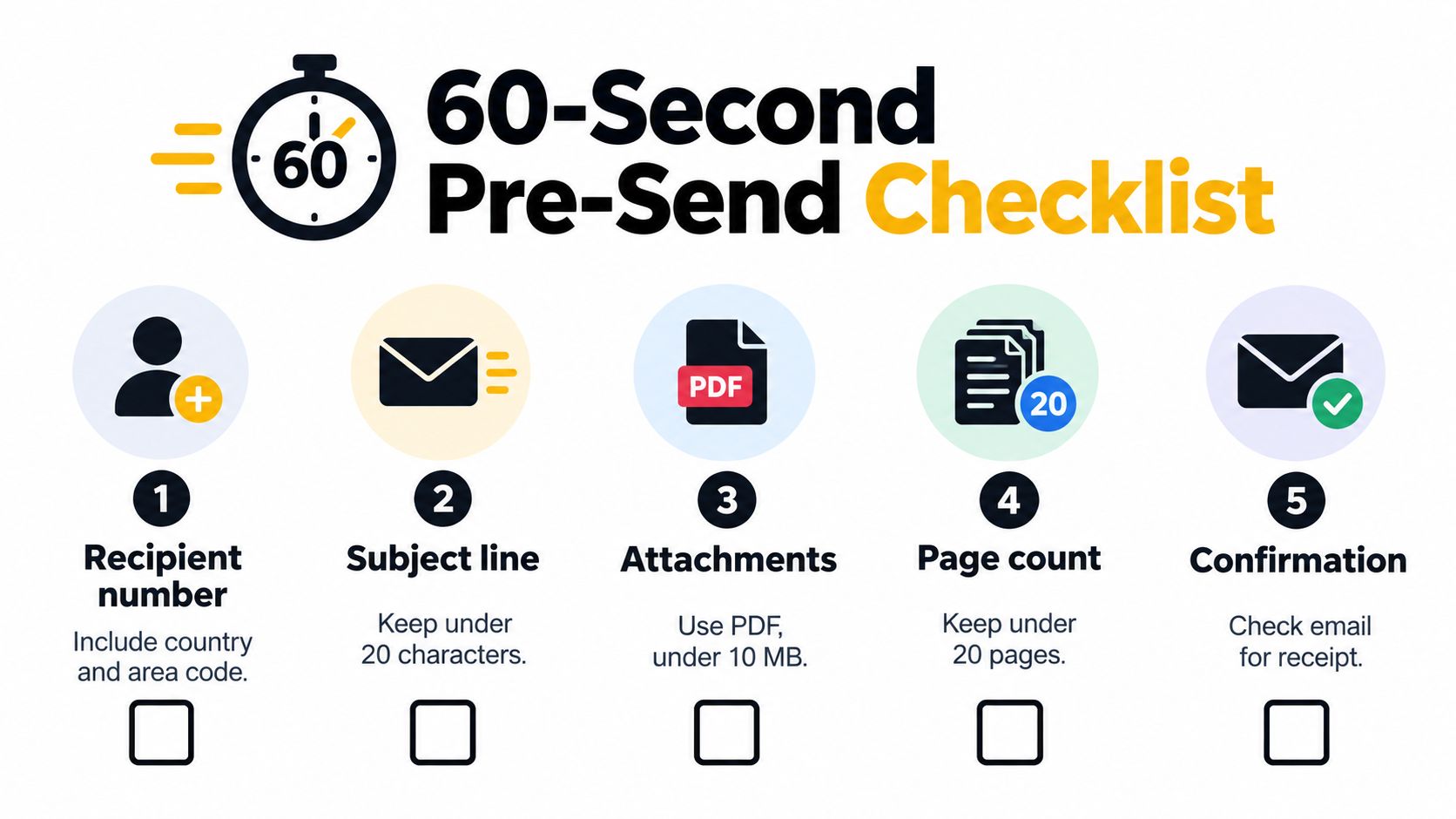
    Check three fields carefully:

    • Recipient number: A single wrong digit sends the file to the wrong office.
    • Page count: Confirm the uploaded document includes every page.
    • Cover message: Keep it brief and professional if you use one.

    Send the cleanest version of the file you have. A blurred scan uploaded to a fax service won't become clearer during transmission.

    Here's a visual walkthrough of the process in action:

    A plain example

    Say you have a signed lease amendment in Google Drive. Download it as a PDF, upload it through the web form, enter the property manager's fax number, add your contact details, and send.

    That's it. No printer. No phone line. No hardware setup. No app permissions inside your Google Workspace account.

    Evaluating Security Privacy and Cost

    You have the document ready in Google Drive, the fax number in hand, and a deadline in 20 minutes. This is the point where many small business owners click the first Google Workspace add-on they see. That shortcut can create a bigger risk than the fax itself.

    An infographic detailing key considerations for evaluating online fax services, including security measures, privacy policies, and costs.

    A fax service touches the same documents that already live inside your Google account. That means the decision is not only about sending pages. It is also about who can read, store, and keep those files after the fax is sent.

    Security checks that matter

    Start with the plain question: what happens to your file between Google Drive and the recipient's fax machine?

    A safer provider explains three things clearly:

    • Encryption in transit, which protects the file while it travels to the fax service
    • Encryption at rest, which protects the file if the provider stores it on its servers
    • Compliance support, if you work in healthcare, legal, finance, or another field with document rules

    If a provider hides these details, skip it. A clean interface does not equal safe handling.

    Google add-ons deserve extra caution here. Some ask for broad account permissions because they sit inside your Workspace environment, not just on a single upload page. For an occasional fax, a browser-based upload tool often keeps exposure lower because you share one file for one task instead of granting ongoing access to your Google data.

    If your staff already sends contracts, IDs, or forms by email, a guide for secure email practices helps reinforce the same habits around file handling, access control, and recipient verification. For a closer look at fax-specific risks, review this article on fax security.

    Privacy questions people forget to ask

    Security protects the trip. Privacy governs what happens before and after.

    That difference matters.

    A service can encrypt your document properly and still keep it longer than you expect, tie it to a permanent account, or collect more account access than the task requires. Before you upload anything sensitive, check these points:

    • How long the provider keeps sent documents
    • Whether you can delete files manually
    • Whether the service stores a copy by default
    • Whether an add-on requests access beyond the document you want to fax
    • Whether the privacy policy explains data use in plain language

    A good rule is simple. If the permission request feels broader than the job, choose a lighter option.

    Cost and the subscription trap

    Cost is easier to judge once security and privacy are acceptable. Otherwise, a cheap plan can become expensive in the wrong way.

    For occasional senders, pay-per-fax pricing is often simpler than a monthly subscription. If you only fax a handful of times each year, a low monthly fee can accumulate into a yearly expense for a tool you barely use. Free trials can hide that pattern because they make the first send feel inexpensive.

    Frequent faxing is different. If your office sends signed forms every week, a subscription may save money and reduce admin work. The key is to match the plan to your actual volume, not to the provider's pricing page headline.

    The lowest advertised price is not the safest choice, and it is often not the cheapest one over a full year.

    For many small businesses, the best value comes from a service that does three things well: limits permissions, explains retention clearly, and charges in a way that fits how often you fax.

    Choosing Your Best Online Faxing Strategy

    A common small-business scenario looks like this. A bank, clinic, or government office asks for a fax today, your files already live in Google Drive, and the first instinct is to open Google Workspace Marketplace and pick the first fax add-on with decent reviews. That is often the point where convenience starts to compete with privacy.

    The best online fax service with Google depends on two things. How often you fax, and how sensitive the documents are.

    If you send a fax once in a while

    Choose the shortest path that asks for the least access. In practice, that usually means a web-based fax service where you download the file from Google Drive or upload it directly, send the fax, and stop there. You avoid a long setup, and you avoid paying every month for a tool you may use three times a year.

    This works well for freelancers, home-office owners, consultants, and anyone sending an occasional signed form, ID copy, or application.

    If you handle regulated or sensitive documents

    Pick the provider the way you would pick a document storage vendor, not the way you would pick a browser extension. The key question is not "Does it connect to Google?" The key question is "What happens to my document after I send it?"

    Look for clear answers on encryption, retention, account permissions, audit trails, and whether the company will support compliance needs such as a business associate agreement when required. A simple tool can still be the right tool, but only if its privacy terms are easy to read and defend.

    For healthcare, legal, insurance, and finance, the safest choice is often a separate fax provider with limited Google access instead of a broad add-on that can see more of your Workspace than this one task requires.

    If you want the fewest surprises

    Use Google for what it already does well. Store the document in Drive, prepare it in Docs or PDF form, then send it through a fax service you chose on purpose.

    That approach is a lot like using your own lockbox and your own courier. Google holds the file. The fax provider handles delivery. Keeping those roles separate makes it easier to judge risk, cost, and cleanup afterward.

    If you need to send a fax from your browser without setting up hardware or committing to a monthly plan, SendItFax is a straightforward option for occasional faxing to the United States and Canada. You can upload a document, add the recipient details, and send without creating an account, which makes it a practical fit when you need to fax a form quickly from Google Drive or your desktop.

  • Fax Online Free Google: Send Docs & Drive Files 2026

    Fax Online Free Google: Send Docs & Drive Files 2026

    You're probably here because a client, clinic, school, landlord, or government office still wants a fax, and your file already lives in Gmail, Google Docs, or Drive. So you searched for something like Google fax, expecting a built-in button.

    That's the first trap.

    Google is often where the document starts, but it isn't the service that sends the fax. If you want to fax from your Google workflow without a fax machine, the reliable path is to prep the file correctly, then send it through a web fax provider that handles the phone-network side behind the scenes.

    Why You Need a Third-Party Service to Fax from Google

    A common mistake starts right after the search. Someone has a file in Drive, opens Gmail, and assumes Google must have a built-in fax option somewhere in the menu.

    It does not.

    Google gives you the tools to draft, store, attach, and share documents. It does not provide fax numbers or transmit documents over the phone-based fax network. The Google Workspace Marketplace listing for Fax.Plus makes that setup plain: faxing inside Google Workspace is handled through an outside app, not a native Google feature.

    That distinction saves time. If you expect Google itself to send the fax, you end up hunting for a button that is not there. If you know a third-party service is required, the process gets much clearer: prepare the file in Google, then hand off delivery to a fax provider.

    What Google does and doesn't do

    Here's the practical split:

    Google tool What it helps with What it doesn't do
    Gmail Send email, attach files, store records Turn email into a native Google fax service
    Google Docs Create and edit documents Deliver pages to a fax machine or fax line
    Google Drive Store and share files Issue fax numbers or route fax traffic

    So when someone says they “fax from Google,” they usually mean one of two things:

    • They prepared the file in Google Docs or Drive and then uploaded it to an online fax site.
    • They used a third-party Gmail or Workspace integration that converts an email attachment into a fax.

    That is the standard workflow.

    Practical rule: If a service claims you can “fax online free Google,” check who actually provides the fax number and sends the pages across the fax network. If that answer is missing, the service description is incomplete.

    Why this is the standard method

    Online fax providers handle the part Google does not: phone-network delivery, fax number assignment, transmission logs, and status reporting. Some connect to Gmail or Drive. Others work through a browser upload form. If you want to compare those setups, this guide to online faxing services lays out the differences between email-based, browser-based, and app-based options.

    There is also a practical reason this model has stuck. Offices that still rely on fax often care about confirmation pages, retry logic, and inbound fax numbers. Google's document apps were not built for that job. Dedicated fax platforms were.

    So skip the search for a hidden Google fax feature. The actual method is simpler than many search results make it sound: create or store the file in Google, then use the right third-party fax service to send it.

    Preparing Your Google Files for Flawless Faxing

    A free fax usually fails before the upload starts. The file looked fine in Google Docs or Gmail, but the fax service converts it into a fax image, and small formatting problems turn into cut-off text, missing signatures, or pages that arrive sideways.

    Export to PDF first

    If the document started in Google Docs, save it as a PDF before you upload it to any fax site. That one habit prevents a lot of rework.

    PDFs keep the page fixed. Fonts stay embedded, spacing stays consistent, and signature boxes are less likely to shift during conversion. If you need help with the format change itself, this guide on how to convert Word to PDF walks through the same prep step from the document side.

    How to prep files from each Google app

    The app does not matter much. The final file does.

    1. From Google Docs
      Open the file, go to File > Download > PDF Document (.pdf), then open that PDF and review each page before sending.

    2. From Google Drive
      If the file is already a PDF, download the final version and confirm it is the right one. If it is a Google Doc, Sheet, or another editable file, export it to PDF first.

    3. From Gmail
      Download the attachment instead of forwarding it straight into a fax workflow. If it arrives as DOCX and the layout matters, convert it to PDF before upload.

    For one-off online faxing, a clean PDF causes the fewest surprises.

    What to check before uploading

    Use a quick pre-flight check. It takes a minute and saves a resend.

    • Page count: Free fax tools often limit the number of pages. Check whether the service counts a cover page too.
    • Signature visibility: Zoom in on signatures and initials. Light pen marks can fade during fax conversion.
    • Margins: Keep text and signatures away from the page edge so nothing gets clipped.
    • Orientation: Mixed portrait and horizontal pages often come through awkwardly.
    • Final version: Confirm you are uploading the signed or corrected copy, not the draft still sitting in Drive.

    Why editable files cause trouble

    Third-party fax services, not Google, handle the actual conversion and transmission. That is the part many search results gloss over. Your Google file is only the starting point.

    Editable files like DOCX can still work, but they leave more room for font substitution, table breaks, shifted page numbers, and misplaced checkboxes. In practice, the problem files are predictable: forms built with nested tables, resumes with custom fonts, and anything with tight spacing near the margins.

    If the document matters, use PDF and inspect the exported copy before you upload it. That is the fastest way to avoid the common gotcha where the original Google file looks polished, but the faxed version does not.

    A Step-by-Step Guide to Sending Your Free Fax

    You have the PDF ready, the office closes in 20 minutes, and the search result that promised a "Google fax" still has not explained the part that matters. Google does not send the fax. A third-party service does. Once you use the right form, the process is straightforward.

    Screenshot from https://senditfax.com

    Open the provider's send page and fill in the fields carefully. This is the stage where small mistakes cause the biggest delays.

    What to enter in the form

    Most browser-based fax tools ask for the same details:

    • Your name: Use the sender name the recipient expects to see.
    • Your email: Delivery notices or failure messages usually go here.
    • Recipient fax number: Check every digit, including any country or area code requirements.
    • Recipient name or company: This helps with routing on the receiving end.
    • Message or cover note: Keep it brief and specific.
    • File upload: Attach the final PDF you already checked.

    A practical example helps. If you are sending a signed lease addendum to a property manager, enter your contact details, the office fax number, the property company name, and a short note such as "Signed lease addendum attached for processing." Then upload the PDF and confirm the page count before you hit Send.

    Habits that prevent resends

    A few small choices improve the odds that your fax gets accepted and routed correctly on the first try.

    • Use a full sender name: "Jordan Lee" works better than initials or a nickname.
    • Use the right email address: For work documents, a business email looks more credible and makes replies easier to track.
    • Write a plain cover note: State what the document is and who should receive it.
    • Review the fax number one last time: Misdialed fax numbers are one of the easiest ways to send private documents to the wrong place.

    Some services also support email-to-fax if you prefer sending from your inbox instead of a web form. This guide on how to fax using Gmail covers that workflow clearly.

    A short demo helps if you've never used an online fax tool before:

    What happens after you click Send

    After submission, the fax provider converts your file into a format fax machines can receive and sends it through its own network. The same rule applies with email-to-fax. Your email and attachment go through the provider's gateway, which translates them for fax delivery.

    That is the part many top search results blur together. Google Drive, Google Docs, and Gmail can help you prepare or send the file into the workflow, but the actual fax transmission still depends on the third-party service you chose.

    Navigating the Rules of Free Online Faxing

    Free online faxing is useful, but it's never unlimited and it's rarely ideal for polished business communication. If you're using a no-cost option, you need to think in constraints.

    A comparison infographic showing the benefits and limitations of free online faxing services for users.

    What free usually means

    Across the category, free fax tools tend to be built for short, occasional outbound sends. They're fine for a one-time form. They're much less comfortable for contracts, intake packets, or anything that needs a cleaner presentation.

    Industry usage data also explains why these guardrails exist. In the United States alone, over 17 billion individual faxed documents were sent in 2019, with 9 billion pages coming from healthcare, where 89% of organizations still rely on fax for critical operations. As of 2024, approximately 17% of businesses worldwide continue to depend on fax for essential workflows, and the global fax services market was valued at $3.31 billion in 2024 and is projected to reach $4.47 billion by 2030. Those figures are summarized in this review of fax usage statistics.

    That volume is one reason free services keep limits tight. Providers have to protect capacity for paying users and keep abuse under control.

    The limits people hit first

    These are the most common constraints with free faxing:

    Limitation What it means in practice
    Short page cap Fine for a form, frustrating for packets or contracts
    Daily sending limit You can't rely on it for a busy office day
    Outbound only Free plans generally don't give you a real inbound fax number
    Branded cover page The provider's name or ad may appear on the fax

    Free fax works best when the document is short, the timing isn't mission-critical, and presentation doesn't need to be spotless.

    One issue is especially important for professional users. A critical pitfall of free fax services is the mandatory inclusion of provider branding on the cover page, a 100% consistent feature across major providers, which can weaken presentation for healthcare or legal documents, according to this guide on the rules of sending a fax online for free.

    When paying a little makes sense

    A low-cost upgrade is usually the right move when you need one of these:

    • More pages: Multi-page agreements and supporting documents can outgrow free caps fast.
    • No branding: If the fax lands in a legal, medical, or HR file, a clean cover page looks better.
    • Priority handling: For deadlines, standard free delivery may not be the option you want to gamble on.

    That doesn't make free fax bad. It just means you should treat it as a practical tool for light use, not as a full office fax replacement.

    Common Faxing Errors and How to Fix Them

    You upload a file from Google Drive, hit send through a third-party fax service, and get an error or a half-delivered fax. That usually means one of three things went wrong. The file did not convert cleanly, the free plan cut the job off, or the receiving fax line had problems.

    The fix is usually simple if you check the right thing first.

    Error one, the fax fails before delivery

    If the service rejects the upload or the send stalls, start with the file. This is a common gotcha with Google Docs files that have comments, unusual fonts, pasted charts, or layered elements from other apps.

    Use this checklist:

    • Export a fresh PDF from Google Docs or Drive: Do not keep retrying the original editable file.
    • Remove extras before exporting: Comments, tracked changes, wide tables, and floating images often cause trouble.
    • Open the final PDF and scroll every page: Look for cut-off text, blank pages, or strange spacing.
    • Rename the file straightforwardly: Short filenames with no special characters reduce upload issues on some services.

    If the document needs signatures before you fax it, finish that step first with tools that help eSign documents for small businesses. Then export one clean PDF for the fax send.

    Error two, the recipient gets only part of the document

    Partial delivery usually points to a page limit, not a mystery line failure. Free fax services often accept the upload, then stop at the maximum number of pages allowed for that send.

    Check the total page count of the actual PDF, not the original Google file. Include the cover page if the service adds one automatically.

    A quick fix:

    1. Count the pages in the final exported PDF.
    2. Compare that count with the provider's free limit.
    3. Split long packets into smaller sends if the deadline allows.
    4. Upgrade for that one transmission if the document has to arrive as a single set.

    If someone says, "We only got the first few pages," check page count before anything else.

    Error three, the fax goes through poorly or not at all

    Sometimes your side is fine. The receiving machine or fax line is the issue.

    This still catches people because "fax online free Google" sounds like Google handles the delivery itself. It does not. You are still sending through a third-party fax platform, and that platform still has to connect to the recipient's fax hardware or phone line. Busy lines, old machines, low toner, and office machines left in error mode can all cause failed or unreadable pages.

    Try these fixes in order:

    • Verify the fax number digit by digit
    • Resend during business hours
    • Ask the recipient to confirm their machine is on, loaded, and not busy
    • Retry with a cleaner PDF if the pages arrived faint or scrambled

    Quick troubleshooting table

    Problem Likely cause Best fix
    Upload rejected File conversion or unsupported formatting Export a new PDF and remove comments or complex layout elements
    Partial delivery Free plan page cap Split the file or use a paid send
    Transmission failed Busy or misconfigured recipient fax line Confirm the number and retry later
    Pages look wrong Bad conversion from an editable file Review the final PDF and resend

    The pattern is straightforward. Start with the final PDF, confirm the page count, and remember that Google is only where the file lives. The fax itself depends on the third-party service you chose.

    Best Practices for Secure and Professional Faxes

    A fax can be technically delivered and still be the wrong way to send a document. That happens when the number is wrong, the cover page looks unprofessional, or the information is sensitive enough that a free tool isn't appropriate.

    An infographic titled Secure and Professional Faxing Checklist detailing six important steps for secure digital faxing.

    The habits worth keeping

    For everyday office work, these are the basics I'd insist on:

    • Verify the fax number twice: Especially for medical, legal, payroll, or ID documents.
    • Use a clear cover note: State the recipient, purpose, and callback information.
    • Keep a copy of the PDF and confirmation email: You may need proof that you sent it.
    • Review the final file, not the draft: The attachment is what matters.

    If your process involves signatures before faxing, it often makes sense to finish approvals digitally first. Tools that help eSign documents for small businesses can clean up the handoff before the final fax step, especially for forms, vendor agreements, and client paperwork.

    Security matters more than convenience

    Free fax services are fine for routine, low-risk paperwork. They are not the right choice for every sensitive workflow.

    For healthcare in particular, the line is clear. For HIPAA-compliant transmission, the success rate for free methods is 0% in the general market, with only specific verified clinician-only services offering a compliant free path, as noted earlier in the market guidance. For everyone else, that means a general free fax service should not be your default for protected health information.

    When to avoid the free route

    Use a paid, cleaner option when the document involves:

    • Protected health information
    • Legal filings or attorney correspondence
    • Financial records
    • Employment files
    • Brand-sensitive client communication

    Send the free fax when speed and convenience matter most. Pay for the send when privacy, appearance, or record-keeping matter more.

    Professional faxing isn't about nostalgia. It's about reducing risk while meeting the other office's requirements.


    If you need to send a short fax right now from a browser, SendItFax is built for exactly that. You can upload a document, send to U.S. or Canadian fax numbers without creating an account, and use the free option for basic one-off faxes. If you need more pages, cleaner presentation, or priority delivery, the Almost Free plan gives you that upgrade path without turning the process into a subscription project.

  • Send a Free Fax with Google A Practical Guide for 2026

    Send a Free Fax with Google A Practical Guide for 2026

    You might be surprised to learn that Google doesn't offer a direct, built-in fax service. But don't worry, that doesn't mean you're out of luck. You can absolutely send a free fax using your Google account—you just need to pair it with the right third-party tool. It’s a clever workaround that combines the convenience of your Google Drive documents with a web-based service like SendItFax to handle the transmission.

    Your Guide to Sending a Free Fax with Google

    A laptop on a wooden desk displays a 'Send Free Fax' webpage, alongside documents and a smartphone.

    The appeal of sending a free fax with Google is pretty clear: it lets you stick with the tools you already know and use every day. Your documents are probably already sitting in Google Drive or attached to an email in Gmail. So why not fax them directly from there? This guide will show you how to get it done without ever touching a physical fax machine.

    This method is a lifesaver for those occasional, urgent situations. Think about it—you need to send a signed contract, a time-sensitive medical form, or an invoice to a client who, for whatever reason, only accepts faxes. Instead of scrambling to find a local print-and-ship store, you can handle the entire process from your desk in just a few minutes.

    What You Need for Google Faxing

    So, what does it take to pull this off? The setup is refreshingly simple and only requires a couple of things working in tandem.

    • Your Google Account: This is your home base. It’s where your document—whether it’s a PDF in Drive or a file in a Gmail message—is stored and ready to go.
    • An Online Fax Service: A service like SendItFax acts as the digital middleman. It takes your file from the web and translates it into a signal that a traditional fax machine can understand.

    This combination provides a modern, practical solution to a surprisingly persistent need. If you want a broader overview of how these services work, our general guide on how to send a fax online is a great place to start.

    Key Takeaway: There’s no official "Google Fax" product. The magic happens when you use your existing Google account for document management and an external service to handle the actual faxing.

    To make it even clearer, this table breaks down the essential parts and why this method works so well.

    Google Faxing Essentials at a Glance

    Component Role in the Process Key Benefit
    Google Account Document storage and access (Drive/Gmail) Work with tools you already know and trust.
    Online Fax Service Transmits the document to a fax number No need for a clunky fax machine or phone line.
    Your Digital Document The file you need to send (PDF, DOCX) A completely digital and paperless workflow.

    Putting these pieces together gives you a powerful and efficient way to send faxes in 2026 without disrupting your digital routine.

    Why Is Faxing Still a Thing in 2026?

    Two people at a counter exchanging a document, with a 'FAX STILL NEEDED' sign prominently displayed.

    It sounds like a question with an obvious answer, but here we are in 2026, and faxing is far from obsolete. While email and cloud storage are king for most of our work, faxing still holds its ground in a few key, high-stakes industries. That’s exactly why you see so many people searching for "free fax with Google."

    Let's be honest: nobody wants a clunky fax machine. What they need is the ability to send a document with the same legal weight and verifiable delivery that a fax provides. Think of a freelancer who needs to send one signed W-9 form or a legal assistant transmitting time-sensitive court filings. They need the function, not the hardware.

    It's All About Security and Legal Weight

    For some professions, faxing isn't just an old habit—it's a hard requirement. The point-to-point connection of a traditional fax is seen as a secure channel with a built-in receipt, a paper trail that’s crucial where privacy and legal proof are non-negotiable.

    • Healthcare: Many doctors' offices and hospitals still depend on faxes to send patient records. It’s a long-established method for staying compliant with strict privacy laws like HIPAA.
    • Legal: Law firms often fax documents because the transmission receipt can serve as proof of delivery in legal proceedings.
    • Government: You'd be surprised how many local, state, and even federal agencies require you to submit official forms and applications by fax.

    The global market for fax services hit USD 3.31 billion in 2024 and is expected to climb to USD 4.48 billion by 2030. This isn't just a technology hanging on; it's a growing industry. You can dig into the full research about these market trends to see just how strong the demand remains.

    This growth is driven by the very people looking for a free fax with Google. They’re the ones who need the reliability of a fax but expect the ease of a modern digital tool. Online services like SendItFax are the perfect bridge, proving that faxing isn’t dead. It’s just moved online.

    Getting Your Fax Sent with Google and SendItFax

    Alright, so you see why online faxing is still a thing. Now for the practical part: how do you actually send one? Combining a service like SendItFax with your Google account makes this surprisingly simple. You can be done in just a few minutes, all from your browser.

    Let's imagine a common scenario. You're a freelancer who just landed a new client. They need the signed contract back ASAP, but their accounts department lives in the past and only accepts faxes. You have the signed PDF ready to go in your Google Drive. No need to hunt down a Kinko's.

    Prepping and Sending Your Document

    First, head over to the SendItFax website. You’ll immediately see that it’s built for one thing: getting a fax out the door, fast. There are no complicated sign-up hoops to jump through, which is exactly what you want when you're in a hurry.

    You'll start by plugging in the recipient’s fax number. The free service is limited to U.S. and Canadian numbers, so keep that in mind. Then, pop in your own details so they know who sent it. This is also where you can type a quick cover page note—something like, "Attn: Accounts Payable – Signed Contract for Project Alpha."

    Here's a look at the simple interface you'll be working with.

    As you can see, it's clean and to the point. The design strips away all the usual clutter, which makes sending your first free fax with Google a breeze.

    The last piece of the puzzle is your document. You can grab the file directly from your computer. If you have it stored in Google Drive, you’ll just need to download it to your desktop first, which only takes a second. Attach your file (the free service allows up to three pages) and hit "Send Fax."

    Real-World Tip: Before you hit send, triple-check the fax number. I can't tell you how many times a fax fails because of a single wrong digit. It’s the most common mistake and the easiest one to avoid.

    Once you send it, SendItFax takes over, translating your digital file into a signal a traditional fax machine can understand. You'll get an email confirmation as soon as it's delivered, giving you a handy record and some well-deserved peace of mind.

    If you're curious about the tech that makes this work, our guide on sending faxes by email offers a deeper look into how email gateways connect your digital world to old-school office hardware.

    Know The Limits: What "Free Faxing" Really Means

    Let's be realistic—while sending a free fax through Google is a fantastic trick to have up your sleeve for one-off tasks, you need to know where the guardrails are. Think of these free services as the perfect tool for a very specific job, not a full-blown replacement for a business-grade fax solution. They're built for convenience, not for volume.

    With a service like SendItFax, for instance, the free tier is pretty straightforward. You can send a document that's up to three pages long, and you're capped at five faxes per day. It's also worth noting that every fax you send will have a small SendItFax branding on the cover page. This is absolutely fine for firing off a signed permission slip or a quick proof of purchase.

    But what happens when "good enough" isn't enough?

    When the Free Tier Hits Its Ceiling

    The real decision to upgrade pops up when you run into issues of volume, document length, or just plain professionalism. I’ve seen it countless times: someone tries to send a 20-page legal filing or a new client proposal, and the free service just isn’t cut out for it. You can't have third-party branding all over a critical business document.

    That's where the limitations become a roadblock. This little decision path can help you visualize when to stick with free and when to consider a paid send.

    A black and white flowchart titled 'FAX DECISION PATH' detailing steps to prepare and send a fax.

    This flowchart simplifies the choice: is your document ready to go and does it fit within the free service's rules? If not, you have other options.

    The appeal of free is obvious. Data shows that around 45% of home offices rely on free apps for occasional faxing needs, saving themselves the $100-$300 annual cost of a dusty old fax machine. But there's a trade-off. Free tiers often have lower success rates with longer, more complex documents. It's how these services gently nudge frequent users toward paid plans, like paying just $1.99 for a 25-page fax that gets priority handling.

    My Two Cents: If your document is longer than three pages or needs to look completely professional and unbranded, a paid, one-time send is easily the better call.

    For those moments, upgrading to a "pay-as-you-go" option makes a world of difference. On SendItFax, that $1.99 plan not only removes the branding but also bumps your page limit to 25 pages and puts your fax in the priority queue.

    If you’re trying to figure out which plan makes the most sense for you, learning how to evaluating a fax online free trial is a great next step.

    Pro Tips for Secure and Professional Online Faxing

    Close-up of a person's hands writing on documents with a pen next to a tablet, with "Professional FAX TIPS" text overlay.

    It’s one thing to send a free fax with Google, but it’s another to make sure it lands on the other side looking sharp and staying private. I’ve learned over the years that a few simple habits can make all the difference between a successful transmission and a frustrating failure.

    First, always convert your file to a PDF before you attach it. I can't stress this enough. While most services accept different file types, PDFs are your best friend for locking in formatting. This simple step guarantees that the meticulously formatted contract or resume you see on your screen is exactly what the recipient sees on theirs—no weird font substitutions or broken layouts.

    Improving Delivery and Security

    Never underestimate the power of a good cover page. It’s not just a formality; it’s your fax’s personal GPS. Think about your document arriving at a large company with a single, shared fax machine. A simple cover sheet with a clear message, like "Attn: John Smith, HR Department – Signed Offer Letter," ensures your sensitive document goes directly to the right person, not lost in the shuffle.

    Speaking of sensitive documents, security is a huge reason to ditch that old public fax machine at the local library. When you use a reputable online fax service, your data is encrypted from the moment you hit send. Plus, you’re not leaving a physical copy of your private information sitting on a machine's tray for anyone to wander by and pick up.

    Key Insight: The move to online faxing has exploded. Since 2020, its use has shot up by a staggering 250%. Even more telling, free services now handle about 60% of all low-volume faxes, showing just how much people trust these platforms for important, one-off tasks.

    Sooner or later, you'll hit a busy signal. It happens. If your fax fails to send, don't panic. The service will almost always email you an alert. My advice? Just give it a few minutes and try again. More often than not, it's a temporary issue on their end, not yours.

    Following these practices elevates your fax from just "sent" to "delivered with professionalism." If you're curious about how tightly these tools work with Google, you can see the details on marketplace apps and their impressive success rates.

    Your Top Questions About Google Faxing Answered

    Even after walking through the steps, you might still have a few questions. That’s perfectly normal. Let's tackle some of the most common ones that come up when people start faxing from their Google accounts.

    Can I Receive Faxes This Way?

    This is probably the number one question I get. The short answer is no. The method we've covered is a one-way street, designed specifically for sending faxes from your Gmail or Google Drive.

    Receiving faxes requires a dedicated virtual fax number. This is a standard feature you'll find in the paid plans of most online fax services, which gives you a personal number where people can send faxes directly to your inbox.

    How Secure Is It, Really?

    It’s natural to worry about security, especially if you’re sending contracts or personal records. Is it safe? Absolutely. Using a reputable web fax service like SendItFax is actually much more secure than the old-school fax machine sitting in an open office.

    Your transmission is encrypted, and your documents never sit out in the open on a shared machine for anyone to see.

    A Quick Word on Privacy: For highly sensitive documents, I always recommend taking a minute to read the service's privacy policy. A trustworthy provider will be upfront about how they handle and protect your data.

    What if My Fax Fails to Send?

    Don't panic! If your fax doesn't go through, you'll get an email letting you know. Most of the time, the culprit is simple—a typo in the fax number or the receiving line being busy. Just give the number a quick double-check and try sending it one more time.

    By the way, if you run a business, providing clear answers like these is a great way to build trust with your own customers. If you want to get better at it, you can learn how to create an effective FAQ page for your own site.


    Ready to skip the machine and send a fax the easy way? Give SendItFax a try for a quick, secure, and free solution to get your documents delivered. Head over to https://senditfax.com to get started.

  • Your Guide to Sending a Fax via Email

    Your Guide to Sending a Fax via Email

    Ever wondered how an email can magically turn into a physical document coming out of a fax machine? It's not magic, but it's a clever bit of technology that uses an online fax service as a translator between your inbox and a traditional fax machine.

    You just write an email like you normally would, attach your document, and send it to a unique email address. This address is usually a combination of the recipient's fax number and the service's domain name, something like 15551234567@senditfax.com. From there, the service handles the rest, converting your digital file into a standard fax and sending it over the phone lines.

    How Sending a Fax via Email Actually Works

    For a lot of us, "faxing" still conjures up images of clunky office machines, constant paper jams, and that screeching dial-up sound. But the truth is, faxing is still a go-to method in fields like healthcare, law, and finance because it’s secure and legally recognized. Sending a fax from your email gives you the best of both worlds: the reliability of a fax with the convenience of an email.

    The process itself is surprisingly straightforward. You're not plugging your computer into a phone jack. Instead, you're using an online fax provider as the middleman. Think of the service as a digital courier that takes your email and makes sure it gets delivered to a fax machine.

    The Role of the Online Fax Service

    The online fax service is the engine making this all happen. The moment you hit "send" on your email, it travels to the provider's secure servers, where a few critical steps take place behind the scenes:

    • Conversion: The service takes your attachment—whether it's a PDF, DOCX, or another common file type—and converts it into a black-and-white image format (usually a TIFF file) that fax machines can understand.
    • Transmission: It then dials the recipient’s fax number using its own phone network and transmits the converted document, just as if it were sent from a physical fax machine.
    • Confirmation: Once the fax goes through successfully, the service sends a confirmation receipt right back to your email. You'll know for sure that your document was delivered.

    This whole process is completely seamless and usually takes just a few minutes. The person on the other end gets the fax on their machine as they normally would, with no idea it started its journey from an email inbox. No special equipment or software is needed on their end.

    To give you a clearer picture, here’s a quick breakdown of how the different pieces fit together.

    Fax via Email Process at a Glance

    Component What It Is Why It Matters
    Your Email Account Any standard email client (e.g., Gmail, Outlook). This is your starting point. It’s the familiar interface you use to compose and send the fax.
    Recipient Address The fax number combined with the service's domain. This special address tells the service exactly where to send the fax.
    Attached Document The file you want to fax (PDF, DOCX, etc.). This becomes the body of the fax itself after being converted by the service.
    Online Fax Service The intermediary platform (like SendItFax). It handles the technical heavy lifting: conversion, dialing, and transmission.
    Recipient's Fax Machine A standard, physical fax machine. Receives the document over a phone line, just like any other fax.

    This setup ensures that you can communicate with anyone who uses a fax machine, without ever needing one yourself.

    The process works just as smoothly in reverse, too. When someone sends a document to your virtual fax number, the service converts the incoming fax into a PDF and delivers it straight to your inbox. If you want to dive deeper, you can explore our guide on how fax to email services work. It’s a two-way street that makes professional communication incredibly flexible.

    How to Compose and Send Your First Email Fax

    Sending a fax from your email inbox is surprisingly simple once you get the hang of it. The biggest mental shift is learning how to "address" the fax. Instead of typing in a regular email address, you'll use a special format that combines the destination fax number with your service provider’s domain.

    Let's say you need to send a signed contract to a partner at fax number 1-555-123-4567. If you're using SendItFax, you’d simply pop this into the "To" field of your email: 15551234567@senditfax.com. That's it. This unique address is the magic command that tells the service to convert your email into a fax and dial the number.

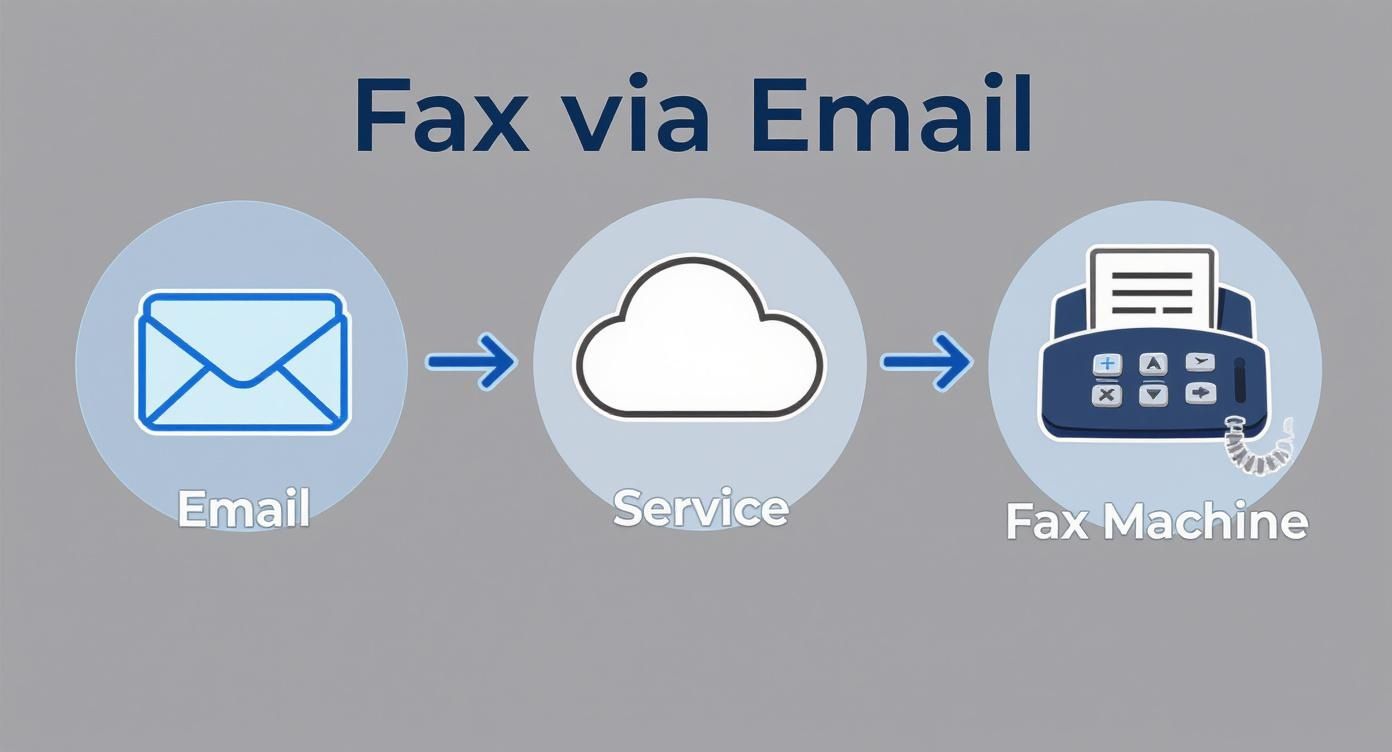
    This diagram breaks down exactly what happens behind the scenes after you hit send.

    Diagram showing the process of sending a fax via email through a cloud service to a fax machine.

    As you can see, your email doesn't go directly to the fax machine. It's routed through a cloud service that acts as a translator, converting your digital files into a format the fax machine can understand and print.

    Your Email Becomes the Cover Page

    Now for the cover page. The great thing about email faxing is that you don’t need to create a separate one. The service automatically generates a professional-looking cover sheet using the subject and body of your email.

    Think of the email's subject line as the headline for your fax. Make it count. Something direct like "Subject: Signed Agreement for Project Phoenix" immediately tells the recipient what they're looking at.

    The body of your email is where you'll put the standard cover page details. I always recommend including the basics to make sure your fax gets to the right person without any confusion.

    • To: Recipient's Full Name and Company
    • From: Your Full Name and Company
    • Date: The date you're sending it
    • Pages: Total page count (including the cover sheet itself)
    • RE: A quick one-liner about the document's purpose

    Pro Tip: Don't skip the details in the email body. A busy office might receive dozens of faxes a day. A clear, informative cover page ensures your important document doesn't end up in the wrong hands or get lost in the shuffle.

    If you're sending faxes internationally and need a refresher on country codes and proper formatting, our guide on what is a fax number has all the details you’ll need.

    Attaching Your Document for a Perfect Send

    The last piece of the puzzle is attaching your file. Most modern fax services, including SendItFax, handle the most common formats with ease—think PDF, DOC, and DOCX.

    But here's a lesson from experience: fax is a black-and-white medium. Fancy formatting, colorful graphics, or complex tables in a Word document can sometimes get scrambled in translation, resulting in a messy or unreadable fax on the other end.

    For anything important—contracts, legal notices, invoices—my advice is to always use a PDF. A PDF locks in the layout, fonts, and formatting. This ensures what you see on your screen is exactly what prints out of the recipient's machine. It's a simple step that prevents a lot of potential headaches like blurry text or jumbled pages.

    Why Businesses Still Depend on Digital Faxing

    It’s easy to think of faxing as something that went out with dial-up modems, but sending a fax via email is still a critical tool in many industries. It all boils down to two things you just can't get from a standard email: rock-solid security and legal proof of delivery.

    When you're dealing with sensitive information, regular email is often a weak link. It’s typically unencrypted, which means it can be intercepted. Online faxing, however, is a different beast. It sends your documents through secure, private networks, giving you the kind of protection needed to meet tough regulations.

    Person reviewing a document in front of a laptop with SecureFaxing logo, suggesting online document processing.

    This is why you'll still find it heavily used in healthcare, law, and finance. A doctor's office can send patient files knowing the process is HIPAA compliant, or a legal team can securely send a contract without the risk of it being intercepted.

    The Power of Verifiable Proof

    What truly sets online faxing apart is the delivery confirmation receipt. Think of it as a certified letter for the digital age. Unlike an email's "read receipt," which is easily ignored, a fax confirmation is legally binding proof that your document arrived.

    This little report is packed with metadata that can hold up in court:

    • The exact date and time the transmission finished.
    • The sender's and recipient's fax numbers.
    • A count of the pages that were successfully sent.
    • A clear status message, like "OK" or "Success."

    For anyone who's ever needed to prove they sent something by a deadline—like a contractor submitting a bid—this confirmation is priceless. It eliminates any "I never got it" arguments.

    Sending a fax via email isn't just about getting a document from here to there. It's about creating a secure, legally-binding paper trail that standard email simply can't match.

    A Technology That Refuses to Fade

    Believe it or not, faxing is still a massive industry. Back in 2019, the U.S. healthcare system alone sent over 9 billion faxes out of a global total of 17 billion. In fact, 70% of all communication in healthcare still happens via fax.

    The numbers don't lie. The global fax services market was valued at $3.3 billion in 2024 and is expected to grow to $4.47 billion by 2030. You can read a full breakdown of fax technology's continued growth to see just how relevant it remains.

    This isn't about being old-fashioned; it's about being practical. When security, compliance, and legal proof are on the line, the ability to send a fax via email is still an indispensable business tool.

    How to Choose the Right Online Fax Service

    Picking the right service to send a fax via email isn't a one-size-fits-all deal. It really boils down to your specific needs. Are you just sending one document, or do you need a rock-solid solution for your business day in and day out? Figuring that out first will point you in the right direction.

    The choice often comes down to free versus paid services, and each has its place. Free options are great for that rare, one-off fax that isn’t super sensitive. Need to send a signed permission slip to your kid's school? A free service will get the job done just fine.

    But there's always a catch. Free tiers usually have strict page limits, slap ads on your cover sheet, and offer little to no customer support if something goes wrong.

    A person works on a laptop and fills out paperwork, with a text overlay promoting a fax service.

    Paid plans, on the other hand, are built for more serious work. They typically give you a dedicated fax number, much higher page limits, and essential features like HIPAA compliance, which is non-negotiable if you’re handling medical records.

    Comparing Free vs Paid Fax via Email Services

    To make an informed choice, it helps to see the key differences side-by-side. Here’s a quick breakdown of what you can generally expect from free versus paid online fax providers.

    Feature Free Services Paid Services
    Cost $0 upfront cost Monthly or annual subscription fee
    Page Limits Very limited (e.g., 5-10 pages per fax/month) High volume (hundreds or thousands of pages)
    Dedicated Number Not usually offered Yes, often with a choice of local or toll-free
    Security Basic; may lack advanced encryption Enhanced security, often with HIPAA compliance
    Cover Pages Often branded with service provider's ads Customizable, professional, and ad-free
    Support Limited to email or community forums Priority support (phone, chat, email)
    Receiving Faxes Typically not supported Full send and receive capabilities
    Best For Occasional, non-sensitive personal use Business, legal, and healthcare communications

    Ultimately, free services are a great entry point, but businesses and professionals who rely on faxing for critical documents will find the features and reliability of a paid plan to be a worthwhile investment.

    Look Beyond the Price Tag

    Once you've decided between free and paid, it's time to dig into the details. The little features can make a huge difference in how smoothly things run.

    Keep an eye out for these key capabilities:

    • International Faxing: Planning to send documents overseas? First, check if the service even supports international numbers and then look at the rates. They can vary quite a bit.
    • Mobile Apps: If you’re not always at your desk, a good mobile app is a lifesaver. It lets you send and manage faxes right from your phone.
    • Cloud Storage Integrations: Services that link up with Google Drive, Dropbox, or OneDrive are incredibly convenient. You can attach files directly from the cloud without having to download and re-upload them.
    • API Access: This is a big one for businesses. API access lets your developers integrate faxing directly into the software you already use, like a CRM or an electronic health record (EHR) system.

    Thinking through these features will help you find a service that genuinely matches how you work. For a direct comparison of different providers, check out our detailed online fax services comparison.

    Understanding the Pricing Models

    Online fax providers generally stick to one of two pricing structures: a monthly subscription or a pay-per-fax model. Subscriptions are perfect if you send a steady stream of faxes. You get a set number of pages each month and pay a small fee for any you send over the limit.

    On the flip side, a pay-per-fax model—like we offer at SendItFax—is ideal if you only send faxes every now and then. You just pay for what you use, with no monthly commitment. It’s a great fit for individuals and small businesses with unpredictable faxing needs.

    Unlike a standard email, a fax gives you a verifiable receipt that proves your document was successfully delivered. This is a huge deal for contracts, legal notices, and other time-sensitive paperwork. It’s a major reason why faxing is still so trusted.

    In fact, that security and reliability are why 90% of organizations are looking into modern online faxing solutions. They’re actively trying to bring this trusted technology into their current workflows. Choosing the right service is the first step in making that upgrade.

    Troubleshooting Common Email to Fax Issues

    So you've hit "send" on your fax. What happens next? Unlike a regular email that just lands in your sent folder, sending a fax this way involves a critical feedback loop: the delivery confirmation. Think of it as your official receipt for the transmission.

    When everything goes right, you'll get a success notification. This email is your proof of delivery, confirming the recipient's fax number, the exact time the fax went through, and how many pages were sent. It’s a good habit to save these confirmations, especially for important documents, as they can serve as a legally recognized record.

    But what if you get a failure notification? Don’t worry. This isn’t just a dead end; it’s a diagnostic tool designed to tell you exactly what went wrong so you can fix it.

    Decoding Common Fax Failure Notices

    Figuring out why a fax failed is the first step to resending it successfully. Most of the time, the error message points to just a handful of common issues.

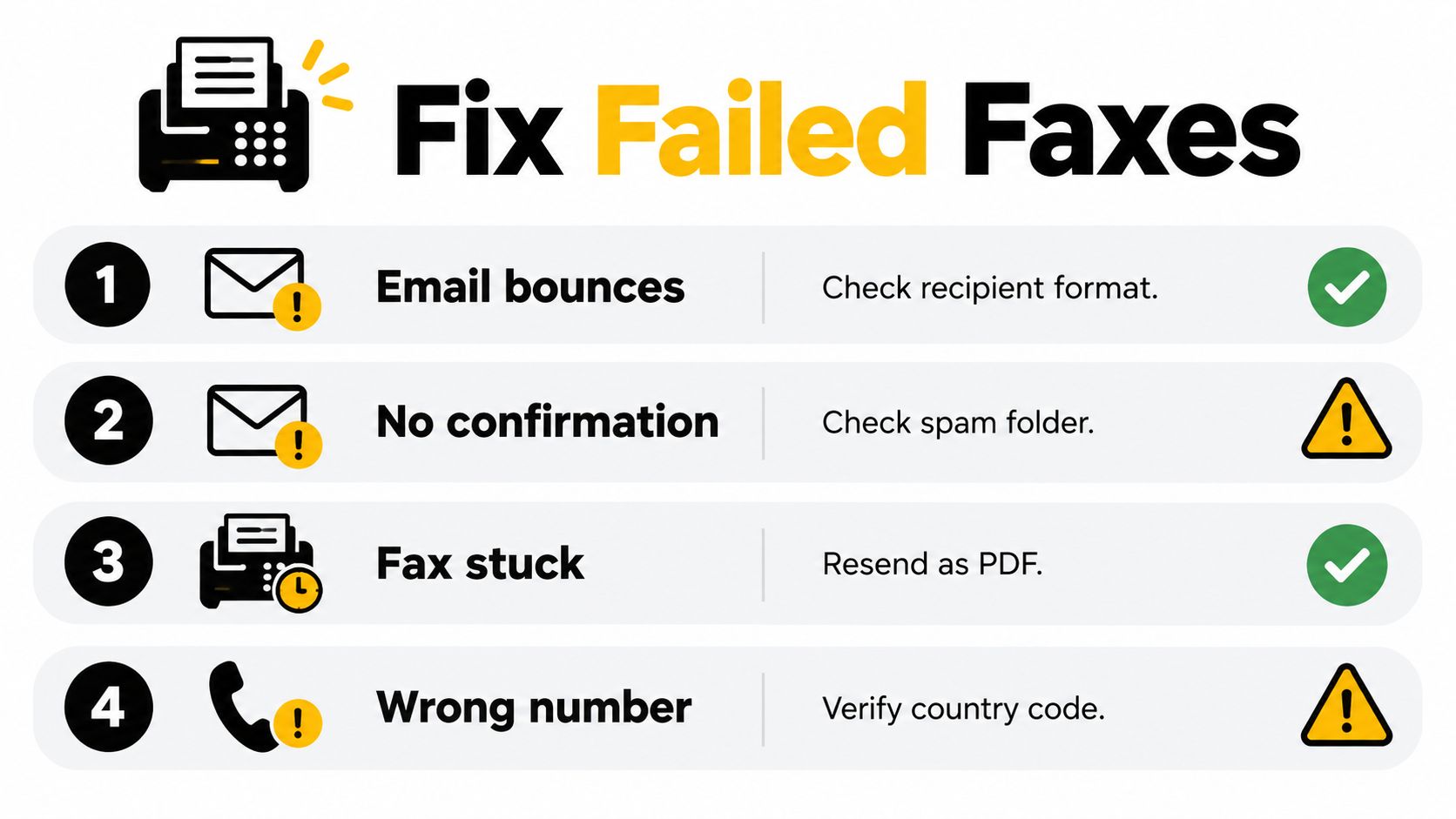
    For instance, the classic "busy signal" means the fax machine on the other end was already in use when the service tried to call. Most online fax services are smart enough to automatically retry a few times. If it keeps failing due to a busy signal, it might be worth giving the recipient a quick call to make sure their machine is on and ready.

    Another common slip-up is an invalid number. It’s surprisingly easy to mistype a digit in the email address format. A simple typo in an address like 15551234567@senditfax.com is enough to stop the transmission in its tracks. A quick double-check of the numbers before sending can save you a headache.

    Key Takeaway: A failure notice isn't just an error—it's a diagnostic tool. Read it carefully. It almost always contains the specific reason your fax didn't go through, saving you from guessing what went wrong.

    A Practical Troubleshooting Checklist

    If the failure notice isn't about a busy line or a wrong number, it's time to look at what you sent. Here are the most frequent user-side issues I’ve seen that can cause a fax to fail.

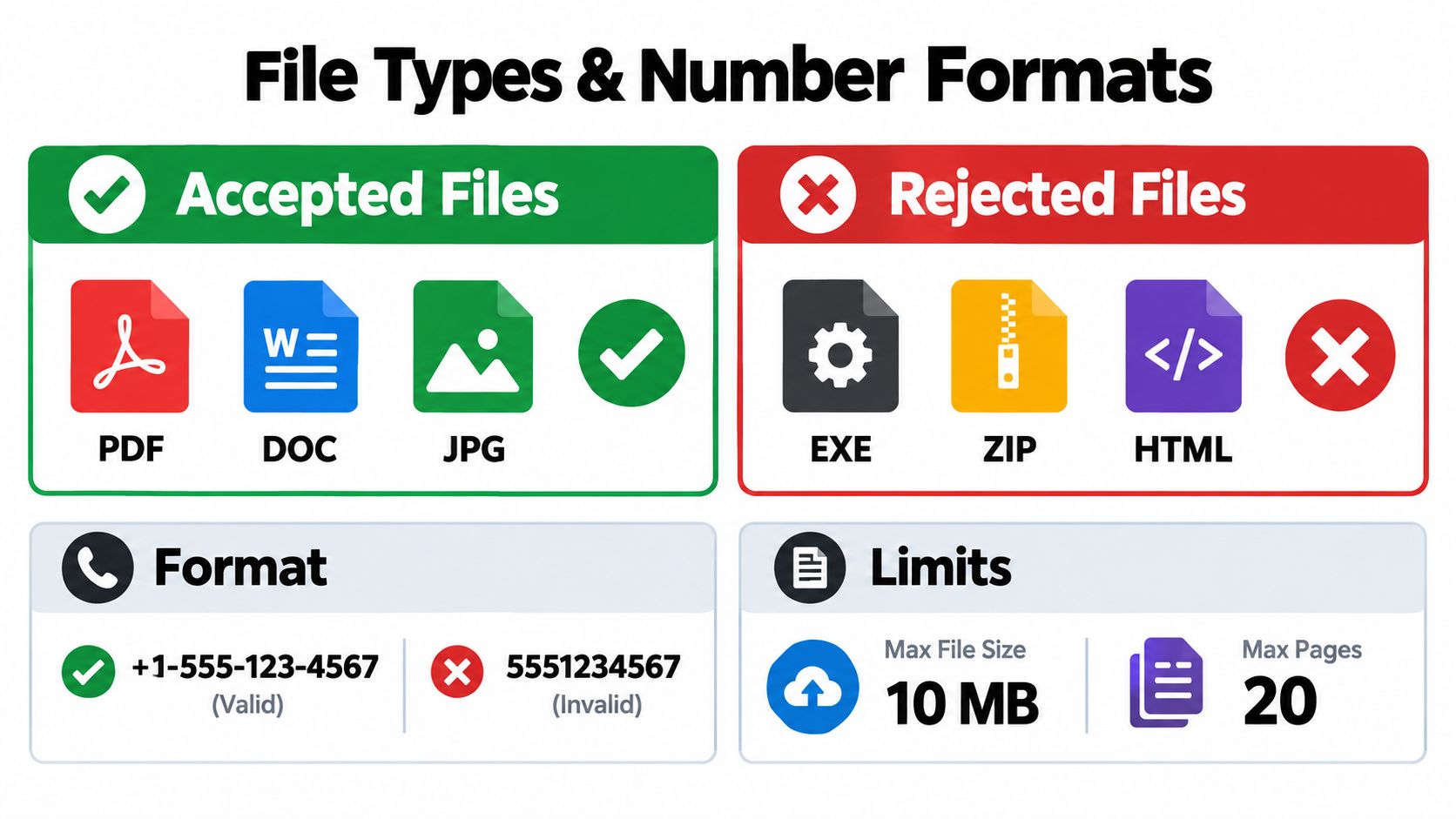
    • Check Your File Format: Did you attach the right kind of file? Most services, including SendItFax, are built to handle common document types like PDF, DOC, and DOCX. Trying to send something like an image file (PNG, JPG) or a spreadsheet will usually result in an immediate rejection.

    • Watch the File Size: Is your document massive? If you’ve got a file loaded with high-resolution images, its size might exceed the service's limit. The fix is usually simple: try compressing the file or re-saving it as a smaller PDF.

    • Confirm Your Email Address: If you're on a paid plan, your account is likely tied to a specific email address for security. Trying to send a fax from an unregistered or unauthorized email account will cause the service to block it.

    • Review Page Limits: This is a big one for free services. They often have hard limits on how much you can send. SendItFax’s free plan, for example, has a three-page maximum. If your document is four pages long, it just won't go through.

    Running through this quick checklist usually helps pinpoint the problem in just a minute or two, letting you correct the issue and get your document successfully on its way.

    Common Questions About Email Faxing

    It's natural to have a few questions when you're moving from a classic fax machine to a more modern approach. People often wonder if the convenience of email comes at the cost of what makes faxing reliable in the first place. Let's dig into some of the most common concerns.

    Can I Get Faxes in My Email, Too?

    Absolutely. This is one of the best parts of switching to an online fax service. When you sign up for a paid plan, you're assigned your own dedicated virtual fax number. Anyone can send a fax to that number from a traditional machine, just like they always have.

    The magic happens on the backend: the service catches the incoming fax, converts it into a PDF, and drops it right into your email inbox. It essentially turns your email into a two-way street for all your faxing needs, letting you send, receive, and manage everything digitally. No paper, no ink, no clunky machine.

    Is It Secure and Legally Binding?

    This is the big one, and for good reason. Security and legal validity are often the entire point of faxing. The good news is that high-quality online fax services are built from the ground up with security in mind.

    When you send a fax via email, the service doesn't just forward your email. It uses robust encryption, like SSL/TLS, to protect the data from the moment you hit "send" until it's delivered. This is the same level of security that protects your online banking and shopping, which is a world away from the generally unencrypted nature of a standard email.

    Beyond that, professional-grade services are often built to meet tough industry standards.

    • HIPAA Compliance: This is a deal-breaker in the medical field. Compliant services are designed to safeguard Protected Health Information (PHI) according to strict federal privacy and security rules.
    • Legal Validity: That delivery confirmation you get in your email is more than just a notification—it's your proof of delivery. It contains all the metadata needed (time, date, page count) to stand up as legally admissible evidence that your document was successfully transmitted.

    Because of these security protocols and the detailed transmission records, a document faxed through a reputable online service is considered just as legally binding as one sent from a traditional fax machine. You get a secure, verifiable paper trail without the paper.

    How Do I Send a Fax Internationally?

    Sending documents across the globe is surprisingly straightforward. The process is almost exactly the same as sending one domestically, with just a small tweak to the "To" address. You just have to add the country code and city/area code before the local fax number.

    For instance, if you were sending a fax to London (country code 44, city code 20), the email address would look something like 442071234567@faxservice.com. Just be sure to drop the leading zero from the city code if it has one—that's a common mistake.

    Of course, international rates will likely be different from domestic ones, so it's always a good idea to check your provider's pricing plan first. Still, being able to securely send a document to another country from your desk in a matter of minutes is a huge plus.


    Ready to send a fax the easy way? With SendItFax, you can send your documents securely from any browser without needing an account. Try SendItFax for free today