Tag: send fax online

  • 7 Best One Time Fax Services for 2026

    7 Best One Time Fax Services for 2026

    A fax request usually lands at the worst time. You are about to leave for the day, and a clinic, bank, or county office says the form has to be faxed. The document is ready. The fax machine is not.

    A one-time fax service solves that problem if you pick the right kind. The smart choice usually comes down to a few practical questions. Do you need to send for free, or do you need the fax to look clean and unbranded? Are you willing to create an account, or do you want a send page that works in one pass? Are you sending a two-page form or a longer packet that needs delivery confirmation and fewer limits?

    That is how I’d evaluate these tools after testing this category. I would not start with a feature spreadsheet. I would sort services by use case. Best free. Best no-account option. Best for longer documents. Best if you might need faxing again later.

    Security matters too, especially if you are uploading signed forms or personal records. If that is part of your decision, this breakdown of whether FaxZero is safe to use is worth reviewing alongside the service comparisons.

    The goal here is simple. Help you get from fax needed to fax sent in the next five minutes. That includes a clear category-based shortlist and, for the top no-account pick, a quick step-by-step so you can send without getting stuck in signup screens or plan pages.

    1. SendItFax

    SendItFax

    A common office problem goes like this: the form is signed, the deadline is close, and nobody wants to stop and create yet another account just to send one fax. SendItFax fits that situation well. It gives you a direct send page, clear free and paid options, and very little setup friction.

    For this guide, I’d place it in the Best No-Account category.

    Best fit for quick no-account sends

    The value here is speed with a sensible upgrade path. You can send a short fax for free, then pay only if you need more pages, faster handling, or a cleaner presentation. That matters because one-time faxing is usually a trade-off between cost and appearance. A school excuse form can go out on the free tier. A contract or intake packet usually should not.

    The free option covers up to 3 pages plus a cover page, with a limit of 5 free faxes per day. The paid option is $1.99 per fax, supports up to 25 pages, removes branding, adds priority delivery, and lets you skip the cover page. If you are comparing similar tools, this overview of free online fax services that do not require a credit card gives useful context on where this model fits.

    Here is the practical split:

    • Use free for short, routine documents where branding will not cause a problem.
    • Pay $1.99 if the fax is client-facing, time-sensitive, or longer than a basic form.
    • Pick another service if you need international faxing or team features.

    That last point matters. SendItFax is built for one-off U.S. and Canada sends. It is not trying to be a shared office platform with user roles, stored history, or admin controls. For a solo user, a freelancer, or a small office handling occasional outbound faxing, that is usually a strength.

    What works and what doesn’t

    The interface asks for the information needed to complete the send, then gets out of the way. That is the right design for occasional faxing. It works especially well on a phone when you are away from your desk or trying to send something before a cutoff time.

    The trade-off is scope. If your office sends a high volume of faxes every week, or needs a shared account for multiple staff members, this kind of tool starts to feel limiting. At that point, the simplicity that makes it fast also means fewer controls.

    A few practical points stand out:

    • Pro: No account required
    • Pro: Free tier is clear and usable for short documents
    • Pro: Paid pricing is easy to understand for occasional use
    • Pro: Status tracking and confirmation are part of the workflow
    • Con: Limited to U.S. and Canada faxing
    • Con: Not built for teams or ongoing business workflows

    My rule is simple. If the recipient is a clinic, law office, lender, or accountant, pay the small fee and remove branding. The extra cost is minor compared with the downside of sending something that looks improvised.

    How to send with SendItFax in the next 5 minutes

    1. Go to SendItFax on your phone or computer.
    2. Enter the recipient’s fax number and name.
    3. Add your name and email address for confirmation.
    4. Upload your document in PDF, DOC, or DOCX format.
    5. Choose free for a short fax, or the $1.99 option for up to 25 pages and no branding.
    6. Add a cover message if needed.
    7. Send the fax and open the status page to confirm progress.

    The workflow is complete. That is why SendItFax ranks high for no-account, one-time sending. It handles the exact job this category is supposed to handle: get the document out fast, without turning a simple fax into a software signup project.

    2. FaxZero

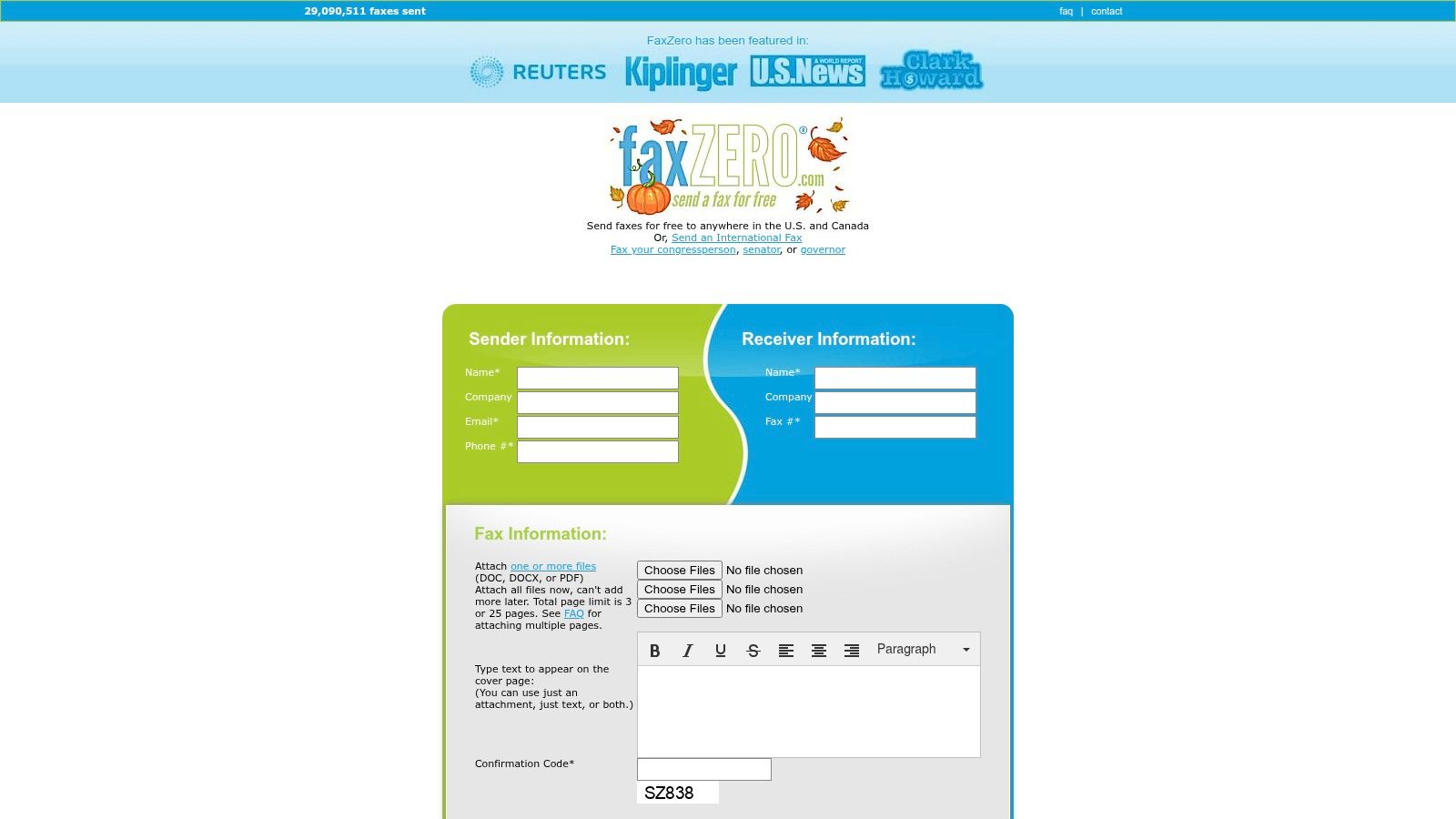
    FaxZero

    FaxZero has been around long enough that most admins have either used it or seen it mentioned when someone needs a fast free fax.

    Its appeal is the same today as it was years ago. You don’t need an account, the web form is simple, and the service makes the free versus paid split easy to understand.

    Best for basic domestic faxing

    If your fax is short and you’re sending within the U.S. or Canada, FaxZero is still one of the easiest tools to use. The free tier is capped at 3 pages plus cover and 5 free faxes per day. That mirrors the kind of use case where someone says, “I just need to send this once.”

    The paid option is what makes FaxZero more practical than a novelty free tool. If you don’t want branding on the cover page or need more space, you can move up without switching platforms or creating an account.

    That’s a real strength. Many free fax tools get awkward right at the moment you need them most. FaxZero stays predictable.

    Where it falls short

    The biggest trade-off is presentation. Free faxes include FaxZero branding on the cover. If you’re sending something routine, that may not matter. If you’re sending client paperwork, a legal document, or anything that should look polished, the branding is a drawback.

    That’s the main reason I treat FaxZero as a utility choice, not always the best professional choice.

    A few practical notes:

    • Use it when speed matters more than polish
    • Skip free if the recipient is formal or client-facing
    • Don’t expect advanced workflow tools

    If you’re weighing trust and basic safety concerns before using it, this review of whether FaxZero is safe is worth a quick read.

    Free faxing is rarely free of trade-offs. Usually you’re paying with branding, tighter limits, or less flexibility.

    FaxZero works because it doesn’t pretend to be something else. It’s a dead-simple, no-account fax sender for occasional domestic use. That’s still useful.

    3. GotFreeFax

    GotFreeFax

    GotFreeFax is the free option I’d look at first if clean output matters more than volume.

    Its standout advantage is straightforward. It doesn’t add ads or its own logo to the fax, even on the free tier. That’s unusual, and it matters.

    Best free service for professional-looking output

    The free plan allows up to 3 pages per fax and 2 free faxes per day. Those are tight limits, but for many one-off sends, that’s enough. If you’re sending a signed form, a simple authorization, or a short application, the lack of added branding gives it a more professional look than many competing free tools.

    That’s why I’d classify it as the best free service for people who care how the fax lands on the other side.

    It also offers a premium pay-per-fax route and prepaid page credits that never expire, which makes it useful for very occasional users who don’t want subscriptions hanging around on a card statement.

    Practical trade-offs

    The service supports multiple file types and lets you upload multiple documents in one send, within its stated limits. That flexibility is helpful when your paperwork lives in more than one file and you don’t want to merge everything manually.

    Still, there are trade-offs:

    • Pro: No ads or branding added to sent faxes
    • Pro: Clear occasional-use upgrade path
    • Pro: Prepaid credits suit low-frequency users
    • Con: Free limits are lower than some people expect
    • Con: Domestic use is the main strength
    • Con: PayPal-based payment won’t suit everyone

    For people specifically trying to avoid upfront payment details while sending something small, this guide to a free online fax with no credit card is a useful comparison point.

    GotFreeFax is not the most flexible service on this list. It is one of the cleanest. If your main goal is “send this for free and don’t make it look cheap,” it’s a strong pick.

    4. WiseFax

    WiseFax

    WiseFax takes a different approach from the flat-fee domestic tools. It’s built around pay-as-you-go sending with a token system, and that makes sense for a certain kind of user.

    If you already know your destination, want to see the cost before sending, and don’t want a subscription, WiseFax is easy to justify.

    Best for international flexibility

    The biggest reason to choose WiseFax is destination range. It supports worldwide faxing and shows pricing before you send. That transparency matters more with international faxing than domestic faxing because the wrong service can waste time before you even get to checkout.

    WiseFax also gives you several ways to work:

    • Web access: Good for quick laptop-based sending
    • Mobile apps: Useful if the document is already on your phone
    • Integrations: Handy if your files live in Google Drive or you work from Gmail

    That broader platform coverage makes it more adaptable than the ultra-simple one-page senders.

    The catch with token pricing

    Token models always create a little friction. It’s not much, but it’s there. Flat per-fax pricing is generally easier to reason about. With WiseFax, you need to accept that pricing is more granular.

    That’s not bad. It just means this service works better for someone who values route flexibility and up-front cost visibility over the simplest possible checkout.

    If you’re faxing outside the U.S. and Canada, don’t default to a domestic-first service and hope it works. Pick a provider that treats international sending as a normal workflow.

    WiseFax is also a better fit for moderate complexity than for total urgency. If someone is panicking and says, “I need to fax this form in two minutes,” I’d usually send them to a simpler no-account service. If they say, “I need to fax this to another country and want clear pricing first,” WiseFax becomes much more appealing.

    5. FAX.PLUS

    FAX.PLUS

    FAX.PLUS fits the person who needs one fax today but suspects this will not be the last one. I usually put it in the "upgrade path" category, not the "fastest possible send" category.

    That distinction matters.

    Some one-time fax tools are built to get you in and out with as little friction as possible. FAX.PLUS takes a different approach. It gives you a real account, a polished dashboard, mobile apps, email-to-fax options, and team-friendly features that make more sense in an office than in a one-off emergency.

    Best for occasional senders who may turn into regular users

    The free plan gives you a small amount of sending capacity, which can cover a very short fax or a trial run. The trade-off is signup. If your priority is pure speed, account creation is a real delay. If you are comparing account-free tools first, this guide to free online fax services with no sign up is a better place to start.

    Where FAX.PLUS earns its spot is stability and follow-through. The interface feels closer to software a small clinic, legal office, or operations team could keep using without outgrowing it next month. That has value if you are tired of throwaway fax sites that feel disposable.

    A few practical trade-offs stand out:

    • Better long-term fit than pure one-off senders
    • Account required, which slows down urgent sending
    • Useful if you want fax history, organization, and repeat use
    • More credible for office workflows than bare-bones free tools

    This is also one of the few options in this list that makes sense for someone wearing an admin hat. If I were setting up a simple fax option for a front desk or a small team, I would trust this type of platform more than a minimal upload page with no history and no account controls.

    Where it fits, and where it doesn’t

    FAX.PLUS is a poor match for the person who says, "I just need to send two pages right now and never think about fax again." SendItFax, FaxZero, or GotFreeFax usually make more sense in that situation because they reduce setup time.

    It is a stronger match for a small business owner, office manager, or practice administrator who wants to solve today's fax need without switching services again later. That is its primary benefit. You give up some speed now, and in return you get a platform that can handle repeat sending, cleaner recordkeeping, and a more professional workflow if faxing becomes part of the job.

    6. FaxItOnce

    FaxItOnce

    FaxItOnce is built around a very practical promise. One fax. One price. No subscription.

    That’s enough to make it appealing immediately.

    Best for simple flat-fee sending

    The service charges $2.75 per fax for up to 45 pages, with no signup required. You can create an optional free account if you want history, but you don’t need one to send. That is the right shape for a one-time fax tool.

    The flat price is its biggest strength. Per-page billing often looks fair until the page count creeps up. FaxItOnce avoids that by giving you a generous page allowance under one charge.

    A few practical wins stand out:

    • No subscription required
    • No account required
    • Email confirmation is built in
    • Automatic retries help when delivery isn’t clean on the first attempt

    That last part matters. A lot of fax frustration comes from not knowing whether the issue is your file, the number, or the recipient’s line.

    Best use case and limitations

    FaxItOnce makes the most sense for medium-length PDF packets. If you have a signed contract set, a disclosure packet, or a stack of forms already in PDF, it’s efficient.

    The main drawback is file format support. It accepts PDF uploads, so if your document is still in DOCX or scattered across several image files, you may need to convert or combine things first. That extra prep step is minor for some users and annoying for others.

    This is also a newer, more niche brand compared with the longest-running names in online faxing. That doesn’t make it a bad option. It just means some users will feel more comfortable with a provider they already recognize.

    I’d rank FaxItOnce as a strong middle-ground choice. It’s more structured than free tools, less bloated than business platforms, and easier to price mentally than token-based services.

    7. OneTimeFax

    OneTimeFax

    You notice the file is 68 pages after the scan finishes. That is the point where many one-time fax tools stop being convenient and start becoming a page-limit problem.

    OneTimeFax fits the opposite situation. It makes more sense for big, occasional sends than for a quick 2-page form.

    Best for larger one-off documents

    Its main selling point is simple. One purchase covers up to 100 pages in a single fax, and there is a 5-fax bundle if you have a few packets to send over time. That changes the math for medical records, due diligence files, insurance paperwork, and contract packages with exhibits attached.

    I like the pricing approach here because it is easy to evaluate before checkout. You can see the cost up front, pay once, and send the whole packet without trying to estimate token usage or page overages. For occasional users, that can be a better fit than a monthly plan, especially if your only need is one long transmission. If you are comparing that pay-as-needed model with lighter free tools, this overview of free online fax options with no sign up gives useful context.

    OneTimeFax also includes delivery confirmation, failed-send handling, and a refund policy when the fax does not go through. Those are not flashy features. They matter more on a 40-page or 90-page send than on a short cover sheet.

    Where it fits, and where it does not

    The trade-off is straightforward. OneTimeFax is stronger on capacity than on bargain pricing for very short jobs.

    If you are sending three pages, a free or low-cost no-account service is usually the better buy. If you are sending a long packet and want the transaction to be simple, OneTimeFax becomes much easier to justify. The service removes the usual friction around page caps, which is often the first thing that breaks the one-time fax experience.

    Reliability matters more with larger jobs too. A failed 2-page fax is annoying. A failed 70-page fax means rescanning, reuploading, checking the number again, and losing more time than the fax fee itself.

    That is why OneTimeFax earns its spot on this list. It is not the default pick for everyone. It is the one I would keep in mind for the user who needs to send a thick packet once, pay once, get confirmation, and move on.

    Top 7 One-Time Fax Services Comparison

    Service Implementation complexity 🔄 Resource requirements ⚡ Expected outcomes 📊 Ideal use cases 💡 Key advantage ⭐
    SendItFax Low, no signup, browser/mobile flow Free tier (3 pages + cover, 5/day); $1.99 per paid fax (up to 25p) via Stripe; US/CA only Fast delivery with confirmation; branded free sends Quick, time‑sensitive contracts, medical or legal forms No signup + genuine free tier; low per‑fax cost ⭐
    FaxZero Low, dead‑simple web form, no account Free (3 pages + cover, 5/day) for US/CA; paid option removes branding Quick domestic sends; free cover shows branding One‑off domestic faxes with minimal setup Extremely simple free option for occasional use ⭐
    GotFreeFax Low, send‑only, straightforward UI Free (3 pages, 2/day); premium up to 30 pages; prepaid credits (no expiry); PayPal payments Clean, ad‑free output even on free tier Occasional users who want unbranded faxes No branding on free faxes; prepaid credits never expire ⭐
    WiseFax Moderate, token per‑page model, apps & integrations Per‑page tokens; web + iOS/Android + Google Drive/Gmail; worldwide destinations Transparent per‑page pricing; global delivery tracking International one‑offs and integrated workflows Worldwide support and multiple integrations ⭐
    FAX.PLUS Moderate, account required for free plan; full platform Free plan (10 pages total); email‑to‑fax, apps, subscriptions for scale; business features available Reputable platform with upgrade path; documented APIs & security options Users likely to scale to business/enterprise needs Business features (HIPAA/BAA, APIs, SSO) and smooth upgrade path ⭐
    FaxItOnce Low, flat price, no signup (optional account) $2.75 flat per fax (up to 45 pages); Stripe checkout; browser only Predictable billing; good page allowance; no charge on failed delivery Users preferring flat pricing for large single faxes Simple flat pricing with generous page allowance ⭐
    OneTimeFax Low, single purchase or 5‑fax bundle; simple checkout Includes up to 100 pages per fax; optional 5‑fax bundle; Stripe; overage $0.05/page Generous included pages; delivery confirmation and refund policy Large one‑off faxes or light repeat users who want bundles Very generous pages per send and refundable delivery policy ⭐

    Your Next Step From Fax Needed to Fax Sent

    A one-time fax decision usually happens under pressure. A clinic wants a signed form back today, a bank asks for a document that cannot wait, or a vendor still uses a fax line for purchase orders. In that moment, the right service is the one that gets the file out quickly without forcing you into extra setup.

    The easiest way to choose is by the kind of job you have in front of you.

    GotFreeFax fits the person who cares most about a clean-looking free fax. Its page limits are tighter than some alternatives, but the output looks more professional because it does not add branding.

    SendItFax fits the person who wants to send without creating an account and be done in a few minutes. That trade-off is simple. You get a short workflow and a low-cost paid path, but it is geared more toward fast domestic sending than broader business features.

    FAX.PLUS makes more sense if this one fax may turn into a recurring process. The account requirement adds friction for a true one-off, but the upside is clear if you expect to send again next month and want a platform with room to grow.

    For large files, OneTimeFax is often the safer pick. Generous page capacity matters because the cheapest-looking service stops being cheap once you have to split documents or trim pages.

    Here is the practical shortlist I would use:

    • Choose SendItFax if speed and no-account sending matter more than extra tools.
    • Choose GotFreeFax if free and unbranded is your top priority.
    • Choose FaxZero if you want a familiar basic option and can tolerate branding on free sends.
    • Choose WiseFax if you need to fax internationally and want pricing before you send.
    • Choose FAX.PLUS if this could turn into an ongoing business workflow.
    • Choose FaxItOnce if you prefer one flat fee for a medium-size document.
    • Choose OneTimeFax if your fax is long and you want more page headroom.

    If you want to send in the next five minutes, use this SendItFax workflow:

    1. Open the service in your browser.
    2. Enter the recipient fax number and contact details.
    3. Add your own name and email so you can receive confirmation.
    4. Upload the file, usually a PDF or Word document.
    5. Check whether the free send covers your page count, or switch to the paid option for a cleaner send.
    6. Add a cover note if needed.
    7. Submit the fax and review the status page.
    8. Watch your email for delivery confirmation.

    This is the primary benefit of using a one-time fax service. You send the document, confirm delivery, and move on without buying hardware or signing up for a monthly plan.

    For a single domestic fax, simple workflow usually matters more than advanced features. Match the service to your document length, destination, and urgency, then send it.

  • Cheap Faxing Services Near Me? In-Store vs. Online Costs

    Cheap Faxing Services Near Me? In-Store vs. Online Costs

    You search cheap faxing services near me because something has to go out today. A signed contract. A medical form. A government document that still insists on fax even though everything else in your life moved online years ago.

    That search usually sends you toward store locators. FedEx Office. The UPS Store. Staples. Maybe Office Depot. What it usually doesn't do is answer the core question: what's the cheapest and least annoying way to send a fax right now, especially if your document is more than a page or two?

    I've done the expensive version. Drive over, wait behind someone printing shipping labels, hand over papers, pay more than expected, then stand there while the machine does something that feels frozen in time. If you're only trying to send one occasional fax, that's a bad workflow.

    The better choice depends on what you have in hand. If you already have a paper document and need walk-in help, a local store can work. If your file is already on your laptop or phone, web-based faxing is usually the more practical move.

    Option Best for Typical cost pattern Main drawback
    The UPS Store / FedEx / Staples / Office Depot Paper documents, in-person help, same-trip errands Per-page charges that rise fast on multi-page faxes Travel, waiting, staff handling your documents
    Online fax service PDFs, DOC, DOCX, remote sending, after-hours needs Often far lower total cost, especially for longer faxes You need a digital file and a stable internet connection
    No-account pay-as-you-go online fax One-time users who don't want a monthly plan Flat or low-cost one-off sending Not ideal if you need a permanent inbound fax number

    You Need to Send a Fax in 2026 Here Is What To Do

    The usual situation is simple. You don't own a fax machine. You probably never will. But someone on the other end still wants a fax number, not an email attachment.

    That might be a clinic asking for records, a law office requesting signed pages, or a lender that still treats fax like standard operating procedure. You search for cheap faxing services near me, expecting one clear answer, and instead get a list of stores.

    A young man sits at a desk looking concerned while using a laptop to send an urgent fax.

    What's missing from most of those search results is a side-by-side cost reality. One verified review of this search intent points out that results often show physical options first, while no-account online alternatives get overlooked, even though services like SendItFax offer free faxes up to 3 pages or $1.99 for up to 25 pages, and online fax usage was noted as surging 25% post-pandemic in the same source (FedEx location comparison note).

    The Near Me Option Local Walk-In Fax Services

    Walk-in faxing still exists because it solves one narrow problem well. You have paper in your hand, you need help, and you want a human being nearby if something goes wrong.

    Where people actually go

    The common chains are The UPS Store, FedEx Office, Staples, and Office Depot. Among them, The UPS Store is hard to beat for availability because it has 5,000+ U.S. locations and offers faxing across that network, with pricing that often starts at $1 for the first local page, $2 for national, and $3 for international as noted in this overview of UPS faxing (UPS fax service overview).

    That reach matters. If you're already out, or you need a store that's likely nearby, UPS is often the easiest physical option to find.

    A friendly staff member receiving a paper document from a customer at a business service counter.

    If you want more store-by-store context before driving anywhere, this rundown of cheap places to fax near me is useful.

    What the in-store process looks like

    Most walk-in fax visits follow the same pattern:

    1. You bring printed pages.
    2. You give the receiving fax number.
    3. You may fill out a cover sheet.
    4. A staff member sends the fax, or points you to a self-service station.
    5. You wait for confirmation.

    That process isn't complicated. It is, however, slower than people remember.

    A store visit also means dealing with whatever the store is dealing with that day. A line at the counter. Limited staffing. A machine tied up by another customer. None of that sounds dramatic until your fax is time-sensitive.

    What works and what doesn't

    Walk-in faxing works best when:

    • Your document only exists on paper and you don't have an easy way to scan it.
    • You want in-person help entering the number or handling the send.
    • You're already nearby and don't mind paying per page.

    It works less well when:

    • Your fax is long. Per-page pricing stacks up fast.
    • You need privacy. Staff and nearby customers can see more than you'd like.
    • You're sending after hours. Store schedules decide your timing.

    Practical rule: If you're choosing a store, call first. Confirm the location still offers faxing, ask whether it sends to your destination type, and ask how they charge for first and additional pages.

    The Online Alternative Modern Web-Based Faxing

    Online faxing solves the exact problem that makes store visits annoying. It lets you send a document from a browser instead of from a public machine.

    If your file is already a PDF, DOC, or DOCX, the process is straightforward. You upload the file, enter sender and recipient details, add a cover message if needed, and send. The receiving office still gets a fax. You just skip the driving, printing, and waiting.

    Two online models matter

    There are really two categories to know.

    Subscription services fit people or teams who fax regularly. They usually involve account setup, a monthly plan, and often a dedicated fax number.

    Pay-as-you-go services fit occasional users better. This is the category often best suited for those searching "cheap faxing services near me". You don't want a monthly bill for something you might use twice this year.

    This is also why no-account tools are easier for freelancers, travelers, and remote workers. You can solve the immediate task without adding another software subscription to your life.

    If you need a practical walkthrough of the basic process, this guide on how to send fax online covers the upload-and-send flow clearly.

    Why this model fits occasional faxing

    The biggest advantage isn't technical. It's behavioral.

    Faxing is often delayed because the store trip turns a five-minute task into an errand. Web-based faxing removes that friction. You can send from your desk, from your phone, or from a hotel Wi-Fi connection if you're traveling.

    If the document is already digital, going to a store usually adds steps instead of removing them.

    Local vs Online Faxing A Head-to-Head Comparison

    Price is where the difference gets obvious, especially once your fax goes beyond a page or two.

    Online fax services can range from $0.03 to $2 per page, while stores like Staples and FedEx charge $1.80 to $2.20 for a first page and $1.59 to $2.20 for additional pages. For a national fax, FedEx charges $2.49 for the first page and $2.19 for each subsequent page. That puts a 10-page national fax at nearly $23, while a no-account service can send up to 25 pages for $1.99, which is over 90% savings in the cited comparison (online fax cost guide).

    A comparative infographic showing the benefits and drawbacks of using local walk-in fax services versus online faxing.

    Price

    This is how the store math appears when published rates from major chains are used.

    Service Local first page Local additional National first page National additional
    UPS $1.00 $1.00 $2.00 $1.00
    FedEx $1.89 $1.59 $2.49 $2.19
    Staples $1.79 $1.59 $2.39 $2.19
    Office Depot $1.49 $1.29 $1.99 $1.79
    Online services Often far lower Often far lower Often far lower Often far lower

    The pattern matters more than the exact winner. Stores charge in a way that punishes page count. Online services usually don't.

    A one-page fax at a store may feel acceptable. A multi-page fax is where the pricing stops being reasonable.

    Convenience

    Local faxing means finding a location, getting there during business hours, waiting your turn, and standing by while the machine sends. That isn't impossible. It's just time you didn't need to spend.

    Online faxing is simpler if you already have the file. Open a browser. Upload. Send. You're done.

    This matters even more for remote workers because a fax need often shows up in the middle of another task. Breaking your day to drive somewhere is usually the most expensive part, even if the receipt doesn't show it.

    Privacy

    This is the point people forget until they're at the counter with medical paperwork or signed legal pages.

    Walk-in faxing often involves handing documents to staff or placing them on a public machine in a shared space. That's not always a deal-breaker, but it isn't ideal for anything sensitive.

    Online faxing keeps the document on your own device during preparation, and the send happens through the service interface rather than across a store counter. For many people, that's the more comfortable option.

    Speed

    Web-based tools have a real advantage here. Services such as Fax.Plus and Fax.Live show how online faxing can work through direct PDF upload with near-instant transmission, avoiding the 5 to 15 minute routine of printing, scanning, and waiting at a store. The same comparison notes 99%+ delivery success on U.S. and Canada lines, compared with 5% to 10% error rates reported from paper jams or busy signals in high-volume physical scenarios (Fax.Plus fax service comparison).

    That doesn't mean every store fax is slow or unreliable. It means physical workflow creates more opportunities for delay.

    Which method wins on each factor

    • Lowest total cost for multi-page faxes: Online
    • Fastest option when your file is already digital: Online
    • Best when you only have paper and need help: Local store
    • Better privacy for sensitive uploads from your own device: Online
    • Most accessible if you need a walk-in location: UPS often has the reach

    When to Choose Each Faxing Method

    The right choice comes down to your starting point, not ideology. Faxing isn't modern or outdated in this context. It's just a task that needs the least painful method.

    Choose a local walk-in service if

    You should use a store when the physical world is your bottleneck.

    • You only have paper pages. If the document isn't scanned and you need to send it now, a store saves you from hunting for scanning equipment first.
    • You want face-to-face help. Some people would rather hand the task to a staff member than troubleshoot file formats.
    • You're combining errands. If you're already at a shipping or print store, the convenience can outweigh the higher per-page cost.
    • You need a printed confirmation slip immediately. Some offices and some personalities still prefer a physical receipt in hand.

    Choose online faxing if

    For most occasional users, this is the practical default.

    You're better off online when your document is already on your device, when you're sending after hours, or when page count starts creeping up. That's especially true for contracts, intake packets, and anything else that would be expensive in a per-page store model.

    Online also fits remote work better. You don't have to break your schedule, leave the house, or stand in line for a task that should take only a few minutes.

    Use the store for paper problems. Use online faxing for digital documents. That's the simplest decision rule.

    A quick decision filter

    Ask yourself three questions:

    1. Is the document already digital? If yes, online usually wins.
    2. Is the fax more than a couple pages? If yes, check total price before driving anywhere.
    3. Do I need help handling physical paperwork today? If yes, a walk-in location may still be worth it.

    That keeps the decision practical instead of nostalgic.

    How to Send a Cheap Fax Online with SendItFax

    If you need a one-off fax and don't want to open an account just to send it, a browser-based form is the easiest path.

    Screenshot from https://senditfax.com/

    What you'll need before you start

    Have these ready:

    • Your file in PDF, DOC, or DOCX format
    • Recipient fax number
    • Your sender details
    • Optional cover note if the receiver expects one

    If your document started on an older office setup, or you still work around legacy phone gear, it can help to understand how traditional fax hardware connects to internet-based calling. This plain-English guide to an ATA adapter for VoIP is useful background if you're dealing with mixed old and new systems.

    The basic sending flow

    A no-account web fax form is usually simple.

    1. Enter your name and contact details.
    2. Add the recipient's fax number and recipient information.
    3. Upload the file.
    4. Decide whether to include a cover message.
    5. Choose the sending option and submit.

    One example in this category is SendItFax, which lets users fax to U.S. and Canadian numbers without creating an account. The service offers a free option for up to 3 pages plus a cover with a daily limit, and a $1.99 paid option for up to 25 pages without branding, based on the publisher's product details.

    For another walkthrough of browser-based faxing, this guide on how to send efax is a useful companion.

    Why this is usually faster than a store

    The main gain is workflow. You're not printing a PDF just so someone else can feed it into a machine.

    The broader online fax category also benefits from direct upload and cloud delivery. As covered in the earlier comparison section, that model avoids store queues and the usual print-scan-send cycle.

    Here's a quick visual overview of the process:

    A few practical tips before you hit send

    • Check readability first. Blurry scans create problems no matter where you fax from.
    • Use PDF when possible. It tends to preserve layout more predictably than editable files.
    • Keep the cover note short. Include only what the recipient needs to route the fax.
    • Double-check the number. A typo is the fastest way to turn a cheap fax into a repeated task.

    Frequently Asked Questions About Cheap Faxing

    Can I receive faxes with these services

    Some services focus only on sending. Others offer a dedicated number for inbound faxing, usually through a subscription plan.

    If you only need to send occasional documents, a send-only option is often enough. If a client or office needs to fax you back regularly, look for a service that includes inbound fax capability and a persistent fax number.

    Are online fax services secure enough for medical or legal documents

    They can be, but you should pay attention to how the service handles transmission and account access.

    The practical privacy difference is this: a browser-based upload from your own device generally exposes your paperwork to fewer people than a public counter workflow. You still need to use a reputable provider, confirm the number carefully, and avoid sending from unsecured shared devices.

    What if I need to fax internationally

    Some local stores do support international faxing, but that's usually where in-store pricing gets painful. If you're faxing outside the U.S. or Canada, check pricing before you commit because international rates vary sharply by provider.

    For occasional use, online faxing is often easier to price upfront. Just make sure the service supports the destination country before uploading your file.

    Is free faxing actually good enough

    It depends on the stakes.

    Free can be fine for a short, low-risk document when branding on the cover page isn't a problem. For anything client-facing, time-sensitive, or presentation-sensitive, a low-cost paid send is usually the cleaner option because it avoids branding limits and other restrictions.


    If you need to send a fax today without overpaying at a counter, SendItFax is a practical option for one-off U.S. and Canada faxes from your browser. You can use the free tier for short documents or the $1.99 option for longer, cleaner sends without creating an account.

  • Online Fax Service for Mac: Easy Sending

    Online Fax Service for Mac: Easy Sending

    You’re on your Mac. The document is ready. The other person sends one last instruction: “Please fax it.”

    That single word can make the whole task feel dated and annoying. You don’t own a fax machine. You likely don’t have a phone line for one. And if you use a Mac, you may already suspect there isn’t some hidden “fax” button waiting inside System Settings.

    The good news is that faxing from a Mac is no longer a hardware problem you need to solve with cables, adapters, or old office equipment. Often, it’s a browser task. You open a website, upload a file, enter the fax number, and send it.

    That’s why a modern online fax service for mac makes sense, especially if you only fax occasionally. It fits how Mac users already work. You create or sign documents in Pages, Word, Preview, or Acrobat, then send them through Safari, Chrome, or Firefox without installing anything.

    The browser-first route is also the easiest one to understand. It avoids the confusion of app compatibility, account setup, and outdated printer-fax workflows. It’s especially useful if you need to send something quickly from home, a coworking space, or while traveling.

    Stuck with a Document and a Fax Number?

    A common scenario goes like this. You’ve scanned a signed form into PDF. Maybe it’s for a doctor’s office, a mortgage lender, a school, or a government agency. You’re sitting at your MacBook, feeling productive, until you notice the delivery instruction says fax only.

    At that moment, users often make one of three assumptions.

    • First guess: There must be a built-in Mac feature for this somewhere.
    • Second guess: You need to buy an app.
    • Third guess: You’re stuck until you can find a print shop or office machine.

    None of those is typically the best answer.

    Modern faxing doesn’t have to involve a machine next to your desk. It can work more like secure file delivery. You take the document you already have on your Mac, upload it through a website, and the service handles the rest.

    This is important because today's fax users often don't require a permanent setup. They need a simple way to send one document now. Maybe two this month. Then nothing for weeks.

    Practical rule: If you fax only occasionally, start with a browser-based service before you look at apps, subscriptions, or office hardware.

    That approach feels much closer to the rest of life on a Mac. You already use the browser for banking, signing, file sharing, and forms. Faxing can fit into that same pattern.

    It also removes the emotional friction. Instead of asking, “How do I turn my Mac into a fax machine?” the better question is, “Which website will send this file to a fax number safely and cleanly?”

    That shift makes the whole thing simpler. You’re not reviving old technology. You’re using a web service to bridge between your digital document and someone else’s fax requirement.

    Why Your Mac Cannot Send a Traditional Fax

    A traditional fax is closer to a phone call than an email. It sends document data over a phone connection in a format older fax machines understand.

    Your Mac doesn’t include the hardware needed for that old process. MacBooks lack built-in analog modems required for traditional faxing, which is why online services step in and convert digital files for transmission. The same source notes that this approach can bring a delivery success rate increase of 95-99% compared to older modem-based attempts in this context of modern online services for Mac users (Notifyre’s explanation of faxing from a Mac).

    A silver MacBook sits beside an old-fashioned beige fax machine on a desk with a window background.

    The missing piece is hardware

    The situation is similar to trying to play a cassette tape on a streaming-only music setup. The problem isn’t that your Mac is hiding the right app. The problem is that the physical mechanism isn’t there.

    Older computers sometimes worked with fax modems. Modern Macs don’t. So if you were hoping for a direct cable-to-phone-line trick, that’s why it doesn’t appear in normal Mac workflows.

    Why old Mac fax advice confuses people

    You may still find outdated instructions online that mention printing to fax, using a multifunction printer in a special way, or relying on old utilities from earlier macOS versions.

    That advice usually creates more confusion than help. Recent Mac setups are built around cloud apps, browser tools, and wireless workflows. They are not built around analog fax hardware.

    If you want a quick explanation of why faxing without a traditional phone line now relies on newer methods, this overview of fax machine options without a phone line is useful background.

    What your Mac can do well

    Your Mac is excellent at the digital side of faxing:

    • Preparing files: PDFs, DOC, and DOCX documents are easy to create and review.
    • Scanning pages: You can scan from a printer, use Continuity Camera, or import files you already received.
    • Using the web securely: Browsers handle uploads, form entry, and confirmations well.

    What it can’t do by itself is place that old-style fax transmission over a phone connection. That’s why an online service isn’t a workaround. It’s the actual modern method.

    How Browser-Based Faxing Solves the Mac Problem

    The easiest fix for Mac faxing is to stop thinking in terms of software installation and start thinking in terms of browser access.

    A browser-based online fax service for mac works like a translator. You upload a document from your Mac, type in the recipient’s fax number, and the service converts the file into a fax-compatible transmission on the backend. You don’t need modem hardware, and you usually don’t need a desktop app either.

    A simple three-step infographic showing how to send faxes from a Mac using an online service.

    Why the browser-first method fits Mac users

    Mac users tend to value low-maintenance tools. Browser faxing matches that preference.

    • No installation: You don’t need to download software just to send one document.
    • Less OS friction: A website is often simpler than wondering whether an app is fully polished for your macOS version.
    • Device flexibility: If needed, you can start on your Mac and finish from another computer without changing your workflow.

    Occasional faxing should feel lightweight. If the task takes longer to set up than to complete, the tool is too heavy for the job.

    What happens behind the scenes

    The visible part is simple. You upload a file and press send.

    Behind the scenes, the service handles the conversion and delivery process. That’s the part your Mac cannot natively do on its own.

    You don’t need to understand the transport layer in detail to use it. It’s enough to know that the service acts as the bridge between your digital document and the receiving fax system.

    Browser faxing feels more natural on a Mac because it matches how many users already work with files, forms, and secure websites.

    Why this approach keeps growing

    Faxing hasn’t disappeared, even if the machine itself has faded from everyday life. The global fax services market, driven heavily by online solutions, is projected to grow from $3.18 billion in 2022 to $5.96 billion by 2028 (ACM coverage of fax market demand).

    That growth says something important. Organizations still need faxing, but people increasingly want to do it through online services instead of physical machines.

    Browser first versus app first

    Apps can be useful for people who fax often. But for many Mac users, they add unnecessary decisions:

    Approach Best for Main trade-off
    Browser-based service Occasional faxing, quick access, no install Browser settings can matter
    App-based service Repeat use, stored workflows, inbox-style features Updates and OS compatibility can become another task

    If you only need to fax once in a while, the browser-first model is often the cleanest path. Open site. Upload file. Enter number. Send. Done.

    Send a Fax from Your Mac in Under 5 Minutes

    The actual sending process is easier than most first-time users expect. If your document is ready, the whole task feels closer to submitting an online form than setting up office equipment.

    A person using a laptop to send a digital fax document online with a green background.

    Step 1 Prepare the document on your Mac

    Start with the cleanest version of the file you have.

    PDF is a safe default. If the document started in Word, a DOC or DOCX file may also work, but PDFs keep formatting more predictable.

    Before you upload, check a few basics:

    • Readable pages: Open the file and zoom in. Make sure signatures, dates, and small text are clear.
    • Correct orientation: A sideways scan may still send, but it won’t be pleasant to receive.
    • Final version: Save the exact version you want sent. Don’t upload a draft by mistake.

    Modern online fax services improve legibility in the background. They use cloud OCR and auto-enhancement tools to optimize documents, which can lead to 20-30% fewer retransmissions on noisy phone lines compared to raw document scans (Comfax review discussion of online fax quality features).

    That means even if your scan isn’t perfect, a good service can help it transmit more cleanly.

    Step 2 Open the fax website and enter the details

    On the service website, you’ll typically fill in a few basic fields:

    1. Recipient fax number
    2. Your name or sender details
    3. Recipient name or company
    4. Optional cover page message

    The fax number deserves the most attention. One wrong digit can send the document to the wrong office.

    If you’re faxing a clinic, law office, school, or title company, check whether they gave you any instructions about cover pages or department names. A simple detail line can save delays on their side.

    Step 3 Upload the file

    Next, drag the document into the upload area or select it from Finder.

    If your file won’t upload, the issue is often one of these:

    • Unsupported format: Convert the file to PDF first.
    • Browser hiccup: Refresh the page and try again.
    • Privacy or cookie setting: More on that in the security section below.

    If you want a simple walkthrough of web faxing mechanics, this guide on how to send e-fax shows the general process in plain language.

    Step 4 Add a cover page only if it helps

    A cover page is useful when the document needs context. For example, “Medical records request” or “Signed lease addendum” helps the receiving office route it correctly.

    But not every fax needs one. If the document already identifies itself, skipping the extra page can keep things cleaner.

    Step 5 Send and watch for confirmation

    Once you click send, the service processes the file and starts delivery.

    You’re typically looking for some kind of status feedback. That might be a confirmation screen, a delivery message, or an email notice depending on the service.

    A quick visual walkthrough can help if you prefer to see the process in action.

    A simple example

    Say you need to fax a signed insurance form.

    You open the PDF in Preview, confirm the signature is visible, then go to the fax website in Safari or Chrome. You enter the insurer’s fax number, type your name, add a short note, upload the file, and send.

    That’s it. No printer. No phone cord. No machine noise. Just a browser task.

    Quick check before sending: If the file is readable on your Mac screen, the fax number is correct, and the document is in a common format like PDF, you’ve already handled the biggest sources of avoidable mistakes.

    Comparing Free vs Paid Online Fax Options

    Occasional users ask the same practical question. Should you use a free option, or is it worth paying for a one-time fax?

    The answer depends less on budget than on the importance of the document. If the fax is casual and low-stakes, free can be enough. If presentation, page count, or urgency matters, a paid option is often the better fit.

    The trade-off in plain English

    Free faxing usually comes with limits. Those limits may include lower page allowances, daily caps, and branding on the cover page.

    Paid one-time faxing usually gives you more room and a cleaner result. It may also help when you want the document to look more professional.

    Here’s a simple side-by-side comparison based on SendItFax’s published model.

    SendItFax Plan Comparison Free vs. Almost Free

    Feature Free Plan Almost Free Plan ($1.99)
    Cost Free $1.99 per fax
    Page limit Up to 3 pages plus a cover Up to 25 pages
    Daily limit Up to 5 free faxes Not described as the free daily cap
    Cover page branding Includes SendItFax branding Removes SendItFax branding
    Cover page option Cover page available Can omit the cover page entirely
    Delivery handling Standard web submission Priority delivery
    Best fit Very occasional, low-stakes sending Professional or time-sensitive sending

    Which one fits which situation

    • A one-page school form: Free is probably fine.
    • A signed contract: Paid is often the safer choice because cleaner presentation matters.
    • A medical document with several pages: The paid option may fit better if the file is longer.
    • A quick informal request: Free works if the limits match your needs.

    This isn’t just about cost. It’s about matching the fax tier to the consequence of delay, clutter, or page limits.

    A freelancer sending a simple confirmation may be happy with free. A real estate agent with a deadline or a patient sending records probably wants fewer compromises.

    If you’re hesitating, use this rule. The more the fax affects money, deadlines, or sensitive paperwork, the less appealing “good enough” becomes.

    Navigating Security and Mac-Specific Settings

    Faxing often involves documents you wouldn’t casually email. Medical forms, signed agreements, financial records, and legal paperwork all deserve a little caution.

    That’s why people care about security in an online fax service for mac. They want the browser method to be easy, but they also want it to feel responsible.

    The concern is valid. The solution is usually straightforward.

    A silver laptop displaying a digital security lock graphic on a wooden desk with stacked green books.

    What to look for on the security side

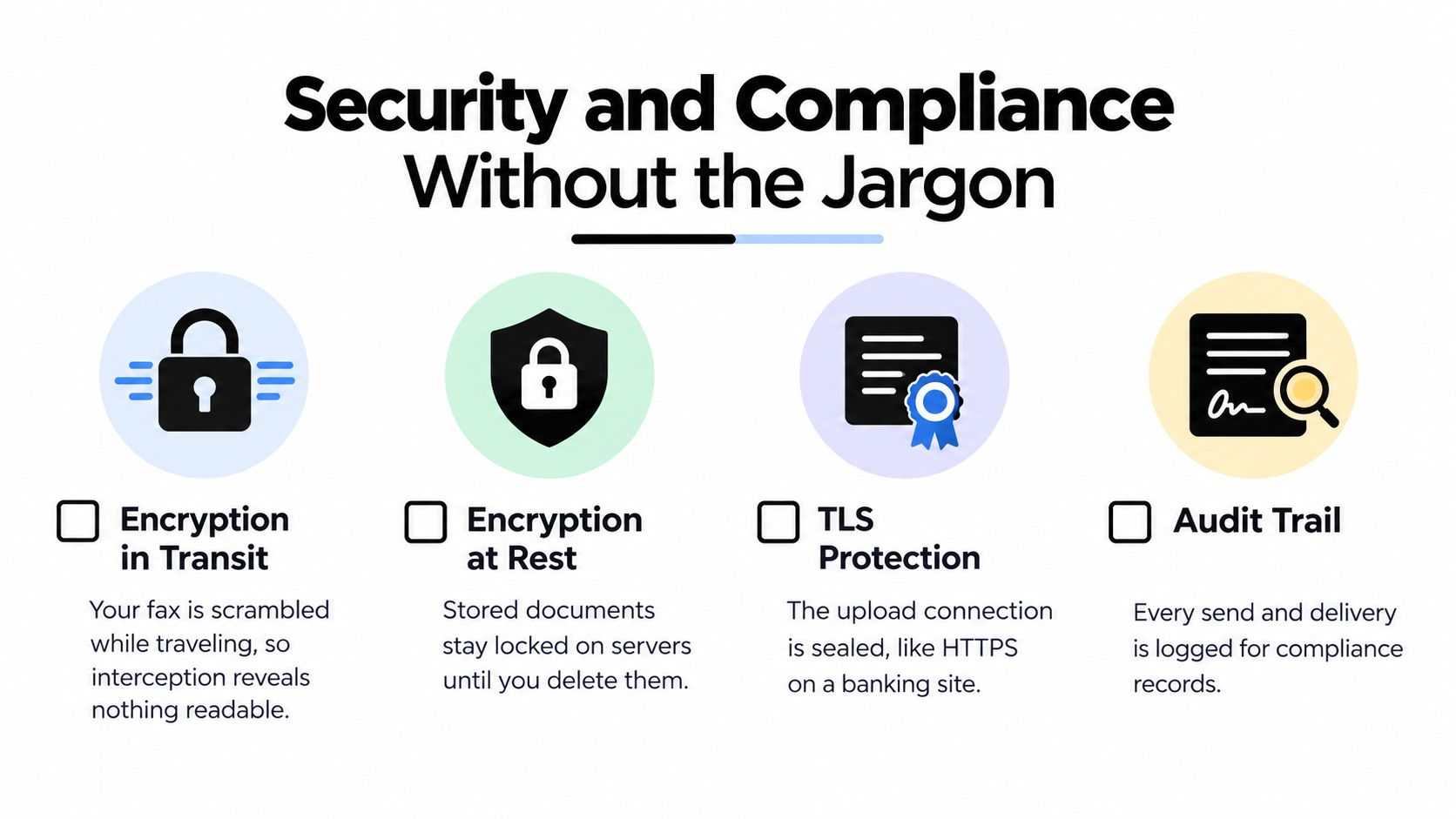
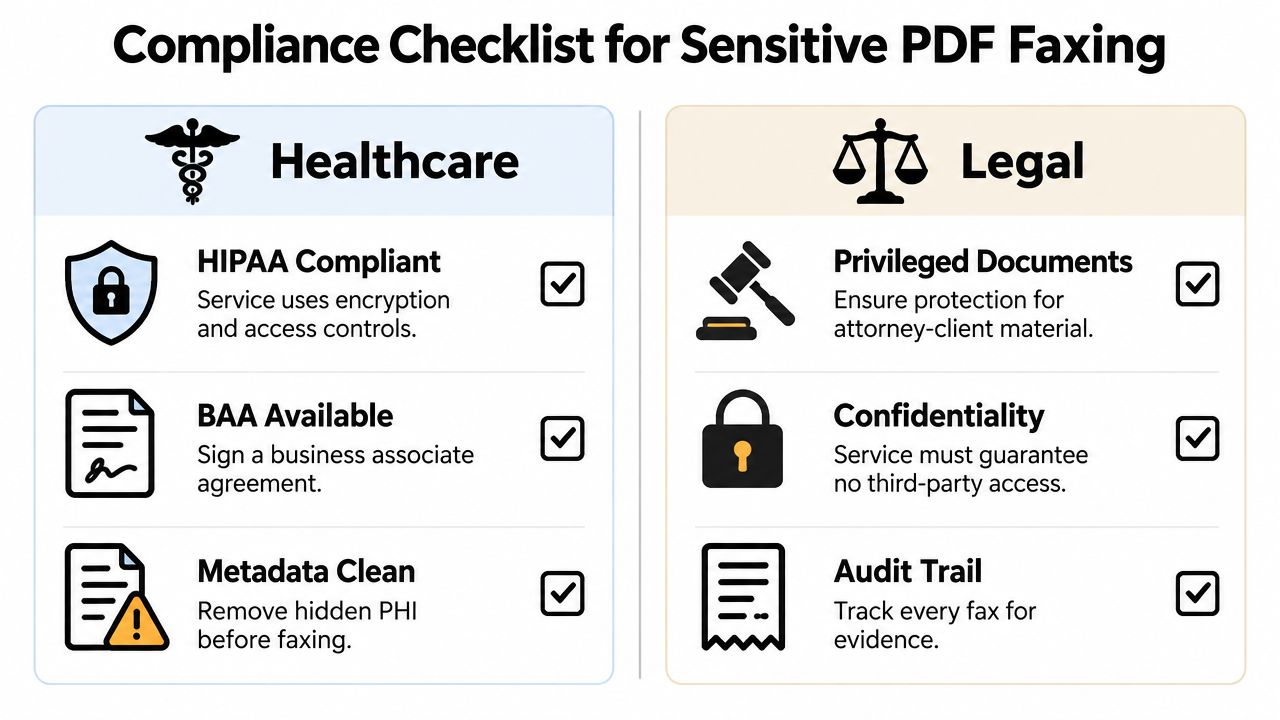
    For sensitive use, pay attention to whether the service discusses encrypted transmission, privacy handling, and regulated workflows such as HIPAA compliance where relevant.

    If you want a plain-English backgrounder on this topic, this article about the security of fax is a helpful starting point.

    A few practical habits matter on your side too:

    • Use your own device: Avoid sending sensitive faxes from a public computer.
    • Check the website carefully: Make sure you’re on the correct service before uploading.
    • Close extra tabs if you’re distracted: Simple mistakes usually come from multitasking, not from lack of technical skill.

    The Mac issue many people don’t expect

    Browser privacy settings can interfere with some web fax workflows, especially in Safari.

    User forums in early 2026 reported that up to 25% of Mac users experience failed deliveries with web fax services due to privacy features like Safari’s Intelligent Tracking Prevention, which is why browser-specific guidance matters here (App Store page referenced in the verified data set).

    That doesn’t mean Safari is bad. It means some web tools rely on session cookies or related browser behavior to keep uploads and form submissions working properly.

    What to do if Safari gives you trouble

    Try this in order:

    1. Reload the page and start the upload again.
    2. Confirm cookies aren’t being blocked so aggressively that the website can’t maintain your session.
    3. Try Chrome or Firefox if the site continues to behave oddly in Safari.
    4. Re-export the file as PDF if the original came from HEIC, JPG, or a less common format.
    5. Send a smaller document first if you’re testing whether the issue is the browser or the file.

    You don’t need to become a browser expert. You just need to recognize that if a web fax page seems stuck, resets itself, or fails during upload, Safari privacy behavior may be part of the story.

    “If a web service keeps forgetting your upload or returning you to the start, test the same task in another browser before assuming the fax service is broken.”

    That single step saves a lot of frustration.

    Choosing the Right Faxing Workflow for You

    The best fax setup depends on why you fax, not just how often.

    Some people need one quick send a year. Others need a repeatable workflow that feels dependable under deadline. The right answer is the one that matches your risk, frequency, and need for polish.

    Four common user profiles

    Remote worker

    You need to send an HR form, benefits document, or signed agreement from home. A browser-first option is ideal because you can use the Mac you already have and finish the task quickly without installing new software.

    Real estate or legal professional

    You care about clean presentation and timing. A paid one-time option or a more structured service often makes more sense than relying on the most limited free tier.

    Small business owner or freelancer

    You may fax invoices, forms, or vendor paperwork only occasionally. A flexible browser workflow keeps costs down while avoiding a monthly commitment you don’t need.

    Patient or family caregiver

    You may be sharing records, referrals, or signed releases. In these cases, the service’s handling of sensitive documents matters more than flashy features.

    Why regulated industries still rely on fax

    The online fax service market was valued at $1,450.3 million in 2025, with healthcare and financial industries leading adoption because they still need secure document transmission in regulated environments (Market Reports World on the online fax service market).

    That helps explain why you still encounter fax requirements even when everything else in your life has moved online.

    A simple decision guide

    If you need to… Best workflow
    Send one simple document once in a while Browser-based free or low-cost faxing
    Send something urgent and polished Browser-based paid option
    Handle sensitive records regularly Service with strong compliance and security documentation
    Avoid Mac app or OS issues Browser-first workflow in a supported browser

    For many people on a Mac, the browser-first path is the sweet spot. It’s simple enough for occasional use, but still capable enough for serious paperwork when chosen carefully.

    Frequently Asked Questions About Online Faxing on Mac

    Can I receive faxes on my Mac too?

    Usually, receiving faxes requires a service that gives you a dedicated fax number. That’s different from one-time outbound faxing. If you only need to send documents occasionally, a send-only browser workflow is often enough.

    What file types work best?

    PDF is the safest default. Some services also accept DOC or DOCX files. If you’re having trouble with images, exporting them to PDF first usually makes the process smoother.

    Can I fax internationally from a Mac?

    That depends on the service. Some support international faxing, while others focus on U.S. and Canada delivery. Check the destination coverage before you prepare the document.

    What if my fax fails?

    Start with the basics. Recheck the fax number, open the file to confirm readability, and try another browser if Safari seems to be interrupting the process. If the service shows delivery status or confirmation messages, use those to decide whether to retry.

    Do I need to install an app?

    No. For occasional sending, you can often fax entirely through a browser. That’s one reason the browser-first approach works so well for Mac users.

    Is online faxing still a normal thing?

    Yes. Many healthcare, finance, legal, education, and government offices still accept or require faxed documents because their workflows are built around secure, verifiable document delivery.

    Is a free fax option enough?

    Sometimes. Free works for short, low-stakes documents. If the fax is longer, more professional, or more urgent, a paid one-time option is usually more practical.


    If you need a simple browser-based way to fax from your Mac without creating an account, SendItFax is built for exactly that kind of occasional use. You can upload a DOC, DOCX, or PDF, send free up to three pages plus a cover, or choose the $1.99 Almost Free option for up to 25 pages, no branding, and priority delivery to U.S. and Canadian fax numbers.

  • Fax By Email Your Guide To Sending Documents Online

    Fax By Email Your Guide To Sending Documents Online

    It might seem strange to talk about faxing when we have email and instant messaging, but the reality is, sending a fax by email is one of the most practical ways to handle sensitive documents today. It gives you the security of a traditional fax without being tethered to a clunky machine, paper jams, or a dedicated phone line.

    Why Faxing Is Still Critical

    In a world of constant digital communication, you'd think the fax machine would have gone the way of the dinosaur. And yet, it's not only surviving—it's thriving in key professional sectors. Faxing hasn't just stuck around; it has evolved, blending its old-school reliability with the speed of the internet.

    So, what's keeping the fax machine alive? It all comes down to one word: security. An email can be intercepted, forwarded, or end up on the wrong server. A traditional fax, on the other hand, is a direct, point-to-point connection over the telephone network. This creates a secure and surprisingly hard-to-crack channel, which is exactly why industries with strict privacy rules haven't given it up.

    The Modern Resilience of Fax Technology

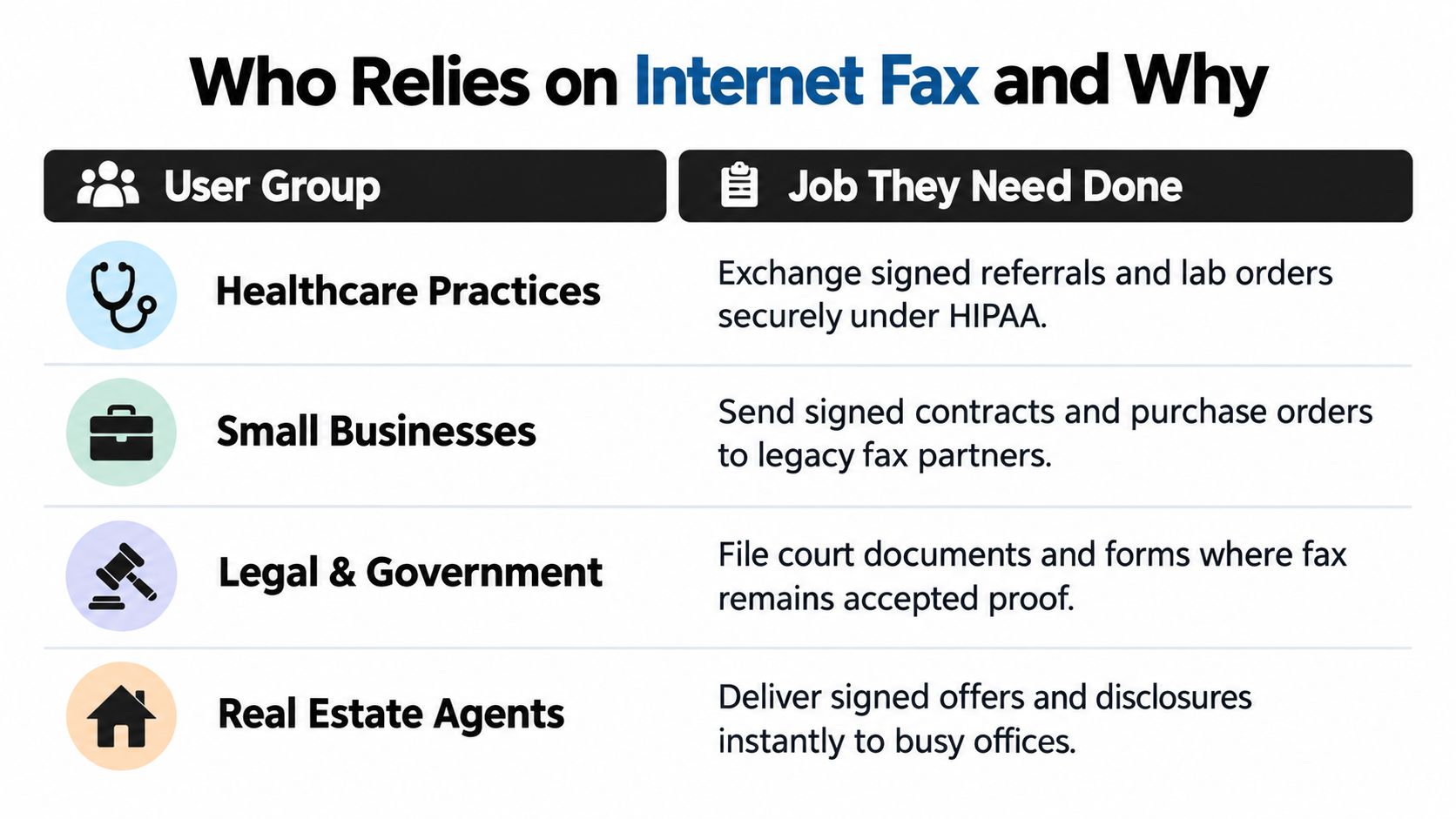
    I see it all the time—professionals in healthcare, law, and government still rely on faxing because of its legal weight and proven delivery. When you send a fax, you get a confirmation page. That little piece of paper is legally recognized as proof that your document arrived, something standard email just can't offer with the same authority.

    This makes it essential for things like:

    • Sending medical records where HIPAA compliance is non-negotiable.
    • Submitting legal documents, from contracts to court filings, where proof of receipt is everything.
    • Transmitting official government forms that require a verifiable paper trail.

    The numbers back this up. The global fax services market was valued at $3.3 billion in 2024 and is expected to climb to $4.47 billion by 2030. A recent survey even found that for over 80% of businesses, fax usage has either held steady or actually grown year-over-year.

    Key Takeaway: Faxing isn't sticking around because people are resistant to change. It's because of its built-in security and legal standing. Online faxing just makes this trusted method easier for everyone to use.

    Bridging the Old and New with Fax by Email

    This is where sending a fax by email becomes a game-changer. It maintains the secure, machine-to-machine delivery that makes faxing so reliable but gets rid of all the hardware headaches. In a fast-paced work environment, modern fax solutions use technology like an automated service to make the whole process smooth and efficient.

    Services like SendItFax have completely modernized the experience, letting you send a fax right from your web browser.

    As you can see, it’s as simple as filling out a form online. You just upload your files, type in the recipient's fax number, and add your details. It’s the perfect blend of old-school reliability and modern convenience, solving a long-standing problem with a refreshingly simple solution.

    How To Send Your First Online Fax

    Ready to send your first fax without ever touching a fax machine? It's much easier than you might think. Let's walk through a real-world example to see just how simple it is.

    Imagine you're a consultant who just landed a new client. They’ve asked you to sign a contract and fax it back to their legal team by the end of the day. Instead of hunting down a copy shop, you can do it all from your computer with a service like SendItFax.

    Getting the Details Right

    First things first, you need to tell the service who you are and where the fax is headed. This step is critical—it ensures your document lands in the right hands and that you get a confirmation receipt.

    On the SendItFax website, you'll just see a straightforward web form.

    • Your Info (The Sender): Put your name and email address here. This email is your lifeline; it's where the delivery confirmation (or any failure notice) will land. Think of it as your digital return address.
    • Recipient Info: This is for their name and, most importantly, their 10-digit fax number. I can't stress this enough: double-check that fax number. One wrong digit and it's going nowhere, or worse, to the wrong machine.

    Once you’ve filled that in, you’re ready for the main event: the document and cover page.

    Adding a Professional Cover Page

    Before you attach the contract, let's talk about the cover page. While you can sometimes skip it, I never do. A cover page is your professional handshake; it provides immediate context for whoever picks it up off the machine.

    You don't need to write a novel. For our signed contract, something direct and clear is perfect.

    Subject: Signed Service Agreement for Project Alpha

    Message:
    Please find the attached signed agreement as requested. I look forward to our collaboration.

    Best,
    [Your Name]

    That's it. It tells them what the document is, who sent it, and why. With a service like SendItFax, you just type this into a couple of text boxes, and the system formats it into a clean, professional cover sheet that becomes the very first page of your fax.

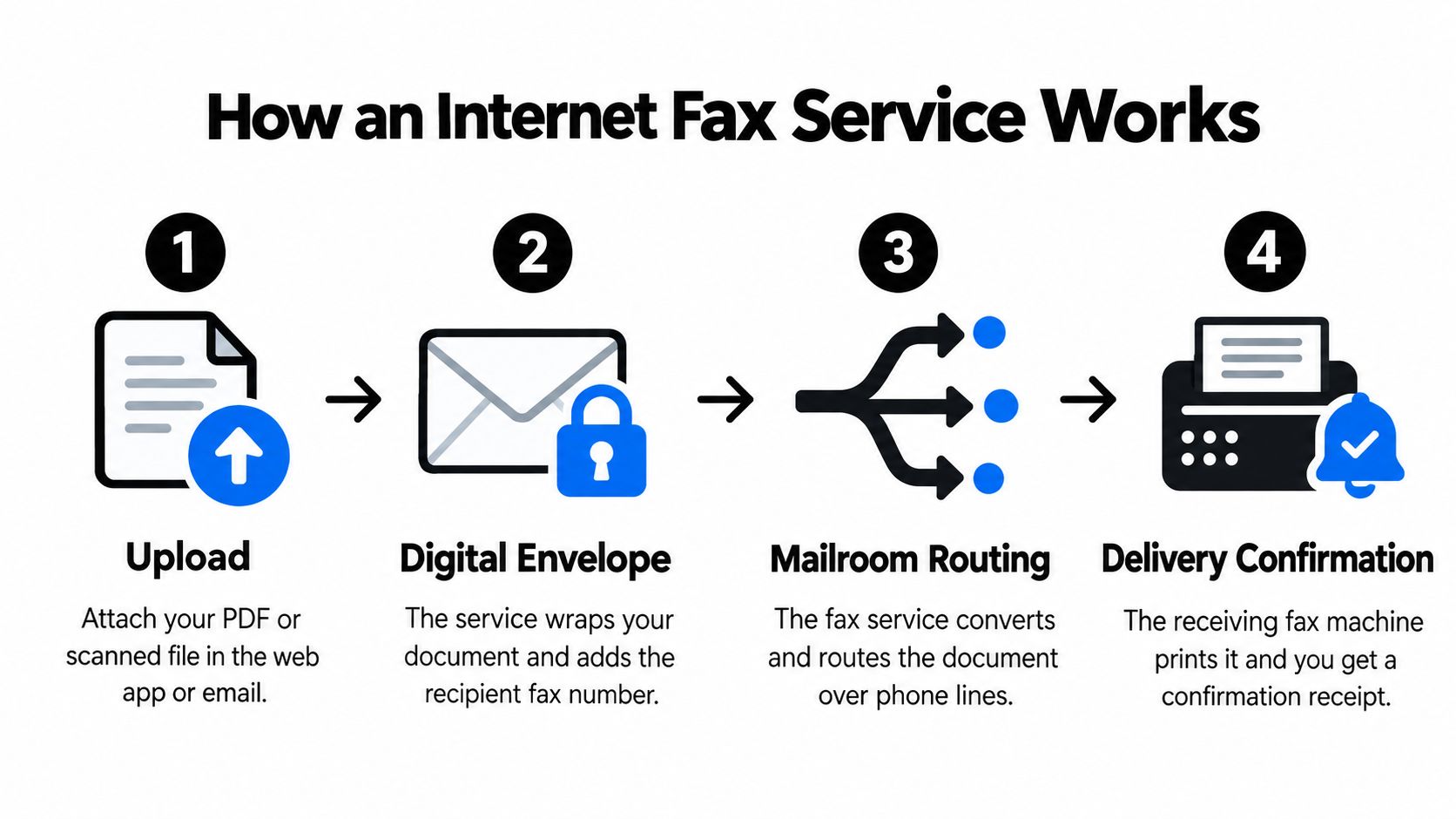
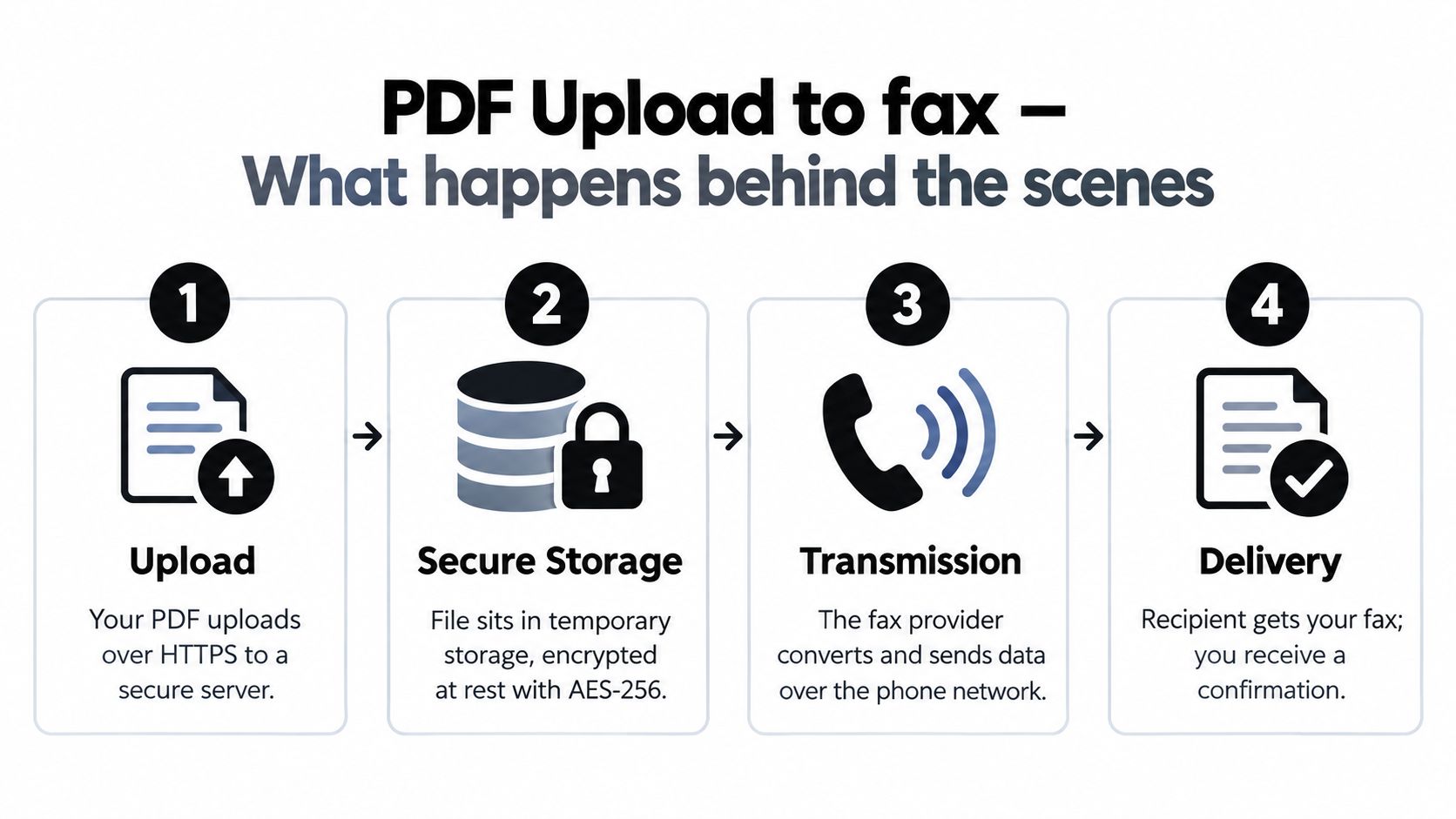
    This whole process is surprisingly direct. Your file goes from your browser, through a secure service, and out to a physical fax machine.

    Diagram illustrating the online faxing process from browser to secure cloud and then to a fax machine.

    As you can see, the journey is simple: from your web browser to a secure cloud that does the heavy lifting, then finally to the recipient's fax machine.

    Uploading and Sending Your File

    With the sender and recipient details locked in and your cover page message ready, the final step is to attach your signed contract. Look for a button that says "Choose File" or something similar.

    Click it, find the signed PDF of your contract on your computer, and select it. The service will display the filename to confirm you’ve grabbed the right one.

    Now, give everything one final scan:

    1. Is your email address correct for the confirmation?
    2. Is the recipient's fax number 100% accurate?
    3. Did you attach the correct document?

    If it all looks good, hit that "Send Fax" button. The system handles the rest, converting your file into a fax-friendly format and sending it over the phone lines.

    You're free. No need to stand by a noisy machine, waiting for a confirmation sheet to print. In just a few minutes, an email will pop into your inbox confirming a successful delivery. That email serves as your proof of transmission, and the job is done. It’s the security of faxing paired with the simplicity of email. You can learn more about how closely they're related by checking out our guide on the connection between a free email and a fax machine.

    Getting Your Documents Ready for a Perfect Fax

    Sending a fax by email isn't just about hitting "send." The real secret to a successful transmission lies in how you prepare your document beforehand. I've seen countless faxes fail simply because of a poorly formatted file, so taking a minute to get things right can save you a lot of headaches.

    The aim is to create a "fax-ready" file—one that's clean, clear, and optimized for the journey from your screen to their fax machine. A little prep work ensures your important information shows up looking sharp and professional.

    Office desk with a computer, documents, a plant, and a printer with paper, featuring 'FAX READY FILE' text.

    Choosing the Best File Format

    While most online fax services are pretty forgiving, some file types just work better than others. From my experience, nothing beats a PDF (Portable Document Format). It’s the gold standard for a reason—it locks in your formatting, fonts, and images, guaranteeing that what you see is exactly what the recipient gets.

    Other solid choices that most services handle without a problem include:

    • DOC/DOCX: Microsoft Word files are perfect for text-heavy documents like letters or reports and convert cleanly.
    • JPG/PNG: These image files are great for sending a quick, single-page item, like a snapshot of a signed form. For anything longer, you'll want to combine those images into a single PDF.

    If your document isn't in one of these formats, your best bet is to convert it first. For instance, knowing how to convert Excel to PDF is essential for sending spreadsheets, while a quick Word to PDF conversion is a must-have skill for just about any professional.

    Scanning Physical Papers for Readability

    What if you're working with a physical document? A bad scan will create a blurry, unreadable fax, which completely defeats the purpose.

    To get a crisp, clean scan every time, here are the settings I always use:

    1. Set the Resolution: Stick to 200 to 300 DPI (dots per inch). Any lower and your text might turn into mush. Any higher just creates a massive file that can cause the fax to fail, without actually making it look any better on the receiving end.
    2. Choose the Color Mode: Always, always scan in black and white. Fax machines are monochrome technology. Scanning in color balloons the file size and can make text look splotchy after it's converted.
    3. Clean the Scanner Glass: This one sounds simple, but it’s a big deal. A tiny smudge or dust speck on the scanner bed will show up as a long black line on every single page, often right through a critical piece of information.

    Pro Tip: After scanning, open the file on your computer and zoom in to 100%. If you can’t read it clearly on your screen, they definitely won’t be able to read it on a printed fax page.

    Organizing Pages and Watching Your Limits

    With your files digitized and looking clean, the last step is simple organization. If you're sending multiple documents—say, a cover page, a contract, and an invoice—combine them into a single PDF in the correct order. This keeps everything together and ensures the recipient gets one tidy package.

    Finally, always be aware of page limits. Service plans have different caps, and ignoring them is a common reason for a "failed transmission" email. For example, SendItFax's free plan is ideal for quick sends of up to three pages plus a cover sheet. If you're sending something longer like a detailed legal brief, the paid plan bumps that limit up to 25 pages. A quick check against your plan's limit before you send makes all the difference.

    Choosing The Right Online Faxing Plan

    Figuring out which online faxing plan to choose isn't a one-size-fits-all deal. Your needs can be vastly different from the next person's. You might just need to send a single signed form once a year, while a small business owner across town is faxing multi-page contracts every week.

    The key is to match the plan to the task. To send a fax by email without overpaying—or hitting an annoying page limit—you first need to know what you’re trying to accomplish.

    Person's hand pointing at a digital calendar on a desk with multiple planning tablets.

    When The Free Plan Is Your Best Bet

    For those quick, one-off moments, a free plan is often the perfect solution. It’s built for the person who rarely faxes but suddenly needs to send something, like right now.

    I see this come up in a few common situations:

    • Job Applications: You've found a great opportunity, but they’re old-school and want a faxed application. A free service lets you send your resume and cover letter (usually up to three pages) immediately without pulling out your wallet.
    • Personal Paperwork: Sending a signed permission slip for your kid’s field trip or a quick form to your insurance agent are perfect use cases. These are simple tasks where a free fax gets the job done.
    • Quick Confirmations: Just need to send a single, signed page to confirm you received something? The free plan handles it beautifully.

    The main trade-off, and it's an important one, is branding. Free services almost always put their own logo on the cover page. For personal stuff, that’s usually fine. For anything business-related, you might want to think twice.

    The Value Of The Almost Free Plan

    So, what happens when you need more pages or a more professional touch? This is where a small investment in a pay-per-fax plan, like the $1.99 option from SendItFax, makes a world of difference.

    Let's go back to that business owner. They need to send a 20-page client agreement. A free service is out because of the page limit. But more importantly, a cover page with another company's logo on it just doesn't look professional. It can cheapen their brand image right at the start of a new relationship.

    The "Almost Free" plan isn't just about sending more pages. It's about controlling your presentation and ensuring your document gets priority, which is crucial for time-sensitive materials like legal contracts or client proposals.

    Paying a small fee typically gets you two huge benefits: a clean, branding-free cover page and priority delivery. That means your important fax skips the queue and goes straight to the front of the line—a peace-of-mind feature that’s easily worth a couple of bucks for a time-sensitive contract.

    Breaking Down Your Decision

    To make the right call, it's a simple cost-benefit analysis. The demand for these kinds of flexible faxing tools is growing for a reason.

    The online fax market was valued at $4.70 billion in 2022 and is expected to surge to $12.32 billion by 2030. That growth isn't just from big corporations; it's driven by freelancers, small businesses, and individuals who need to send secure documents without the hassle of a physical machine. You can read more in this in-depth analysis of the online fax market.

    Here’s a quick cheat sheet to help you choose:

    Consideration Choose The Free Plan If… Choose The Almost Free Plan If…
    Document Length Your fax is 3 pages or less (plus cover sheet). Your fax is between 4 and 25 pages.
    Professionalism Sending a personal document where branding doesn't matter. You need a branding-free cover page for a business document.
    Urgency The fax is not time-sensitive and can wait in a standard queue. You need priority delivery to send the document as fast as possible.
    Frequency You send faxes very rarely, maybe once or twice a year. You send faxes occasionally but need reliability for important files.

    By thinking through these points, you can pick a plan that fits your exact needs. If you’re still comparing options, our comprehensive comparison of online fax services offers even more detail. The goal is to find a tool that works for your workflow, your budget, and your professional standards.

    Troubleshooting Common Online Fax Issues

    So you sent your fax, and a few minutes later, you get that dreaded "failed transmission" email. It’s frustrating, but don’t worry—it’s rarely a sign of a major problem with the service itself. Before you even think about contacting support, a quick check of a few common issues will usually solve it.

    Most of the time, that failure notice contains all the clues you need. The problem typically boils down to one of three things: the recipient's number, their fax machine, or how your own files were formatted.

    Why Your Fax Failed to Send

    A failed delivery is easily the most common hiccup you'll run into. You compose your email, attach your document, hit send, and get a failure notice instead of a confirmation. Let's dig into why this happens.

    Believe it or not, the most frequent cause is a bad number. I've seen it happen countless times—a single mistyped digit is the number one culprit, which is why I always recommend copy-pasting the fax number whenever possible.

    Other common reasons your fax might not have gone through include:

    • Busy Signal: The receiving fax machine was already in use. Just like with an old-school phone call, the line has to be free. The easiest fix here is to simply wait 10-15 minutes and send it again.
    • Voice-Only Line: You might have accidentally sent the fax to a standard telephone number. The system tries to connect, but when it doesn't get that specific screeching tone of a receiving fax machine, it gives up.
    • Incorrect Number: It sounds simple, but you'd be surprised how often it happens. Always double-check that you have the complete, correct 10-digit fax number.

    Key Takeaway: A "failed" status isn't a dead end; it's a diagnostic report. More often than not, the fix is as simple as confirming the recipient's number and resending the document a few minutes later.

    Unreadable or Garbled Faxes

    Now, what if your fax confirmation says "success," but the person on the other end calls to say the pages are a blurry, streaked, or unreadable mess? This almost always points back to your source document.

    You have to remember that a fax machine is a pretty low-resolution piece of technology. What looks crystal clear on your 4K monitor can quickly turn to mush after being converted and sent over a phone line.

    If your recipient can't read what you sent, go back and check these things:

    • Look at your original file. Was it a high-quality PDF to begin with? As we covered earlier, scanning physical documents in black and white at 200-300 DPI is the key to clarity.
    • Watch out for tiny fonts. If your document uses a small, delicate font, it’s going to get lost in translation. For guaranteed readability, stick to a standard 12-point font like Times New Roman or Arial.
    • Simplify complex images. Detailed color charts, gradients, and low-contrast photos just don't fax well. If you have to send an image, make sure it's a clean, high-contrast black-and-white version.

    Making these adjustments and resending the fax almost always clears up the problem. It’s a small extra step that makes a huge difference in getting your information across clearly.

    Frequently Asked Questions About Online Faxing

    Even with a simple process, it's natural to have a few questions pop up, especially when you're dealing with important documents. Let's tackle some of the most common ones we hear from people making the switch from old-school fax machines to sending a fax by email.

    Is Sending a Fax by Email Legally Binding?

    Yes, it absolutely is. When you send a document through a service like SendItFax, it travels over the same secure telephone network that traditional fax machines have used for decades. This means it carries the same legal weight for contracts, government forms, or real estate paperwork.

    The technology is fundamentally the same, just with a modern, digital starting point. In fact, these services often add another layer of protection by using encrypted connections, which helps align with privacy standards like HIPAA.

    Think of that delivery confirmation email as your digital receipt. It’s the modern-day equivalent of the printed report from a physical fax machine and serves as your legal proof of transmission.

    Can I Receive Faxes With This Type of Service?

    Pay-as-you-go services are built for one thing: sending faxes out. They’re the perfect solution when you just need to get a document to someone without signing up for a monthly plan. It keeps things incredibly simple and cheap for occasional use.

    If you need to receive faxes, you'll want to look at a subscription-based service. Those plans typically provide you with a dedicated virtual fax number where people can send documents, which then land in your email inbox.

    What Happens If I Send a Fax to a Regular Phone Number?

    It just won't go through. The fax service will try to connect, but a standard voice line isn't listening for the specific signal—that classic fax screech—that it needs to hear.

    After a few attempts, the system will time out, and you'll get an email letting you know the delivery failed. This is exactly why it pays to double-check that you have the correct, dedicated fax number before hitting send. One wrong digit is all it takes for the transmission to fail.

    Do I Need to Install Any Special Software?

    Nope, and that’s one of the biggest perks. Sending a fax by email or through a web portal happens entirely in your internet browser.

    You don't have to download any apps or configure any complicated settings. It’s designed to be as easy as possible.

    • No installation required: It just works, whether you're on a desktop, laptop, tablet, or your phone.
    • Zero setup: You just go to the website, upload your file, type in the number, and you're done.
    • Access from anywhere: If you can get online, you can send a fax.

    This software-free approach makes sending secure documents accessible to everyone, no matter how tech-savvy you are.


    Ready to send your first fax without the fuss? Try SendItFax today and see how easy it is to send your documents securely right from your browser. Get started now at https://senditfax.com.

  • Mastering the Modern Format for a Fax

    Mastering the Modern Format for a Fax

    Before you send that first fax, let’s talk about formatting. It might seem like a small detail, but getting the format for a fax right is non-negotiable, especially when it comes to security and legal compliance. It’s a practice that has stuck around for good reason, particularly in industries like healthcare and law that depend on its rock-solid reliability.

    Why Fax Formatting Still Matters in 2026

    format for a fax

    I get it. In a world of instant messaging and cloud storage, talking about faxing can feel like a throwback. But here’s why it’s not going away: security, reliability, and legal weight. When you're dealing with sensitive information—think medical records or signed contracts—a fax provides a verifiable, point-to-point paper trail that many digital methods just can't match.

    Unlike an email that hops between countless servers, a fax creates a direct, secure connection. This drastically cuts down the risk of interception, which is precisely why these key industries continue to trust it.

    The Enduring Need for a Standard Format

    Even as we’ve moved from clunky machines to slick online fax services, the core formatting rules haven't changed. They’re what keep faxes universally readable and trustworthy. This isn't just a fax thing, either; any professional communication relies on the same fundamental principles of good writing. A clear, consistent structure ensures your message is understood exactly as you intended.

    And don't mistake this for a niche practice. The numbers show that faxing is still a major player in the business world.

    You might be surprised to learn that in 2024, the global fax services market was valued at $3.3 billion. It’s even projected to climb to $4.47 billion by 2030, driven by sectors that rely on the legally binding audit trail a standard fax format provides.

    So, what does this format usually involve?

    • A dedicated cover sheet listing sender and recipient info.
    • Content laid out for standard 8.5×11-inch pages.
    • Clear, high-contrast text to ensure legibility on the other end.

    Ultimately, sticking to the standard format is about making sure your documents look professional, are easy to read, and hold up legally when they arrive. It’s a perfect example of a standard that persists simply because it works.

    How to Format Your Document for a Perfect Fax

    format for a fax

    Getting your document ready to send isn't just a formality—it’s the most important step to ensure your fax arrives looking clean and professional. I've seen countless transmissions fail due to simple formatting mistakes, but a few quick checks can make all the difference.

    First things first, let's talk file types. While you can often send a standard DOC or DOCX file, I always recommend converting to PDF before you send. Why? Because a PDF essentially freezes your document. The fonts, images, and layout are all locked in place, so what you see on your screen is exactly what your recipient will get. No more surprise formatting shifts or jumbled text.

    Get the Page Layout and Margins Right

    Before you finalize that PDF, you need to think like a fax machine. These devices are built around standard paper sizes, and straying from the norm can cause problems.

    Always set your document to the standard US letter size, which is 8.5 x 11 inches. If you try sending a document formatted for A4 or legal paper, you’re running the risk of the receiving machine cutting off text or shrinking the page to the point where it’s unreadable.

    I can't stress this enough: use a one-inch margin on all four sides of your document. Fax machines have a "dead zone" around the edges, and anything you place in that area is likely to get chopped off during transmission. That one-inch buffer is your best protection against lost information.

    Sometimes you'll run into a file that needs a little extra work before it's ready. If you're dealing with a secured document, for instance, you might first need to figure out how to print locked PDF files to make your edits. And if you're starting with a Word document, our guide on how to convert Word to PDF makes the process simple.

    To help you remember these key settings, here’s a quick summary table. Following these guidelines will prevent the most common formatting errors we see.

    Recommended Document Formatting for Faxing

    Formatting Element Recommendation Why It Matters
    File Type PDF (Portable Document Format) Locks in formatting and fonts, ensuring consistency.
    Page Size US Letter (8.5 x 11 inches) Matches the standard for most fax machines, preventing distortion.
    Margins 1-inch on all sides Creates a "safe zone" to prevent content from being cut off.
    Font Style Simple sans-serif (Arial, Helvetica) Remains clear and legible even at lower fax resolutions.
    Font Size 12 points or larger Ensures text is readable and doesn't become a blurry mess.
    Color Black text on a white background Guarantees maximum contrast for a crisp, readable transmission.

    Keep this table handy as a final checklist. It’s a simple way to make sure every fax you send is set up for success from the start.

    Choose Fonts for Maximum Legibility

    Finally, let's talk about readability. A fax isn't a high-resolution printout; it's a scan sent over a phone line. What looks sharp on your 4K monitor can become a blurry mess on an older fax machine.

    The key is to keep it simple and clear.

    • Stick with classic fonts. You can't go wrong with Arial, Helvetica, or Times New Roman. They are designed for readability and hold up well to the compression and resolution loss of faxing.
    • Go big on size. A font size of 12 points should be your absolute minimum. Anything smaller is a gamble and often results in illegible text on the other end.
    • Contrast is everything. Always, always use black text on a plain white background. Colored text, images, or dark backgrounds can turn into a black, indecipherable smudge after transmission.

    Your Fax Cover Page: The First Impression

    format for a fax

    Think of your fax cover page as the professional handshake before the real conversation begins. It’s the very first thing your recipient sees, and its job is simple but crucial: get your document into the right hands without any guesswork.

    Skipping a cover page is a rookie mistake, especially when you're faxing to a large office with a shared machine. It’s like sending a business letter without a return address—it just creates confusion and delays. A quick, clear cover page ensures your fax doesn't end up lost in the shuffle.

    What Every Cover Page Needs

    To make sure your fax arrives safely, every cover page should have a few key pieces of information. This is your routing slip, the coordinates for your document's journey. At an absolute minimum, you need to include:

    • Who it's from: Your full name, your company (if relevant), and both your fax and phone numbers.
    • Who it's for: The recipient’s full name, their company, and their direct fax number. Always double-check that fax number!
    • The date: The day you're sending the fax.
    • The page count: This is so important. Make sure to include the cover sheet itself in your total (e.g., "Total pages: 4 (including cover)").

    A specific subject line is also a game-changer. Instead of something vague like "Forms," try "Patient Intake Forms for John Doe." This immediately tells the recipient what they’re looking at. If you need some inspiration, you can find a good selection of free printable fax cover sheets to see how these elements all come together.

    I can't tell you how many headaches have been avoided by simply including the page count. If the recipient knows to expect five pages but only four come through, they know right away the transmission failed. It's a simple detail that prevents major problems.

    To Brand or Not to Brand?

    When you use an online service like SendItFax, the cover page is often handled for you. For instance, our free plan automatically adds a basic cover page that includes SendItFax branding. For many day-to-day tasks, like sending a document to your doctor's office, this is perfectly fine.

    However, if you're sending something more formal, like a business proposal or a legal contract, you'll probably want a cleaner, unbranded look. Upgrading to a paid plan gives you the flexibility to send a fax with a generic, unbranded cover page. You can even skip the cover page entirely, which is useful when faxing to an automated system that doesn't need one. It really just comes down to your audience and the context of the document you're sending.

    Sending Your Fax Through an Online Service

    format for a fax

    Alright, you’ve done the prep work. Your document has clean margins, a professional layout, and you’ve saved it as a crisp PDF. Now for the easy part: actually sending it. This is where an online service like SendItFax really shines, letting you skip the hassle of a physical fax machine altogether.

    The beauty of a modern online fax platform is its simplicity. As you can see in the screenshot above, the interface walks you through everything. There are clear fields for your information, the recipient’s details, and a spot to upload your file. It’s designed to prevent mistakes before you even click “send.”

    From Document to Delivery

    Let’s walk through a real-world scenario. You just finished a three-page client intake form in Microsoft Word. Before you do anything else, you need to lock in that formatting. The best way is to save it as a PDF. Just head to "File," then "Save As," and choose PDF from the file type menu. This simple step ensures your carefully prepared format for a fax looks exactly the same on the other end.

    Once you have your PDF ready, the sending process is a breeze:

    • Sender Details: You'll fill in your name and contact number.
    • Recipient Details: This is the most critical part. Carefully enter the recipient's name and fax number.
    • Upload Your File: Click the upload button and select the PDF you just created.

    I can't stress this enough: always double-check the recipient's fax number. A single wrong digit is the number one reason faxes fail or, worse, end up in the wrong hands. I always check it against an email signature or the company's official website.

    Choosing the Right Plan for the Job

    Online fax services aren’t one-size-fits-all, and that’s a good thing. For that quick three-page intake form, a free plan is perfect. It’s fast, costs nothing, and the branded cover page that sometimes comes with free services is usually no big deal for routine paperwork.

    But what if you're sending a 20-page contract to a new client? This is where a paid plan, like the SendItFax Almost Free option, is a much better fit. It’s built for situations where professionalism matters.

    With a paid plan, you typically get:

    • No Branding: Your cover page is clean and professional, with no mention of the fax service.
    • Higher Page Limits: You can send up to 25 pages, which easily covers most contracts and reports.
    • Priority Delivery: Your fax jumps to the front of the line, which is crucial for anything time-sensitive.

    Matching the service plan to the job ensures your document arrives safely and makes the right impression. If you want to dive deeper into the different options out there, this complete guide to using an online fax service is a great resource.

    Avoiding Common Faxing Mistakes

    Even when you do everything else right, a few simple slip-ups can cause a fax to fail. I've seen it happen countless times, but the good news is that these mistakes are almost always preventable with a quick final check before you hit send.

    The most common culprit? Unreadable text. This usually happens when you use fonts smaller than 12pt or try to get fancy with low-contrast colors. For example, a document with a gray or light-colored background might look fine on your screen, but a fax machine will likely turn it into a black, unreadable smudge. Always stick to black text on a plain white background for the best results.

    Another trap I see people fall into is unexpected formatting shifts. If you upload a DOC or DOCX file directly, the online service's conversion process can sometimes jumble your layout. That's exactly why converting to PDF first is a non-negotiable step for me—it locks everything in place and guarantees what you see is what they get.

    Final Checks Before You Send

    Beyond file issues, simple human error is behind a surprising number of failed faxes. I always run through a quick mental checklist to catch these little problems before they become big ones. It takes less than a minute and has saved me from countless headaches.

    Think of it as your pre-flight check for ensuring a proper format for a fax lands successfully. Here are the three most important things to double-check:

    • Recipient's Number: Is it absolutely correct? A single wrong digit is the number one reason for failed faxes, hands down.
    • Page Margins: Do you have at least a one-inch margin on all sides? This is crucial for preventing important information from getting cut off by the receiving machine.
    • Page Count: Does your document exceed your plan's limit? A free SendItFax account, for instance, allows for 3 pages plus the cover sheet. Be mindful of this if you're sending longer documents.

    My biggest piece of advice is to just slow down for ten seconds before sending. That extra moment is often when you'll catch a typo in the fax number or realize you forgot to check the page count. This simple habit prevents most common transmission failures.

    Frequently Asked Questions About Fax Formatting

    Even with a great online fax service, you'll probably run into a few questions about getting your documents ready to send. Let's tackle some of the most common ones we see from users.

    What Is the Best File Format for Faxing?

    When it comes to faxing, PDF is king. Think of a PDF as a digital photocopy—it locks in all your formatting, fonts, and images exactly as you see them on your screen. This means no surprise shifts or weird text changes when your document gets to the other side.

    While services like SendItFax can handle DOC and DOCX files just fine, converting your document to a PDF first is a simple pro-level step. It's the best way to guarantee your recipient sees exactly what you intended.

    Do I Always Need a Cover Page?

    While not always technically required, sending a fax without a cover page is like mailing a letter without putting a name on the envelope. It's a professional courtesy that ensures your document gets to the right person quickly and provides essential context at a glance.

    In a busy office with one shared fax machine, a cover page is your fax's personal escort. It prevents your sensitive document from getting lost in the shuffle or landing on the wrong desk.

    The only time you might skip it is when faxing to an automated system, like a government portal, that processes documents directly. Otherwise, it's always a good idea.

    Why Did My Fax Fail Even With the Right Format?

    It’s incredibly frustrating when a fax fails, especially after you've double-checked the formatting. But more often than not, the problem isn't with your file—it's something happening on the receiving end.

    Before you start troubleshooting your document, check for these common culprits:

    • You might have typed in the wrong fax number. It's an easy mistake to make!
    • The recipient's machine could be busy, turned off, or out of paper or ink.
    • You may have tried to send more pages than your plan allows.

    If a transmission fails, the very first thing you should do is verify the recipient's fax number. A simple typo is the most frequent cause.


    Ready to send your fax with confidence? With SendItFax, you can send up to three pages for free without creating an account. For longer faxes, our Almost Free plan gives you up to 25 pages, priority delivery, and removes all branding. Give it a try at https://senditfax.com.

  • How to Send a Free Fax to USA Numbers Instantly

    How to Send a Free Fax to USA Numbers Instantly

    Yes, you absolutely can send a free fax to USA numbers directly from your computer, no fax machine required. Online services like SendItFax make it possible to upload your file, pop in a U.S. fax number, and hit send. It’s a lifesaver for those one-off, urgent documents.

    Why Faxing to the USA Still Matters in 2026

    It’s 2026, so why are we even talking about sending a fax? It’s a fair question. While it might feel like a technology from a bygone era, the reality is that in the United States, faxing remains surprisingly essential. For some of the biggest sectors, it's not a nostalgic choice—it's a core part of their operations because of its unique security and legal weight.

    Let's break it down. When you fire off an email, your data bounces between multiple servers on its way to the recipient, creating several points where it could be intercepted or fail. A fax, on the other hand, establishes a direct, point-to-point connection over the phone network. That's a much more secure pipeline for sensitive information.

    The Stronghold of Regulated Industries

    This is why you'll find fax machines humming away in industries that are heavily regulated. These fields have built their workflows around faxing for decades, and the sheer cost and hassle of completely overhauling those proven systems are massive.

    • Healthcare: Doctors' offices, hospitals, and pharmacies are constantly faxing patient records, prescriptions, and insurance forms.
    • Legal: Law firms and courts rely on faxing to submit time-sensitive filings, contracts, and evidence with a verifiable transmission receipt.
    • Government: Many federal and state agencies, including the IRS, still require or prefer certain forms to be sent via fax.
    • Real Estate: Agents and title companies frequently use fax to exchange offers, contracts, and closing documents securely.

    This dependence creates a bit of a problem. What do you do when you need to send a crucial document to a hospital or government office but haven't seen a physical fax machine in years? This is exactly where modern online faxing comes in to save the day.

    Here's the key takeaway: Faxing's staying power isn't about being old-fashioned. It's about entrenched, proven workflows in industries where security, reliability, and legal proof of delivery are absolutely critical.

    A Look at Healthcare's Dependence on Fax

    The U.S. healthcare system is the perfect case study. Even today, an astonishing 75% of all medical communication still happens over fax. We’re talking about patient referrals, lab results, and insurance authorizations—the lifeblood of the industry. A single hospital can easily send hundreds of faxes every single day, largely because HIPAA regulations view fax as a secure method for sending protected health information.

    If you're a bit fuzzy on the details of how these numbers work, you can explore our guide on what is a fax number.

    This image really captures the current state of things, with modern digital tools working alongside traditional fax technology.

    A medical professional in a lab coat holds documents next to a fax machine and laptop, with text 'FAX STILL MATTERS'.

    This picture perfectly illustrates the daily dilemma for so many professionals: you’re working in a digital world but constantly need to connect with legacy systems. That’s precisely why a service that lets you send a free fax to USA numbers from your laptop is so invaluable. It gives you a simple, on-demand bridge to these organizations without the cost or clutter of owning a physical machine.

    Sending Your Free Fax in a Few Quick Clicks

    You shouldn't need a clunky machine to send a simple fax. With an online tool like SendItFax, you can get your documents over to any U.S. or Canadian number in just a couple of minutes. It's built to be dead simple, whether you're sending one quick form or a few pages of paperwork.

    Let's break down what you need to do. I’ll show you how to go from having a document on your computer to getting that "delivered" confirmation in your inbox.

    A laptop screen displays 'SEND FREE FAX' with an email icon, beside a smartphone and documents on a wooden desk.

    First Things First: Getting Your Info Straight

    Before you even think about uploading a file, having all the right details ready will make the whole process go smoothly. Think of it as addressing an envelope before you put the letter inside.

    The most important piece of the puzzle is the recipient's full fax number, area code and all. It sounds obvious, but you’d be surprised how many faxes fail because of a simple typo. I always recommend double-checking every single digit.

    You'll also need to pop in your own name and a working email address. That email is crucial—it's where SendItFax will send your delivery receipt. This little email is your proof that the document landed safely on the other end.

    Getting Your Document Ready to Go

    Okay, with your info handy, it's time to prep the actual document. The free service from SendItFax is perfect for shorter faxes, letting you send up to three pages at once. It's just right for things like a signed application, a quick invoice, or a medical form.

    You won't have to worry about weird file conversions, either. The service handles the most common document types you're likely to use:

    • PDF files (.pdf): This is the best choice. PDFs lock in your formatting, so what you see is exactly what the recipient gets.
    • Word documents (.doc, .docx): Perfect for sending off a letter or contract you just finished writing.

    Just find the file on your computer or phone and upload it. The system takes care of turning it into a fax-friendly format automatically.

    Expert Tip: Whenever you can, use a PDF. I’ve seen fewer formatting surprises with PDFs than with any other file type. It’s the safest bet for making sure your document looks professional on the receiving end.

    Adding a Quick Cover Page Message

    The cover page is your fax's introduction. It's included with the free service and is your chance to give the recipient some context right away.

    A good cover page message doesn't need to be an essay. Just keep it clear and to the point. State who it's for, who it's from, and what you're sending. This is a lifesaver in a busy office where one person is sorting through a stack of incoming faxes.

    Quick Cover Page Ideas

    • For a Job Application: "To the Hiring Manager: My application for the Marketing Coordinator role is attached. Thank you for your consideration."
    • For a Signed Contract: "Attn: Jane Doe. Here is the signed service agreement we spoke about. Please let me know you've received it."
    • For a Medical Form: "For Dr. Smith's office: Attached are the new patient forms for John Appleseed's appointment on June 15th."

    These simple messages get your document to the right hands, fast.

    Sending a free fax to USA numbers is incredibly easy, but if you're new to the idea, you might wonder about the catch. If you want to see how it works without ever pulling out a credit card, you can learn more about free online fax options in our guide.

    Once your details are in, your file is loaded, and your cover page is written, give it all one final look. Then, hit send. You’ll get an email a moment later confirming your fax is on its way and a final one once it’s delivered. That’s all there is to it.

    Whenever you hear the word "free," it's smart to be a little cautious. Let's be real—free services usually have some kind of catch, right? When it comes to sending a free fax to USA numbers, though, it's less of a catch and more of a straightforward trade-off.

    Knowing what you get (and what you don't) helps you figure out if a free service is the perfect tool for the job or if you might need a little more firepower.

    The Ground Rules of Free Faxing

    Most free online fax services are built for those one-off, specific tasks. I've seen it time and again: a remote worker needs to fax a single expense report, or someone applying for a mortgage has to send one signed form back to the bank.

    For those quick jobs, a free service is a lifesaver. Here’s what you can generally expect:

    • Daily Sending Limits: To keep the service running smoothly for everyone, there's usually a cap on daily use. For instance, with SendItFax, you can send up to five free faxes every 24 hours.
    • Page Count Maximums: Free faxes are meant for shorter documents. You'll typically find a limit of about three pages per fax, not counting the cover page.
    • Branded Cover Pages: This is the main part of the trade-off. The cover page on your free fax will have the provider's branding on it. It’s how the service stays free.

    These limits are designed for situations where just getting the document there is what counts most, not the fancy presentation.

    When a Free Fax Is the Perfect Fit

    Let's talk real-world scenarios. Imagine you have to send proof of residency to a government office that, for security reasons, only takes faxes. Your document is just two pages. A free online fax is your best bet—you upload the file, punch in the fax number, and send it off without pulling out your wallet.

    Another classic case is signing and returning a contract. A local contractor sends you a one-page service agreement. You can just print it, sign it, scan it, and use a free service to fax it right back. The daily limit of five faxes is plenty for these focused, in-and-out tasks.

    The whole point of a free fax service is to be a reliable bridge for those urgent, low-volume moments. It solves the immediate problem of, "How do I send this one thing?" without you having to sign up for a monthly plan.

    When to Consider a Small Upgrade

    But what happens when your needs grow? Maybe you have a 15-page legal document to send, or you need to send a proposal to a client and want it to look ultra-professional without any third-party branding. That’s exactly when a low-cost, pay-per-fax option becomes the logical next step.

    Seeing the options side-by-side makes the choice clear.

    SendItFax Free vs. Almost Free Plan Comparison

    To help you decide, here’s a quick breakdown of how our free service compares to the "Almost Free" pay-per-fax plan.

    Feature Free Plan (No Cost) Almost Free Plan ($1.99 per fax)
    Cost Completely free $1.99 per fax
    Page Limit Up to 3 pages + cover Up to 25 pages + cover
    Cover Page Mandatory with SendItFax branding Optional, with no branding
    Delivery Speed Standard Priority delivery
    Daily Limit 5 faxes per day Unlimited

    The free plan is your hero for quick, simple sends. But when you need to send longer documents or want a clean, brand-free look, the upgrade gives you that flexibility for less than the cost of a coffee.

    If you’re interested in seeing how these kinds of plans stack up across the industry, our complete online fax services comparison gives you a much wider view of the market.

    When You Should Upgrade to a Paid Fax Plan

    Free faxing is a lifesaver for those one-off tasks—sending a signed form to your bank or a quick document to a government office. But at a certain point, you might notice the limitations start to get in the way. Knowing when to jump from a free service to a low-cost paid plan isn't about getting upsold; it's about recognizing that your needs have evolved.

    It’s less about a single "aha!" moment and more of a practical shift. For a freelancer sending a large contract, that moment comes sooner than for someone just faxing a personal document. It's about hitting a wall where a free tool just isn't built to solve your specific problem anymore.

    Beyond the Three-Page Limit

    The most obvious trigger? Document length. Let's say you're a paralegal needing to send a 15-page affidavit for a time-sensitive filing. A free service with a three-page limit is a non-starter. Trying to split that document into five separate faxes isn't just a hassle—it looks unprofessional and risks confusing the recipient.

    This is exactly where a simple, pay-as-you-go plan makes perfect sense. For a couple of dollars, you can send a much larger document, like the 25 pages included in the SendItFax "Almost Free" plan, in a single, clean transmission. Your document arrives as one coherent package, just as you intended.

    This decision-making process helps clarify when a free plan is enough versus when an upgrade really delivers more value for what you need to do.

    Flowchart for fax needs decision guide, outlining options for single use, low volume, and dedicated fax.

    As your faxing becomes more frequent or complex, the small cost of a paid plan quickly starts to look like a bargain compared to the constraints of a free one.

    Projecting a Professional Image

    In business, how you present yourself matters. While a free service is fine for personal errands, the mandatory branding they stick on the cover page can seriously undermine the professional image you're trying to build.

    Think about these real-world situations:

    • Sending a Client Proposal: You’ve poured hours into a winning proposal. The last thing you want is for it to show up with another company’s logo plastered on the front.
    • Submitting an Official Bid: When you're competing for a contract, every detail is scrutinized. A clean, unbranded fax gives you a more polished, serious edge.
    • Communicating with Patients or Clients: In fields like healthcare or law, a cover page with third-party ads can seem less official and create unnecessary confusion.

    Stepping up to a paid option gives you control. You can remove all that external branding, and you often get the choice to skip the cover page altogether if you don't need one. This puts your important document front and center.

    When your reputation is on the line, paying a small fee for a clean, professional presentation is a wise investment. It shows your clients and partners that you pay attention to the details.

    When Delivery Speed Is Critical

    Most free faxes are sent through a standard queue. They'll get there, but they aren't exactly on the fast track. For many routine tasks, that's perfectly acceptable. But when time is money, you need to know your fax will jump to the front of the line.

    A legal filing with a hard deadline or a last-minute contract amendment are perfect examples—every minute counts. Paid plans almost universally offer priority delivery, which means your transmission gets processed immediately. That one small feature can be the difference between hitting a deadline and missing an opportunity.

    This need for reliability is a big reason why the digital fax market, valued at $3.3 billion in 2024, is expected to grow to $4.47 billion by 2030. This isn't just big corporate spending; it's driven by the very people who need more than a basic free service. In fact, you can find more details about the growing business faxing market and see how small businesses and freelancers, who make up over 80% of companies using fax, are shaping these services.

    This is precisely why plans like the SendItFax $1.99 "Almost Free" option exist. It closes the gap, giving you up to 25 pages with no branding and priority sending, all without locking you into a monthly subscription.
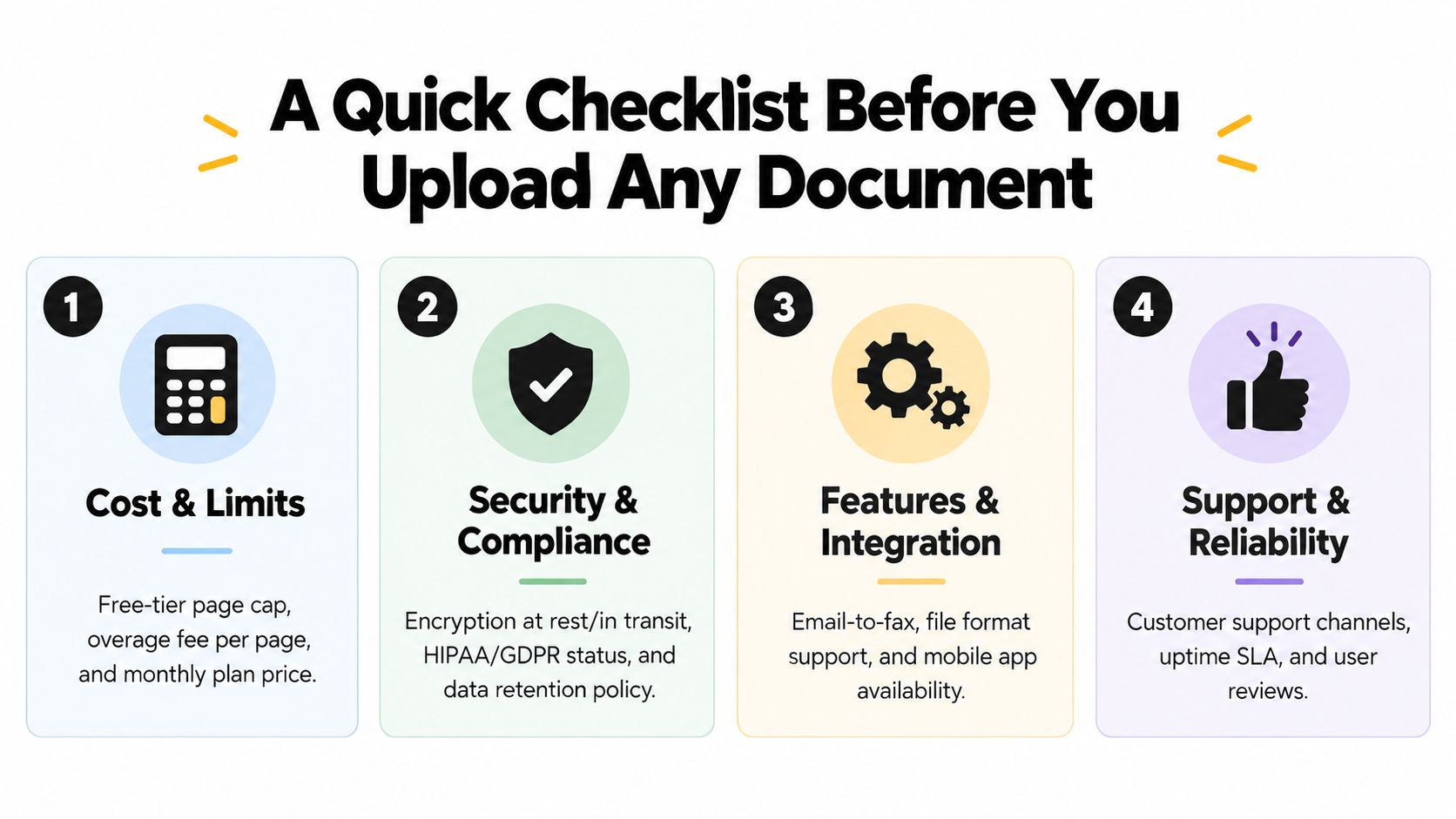
    Tips to Ensure Your Online Fax Gets Delivered

    Hitting "send" on your fax is just the first step. The real goal is making sure your document lands on the recipient's tray, looking sharp and complete. From my experience, a few small checks can make all the difference between a successful transmission and a failed one.

    You’d be surprised how often a simple typo is the culprit. When you’re in a rush, it’s easy to mistype a digit in the fax number. Always take a beat to double-check the full number, area code and all. One wrong number, and your important document is sent into the void.

    Prepare Your Document for Success

    The quality of your file matters—a lot. Remember, the machine on the other end isn't a modern laser printer. If your original document is blurry, smudged, or uses a tiny font, the faxed version will be practically unreadable.

    For the best and most predictable results, always convert your document to a PDF. It’s the safest bet because a PDF locks your formatting in place. This prevents text, images, or signature lines from shifting around during the fax conversion process. While you can use other files like a DOCX, a PDF ensures what you see on your screen is exactly what they'll get.

    Key Takeaway: Think of the confirmation email as your official receipt. It’s your proof that the service successfully transmitted the document to the recipient’s fax machine. No confirmation email often means no delivery.

    If that confirmation doesn’t show up within a few minutes, it’s time to do a little troubleshooting. First, check your spam or junk folder, as automated emails can get lost there. If you still can't find it, that's a strong signal to re-verify the fax number and try sending it again.

    Data Privacy and Delivery Confidence

    It's natural to wonder about privacy when using a free service. Reputable online fax providers use your information—like your email and the recipient's number—strictly to process the fax. This is how they send you that all-important delivery confirmation or notify you if the transmission failed. The content of your document itself is handled securely just for the duration of the faxing process.

    This kind of service fills a surprisingly persistent need. Many industries, like healthcare and legal, have been slow to abandon the reliability of faxing. In fact, a recent survey found that for over 80% of respondents, their fax usage has either stayed the same or actually increased.

    This is why platforms like GotFreeFax, which lets you send two faxes of up to three pages daily, and SendItFax, with its model of five daily faxes of three pages plus a cover page, are so useful. They provide a critical tool for individuals, small businesses, and remote workers who need to send a quick form without the hassle of owning a physical fax machine. You can discover more insights about the faxing industry's surprising stability and growth trends.

    Ultimately, sending a free fax to USA numbers is a straightforward process. By paying attention to these small but critical details, you can ensure your documents arrive quickly, clearly, and reliably every time.

    Of course. Here is the rewritten section, crafted to sound natural, expert, and human-written.


    Common Questions About Sending a Free Fax to the USA

    Even with a simple process, a few questions always pop up, especially when you're dealing with important paperwork. It’s smart to get the details straight before you hit "send." Let's walk through some of the things people often ask when sending a free fax to numbers in the USA.

    Knowing what to expect will help you fax with confidence and get things done right the first time.

    Can I Send a Fax from My Mobile Phone?

    You absolutely can. Modern online fax services like SendItFax are designed to work right from your phone’s web browser. There’s no special app to download or need to be chained to a desktop.

    Think about it—you can grab a PDF from an email, snap a quick photo of a signed contract, and send it off in minutes. This is a lifesaver when you're away from the office and something urgent lands on your plate.

    How Do I Know My Fax Was Actually Received?

    This is probably the most important question of all. You're not just sending a document into the void; a good service gives you proof with a confirmation email.

    Here’s the play-by-play of what happens behind the scenes:

    • First, you'll get an email a moment after sending, confirming your fax is in the queue.
    • Next, once it successfully goes through, you'll receive a final "Success" or "Delivered" email. This is your digital receipt.
    • If the fax fails—maybe the line was busy or you typed the number wrong—you’ll get a failure notice so you can fix the issue and try again.

    If you don't see these messages, take a peek in your spam folder. This confirmation process is what separates hoping your fax arrived from knowing it did.

    Remember, that confirmation email is more than just a simple notification. It’s your verifiable proof, complete with the date and time, that your document was delivered successfully. For anything important, that email is your peace of mind.

    Is It Secure to Send a Fax Online to the USA?

    It's a fair question, especially with sensitive information on the line. When you use a reputable service to send a free fax to USA numbers, security is built into the process. The transmission itself uses the same secure, point-to-point telephone connection as a traditional fax machine.

    Your document is only used for the transmission itself. Unlike email, where copies can linger on various servers, your file is gone from the service once the fax is delivered. This is a big reason why industries with strict privacy rules, like healthcare and law, still rely on faxing.

    Can I Receive Faxes with a Free Service?

    This is a common point of confusion, so let's clear it up. Free services are almost always for sending faxes only.

    Receiving faxes requires a dedicated, always-on fax number that belongs to you. This feature is a core part of paid subscription plans. Think of the free option as a one-way street: it lets you send documents to any fax machine without needing one yourself. If you need people to send faxes to you, you’ll want to look at a low-cost plan that gives you your own personal fax number.


    Ready to get that document sent without the cost or clutter of a fax machine? SendItFax lets you send up to five faxes a day completely free. If you have a longer document or want a more professional look, our Almost Free plan gives you 25 pages and no branding for just $1.99. Give it a try right now at https://senditfax.com.

  • Unlock Efficiency: The Ultimate Guide to Web Based Fax Service

    Unlock Efficiency: The Ultimate Guide to Web Based Fax Service

    Remember the days of wrestling with a jammed fax machine? Or that mad dash to find a print-and-fax shop for a last-minute signature? A web based fax service does away with all that hassle. It essentially turns your computer or smartphone into a powerful, secure fax machine—no extra hardware or dedicated phone line required. It's the modern, sensible alternative to that bulky machine gathering dust in the corner.

    Why Web Based Faxing Is Replacing the Fax Machine

    Let's be honest, the era of the clunky, high-maintenance fax machine is fading fast. For decades, sending a fax was a whole production. You had to print your documents, feed them into the machine, dial the number, and then just hope it went through without a busy signal or a dreaded paper jam. The entire process was anchored to a physical spot and a single piece of equipment that constantly demanded more paper, ink, and repairs.

    A web based fax service flips that entire process on its head. Think of it as a digital go-between, connecting your computer directly to the recipient's fax machine. Instead of printing anything, you just upload a file—like a PDF or a Word document—to a secure website or app. The service takes care of the rest, converting your file into the right format and sending it over traditional phone lines for you.

    The Shift to Digital Efficiency

    This simple move from physical to digital is what’s convincing so many businesses and individuals to ditch their old hardware. By taking the process online, web-based faxing plugs right into a more efficient document management workflow and leaves paper clutter behind. The upsides are immediate and clear:

    • Unmatched Convenience: Send a fax from practically anywhere you have an internet connection. Whether you're at your home office, a coffee shop, or on the move with your phone, you're good to go.
    • Significant Cost Savings: You can finally say goodbye to the endless costs of paper, ink, toner, dedicated phone lines, and expensive machine repairs.
    • Enhanced Security: Your sensitive documents are protected by digital encryption during transit. That’s a massive security upgrade compared to papers left sitting out in the open on a shared office fax machine. If you're curious about the old way, we break it down in our guide on what a fax machine is.

    Market Growth and Industry Adoption

    This isn't just a niche trend; it's a fundamental shift in how businesses communicate. The global online fax industry is on track to grow from USD 3.16 billion in 2026 to an incredible USD 7.22 billion by 2035. This boom is fueled by a growing demand for reliable document transmission without the hardware headaches.

    North America is leading the charge with a 38% market share, driven largely by industries like healthcare and legal, where strict regulations make faxing a compliance necessity. Even with all the new tech out there, a surprising 17% of businesses still rely on faxing for their core operations, proving the technology’s staying power when security and reliability are non-negotiable. You can read more about these market insights here.

    How a Web Based Fax Service Really Works

    Ever wonder how a file on your computer screen turns into a physical piece of paper in a fax machine miles away? It sounds a bit like magic, but the process is surprisingly straightforward once you pull back the curtain.

    Think of a web based fax service as a translator, fluently speaking two different languages: the language of the modern internet and the language of the old-school telephone network. It acts as the bridge that connects your digital world to the analog one, all without you needing any special hardware.

    The Sending Process Explained

    So, what actually happens when you click "send" on a digital fax? In just a few seconds, the service works through a few steps behind the scenes to get your document where it needs to go.

    1. You Upload Your File: First, you simply select the document you want to send—this could be a PDF contract, a Word invoice, or a scanned image. You upload it directly through the service's web portal or mobile app.

    2. It’s Converted for Travel: The service instantly takes your file and converts it into a special black-and-white image format that a traditional fax machine can read. This format is almost always a TIFF (Tagged Image File Format), the universal standard for faxing for decades.

    3. The Call is Made: Now for the cool part. The service uses its own infrastructure to dial the recipient's fax number over the Public Switched Telephone Network (PSTN)—the very same network your phone calls travel on. It then transmits your converted document as a series of audio tones, just like a physical fax machine would.

    On the other end, the recipient's machine answers the call, interprets the sounds, and prints out your document. To them, it looks just like any other fax they’ve ever received. They'd never know it started its life as a file on your laptop.

    This chart shows just how much simpler online faxing is compared to the old way of doing things.

    A flow chart comparing traditional faxing (print, load paper, error) with web faxing (create file, send email, deliver digitally).

    As you can see, all the frustrating physical steps—and the paper jams that come with them—are completely gone.

    How Receiving Faxes Works

    Getting faxes online is even easier; it’s basically the sending process in reverse. When someone sends a fax to your dedicated online fax number, the service handles everything.

    The service acts like a digital receptionist, catching the incoming call from the sender's fax machine. It receives the transmission, converts the analog signal back into a digital file (like a PDF), and delivers it straight to your email inbox.

    Instead of a sensitive document sitting out in the open on a shared office machine, it lands securely in your private email. This popular feature, known as fax to email, completely changes how you manage incoming communications. You can learn more in our detailed guide on how fax to email transforms your workflow.

    The reliability of this whole system hinges on a technology protocol called T.38, which is specifically designed to send fax data over an IP network. It includes error-correction measures that ensure your faxes get through clearly, even if the internet connection isn't perfect. It's this solid technical foundation that makes a web based fax service such a dependable tool for business.

    The Core Features and Benefits of Online Faxing

    So, what really makes a web based fax service better than the old-school machine humming in the corner? It's not just about sending a document from point A to point B. The real magic is in the features that give you tangible, everyday advantages. These aren't just minor bells and whistles; they completely change how you manage important paperwork.

    At its heart, online faxing is all about flexibility. One of the biggest perks is the ability to send nearly any kind of file. Instead of printing a document just to feed it into a machine, you can directly upload common formats like PDFs, Word documents (DOC, DOCX), and even images (JPG, PNG). This simple change cuts out several tedious steps and saves a surprising amount of time.

    Another great tool is the digital cover page. You can type up a professional cover letter and attach it to your fax without ever touching a piece of paper. It ensures your transmission arrives looking polished and professional, which is a small detail that makes a big difference.

    Overhead view of hands typing on a laptop, displaying 'Secure & Simple' text and an email icon with a checkmark.

    From Powerful Features to Practical Advantages

    These features are the foundation for the biggest draws of online faxing: incredible convenience, serious cost savings, and much better security. The ability to fax from any web browser effectively means your office is wherever you happen to be. You're no longer chained to a physical machine.

    This newfound freedom has a direct impact on your wallet. When you switch to a web based service, you can cross off a whole list of recurring expenses.

    • No More Hardware Costs: Forget about buying or leasing a bulky fax machine.
    • Zero Supply Spending: Say goodbye to the endless cycle of purchasing paper, ink, and toner.
    • No Dedicated Phone Line: You don't have to pay your phone company for a separate line just for faxing.
    • Eliminate Maintenance Fees: No more surprise repair bills for paper jams or broken parts.

    For small businesses or anyone who only faxes occasionally, these savings add up fast. The financial benefit is both immediate and long-lasting.

    A New Standard for Security and Confirmation

    Perhaps the most underrated benefit is the massive leap forward in security. A traditional fax machine often spits out sensitive documents onto a shared tray, where they can be seen by anyone walking by. A web based fax service protects your information from the second you hit "send."

    Top services use strong TLS (Transport Layer Security) encryption to shield your documents while they're in transit. Think of it as the same security protocol that protects your online banking transactions—it creates a private, digital tunnel that prevents anyone from snooping.

    On top of that, you get the peace of mind that comes with automatic delivery confirmations. As soon as your fax arrives successfully, the service emails you a receipt. This digital paper trail is your verifiable proof of transmission, complete with the date, time, and recipient's number, which is invaluable for legal documents or time-sensitive contracts.

    Comparing Old and New

    When you put the two methods side-by-side, the advantages of a web based fax service are crystal clear. The old way of doing things is filled with physical limitations, hidden costs, and security gaps that simply don't exist in the modern approach.

    Traditional Faxing vs Web Based Fax Service

    This table breaks down the key differences.

    Feature Traditional Fax Machine Web Based Fax Service
    Location Tied to a physical office Accessible from any device
    Costs Machine, paper, ink, phone line Low pay-per-use or subscription fee
    Security Documents left in the open TLS encrypted during transit
    Confirmation Manual printout receipt Automated email confirmation
    File Types Paper documents only PDF, DOCX, JPG, and more

    Looking at the comparison, it’s obvious that online faxing isn't just a simple replacement. It's a true upgrade that delivers efficiency, savings, and security that old machines just can't match.

    Who Actually Uses a Web Based Fax Service

    A man uses a laptop for a video call with a businesswoman, as another screen shows a woman working remotely outdoors.

    You might think online faxing is just for a handful of tech companies, but the reality is far more interesting. The people who rely on a web based fax service are incredibly diverse, from solo freelancers to massive organizations in heavily regulated fields. What they all have in common is a need for a secure, simple way to send documents without being tied to a physical machine.

    Faxing’s endurance is especially noticeable in certain parts of the world. North America, for instance, makes up about 38% of the global online fax market. That translated to a regional market value of USD 1.79 billion back in 2022. Widespread cloud adoption combined with strict data security laws has made it a permanent fixture in many key industries. You can find more details about the online fax market on kingsresearch.com.

    So, let's look at who’s actually using this technology day-to-day.

    Individuals and Freelancers

    Imagine you're a freelance consultant who just signed a contract. The client’s accounting department needs a signed W-9 form from you before they can cut your first check. You definitely don’t own a fax machine, and the idea of driving to a copy shop just to send one page feels like a complete waste of time.

    This is the perfect scenario for a web based fax service. As a freelancer, your main concerns are speed and convenience. You need something that works right now, without locking you into a monthly subscription you’ll barely use.

    • The Problem: You need to send a single signed document, and you need to do it professionally from your home office.
    • The Fix: A service like SendItFax lets you upload your document, type in the fax number, and hit send—all from your web browser. For a one-page form, a free option is usually all it takes to get the job done instantly.

    For an individual, a pay-as-you-go model turns a potential hour-long errand into a task that takes less than a minute.

    Small Business Owners

    Now, picture a small manufacturing business. You’ve modernized your operations, but a few of your most reliable suppliers are decidedly old-school. They’ve been using the same system for 30 years, and they insist that all purchase orders arrive via fax. No exceptions.

    Your challenge is to bridge that technology gap. You need a consistent way to send multi-page documents without giving up precious office space—and a dedicated phone line—for a machine you’d only use for a couple of vendors.

    For a small business, a web based fax service acts as a bridge to legacy systems. It allows the business to maintain crucial supplier relationships without disrupting its own efficient, paperless operations.

    A low-cost plan that can handle a decent volume is the sweet spot here. An affordable subscription often removes third-party branding from your faxes for a more professional touch and allows for longer documents, like detailed orders. This approach keeps your costs down while ensuring you never miss a beat with your key partners.

    Regulated Industries: Healthcare and Legal

    In fields like healthcare and law, faxing isn't just an option; it's often a necessity driven by compliance and security protocols. Think of a hospital administrator who needs to transfer sensitive patient records to a specialist across town. Or a paralegal who has to file time-sensitive motions with a court that only accepts submissions by fax.

    For these professionals, the stakes couldn't be higher.

    • HIPAA in Healthcare: In the U.S., the Health Insurance Portability and Accountability Act (HIPAA) mandates strict protection of patient health information. Faxing is considered a secure point-to-point transfer method, which helps explain why 40-50% of patient records are still exchanged this way.
    • Court Filings in Legal: Many court systems have procedural rules that require certain documents to be filed by fax, as it provides an immediate, time-stamped proof of delivery.

    The main challenge here is guaranteeing that every single transmission is secure, compliant with regulations, and verifiably delivered. A modern web based fax service built for these industries offers end-to-end encryption, detailed delivery confirmations, and a complete audit trail. It’s a far more secure and organized method than a traditional fax machine, where sensitive documents could easily be left sitting in a public tray.

    Understanding Security, Compliance, and Service Limits

    Before you hit "send" on that sensitive contract or client file, it’s important to pull back the curtain on how these services protect your information and what limitations you might run into. Getting a handle on these details upfront ensures there are no unwelcome surprises down the road.

    One of the biggest security wins for online faxing is encryption. Think of it like this: when you enter your credit card details on a shopping site, Transport Layer Security (TLS) encryption creates a secure, private tunnel to protect that data. Reputable fax services use this same standard, making it vastly more secure than a traditional fax machine that sends your information over an open, unencrypted phone line for anyone to potentially intercept.

    Protecting Your Data With Compliance Standards

    For many professionals, especially in fields like healthcare or law, basic encryption is just the starting point. If you handle sensitive information, you need to know your fax provider meets strict regulatory standards.

    • HIPAA Compliance: Anyone working with patient data must use a service that is HIPAA compliant. This is a non-negotiable requirement that ensures Protected Health Information (PHI) is handled according to federal law.
    • SOC 2 Compliance: This is a key seal of approval. A service with SOC 2 certification has been audited by a third party to verify it has rock-solid controls in place to manage and protect your data.

    When you're vetting a web based fax service, look for providers that meet demanding SOC 2 compliance requirements. This isn't just jargon; it’s verifiable proof that a company takes security seriously.

    Knowing the Practical Service Limits

    Beyond security, you also need to be aware of the practical limits of any service. These aren't meant to be frustrating roadblocks; they simply exist to match the service's capabilities and pricing to different types of users.

    A free plan might have tight restrictions perfect for an occasional user, while a paid business plan will offer much higher allowances to support a busy office's daily workflow.

    Here are the most common limitations to check for:

    • Page Limits: Most providers cap the number of pages you can include in a single fax. A free tier might cut you off after just a few pages, while paid plans can often handle documents of 25 pages or more.
    • Supported File Formats: Nearly all services accept common files like PDF, DOCX, and PNG. But if you work with less common file types, it’s always smart to double-check that they’re supported before you sign up.
    • Geographic Coverage: Don't assume you can send a fax anywhere in the world. Some providers, like SendItFax, are designed specifically for sending faxes within the U.S. and Canada. If you have international clients, this is a crucial detail to verify.
    • Daily Sending Quotas: To prevent spam and abuse, many services—especially the free ones—will limit how many separate faxes you can send in a 24-hour period.

    By weighing both the security protocols and the service limits, you can find a web based fax service that truly fits your needs. A little bit of homework here goes a long way in making sure your documents are safe and always get where they need to go, without a hitch.

    How to Choose the Right Web-Based Fax Service

    Trying to pick the right web-based fax service can feel like a chore, with dozens of options all claiming to be the best. The secret is to cut through the marketing jargon and focus on what actually matters for your specific needs. It really boils down to aligning the price, features, and user experience with how you'll be using it.

    Getting this right means you’ll end up with a tool that genuinely saves you time and headaches. The whole process should be as simple as what you see in the video below.

    Analyze Pricing Models and Your Usage

    First things first: how often do you really send faxes? Be honest. This is the single biggest factor that will determine the right pricing model for you. Most providers operate on one of two tracks.

    Pay-per-fax services are perfect if you only send a document occasionally. Think signing a one-off contract or sending a form once or twice a month. This model saves you from paying a recurring fee for a service you barely touch.

    On the other hand, monthly subscriptions are built for more consistent, higher-volume use. If your business sends dozens or even hundreds of faxes every month, a subscription plan almost always offers a much lower cost per fax and packs in extra features that power users need.

    Assess Key Features Against Your Needs

    Once you have a rough idea of your faxing volume, it's time to think about what the service actually needs to do. Paying for a bunch of fancy features you'll never touch is just a waste of money. Start by asking yourself a few practical questions.

    • Do I just need to send, or do I need to receive faxes, too? A lot of simple pay-as-you-go services are send-only. If you need a dedicated fax number for people to send documents to you, you’ll almost certainly need a subscription plan.
    • Does my brand's appearance matter? Some free or very cheap services will slap their own logo on your cover page. For any kind of professional communication, you'll want a paid service that keeps your faxes clean and brand-free.
    • How long are the documents I'm sending? Free plans often come with surprisingly low page limits—sometimes just three pages per fax. If you’re sending lengthy legal agreements or detailed reports, you need a service that can handle 25 pages or more.

    Answering these questions gives you a simple checklist of your non-negotiables. For a deep dive into how different providers stack up, check out our comprehensive online fax services comparison.

    Prioritize Simplicity and Ease of Use

    At the end of the day, the best web-based fax service is the one you don't need a manual to figure out. A clean, intuitive interface is non-negotiable. You shouldn't have to click through a maze of confusing menus or fill out a complicated signup form just to send one document.

    Take a look at the SendItFax interface below. It’s designed around this exact idea of simplicity.

    Everything is laid out exactly where you'd expect it: clear fields for sender and receiver info, a big button to upload your file, and an optional spot for a cover page note. The design removes all the guesswork and lets you get a fax out the door in less than a minute.

    A truly user-friendly service values your time. It prioritizes a frictionless experience, especially for one-off tasks where speed and simplicity are the top priorities.

    This is precisely where a tool like SendItFax comes in. It was built from the ground up for people who just need to send a fax to the U.S. or Canada without the ceremony of creating an account. By focusing on a dead-simple, three-step flow—upload, enter details, and send—it gets rid of the friction that makes other services feel like a chore.

    Frequently Asked Questions About Web Based Faxing

    Even after getting the hang of how a web based fax service works, some practical questions always pop up. Let’s tackle the most common ones so you can feel completely confident sending your next document.

    Is a Web Based Fax Legally Binding?

    The short answer is yes. In places like the United States and Canada, faxes sent through an online service are just as legally binding as those sent from a clunky old machine. They carry the same legal weight.

    Think of the digital delivery confirmation you get in your email as your official receipt. It serves as verifiable proof that your transmission was successful, which is absolutely critical for contracts, legal notices, and other official paperwork.

    Can I Receive Faxes With Any Service?

    Not necessarily—it really depends on the service you sign up for. Many of the super-simple, pay-as-you-go options are built for sending faxes only. This keeps them straightforward for those one-off tasks where you just need to get a document out the door.

    If you need to receive faxes, you'll have to choose a service that gives you a dedicated online fax number. These almost always come with monthly subscription plans. Incoming faxes are then sent straight to your email, usually as a PDF attachment.

    It’s a key difference to watch for. If you only ever send documents, a send-only service is a great fit. But if you need that two-way communication, make sure you're looking at plans that include a dedicated number.

    Do I Need a Special App or Software?

    Nope, and that’s one of the best parts. The "web based" in the name means you do everything right from your internet browser. You don't have to install any software or download a finicky app, which means no worries about compatibility issues or annoying updates.

    You can send a fax from any device with a browser and an internet connection, whether it's:

    • Your desktop computer at the office
    • Your personal laptop at home
    • Your smartphone while you're out and about

    This "send from anywhere" flexibility is what makes a web based fax service so convenient.

    Will the Recipient Know I Used an Online Service?

    Generally, no. On their end, the document that prints out of their fax machine looks just like any other fax. The content and formatting are preserved, so it appears completely normal.

    The only thing that might give it away is the tiny header text at the very top of the page, and even that is usually minimal. That said, some free services might place a small ad or their own logo on the cover page. Paid plans almost always get rid of this, ensuring your fax looks 100% professional.


    Ready to send a fax in under 60 seconds without creating an account? SendItFax offers a simple, secure way to send your documents to anyone in the U.S. and Canada directly from your browser. Try it now at SendItFax.com.

  • How to Fax from iPad Without an App

    How to Fax from iPad Without an App

    Ever found yourself needing to send a fax, but all you have is your iPad? You're not alone. The good news is you don't have to hunt down a physical fax machine or even download a new app. You can send a secure fax right from your iPad's web browser using a service like SendItFax.

    It’s a surprisingly straightforward process. You can grab a PDF from your Files app, a DOCX from iCloud, or even scan a document on the spot and send it to any fax number in the US or Canada in just a few minutes.

    How to Fax From an iPad—Without an App

    A person's hand interacts with a tablet displaying a fax application, on a wooden desk with a laptop.

    Forget scrolling through the App Store, comparing subscription plans, or trying to remember yet another password. The most direct method for faxing from your iPad is to use a simple, browser-based tool. It’s perfect for those one-off situations where you just need to get a document from Point A to Point B without any fuss.

    The Beauty of a Browser-Based Tool

    Why skip a dedicated app? Using your iPad’s Safari browser means there's nothing to install, keeping your device clean and saving you from another recurring subscription. It's designed for speed and convenience, especially when you need to send a single, urgent document like a signed contract or a time-sensitive form.

    The real advantage is accessing your files right where they already are. Whether it's a signed lease in your Files app or an invoice saved in iCloud Drive, the process feels as natural as attaching a file to an email.

    And believe it or not, faxing is still incredibly relevant. While it might seem like a relic in a world of instant messaging, the fax services market was valued at $3.3 billion in 2024. Industry analysts even project it will grow to over $5 billion by 2035, cementing its place as a critical tool for legal, healthcare, and government sectors. If you're curious about why faxing has stuck around, Business.com has some great insights on its surprising resilience.

    Choosing the Right SendItFax Option

    SendItFax keeps things simple with two choices. Your decision really comes down to how many pages you're sending and whether you need a completely professional look without any branding.

    • The Free Option: Perfect for short documents up to three pages. Think sending a signed permission slip or a simple form. This plan includes a standard cover page that has SendItFax branding on it.

    • The Almost Free Option: For a one-time fee of $1.99, you get a lot more flexibility. You can send up to 25 pages, and you have the option to remove the cover page entirely. This is the go-to choice for sending multi-page contracts or official applications where you want a clean, professional appearance.

    SendItFax Options at a Glance

    Here’s a quick comparison to help you choose the right SendItFax service for your needs when you fax from iPad.

    Feature Free Plan Almost Free Plan ($1.99)
    Page Limit Up to 3 pages + cover Up to 25 pages
    Cover Page Required, with SendItFax branding Optional, with no branding
    Daily Limit 5 faxes per day Unlimited
    Delivery Speed Standard Priority
    Account Needed No No

    Ultimately, both paths let you fax from your iPad with just a few taps. Whether you’re a student submitting a form for free or a professional sending a crucial document, you’re covered.

    Getting Your Documents Ready to Fax on an iPad

    Before you can send a fax from your iPad, you first need a digital version of your document. This is the most important part of the process—it’s what ensures your recipient gets a sharp, readable copy on their end.

    Most of the time, you'll be in one of two situations: either you have a physical piece of paper in your hand, or you already have a digital file saved on your device. The good news is your iPad is already equipped to handle both scenarios beautifully, often without needing to download a single new app.

    Turning Paper into a Fax-Ready File

    Have a signed contract or an urgent invoice that needs to be sent right away? You don't need a bulky scanner. Your iPad has a fantastic document scanner built right into the Notes and Files apps. I find the Files app method to be the most straightforward.

    Here’s how I get it done:

    • First, open the Files app. Navigate to where you want to save the new file, whether that’s on your iPad itself or in a cloud folder like iCloud Drive.
    • Tap the little three-dots menu icon (•••) you see in the corner and choose Scan Documents.
    • Your iPad’s camera will pop up. Just line up your document in the frame, and the software is smart enough to detect the edges and capture the image for you automatically. If you have a multi-page document, just keep swapping out the pages; it will scan each one in sequence.
    • When you’re done, tap Save. Your iPad will neatly package all the scanned pages into one clean PDF.

    My Go-To Tip: After scanning, don't send it just yet. Tap the thumbnail of your new scan to pull up the editing tools. You can crop it, but the most critical adjustment is changing the filter to Black & White or Grayscale. This boosts the contrast significantly, making the text much crisper and easier for an old-school fax machine to print clearly.

    If you’re dealing with a huge backlog of paperwork, like an entire filing cabinet, doing it yourself can be a real grind. In that case, looking into professional document scanning services can save you a ton of time by converting everything for you.

    Using an Existing Digital File

    If your document is already a digital file, you're just a few taps away from sending it. When you’re using a web-based fax service like SendItFax on your iPad's browser, you can pull files directly from your device or cloud storage.

    The service is built to handle the most common file formats you’ll encounter in a business setting:

    • PDF: This is always the best choice. PDFs lock in the formatting, so what you see on your screen is exactly what the recipient will get.
    • DOC/DOCX: Microsoft Word files are also fully supported, which is handy for documents you’ve just finished editing.

    When you tap the "Select File to Fax" button on the website, your iPad will open its familiar file browser. From there, you can easily grab your document from iCloud Drive, Google Drive, Dropbox, or any other cloud service you’ve connected to your Files app.

    If you have a Word document and want to be absolutely certain the formatting is perfect, it’s a good practice to convert it to a PDF first. We have a simple guide on how to convert Word to PDF that shows you how to do it in seconds.

    Let's Walk Through Sending Your First iPad Fax

    Alright, you've got your document scanned or saved and you're ready to send it. The great thing about this method is that it’s all done right in your iPad’s web browser. There's no app to download and no account to create. We'll just head over to the SendItFax site and get this done.

    Open up Safari (or whichever browser you prefer) on your iPad and type in the SendItFax web address. You’ll land right on the homepage, which is built to get straight to business.

    A flowchart illustrating the three steps of fax document preparation: scan paper, select file, and send fax.

    Look for the big button that says Select File to Fax. Giving that a tap will bring up the familiar file browser you see everywhere on your iPad. From here, you can easily find the document you need, whether it’s stored locally on your device or in a cloud service like iCloud Drive. Just select your file to upload it.

    Filling in the Details

    After your file is uploaded, a few fields will pop up. You’ll need to enter your name and email address. Make sure that email is correct—this is where your delivery receipt will be sent, and you'll want that for your records.

    Next, you'll input the recipient's fax number. Pay close attention here. SendItFax only works with numbers in the United States and Canada, so be sure that’s where you’re sending it.

    Expert Tip: A common mistake I see is people forgetting the number 1 before the area code for North American numbers. When in doubt, it never hurts to do a quick search for the business online to double-check you have the complete, correct fax number.

    Setting Up Your Fax Options

    You'll also have the option to include a cover page, which I highly recommend. It adds a professional touch and gives the recipient immediate context. You can add a subject line like "Signed Contract for Approval" and a quick note in the message body.

    This is also the point where you choose between the Free and Almost Free sending options.

    • Free: Perfect for faxes of 3 pages or less. It’s completely free but includes a small SendItFax branding on the cover page.
    • Almost Free: For just $1.99, you can send longer documents and remove all branding. It's a great value for important business communications.

    If you go with the paid option, you'll be directed to a secure payment form handled by Stripe, one of the most trusted names in online payments.

    This simple workflow shows how you can go from a paper document or digital file to a sent fax in just a few quick steps.

    A flowchart illustrating the three steps of fax document preparation: scan paper, select file, and send fax.

    Whether you’re scanning a fresh document or pulling up an existing file, the process is straightforward and direct.

    Sending and Confirming Delivery

    Once all your info is entered and you've selected your plan, just tap the Send Fax button. The service will take it from there, processing your file and transmitting it to the recipient's fax machine.

    You won't be left guessing. Within a few minutes, you’ll get an email confirmation letting you know if the fax went through successfully or if there was an error. I always recommend saving this email as your proof of transmission.

    And if you ever need to fax on the go from your phone, the process is just as easy. You might find our guide on how to send free faxes from an iPhone helpful.

    Why Faxing from Your iPad Still Matters in 2026

    In a world filled with instant messages and cloud drives, sending a fax can feel like a step back in time. But believe it or not, knowing how to fax from an iPad is still an incredibly useful skill, especially for professionals who need to connect modern tech with old-school business. This isn't about being nostalgic; it’s about having the right tool for the job when a digital file just won't cut it.

    For many industries, faxing is far from optional—it's a strict requirement. Think about the legal, real estate, and healthcare fields. They depend on faxing to send signed contracts, official government forms, and sensitive patient records. Why? Because a fax provides a direct, verifiable point-to-point record of transmission. A real estate agent who can immediately fax a signed offer from their iPad while out with a client might just be the one who closes the deal.

    The Fax Machine Network is Alive and Well

    The simple truth is that millions of fax machines are still plugged in and humming away in offices all over the world. This creates a powerful network effect: companies keep their fax lines active because their partners, clients, and government agencies still use them. For many businesses, an all-in-one MFP colour laser printer with built-in faxing is standard office equipment, keeping this network strong.

    And that’s not just a hunch. Current estimates show there are still 43 million active fax machines globally. Digging into the numbers, surveys show that over 80% of businesses still fax regularly. Most of them report their fax usage has either stayed the same or, surprisingly, even gone up. You can see more surprising stats like these in this detailed faxing industry report.

    This means that sooner or later, you're going to hit a wall where sending a fax is the only way to get something done. Having a tool to do it from your iPad is a game-changer.

    Real-World Scenarios You'll Actually Face

    Think about it. You're a freelancer working at a local coffee shop and a new client needs your signed W-9 form before they can process your first payment. Or maybe you're a small business owner who needs to send a purchase order to a supplier whose accounting department only accepts faxes. These aren't hypothetical problems; they happen every day.

    Being able to fax from an iPad solves this instantly and securely. It turns your sleek, modern tablet into a bridge that connects directly to this established, and often mandatory, communication network. It's about having the flexibility to send any document, to anyone, no matter how they need to receive it.

    Getting Your Faxes Right: Best Practices for iPad Faxing

    A tablet displaying 'FAX Best Practices' content, alongside a notebook, pen, and laptop on a wooden desk.

    Just hitting "send" isn't the whole story when you fax from your iPad. From my experience, a little prep work goes a long way. To make sure your document shows up looking crisp and professional—and stays secure—you'll want to keep a few things in mind. It's about ensuring what gets received is just as clear as what you sent.

    Format Your Documents for Fax Transmission

    Ever notice how a beautiful document can turn into a blurry mess after being faxed? That's because the trip from your iPad's high-resolution screen to an old-school fax machine isn't always kind. What looks great on your end can become nearly unreadable when printed out.

    To avoid this, focus on high contrast and simple, clean formatting.

    • Stick to clean fonts. Think Arial, Helvetica, or Times New Roman. Fancy, thin, or decorative fonts tend to break apart and become illegible during the faxing process.
    • Boost the contrast. When you scan a physical document with your iPad, always use the Black & White or Grayscale filter. This one small tweak dramatically improves text clarity on the receiving end.
    • Keep layouts simple. Complex columns and tiny embedded images don't fax well. A straightforward, single-column layout with a font size of at least 12 points is your safest bet for a successful transmission.

    Troubleshooting Common Fax Hiccups

    Even when you do everything right, you might occasionally run into a snag. The key is knowing how to spot and fix the problem quickly, especially when you're on a deadline.

    Here’s how to handle the two most common issues I see:

    The Fax Fails to Send

    Getting a "failed delivery" alert is frustrating, but it's usually an easy fix. More often than not, the culprit is a simple typo in the fax number. Take a moment to double-check that you've entered the correct 10-digit number. Remember, SendItFax only supports US and Canadian numbers, so you’ll need that ‘1’ for the country code if you're sending from outside North America.

    The Recipient Gets a Blurry Copy

    If someone on the other end complains about a fuzzy document, the problem almost always lies with your source file. If you scanned the document, try again in a brightly lit area and be sure to use those contrast-boosting filters. If you started with a digital file, confirm it's a high-quality PDF, not just a low-resolution image that was saved as one.

    Here's a pro tip: Before you send, zoom in on the document on your iPad. If the text looks pixelated or fuzzy to you, it will be completely unreadable when it comes out of the fax machine.

    A Quick Note on Privacy and Security

    Using a web browser on your iPad to send a fax is incredibly convenient, but it’s natural to wonder about security. This is where a service like SendItFax really shines. We designed it specifically to protect your privacy by not requiring you to create an account.

    This no-account model means we don't store your personal information or your documents on our servers long-term. Once the fax is sent, your data is gone.

    The healthcare industry is a perfect example of why this matters. A surprising 70% of all healthcare communication still relies on fax, and that number jumps to 90% when you include faxes integrated with electronic health records. Considering the multi-million dollar penalties for HIPAA violations from misdirected faxes, using a secure, web-based service is a smart move. You can learn more about the role of faxing and The Unwavering Security of Fax Communication.

    By following these tips, you can confidently fax from your iPad, knowing your documents will arrive looking clear, professional, and secure.

    Got Questions? Let's Cover the Common Ones

    Even with a simple process, it's normal for a few questions to pop up, especially if you're new to faxing from your iPad. Let's tackle some of the most common ones I hear so you can feel completely confident before sending your document.

    Can I Also Receive Faxes This Way?

    This is a great question, and the short answer is no. The SendItFax web tool is specifically designed for one-way communication: sending faxes from your iPad.

    It’s built for those times you just need to get a document over to a fax machine in the US or Canada without the hassle of signing up for a service. To receive faxes, you'd need a dedicated fax number assigned to you, which is something you typically get with a monthly subscription plan.

    Is Faxing from My iPad's Browser Actually Secure?

    Security is always a valid concern, especially with sensitive paperwork. When you use a service like this, the security works on a couple of different levels.

    First off, your connection to the website is encrypted, which protects your document and the recipient's information while they're in transit. But the biggest security feature is the "no-account" design.

    We intentionally built this without accounts. Your personal data and uploaded files aren't stored on our servers long-term. Once the fax goes through, we don't keep the document. This "send-and-forget" approach is the best way to minimize the risk of your private information ever being exposed.

    On top of that, you're starting from a very secure place to begin with—your iPad. Apple bakes powerful security features right into its hardware and software, like Pointer Authentication Codes (PAC) and Memory Integrity Enforcement (MIE), which help protect your device from attacks.

    What Happens If the Fax Fails to Send?

    It's frustrating when a fax doesn't go through, but you won't be left guessing. If a transmission fails for any reason, you'll get an email notification right away letting you know.

    Most of the time, the fix is simple. The most common culprits are:

    • A small typo in the fax number.
    • The receiving machine is busy or turned off.

    Just double-check the number and give it another try. If it fails again, the problem might be on the recipient's end, and it might be worth giving them a quick call to confirm their machine is ready.

    So I Really Don’t Need an App?

    Nope, you definitely don't need an app. That's one of the best parts about this method.

    By skipping the App Store, you avoid downloading another piece of software, creating a new account, or committing to a subscription you might barely use. Everything happens right within your iPad’s web browser, whether you’re uploading a PDF from iCloud Drive or using the Almost Free option. It’s the quickest, most direct way to turn your iPad into a fax machine on demand.


    Ready to give it a try? Head over to SendItFax and see for yourself how simple it is to get that document on its way in just a few clicks. Get started at https://senditfax.com.