You've just sent an important fax, and the confirmation page is staring back at you with a destination number, timestamps, page counts, a duration, and a status that says OK, Failed, or something less familiar. Many readers scan for the green checkmark or red X and move on. That's understandable, but the details in between explain exactly what occurred.
A fax transmission report is easier to use once you stop treating it as a simple success receipt. It records what happened during the connection between sending and receiving systems, whether you used a fax machine, an office multifunction printer, or a browser-based service such as SendItFax. The key question is simple: what does this page prove, and what does it leave out?
Why You Are Staring at a Fax Confirmation Right Now
You may be checking a report because a medical office is waiting for records, a law firm needs confirmation that documents were sent, or a customer expects a signed form. In each case, the report looks more technical than it really is. A number may identify the receiving line, a timestamp may show when the call began, and a status field may compress several technical events into one short verdict.
Start by reading the page as a record of a communication session, not as a statement that a person received your document. First, confirm the destination number. Next, check the time and page count. Then read the final status and any accompanying code or error description.
Practical rule: Read the report from left to right, but interpret the status only after checking the number, time, and pages.
The same basic information can appear on a printed confirmation from a Brother device, a multifunction printer's activity log, or an online fax dashboard. The layout changes, but the underlying questions stay the same: did the sender reach a fax-capable endpoint, did the endpoints exchange the pages, and did the session finish without a reported protocol error?
That distinction keeps the report useful without asking it to prove more than it can. It can help you document a send, diagnose a failure, and decide whether a retry is sensible. It can't independently confirm that the intended individual opened, read, or acted on the document.
What a Fax Transmission Report Actually Is
A fax transmission report is a transport-level verification artifact produced after a sending system attempts to exchange a document with another fax endpoint. In plain language, it summarizes the technical conversation between the two systems. The report typically captures the recipient fax number, transmission date and time, number of pages, transmission duration, and whether delivery succeeded or failed, as described in Brother's explanation of its Transmission Verification Report.
A shipping handoff record can show that a carrier reached a delivery location and completed the handoff process. It usually doesn't prove that the named person opened the package or used what was inside. Fax reporting works similarly. A successful result generally means that the receiving fax device answered, negotiated with the sender, and accepted the transmitted data.
The fields summarize protocol events
A report may include several of these fields:
- Recipient number: The fax number dialed by the sender.
- Date and time: When the system placed or completed the transmission.
- Page count: The number of pages the sender attempted to transmit or reported as completed.
- Duration: How long the session lasted.
- Speed: The negotiated transmission rate, when the device displays it.
- Result status: A condensed outcome such as success, busy, no answer, or error.
- Error or endpoint identifiers: Codes that can help identify negotiation, line, or receiving-device problems.
- ECM information: An indication that error correction was used or affected the session, depending on the equipment.
The report isn't a copy of the fax. That's useful for privacy and recordkeeping because it can document the session without reproducing the document's contents. It also means the report can't tell you whether a page was readable, correctly filed, or reviewed by a person.
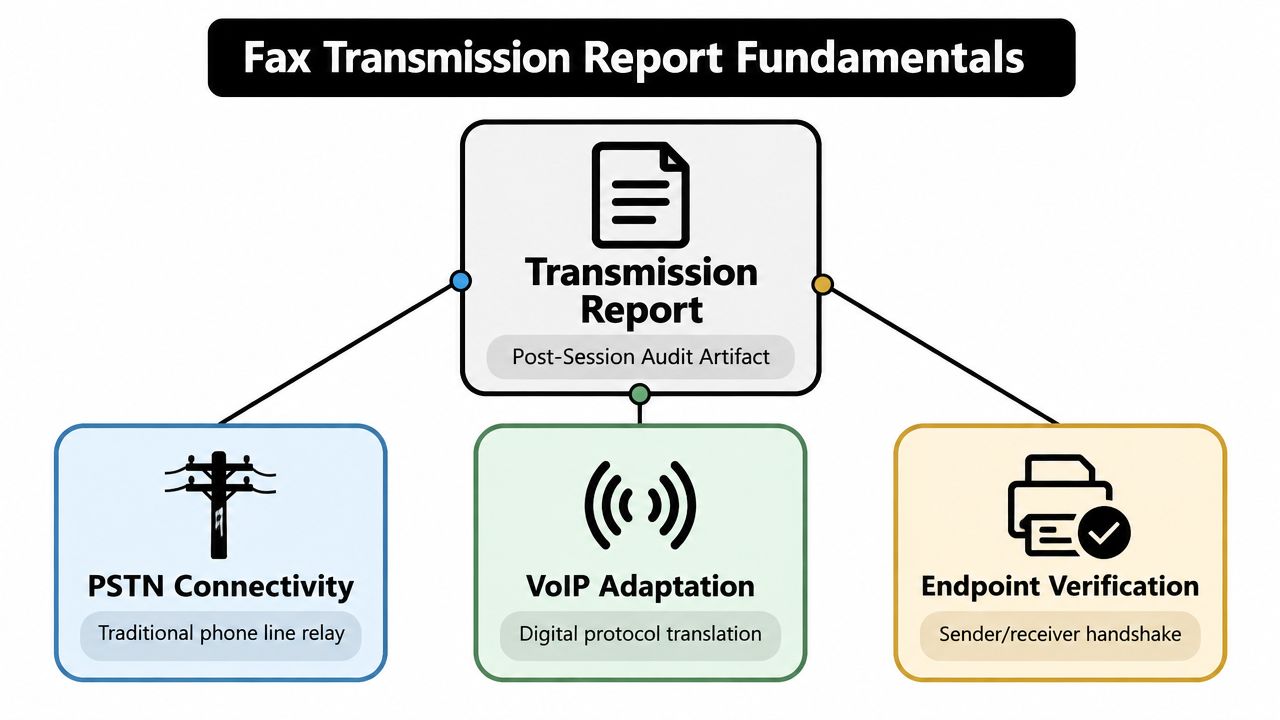
Fax systems may communicate through traditional telephone infrastructure or through services that adapt fax protocols to internet-based calling. Either way, the report reflects the outcome visible to the sending side. It's a post-session audit record, not a human acknowledgment.
How to Read Every Field on the Report
Read the report in the order a support technician would inspect it. Begin with the identity of the destination, then verify when the attempt occurred, how much data moved, and what conclusion the system reached.
Recipient number
The number shown is the number the sending system dialed. It may include a country code, area code, extension formatting, or masking that differs from the way the number appears in your address book.
Compare every digit with the intended destination. A successful result on the wrong number is still the wrong transmission, so number verification comes before interpreting any green status.
Date and time
The timestamp records when the sender placed or completed the fax session. Many devices use the sender's configured local time, so a report created in one location may need timezone context before it enters a formal case file or compliance record.
If several people handle the same workflow, agree on one naming and timestamp convention. That makes it easier to match the report with the original document and any later phone call.
Page count
The page count shows how many pages the sending system transmitted or recorded during the session. A five-page document with a report showing only three completed pages needs investigation, even if the layout makes the overall result difficult to spot.
Cover pages can create confusion. Check whether the system counts the cover separately and whether the displayed total refers to pages sent, pages accepted, or pages included in the uploaded file.
Duration, speed, and ECM
Transmission duration tells you how long the connection remained active. Speed may show the negotiated rate, while ECM, or error correction mode, indicates whether the systems used a mechanism designed to detect and recover from corrupted data.
These fields rarely provide the complete diagnosis by themselves. A longer session may reflect more pages, slower negotiation, retries, or line conditions. For a practical explanation of why fax speed varies, see this guide to fax transmission speed and negotiation.
Result status
The final status combines several signals into one label. It may reflect whether the receiving line answered, whether the endpoints identified themselves as fax devices, whether the pages transferred, and whether the session ended cleanly.
Treat this line as the starting point for interpretation, not the whole explanation. The next question is always: what kind of failure or completion does the status describe?
Status Codes and What Each One Means
A status code becomes easier to understand when you separate the session into two layers.
The connect layer asks whether the call reached and established contact with the destination. Busy, no answer, and an invalid fax response usually belong here. The transmission layer begins after the receiving endpoint answers and asks whether the systems successfully exchanged the pages.
| Status Result | What Happened | Most Likely Cause |
|---|---|---|
| Success or OK | The endpoints connected and the reported pages completed | The receiving fax device accepted the transmission |
| Busy | The destination line returned a busy condition | Another call or fax session was using the line |
| No Answer or No Response | The call rang without a usable fax response | The machine was offline, unattended, or unavailable |
| Failed | The session ended before the expected transmission completed | A connection, number, document, or endpoint problem |
| Error | The system detected a protocol or data exchange problem | Line quality, incompatible behavior, or corrupted frames |
| Partial | Some pages completed, but the full transmission did not | The connection failed during the page exchange |
A Success or OK result means the sending system saw the expected completion signals. It doesn't transform the report into proof of human receipt.
Busy usually points to the connect layer. Try the same number again after a reasonable interval, especially if the destination is a shared office line.
No Answer or No Response means the sender didn't receive a usable fax response. Verify that the number is active and that you haven't omitted a required dialing prefix or area code.
Failed is a broad outcome. Look for a secondary code or message before retrying. The failure may have happened before the fax devices connected, or after several pages had already moved.
Error often needs more interpretation. Fax report taxonomies include outcomes such as no answer, busy, not a fax machine, and invalid or unknown T.30 responses, while OpenText Fax's report taxonomy describes conditions including retrain events, protocol timer violations, and FCS errors. These signals can point toward line quality, incompatible endpoint behavior, or corrupted frames.
Partial means the report shouldn't be filed as a complete delivery record. Identify the confirmed page count, verify the destination and document, and resend the full file unless the receiving party specifically instructs you to resume or send only selected pages.
If the code describes a connection problem, retry after checking availability. If it describes a transmission problem, verify both the number and document before sending again.
Why a Green Checkmark Is Not the Same as Receipt
A successful report proves something valuable, but narrower than many users assume. It indicates that the sending system connected with a fax endpoint and that the expected data exchange completed. It does not prove that a named person received, read, understood, or processed the pages.
The receiving endpoint may be an unattended machine in a copy room, a shared fax queue, or a system that stores incoming documents digitally. Paper can remain in a tray, toner can be faint, a page can jam after transmission, or staff can file the document incorrectly. None of those downstream events necessarily changes the sender's status from successful to failed.
The distinction matters in sensitive workflows
Healthcare teams may need to protect patient information while confirming that the correct destination received it. Healthcare-focused guidance discusses fax safeguards such as recipient verification, confidentiality notices, and transmission logs, while also explaining that a fax report is only one part of a broader control framework in guidance on faxing medical records.
Legal workflows require similar care. Whether a fax counts as valid service, notice, or filing can depend on the jurisdiction and the specific procedure. A transmission report may support the record by showing the number, time, pages, and outcome, but it may not satisfy every requirement for legal acceptance.
For a practical distinction between a delivery record and confirmation from the recipient, see this explanation of how to confirm receipt of a fax. The appropriate follow-up may be a phone call, a reply fax, a portal acknowledgment, or another approved confirmation method.
A green checkmark means the fax system completed its delivery conversation. It doesn't mean a person completed theirs.
Use the report as evidence that the document reached the destination device or service. Add a human acknowledgment when the consequence of non-review is significant.
Troubleshooting Failed and Partial Transmissions
Suppose a five-page fax returns Failed after page three, or the report says Partial without explaining what to do next. Don't immediately send the same file repeatedly. Start with the result line, then inspect the error code and confirmed page count.
Follow the evidence in order
Check the destination number. Compare the full number with the source record. Look for a transposed digit, a missing area code, or an incorrect country code. A report that shows a clean connection to the wrong number still requires correction.
Check the document. Open the original file and confirm that it isn't corrupted, password-protected, or unusually difficult for the sending service to process. Review page orientation, image-heavy pages, and the final page count before retrying.
Check the recipient's availability. A busy line, offline machine, depleted toner, full paper tray, or receiving queue can prevent completion. If the result is clearly a connect-layer failure, waiting and retrying may be enough.
Check the partial count. If the report confirms three of five pages, treat the first three as potentially delivered to the receiving endpoint, but don't assume the recipient has a complete document. Unless the recipient gives different instructions, resend the complete file.
Label the replacement clearly. Add a cover-page note such as “Complete replacement transmission” when a duplicate or partial fax could cause confusion. Keep the failed report with the retry record rather than deleting it.
Fax reporting can expose protocol-level clues. T.30 negotiation problems, corrupted frames, and endpoint incompatibility may require a different receiving number, a later retry, or assistance from the fax administrator.
A browser-based workflow should provide the same diagnostic essentials as hardware. After sending through SendItFax, look for the destination number, timestamp, page count, and final status so you can compare the result with a printed machine report. The fax troubleshooting guide can help organize the first checks when a send doesn't complete.
The important decision is whether the report shows no connection or incomplete transmission. The first usually calls for availability and number checks. The second calls for document verification and a complete replacement send.
How SendItFax Surfaces Delivery Information
After a browser-based fax is sent, the confirmation view should answer the same operational questions as a machine-generated report. Look for the recipient number, page count, send timestamp, final status, transmission duration, and any retry attempts. Those fields let you document the session without owning or standing beside a fax machine.
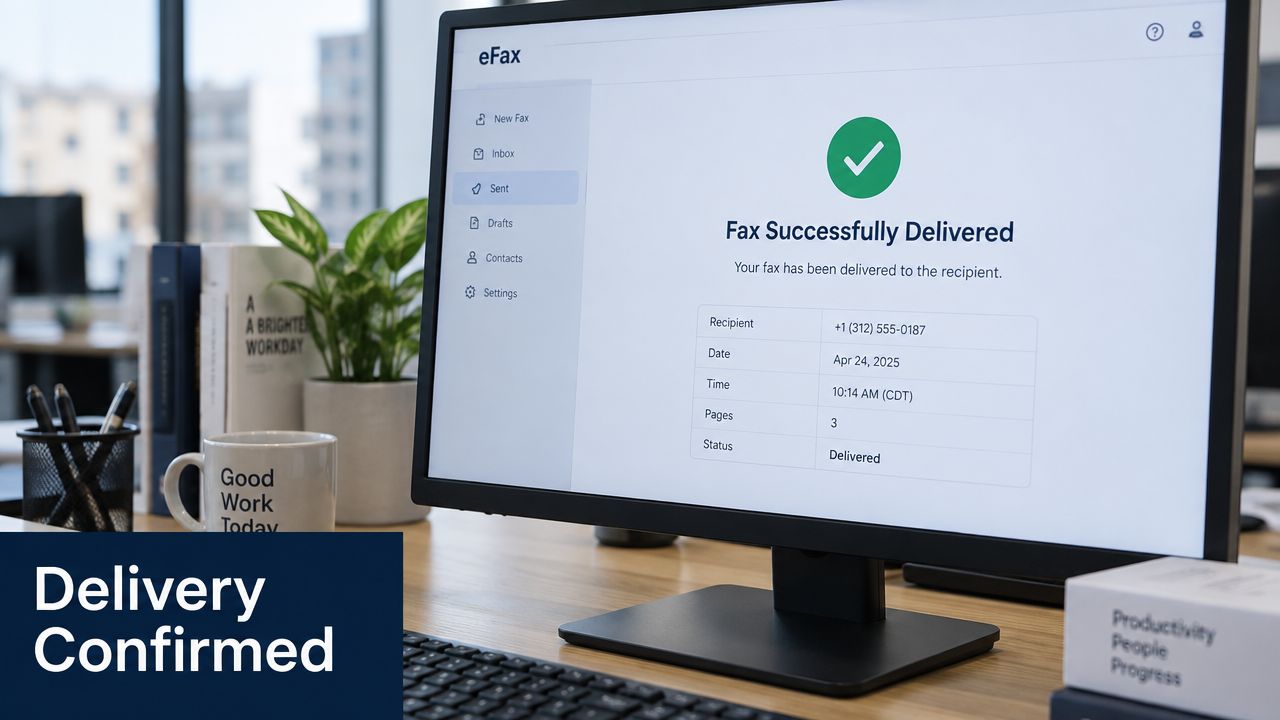
Read the confirmation in three passes. First, verify the number. Second, compare the displayed page count with the file you uploaded. Third, interpret the status and duration together, checking whether the service records a retry or a partial result.
SendItFax's publisher information states that the Almost Free plan surfaces these delivery details inline rather than hiding them behind a separate subscription. The confirmation can be preserved as a PDF or captured in a screenshot for an internal record. Store it with the original document, and avoid treating the screen alone as proof that a person reviewed the content.
Partial success versus hard failure
A partial-success warning means the service has information showing that some portion of the transmission completed, but the full document did not. Record the reported page count, then resend the complete document unless the recipient asks for a different remedy.
A hard failure means the system didn't complete the expected transmission. The next action depends on the cause. A busy or no-answer result may justify a later retry, while a protocol error calls for checking the destination, file, and receiving endpoint before repeating the attempt.
The browser workflow is useful because the delivery record remains available without a printed page. It also makes it easier to save the confirmation immediately, while the recipient number, status, and timestamp are still visible.
Use the following walkthrough as a visual check for where confirmation information appears after sending.
A saved report still has the same evidentiary limits as a printed one. It documents transport to an endpoint. For high-consequence documents, establish a separate acknowledgment process.
Best Practices for Keeping a Clean Fax History
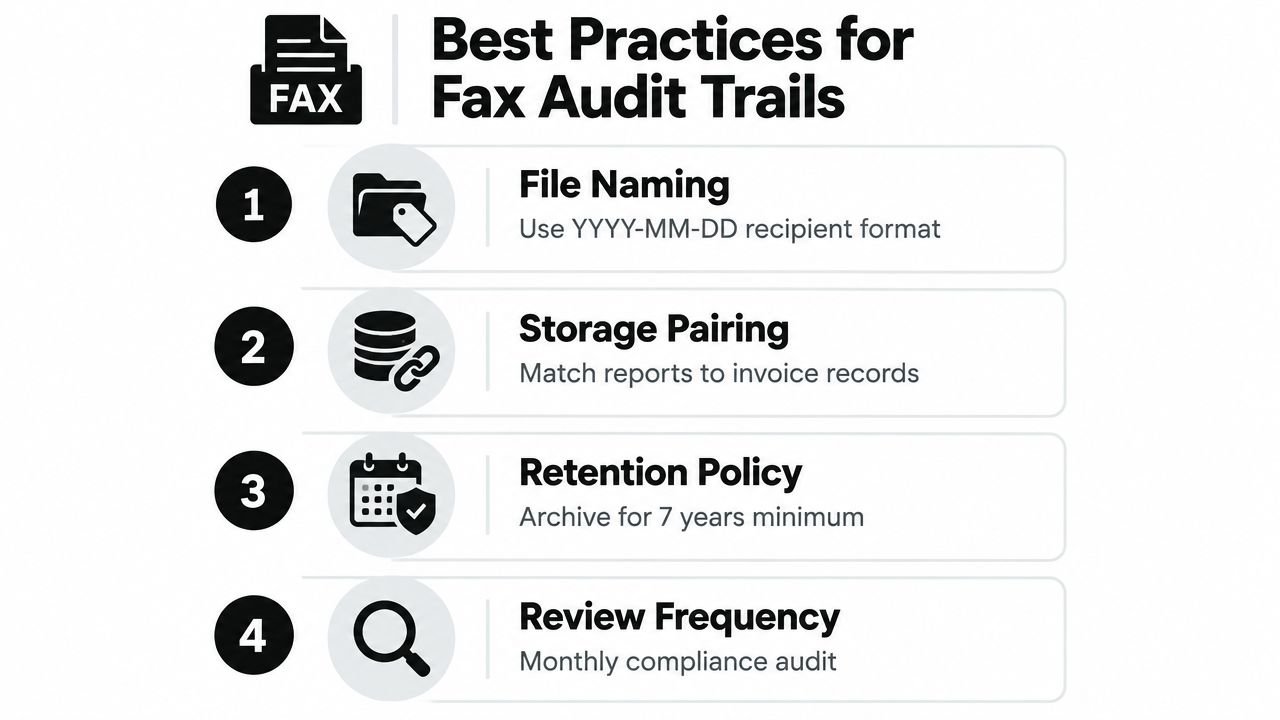
A fax report becomes much more useful when someone else can understand it months later. Save it with the original file, preserve the destination details, and use a naming convention that makes related records easy to find.
Build a repeatable record
- Name files consistently: Use a structure such as
YYYY-MM-DD-recipient-document-report, replacing the recipient label with an internal identifier when confidentiality requires it. - Pair source and confirmation: Store the sent document beside the report, with a clear relationship between the two filenames.
- Normalize time records: Keep the sender's timezone in the record, or convert times consistently when several offices share one workflow.
- Retain according to policy: Match the retention period to your organization's legal, contractual, and regulatory obligations. Don't choose a period casually for sensitive records.
- Review exceptions: Escalate failed and partial results, unusual error codes, wrong-number concerns, and transmissions involving incomplete or unreadable documents.
The report alone may be enough when the task requires evidence that a document was sent to a specified fax endpoint and the recipient's process accepts that form of confirmation. It's not enough when the workflow requires proof that a person reviewed the content, when the document is time-sensitive, or when a rule requires an acknowledgment or filing confirmation.
Recordkeeping habit: Save the report before closing the browser or walking away from the fax machine, then attach the follow-up evidence later.
A clean history also helps diagnose recurring problems. If several reports show the same destination failing during transmission, the pattern gives your administrator or service provider something concrete to investigate. If only one report has an incorrect number or page count, the issue may be a human entry or document-preparation error.
Finish each important fax with one question: what level of evidence does this workflow require? File the transmission report as transport evidence, then add a call, reply fax, portal acknowledgment, or other approved confirmation whenever the recipient's actual review matters.
SendItFax lets you send documents from a browser and review the destination, timestamp, page count, duration, and delivery status in the confirmation flow. Visit SendItFax to send your next fax without a fax machine and preserve the transmission record alongside your document.