You've got a PDF ready, the recipient has given you a fax number, and the deadline is probably sooner than you'd like. You don't want to install software, open an account, hand over card details, or start a “free” trial that becomes a subscription without warning. You just need the document delivered from a browser.
That's why no-signup faxing matters. A browser-based service can handle a one-off transmission without adding another login to your workflow. The practical question isn't whether you can send a PDF online. It's whether the free option is genuinely usable, protects your privacy reasonably well, and gives you enough feedback to know whether the fax arrived.
The Reality of Free Browser-Based Faxing
The word free covers several very different experiences. Some online fax providers let you upload a document only after registration, email verification, and payment-card entry. Others offer a trial that looks free at first, then requires cancellation before billing begins. That may work for regular business users, but it's unnecessary friction when you're sending one signed form from a borrowed laptop or a home office.
A no-signup browser workflow is different. You open the service, enter the destination fax number, upload the PDF, provide the sender details needed for transmission, and submit it. You don't need a fax machine, a dedicated phone line, or a mobile app. For a remote worker, freelancer, nonprofit volunteer, or last-minute sender, removing the account step is often more useful than adding a long list of premium features.
Fax remains common in regulated work for a practical reason. The U.S. healthcare system exchanges over 9 billion fax pages each year, and industry summaries place fax at roughly 70% of clinical communication, rising to about 90% when EHR-linked faxing is included. Those figures are reported in this overview of the future of digital faxing, which also explains why fax continues to support referrals, prior authorizations, records exchange, and release-of-information processes.
What “free” usually means
Free browser faxing is best suited to a small, occasional transmission. You may encounter limits on pages, daily sends, destination countries, or cover-page branding. Some tools support only one-way sending, which is fine if you only need to deliver a form and don't need a permanent number for replies.
A sensible rule is simple:
- Use a no-signup service for a time-sensitive, low-volume document when avoiding an account matters.
- Use a paid or account-based service when you need recurring delivery, inbound faxes, extensive history, stronger administrative controls, or a formal compliance program.
- Read the final confirmation screen before sending. A free label doesn't tell you whether the service adds branding, caps pages, or requires a particular destination format.
The goal isn't to pretend free faxing replaces a business fax system. It's to use the right tool for a one-off job without accepting hidden subscriptions or unnecessary data collection.
Preparing Your PDF for Flawless Transmission
A fax gateway doesn't treat a PDF like a normal email attachment. It converts the document into fax-compatible page images and negotiates transmission with the receiving machine. A PDF that opens perfectly in a browser can still fail if it contains a password, damaged internal structure, unsupported overlays, or annotations that haven't been merged into the page.
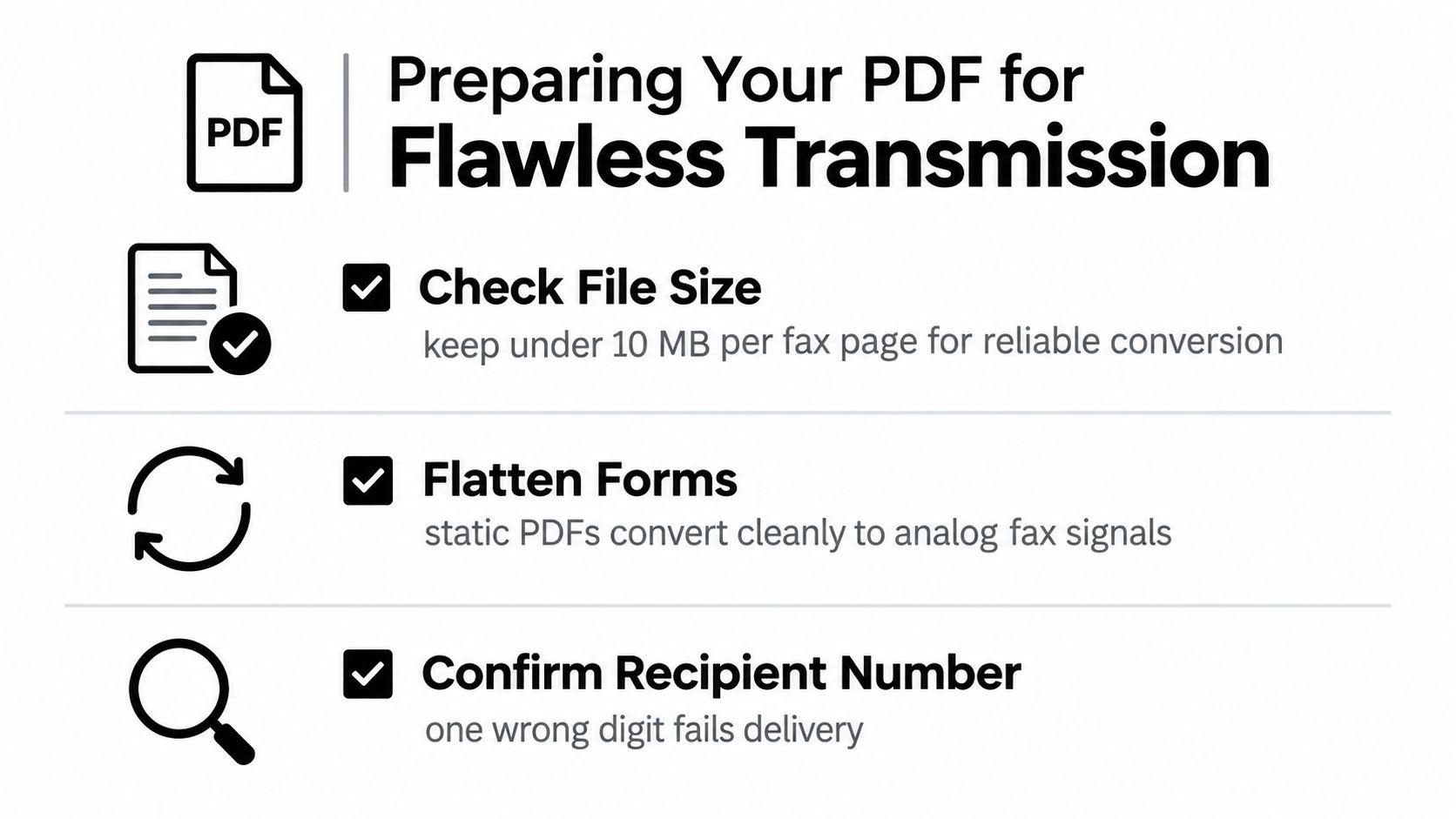
Start with the original file, not a compressed copy downloaded from an unknown source. Open every page and check that text, signatures, checkboxes, stamps, and handwritten notes appear correctly. If the document includes interactive fields or comments, flatten the annotations and form elements so they become part of the visible page rather than separate PDF objects.
A reliable pre-upload check
Remove protection. Password-protected and encrypted PDFs commonly cannot pass through conversion. Save an unrestricted copy only if you're authorized to do so, and keep the original protected version in your records.
Flatten dynamic content. A completed form should look like a static document. Print-to-PDF or an export option that preserves the visible page can help, but inspect the result afterward because some methods can reduce quality or remove fields.
Check the page edges. Keep important text away from the margins. Fax machines can crop slightly, and a signature or account number positioned too close to the edge may become unreadable.
Favor contrast over decoration. Black text on a light background converts more reliably than pale text, gradients, colored backgrounds, or intricate graphics. A clean scanned page is usually more useful than a visually polished but low-contrast layout.
Review the file size and page count. Free services often impose ceilings, and unusual PDF features can create conversion errors even when the file is small. If a scan looks blurry, enhance document scans before assembling the final PDF.
The fax troubleshooting guidance from Eclipso identifies password protection, damaged files, unsupported overlays, and page or size limits as common causes of failed delivery. It also recommends verifying the preview and making sure the recipient machine is reachable and set to auto-answer.
Practical rule: Never send a PDF you haven't opened from the exact file you plan to upload. The preview is your last chance to catch a blank page, missing signature, or cropped line.
Sending Your Document Without Creating an Account
For a one-off job, the browser workflow should feel closer to sending an attachment than managing a telecommunications account. Use a current browser, keep the prepared PDF available locally, and confirm the destination before you begin. If you're handling confidential material on a shared computer, use a private browsing window where appropriate and delete the local copy afterward.
Follow this sequence
Enter the destination number carefully. Include the full U.S. or Canadian fax number in the format the service requests. Check every digit against the recipient's written instructions. A fax sent to the wrong number may still produce a successful transmission notice, so accuracy matters more than speed.
Add the sender details requested by the form. A no-signup service still needs enough information to process the transmission and identify the sender. Provide only what the interface requires. Don't add sensitive information to optional fields unless the recipient needs it.
Upload the PDF and inspect the preview. Look for missing pages, rotated pages, broken characters, and signatures that disappeared during conversion. If the preview is wrong, stop and repair the source file instead of hoping the receiving machine will interpret it correctly.
Add a short cover message if useful. Include the recipient, sender, subject, page description, and a callback method that you're comfortable sharing. A concise cover page helps an office route the document without forcing staff to open every attachment.
Submit the fax and retain the status result. Save the confirmation screen or delivery email, especially when the fax supports a deadline, contract, referral, or formal notice.
A service such as SendItFax lets users upload a PDF in the browser and send it to a U.S. or Canadian fax number without creating an account. Its free flow supports a limited document bundle and may place service branding on the cover page, so check the displayed terms before you confirm. The service uses essential session cookies and collects sender and recipient details needed to process delivery, which is different from promising that no information is handled at all.
If your PDF needs a signature before transmission, prepare that separately rather than signing inside an unfamiliar fax form. A guide to sign PDF free no account can help you complete the document first, then upload the finished static file.
For a concise explanation of the account-less workflow and its practical limits, see this free online fax guide with no sign-up. The important distinction is that skipping registration saves setup time, but it doesn't remove the need to verify the recipient, review the document, and protect the local file.
Navigating Free Tier Limits and Low-Cost Upgrades
A free fax is useful when the document is short and the presentation can tolerate a provider-branded cover sheet. It becomes a poor fit when you're sending a longer contract, a multi-part medical record, or a client-facing document that should look as if it came directly from your organization.
The practical decision is less about “free versus paid” and more about how much friction the document can tolerate. Free tiers may impose page caps, daily caps, domestic-only coverage, or branding. A pay-as-you-go option can make sense when you need priority handling, a larger bundle, or no third-party mark, without committing to a recurring plan.
| Feature | Free Tier | Pay-As-You-Go Upgrade |
|---|---|---|
| Account setup | Often designed for occasional browser use | May still avoid a recurring subscription, depending on the provider |
| Document size | Suitable for short transmissions within the displayed limits | Better suited to larger document bundles |
| Cover page | May include service branding | May allow branding removal or no cover page |
| Delivery handling | Standard queue or processing | Can include priority delivery |
| Best use | One-off forms, short notices, routine paperwork | Contracts, larger records, deadline-sensitive or client-facing documents |
Don't assume a trial is equivalent to a free one-time fax. Consumer guidance on sending and receiving fax online highlights common restrictions such as page caps, daily limits, logos, and account requirements. Those conditions affect both privacy and convenience, especially when a provider asks for a credit card before you've confirmed that the service supports your destination.
When the small upgrade is justified
Pay for the transmission when a branded cover page would look unprofessional, the file exceeds the free allowance, or a delay could affect a filing or transaction. A one-time charge can be more economical than opening a subscription you'll forget to cancel.
For a closer look at how a free trial differs from a one-off or paid workflow, consult this fax free trial comparison. Read the terms at the point of sending, because limits and pricing can change.
Troubleshooting Failed Fax Deliveries
A failed fax doesn't automatically mean the PDF was defective. The receiving machine may be switched off, set to manual answer, busy with another transmission, disconnected, or attached to a line that doesn't negotiate well with the sending gateway. VoIP gateways and weak line conditions can also interrupt a session after the machines have already connected.
Start with the status message rather than sending the same file repeatedly. A busy result points toward the recipient's line. An unreachable result suggests the number, machine, or connection needs checking. A conversion error points back to the PDF, particularly if the file contains protection, overlays, damaged objects, or unsupported features.
Diagnose the common failure patterns
Busy or no answer: Confirm the number with the recipient and ask whether the machine is powered on and set to auto-answer. Retry later if the office line is active.
Aborted mid-transmission: Reduce the document if possible, simplify the PDF, and resend. Long jobs keep the connection open longer, creating more opportunities for a disconnect.
Blank or incomplete pages: Open the source again, flatten forms and annotations, and inspect the generated preview. A blank output usually requires document repair rather than another blind retry.
Repeated gateway errors: Try a later transmission and ask the recipient whether other faxes are arriving. If short files work but this destination repeatedly fails, the line or gateway may be the limiting factor.
Transmission time varies with page count, document complexity, and network type. Digital fax services are often reported at roughly 2 to 5 seconds per standard page, while traditional faxing can take around 30 to 60 seconds per page and much longer for image-heavy documents or weak lines, as described in this analysis of fax transmission speed. A 10-page fax over 9,600 bps can take roughly 10 to 12 minutes, which helps explain why a longer attachment is more vulnerable to a mid-session failure.
Use deliberate retries
Wait for the service to finish reporting the attempt before launching another one. Check whether the recipient received partial pages, because duplicate transmissions can create confusion. If the provider supports automated retries, enable them for a busy or unreachable destination. The cited real-world study in the speed analysis recorded a 37.7% baseline failure rate and 98.7% eventual delivery after automated retries, so retry logic can materially change the outcome.
Keep a record of the successful confirmation, including the destination number, time, and page count. For a deadline-sensitive document, contact the recipient directly after delivery and ask them to confirm that the pages are legible.
Best Practices for Secure and Professional Faxing
Faxing is often a required part of healthcare, legal, insurance, government, and real-estate administration. The fact that a browser tool is convenient doesn't make a sensitive document casual. Treat the PDF, recipient number, confirmation record, and local download as parts of the same controlled process.
Before sending, verify the destination using a trusted contact record or a direct callback. Don't rely on a number copied from an old email thread if the document contains protected health information, legal terms, financial details, or identity documents. A wrong digit can send a valid transmission to the wrong organization.
Keep the workflow defensible
Minimize the content: Send only the pages the recipient needs. Remove unrelated attachments, internal notes, and duplicate drafts.
Use a purposeful cover page: Identify the intended recipient, sender, subject, and callback details. Avoid placing unnecessary sensitive information on a cover that may be seen before the attachment.
Check the output: A delivery confirmation shows that the transmission completed. It doesn't prove that every page was readable, correctly routed, or reviewed by the intended person.
Control local copies: Delete temporary downloads and scanned images from shared devices. Store the final document and delivery record only where your organization permits.
Match the tool to the obligation: A free no-signup service can handle an occasional administrative fax, but organizations with formal retention, access-control, audit, or regulatory requirements should use a service that explicitly supports those needs.
The best balance is minimum disclosure with maximum verification. Skip unnecessary registration when the job is occasional, but don't skip the checks that protect the recipient and your records.
For a quick browser-based transmission to a U.S. or Canadian fax number, SendItFax lets you upload a PDF, add an optional cover message, and send without creating an account. Visit SendItFax when you need a straightforward option for a short, time-sensitive fax and want to review the free and pay-as-you-go choices before submitting.